Paid Memberships Pro ships with the Reason for Cancelling Add On, and for most membership sites that’s where this story should start and stop. It adds a single field to the existing cancellation page: What made you cancel?. The answer is saved to the member’s profile. One screen, one question, done.
That design isn’t an accident. It reflects how we think about cancellations:
- Respect the member’s time. Cancelling should be at most one screen of hassle. If a member has decided to leave, dragging them through three pages of “are you sure?” doesn’t keep them, it just leaves them annoyed.
- The gold is in the written answer. Asking “What made you cancel?” and reading the replies is far more useful than a multiple-choice menu. Given a list of options, members tend to pick the first one (or any one) just to get through the screen. Randomizing the order changes which option gets over-picked; it doesn’t fix the bias.
- One screen still has room for a save-the-day moment. You can add reminders of the level’s benefits, offer a discount, or surface a downgrade option: all on the same page, all without the dark patterns common to “are you really sure you want to cancel?” interstitials.
There’s a legal angle too: regulations around frictionless cancellation. California’s SB 478, the FTC’s Click-to-Cancel rule and EU consumer protection are moving the industry toward cancelling has to be at least as easy as signing up. Long forms create risk; the Reason for Cancelling Add On is squarely on the safe side of that line.
So why this post?
There are legitimate cases for a multi-step external form on top of the basic cancel flow. Maybe you want to branch part of the conversation off to your retention team. Or, you may want a structured and free-text answer, plus a third “wait, can we talk?” path that hands off to a human rather than completing the cancellation. You could be running a high-touch program, where a retention call really is the most respectful next step for some members.
If that’s you, this post walks through one way to build it, using the free version of Forminator and two PHP snippets that tie Forminator’s submission event back to PMPro. We’ll keep the Reason for Cancelling Add On in mind as the simpler baseline you’re choosing to extend.

Table of contents
- Start With the Reason for Cancelling Add On
- When a Multi-Step Survey Makes Sense
- Choosing a Forms Plugin
- Step 1: Install Forminator
- Step 2: Build the Three-Step Survey
- Step 3: Add the Cancel-or-Route Custom Code
- Adding the Recipe to Your Website
- Step 4: Create the Cancellation Survey Page
- Step 5: Send Members to the New Page
- Testing the Flow
- Where to Take This Next
- Start Simple, Then Extend
Start With the Reason for Cancelling Add On
Before you build anything custom, install the Reason for Cancelling Add On and live with it for a few months. It adds one well-designed field to the cancellation page, saves every response to the member’s profile, and gives you a steady stream of plain-language feedback you can quote in team meetings.
If that’s working, leave it alone. The recipe in the rest of this post is for sites that have a specific reason to go further, usually a retention play that needs a real branch in the flow. Plus, you’ll have some of the most common cancellation objections straight from your members to use in building the flow.
When a Multi-Step Survey Makes Sense
A multi-step external form is worth the extra setup when you need a branch in the cancellation path, for example:
- Cancel my membership: Just end the subscription.
- Actually, can someone talk to me first? Leaves the subscription active and sends the request to your retention team.
You can’t easily build that with a single text field. You need a dedicated decision step at the end, separate from the feedback step, and a way to route what happens server-side based on the answer.
Other reasonable triggers for going custom: you want to ask follow-up questions only when a specific reason is chosen (conditional logic), you want to gate the survey behind specific levels, or you want to pipe certain submissions into Slack/Help Scout/your CRM.
What’s not a good reason to go multi-step:
- “We want a longer form so people change their mind.” That’s a dark pattern. Members notice, the trust cost is real, and one-click cancellation rules increasingly make it a legal problem too.
- “Multiple-choice will give us cleaner data than a textarea.” It really won’t. Selection bias eats the signal; the prose is where the insight lives.
Choosing a Forms Plugin
The integration we’re about to build needs four things from the forms plugin:
| Requirement | Why |
|---|---|
| Multi-step / page breaks | We’re putting the decision step on its own screen, after the feedback step. |
| Conditional logic | The final thank-you message should differ depending on which branch the member chose. |
| PHP action on submit | We need to run our own code: update PMPro membership, save Member Notes, fire a retention hook when the form completes. |
| Free | So you can try the recipe end to end without a new subscription. |
Gravity Forms and Fluent Forms are both excellent plugins, if you already own the Pro version of either, the integration in this post translates cleanly by swapping the hook name. For a recipe that anyone can follow without buying anything, Forminator is the clear pick: multi-step pages, conditional logic, and submission action hooks are all in the free tier.
Step 1: Install Forminator
In your WordPress admin:
- Go to Plugins > Add New.
- Search for Forminator.
- Click Install Now, then Activate.
No license, no account. You’ll see a new Forminator menu in the admin sidebar.
If you want submission notification emails on top of the in-app entries view, add your support address under Forminator > Settings > Email. Forminator will use it when you configure email notifications on the form below.
Step 2: Build the Three-Step Survey
Go to Forminator > Forms > Create, pick Blank Form, and name it PMPro Cancellation Survey.
The drag-and-drop builder uses Wrappers (rows) that hold Fields. We’ll add eight fields across three logical steps, separated by two Page Break fields.
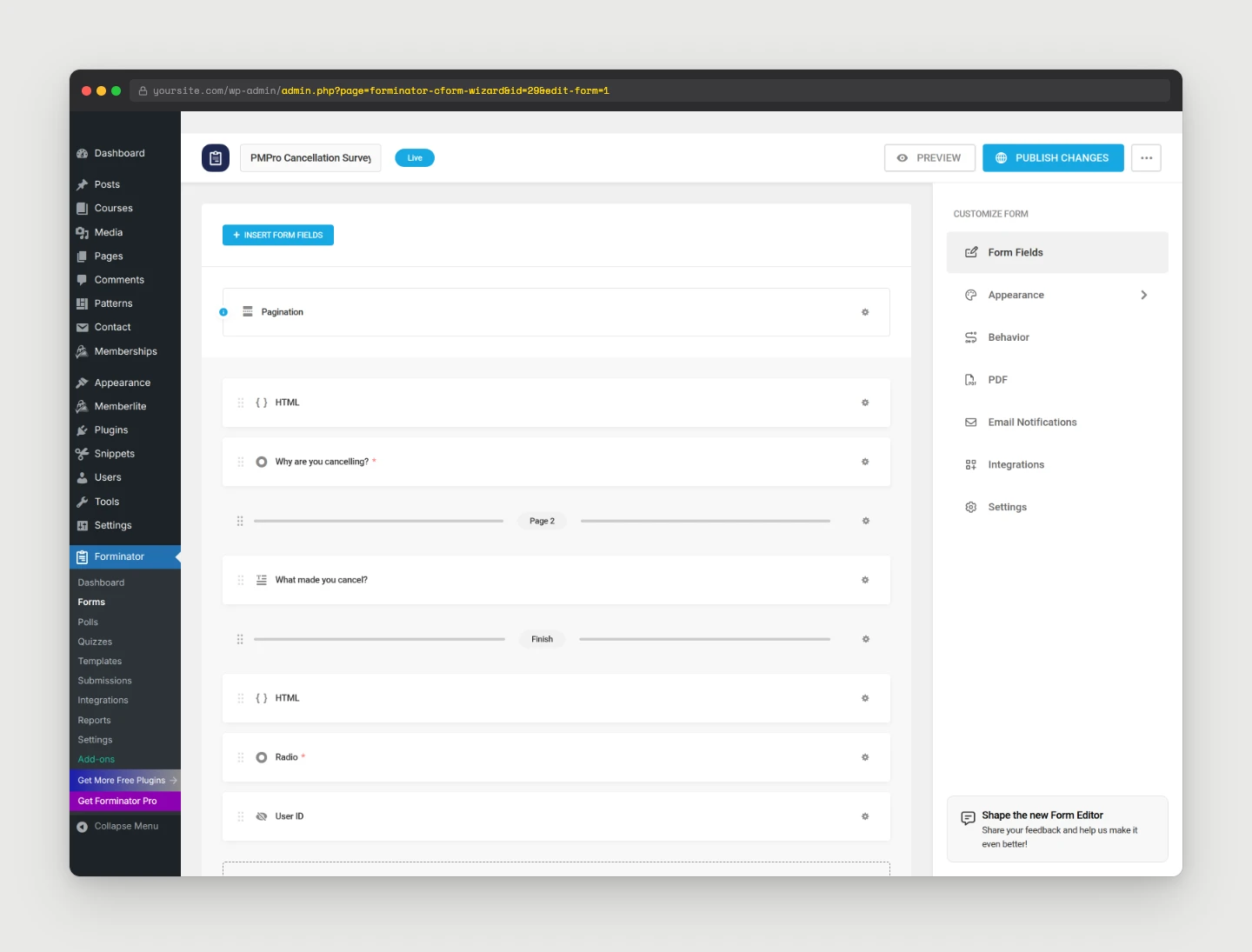
Step 1: Why are you cancelling?
Add these fields to the top of the form:
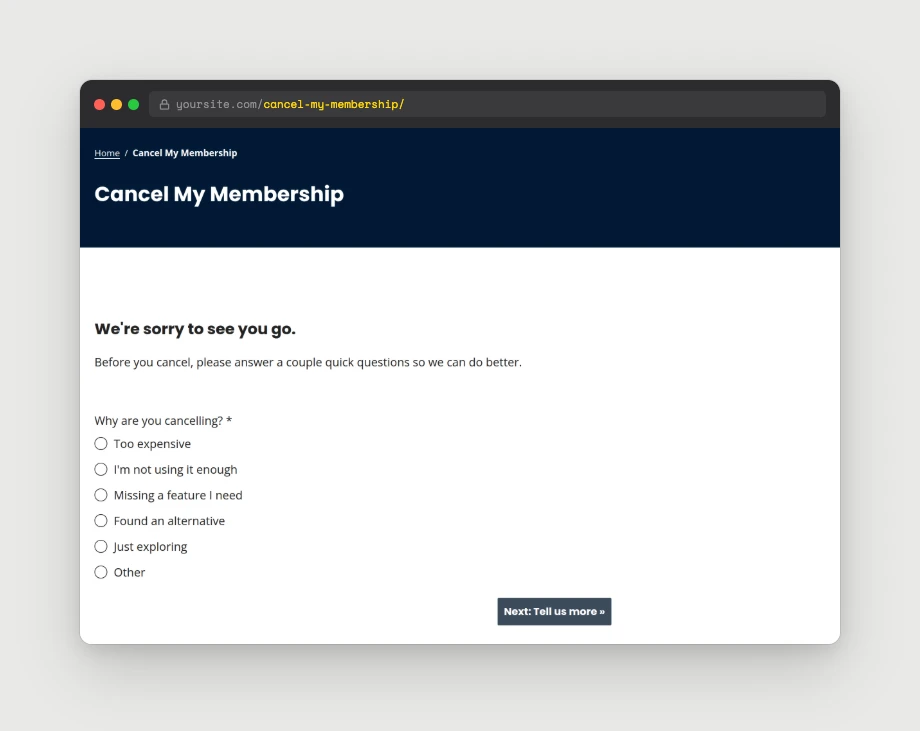
- HTML field with the intro copy: a heading “We’re sorry to see you go.” and a short subhead “Before you cancel, please answer a couple quick questions so we can do better.”
- Single Choice (Radio) field with label Why are you cancelling?, required, and six options:
- Too expensive (
too_expensive) - I’m not using it enough (
not_using) - Missing a feature I need (
missing_feature), Found an alternative (found_alternative) - Just exploring (
exploring) - Other (
other). - The trade-off here: a radio gives you tidy data to count, but the Paragraph field in Step 2 is where the most useful answers will live. Treat the radio as a coarse bucket, not the headline metric.
- Too expensive (
- Page Break field. Set the next button label to Next: Tell us more ».
Step 2: Free-text Feedback
- Paragraph (Textarea) field with label What made you cancel?, the description “Optional, but appreciated. The team reads every response.”, and required = No.
- The wording matters. “What made you cancel?” tends to draw out more honest, specific answers than the more generic “Anything else to share?”.
- Page Break field. Set the next button label to Next: Final step ».
Step 3: The Branch
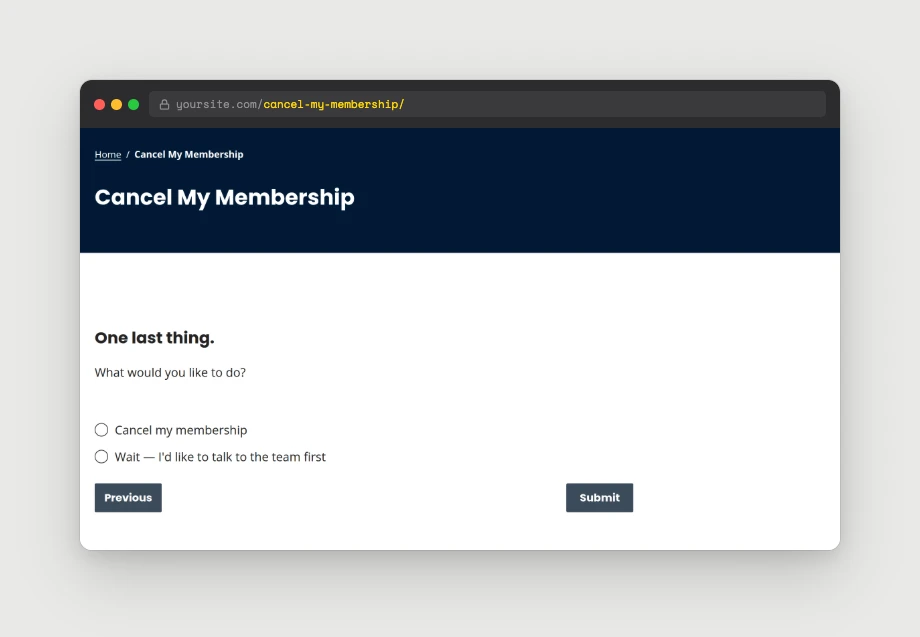
- HTML field with heading “One last thing.” and the subhead “What would you like to do?”
- Single Choice (Radio) field with label Final step, hide label = Yes (the HTML field above is the visible heading), required, and two options:
- Cancel my membership (
cancel_confirmed), - Wait, I’d like to talk to the team first (
contact_team).
- Cancel my membership (
- Hidden field with label User ID and default value set to User ID from the autofill dropdown. (Forminator replaces this with the logged-in user’s ID at submission.)
Submission Behavior
Under Form Settings > Submission Behaviour, choose Display Thank You message. Expand Conditional Logic and add two behaviors so the message matches the branch:
- Show this thank-you when
radio-2iscancel_confirmed: “Your membership has been cancelled. Thanks for the feedback. We’ll use it to do better.” - Show this thank-you when
radio-2iscontact_team: “Thanks! A teammate will reach out shortly to find a path that works for you.”
Under Form Settings > Email Notifications, add an admin notification so the team sees every submission in their inbox. Forminator’s field placeholders (e.g. {form_id}-radio-1) render the chosen labels in the email body.
Save and publish the form. Note the Form ID at the top of the editor, you’ll need it in the next step.
Step 3: Add the Cancel-or-Route Custom Code
Forminator handles the form. PMPro handles the membership. The glue is a small PHP snippet that listens for the form submission, reads the answers, writes a Member Note, and then either cancels the membership or fires a retention hook.
Where the Responses Live
The handler saves each submission in three places so admins and developers can both get at the data: pmpro_cancel_survey_history (full array of every submission) and pmpro_cancellation_reason (the most recent reason) as user meta, plus an entry in PMPro’s built-in Member Notes (visible on the user’s profile screen).
Get the Snippets
This recipe uses two snippets from the public PMPro Snippets Library. Both are included below.
Handle Forminator submissions for a PMPro cancellation/retention survey
Change the default PMPro Cancel link to the cancellation survey page
Adding the Recipe to Your Website
You can add this recipe to your site by creating a custom plugin or using the Code Snippets plugin available for free in the WordPress repository. Read this companion article for step-by-step directions on either method.
Before You Save the Snippet
Open the handler snippet and find the function pmpro_cancel_survey_form_id() near the top.
- Change the return value on line 21 from
29to your own Forminator Form ID (Forminator shows the ID at the top of the form editor). - The field IDs the snippet looks up (
radio-1,textarea-1,radio-2,hidden-1) are Forminator’s defaults. They appear in the top-right of each field while you’re editing it. - If you built the form differently, adjust the
$maparray at the top ofpmpro_cancel_survey_extract_values()to match.
What the Snippet Does, End to End
- Listens for
forminator_form_after_save_entry, the action Forminator fires after a submission is written to the database. - Ignores submissions from any other form.
- Pulls the saved entry, extracts the four fields we care about, and resolves the user (logged-in user first, hidden field as a fallback).
- Saves the full payload to
pmpro_cancel_survey_historyuser meta (an array of all submissions, in case the same person fills it out twice) and pins the most recent reason atpmpro_cancellation_reason. - Appends a PMPro Member Note to the member’s profile (the
user_notesuser meta that PMPro 3.x renders on the Member Edit screen, built right in). - If the member chose Cancel my membership, calls
pmpro_cancelMembershipLevel()on every active level. If they chose Talk to the team first, the membership stays put and we fire the custompmpro_cancellation_retention_requestaction you can hook into.
Step 4: Create the Cancellation Survey Page
In WordPress admin, create a new page. Call it “Cancel My Membership“. Paste the Forminator shortcode into the content, matching the Form ID from Step 2:
[forminator_form id="29"]
If you want to keep the page out of search engines, add a noindex tag with your SEO plugin of choice. Save and publish.
Step 5: Send Members to the New Page
PMPro’s default cancellation link points members to ?action=cancel on the Membership Account page. The second snippet in Step 3 sends to your new survey instead.➜ pmpro-cancel-survey-redirect.php
If you used cancel-my-membership as your page slug, the snippet works as-is. If you used a different slug, change the one string in get_page_by_path() on line 18 to match.
That’s the entire wire-up. Members who click “Cancel” on their account page now land on the survey, and the survey decides what happens next based on their final-step choice.
Testing the Flow
Make two test members. Give each one an active membership.
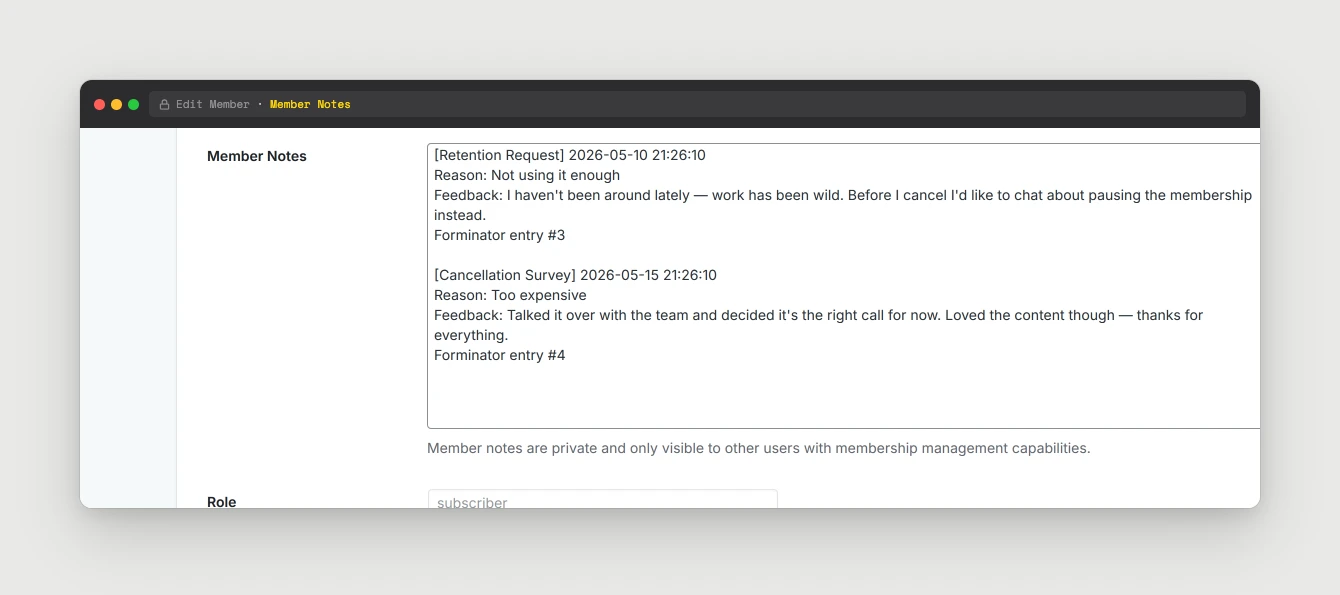
Test the cancel branch: log in as the first test member, walk through the form, choose Cancel my membership on the last step, and submit. Then in admin:
- Open Memberships → Members and confirm the user’s level is now empty.
- Open the user in Users → All Users, scroll to Member Notes, and confirm the
[Cancellation Survey]entry is there.
Test the retention branch: log in as the second test member, walk through the form, but choose Wait, I’d like to talk to the team first. After submit:
- Confirm the user’s membership is still active in Memberships > Members.
- Confirm a
[Retention Request]note is on the user’s profile. - Watch for the admin email if you wired one up.
If anything’s off, the most likely culprit is the Form ID. Re-check that the constant in the snippet matches the ID Forminator assigned.
Where to Take This Next
The hook in the retention branch – do_action( 'pmpro_cancellation_retention_request', $user_id, $survey ) – is the door to everything else. A few directions:
- Post to Slack. Add a
wp_remote_postto your#retentionchannel webhook with the user’s email and reason. The team sees it before they finish their coffee. - Open a Help Scout / FreeScout conversation. Both have REST APIs for creating tickets. Tag with
retentionso it lands in the right inbox. - Apply a discount automatically. If your retention play is “always offer 30% off for two months,” create a PMPro Discount Code on the fly and email the member the link.
- Track the reasons over time. Every submission writes to
pmpro_cancellation_reasonuser meta. A short query againstwp_usermetagives you a monthly breakdown that pairs nicely with the written-text answers from the Reason for Cancelling Add On.
You can also extend the survey itself. Conditional logic in Forminator lets you ask follow-ups only when a specific reason is chosen, e.g., reveal a “which feature did you need?” field when Missing a feature I need is selected. The submission handler doesn’t care how many fields you add, as long as the four field IDs it looks up are still there.
Whichever direction you take, the framework is the same: keep the path short, ask one well-worded open question, save the answers somewhere the team will actually read them, and respect the member’s choice when they’re done.
Related Reading
Start Simple, Then Extend
If you’re reading this post and you don’t yet have a branching retention flow in mind, our honest recommendation is to not build the recipe above. At least not yet.
Install the Reason for Cancelling Add On, live with the answers for a few months, and let the data tell you whether a multi-step survey would actually move the needle.
If the data says yes, or if you already know you need a real branch in the cancellation flow, come back to this post and you’ll have everything you need to build it.
Either way, you’re putting feedback infrastructure in place. That’s the win.

Free Download: The AI-Powered Membership Site Blueprint
Download the free guide: Learn how to plan, build, and grow a membership site using AI as your strategic partner: from buyer persona to launch and beyond.