The Member Directory and Profile Pages Add On uses a single Google Maps API key for two different jobs: rendering the interactive member map in the browser with the Google Maps JavaScript API, and converting member addresses into map coordinates with the Google Geocoding API. Both calls read that same key from Memberships > Settings > Advanced.
That single key forces a tradeoff. Restrict it by HTTP referrer, the way Google recommends for any key exposed in browser JavaScript, and your server-side Geocoding API calls stop working, since Google cannot validate a referrer on a request that never came from a browser. Leave it unrestricted so geocoding keeps working, and you have a public API key anyone can find in your page source and use on their own projects at your expense.
This code recipe shows you how to use the pmpromd_maps_geocoding_api_key filter to give geocoding its own private key. With two keys, you can restrict each one properly: the public key by HTTP referrer, the geocoding key by server IP address, exactly as Google’s documentation recommends.
Do You Need This Recipe?
This recipe is worth adding if any of the following apply to your site:
- Your Google Maps API key is unrestricted (no HTTP referrer restriction), which means anyone who views your page source can copy it and use it on their own site, and Google bills the usage to your account.
- You tried restricting the key by HTTP referrer, and your member map’s geocoding stopped working, since referrer restrictions block server-side requests.
- A security review flagged that your single Maps API key is exposed in public JavaScript with no restrictions.
If your Maps API key is already restricted and your map still works, or you are not concerned about the key being public, this recipe is optional.
Best Practices and Considerations
Google Cloud lets you restrict an API key in one of two ways: by HTTP referrer (for keys used in browser JavaScript) or by IP address (for keys used in server-side calls). You cannot apply both restriction types to the same key. That is the core reason to split the key:
- Keep your existing key restricted by HTTP referrer for the JavaScript Maps API, since that call always originates from a visitor’s browser.
- Create a second key restricted by your server’s IP address, and enable it only for the Geocoding API. Use that key with this filter.
About the Code Recipe
The pmpromd_maps_geocoding_api_key filter runs right before the Member Directory and Profile Pages Add On sends a geocoding request to Google. Internally, the Add On calls apply_filters( 'pmpromd_maps_geocoding_api_key', $map_api_key ), passing in the key currently configured on the Advanced settings page. Your callback receives that value and returns the key you want used instead.
Returning a different string here overrides the key for geocoding calls only. Your Advanced settings page key still handles the front-end JavaScript map, untouched.
Step-by-Step Implementation Guide
- In the Google Cloud Console, create a new API key and restrict it to the Geocoding API.
- Under Application restrictions, choose IP addresses and add your web server’s outbound IP address (your host can provide it if you don’t know it).
- Add the snippet below to a Code Snippets plugin or a site-specific plugin, replacing
NEW_KEY_HEREwith your new key. - Trigger a geocoding event, such as a member updating their address, and confirm the member’s location still appears correctly on the map.
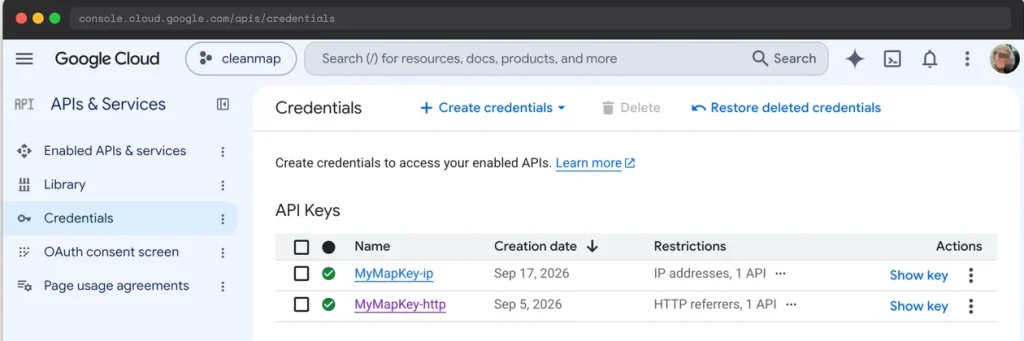
When you are done, your Credentials page should show two separate API keys, each with its own restriction type.
The Code Recipe
Adding the Recipe to Your Website
You can add this recipe to your site by creating a custom plugin or using the Code Snippets plugin available for free in the WordPress repository. Read this companion article for step-by-step directions on either method.
How to Customize This Code Recipe
- Insert your key (line 19): Replace
NEW_KEY_HEREwith your restricted geocoding API key. - To pull the key from an environment variable or
wp-config.phpconstant instead of hardcoding it in the snippet, swap the assignment for something like$key = defined( 'PMPRO_GEOCODING_API_KEY' ) ? PMPRO_GEOCODING_API_KEY : $key;.

Get Support From Our Team of Experts
Have a question about how to use this feature? Our Support Page outlines three ways to get support.
Our Max plans include hands-on help customizing your membership site and implementing new features. Upgrade to PMPro Max now »