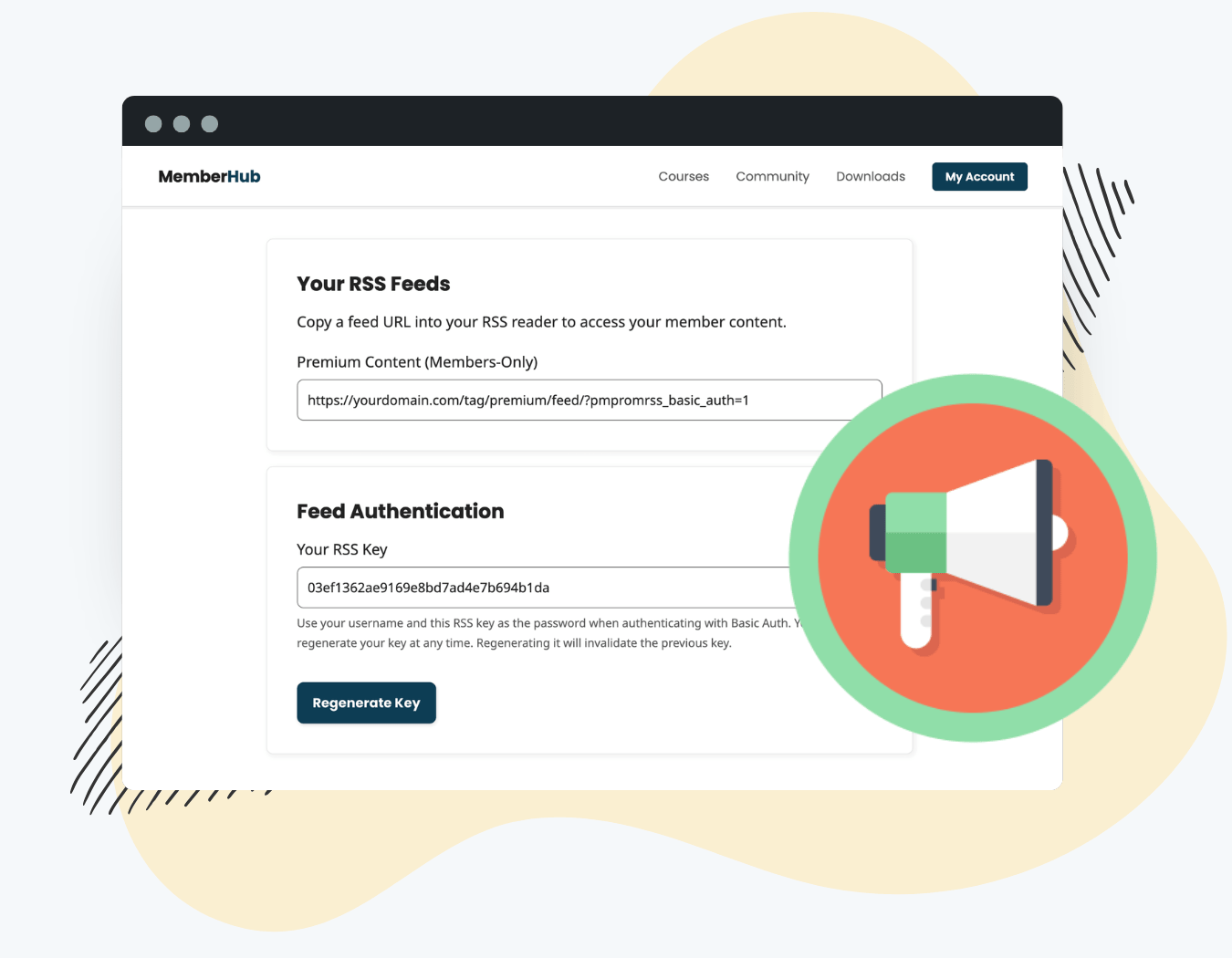
The Member RSS Feed Add On for Paid Memberships Pro adds a unique, authenticated feed URL to each member’s account. Members copy the URL into any RSS or podcast reader, optionally complete an authentication step, and receive a live content feed filtered to their membership level.
Key Features of Member RSS
- Deliver personalized RSS feed URLs tied to each member’s account
- Secure podcast feeds: protected audio enclosures are stripped from feed items the member cannot access
- Give members a dedicated feeds management page using the
[pmpro_member_rss]shortcode - Let members regenerate their own key without contacting you
- Enable Basic Authentication as an alternative to URL-based keys
- Customize which feeds appear in a member’s feed list using a filter
- Control authentication behavior from three settings in Memberships > Settings > Advanced
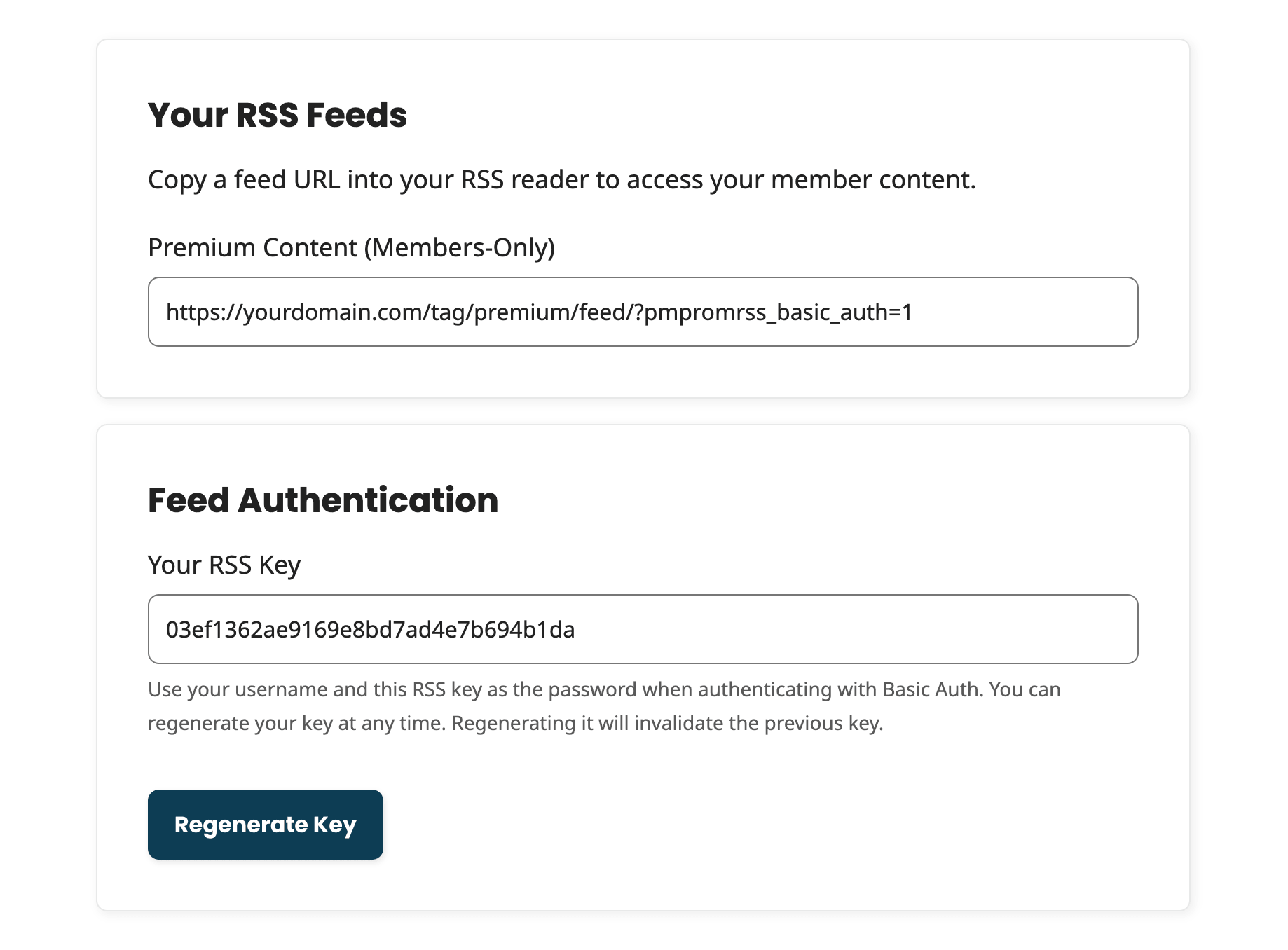
Table of contents
Installation
You must have the Paid Memberships Pro plugin installed and activated with a valid license type to use this Add On.
- Navigate to Memberships > Add Ons in the WordPress admin.
- Locate the Add On and click Install Now.
- To install this plugin manually, download the .zip file above, then upload the compressed directory via the Plugins > Add New > Upload Plugin screen in the WordPress admin.
- Activate the plugin through the Plugins screen in the WordPress admin.
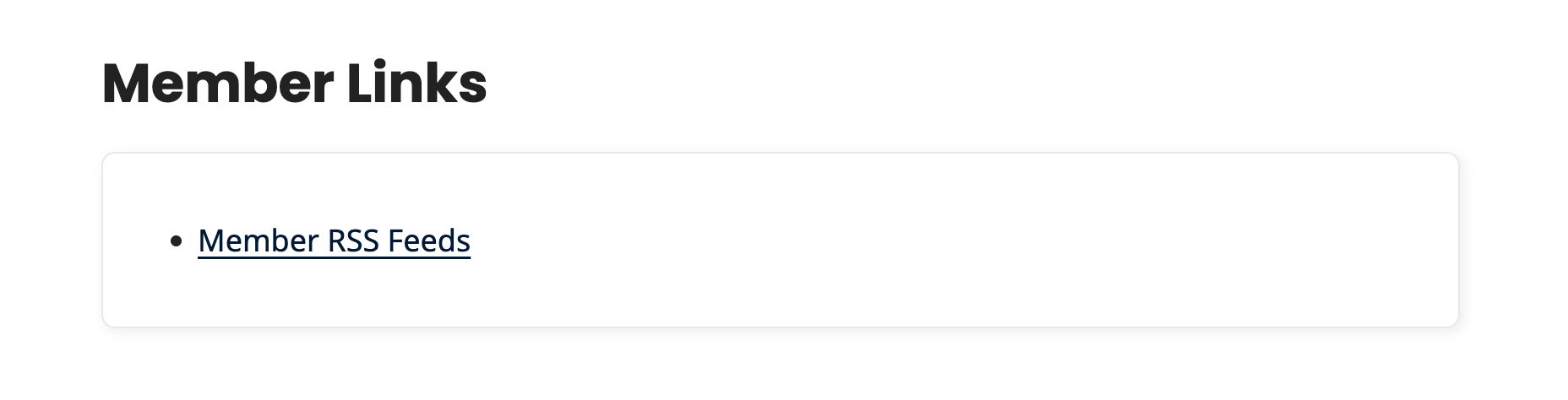
No additional setup is required to use the basic memberkey functionality. Feed links appear automatically in the Member Links section of the Membership Account page.
How It Works
When the Member RSS Feed Add On is active, PMPro assigns each member a unique key stored as WordPress user meta (pmpromrss_key). This key is appended to any WordPress feed URL as a ?memberkey= parameter.
When a feed request comes in with a valid memberkey, the plugin temporarily sets the user context to the key owner and evaluates post access using pmpro_has_membership_access_filter. The resulting feed includes:
- All posts the member can access based on their PMPro level
- All unprotected (public) content
- Excludes posts the member’s level cannot access
For podcast feeds, protected enclosures (audio files) are stripped from any feed item the member cannot access. Restricted post content in the feed is replaced with a custom message via pmpro_rss_text_filter.
If no memberkey is present in the feed URL, the feed behaves like a standard WordPress RSS feed and shows recent public posts only.
Configure Authentication Settings
Three settings control how members authenticate with their feeds. Navigate to Memberships > Settings > Advanced and look for the Other Settings section.
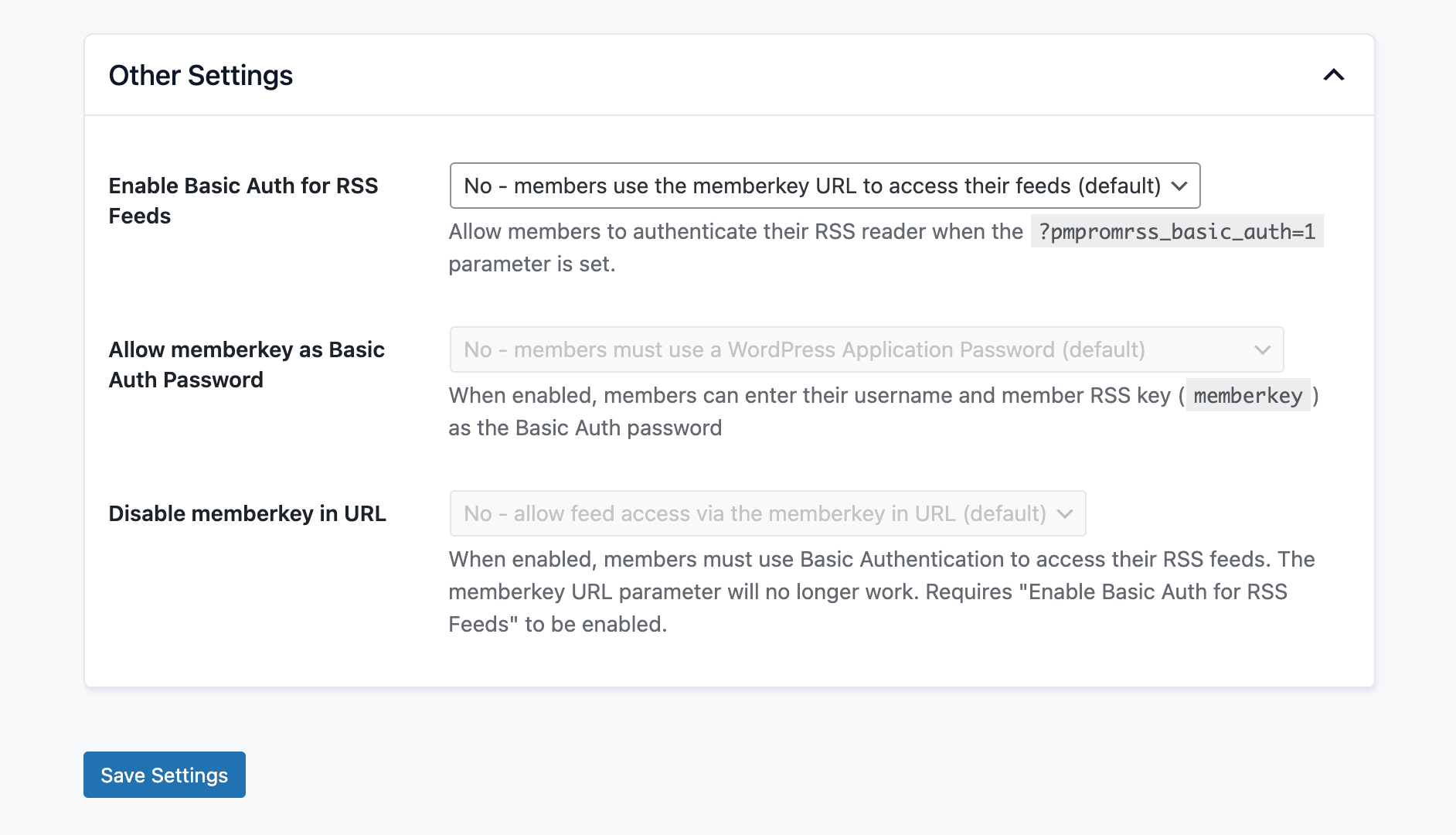
Enable Basic Auth for RSS Feeds
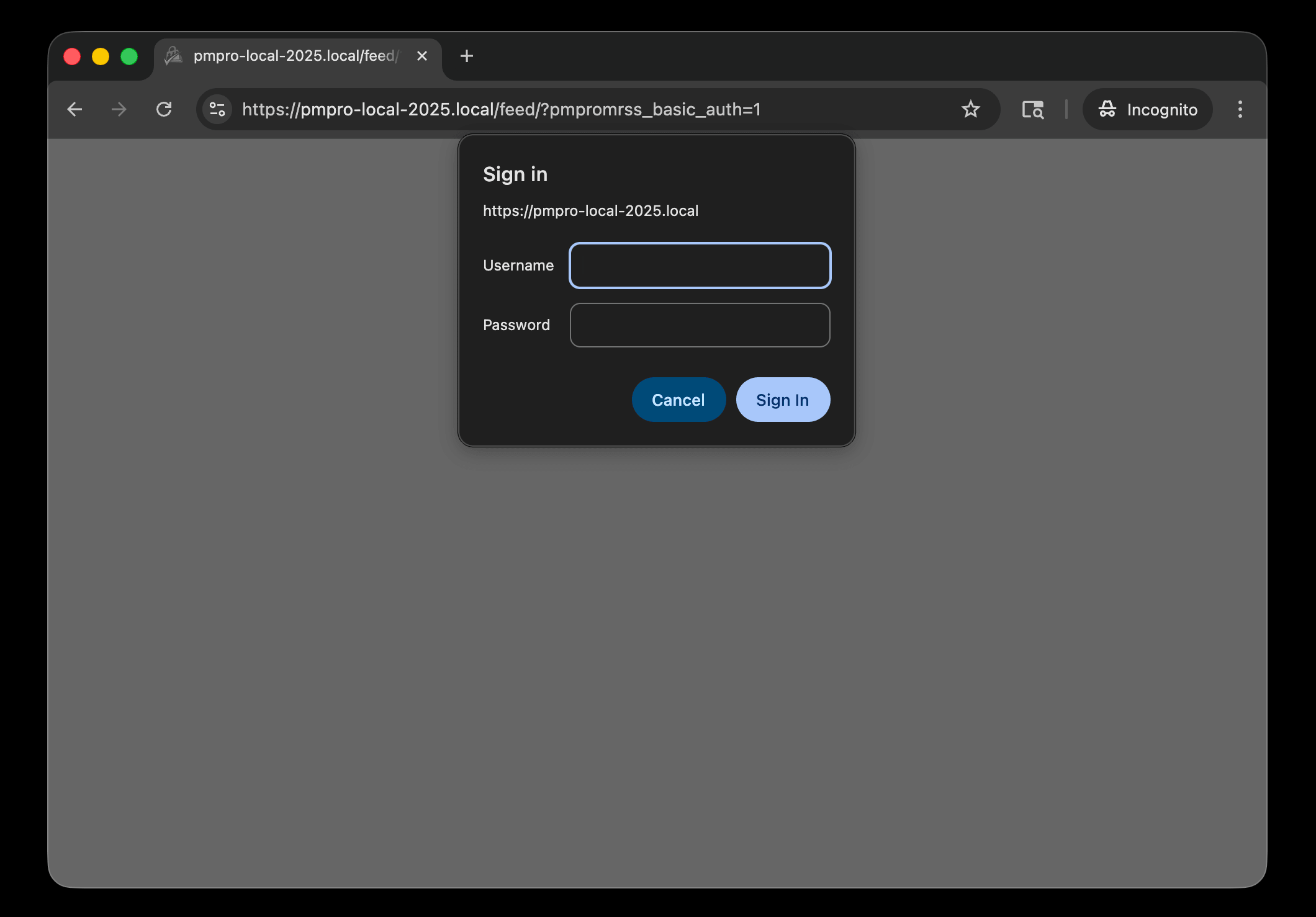
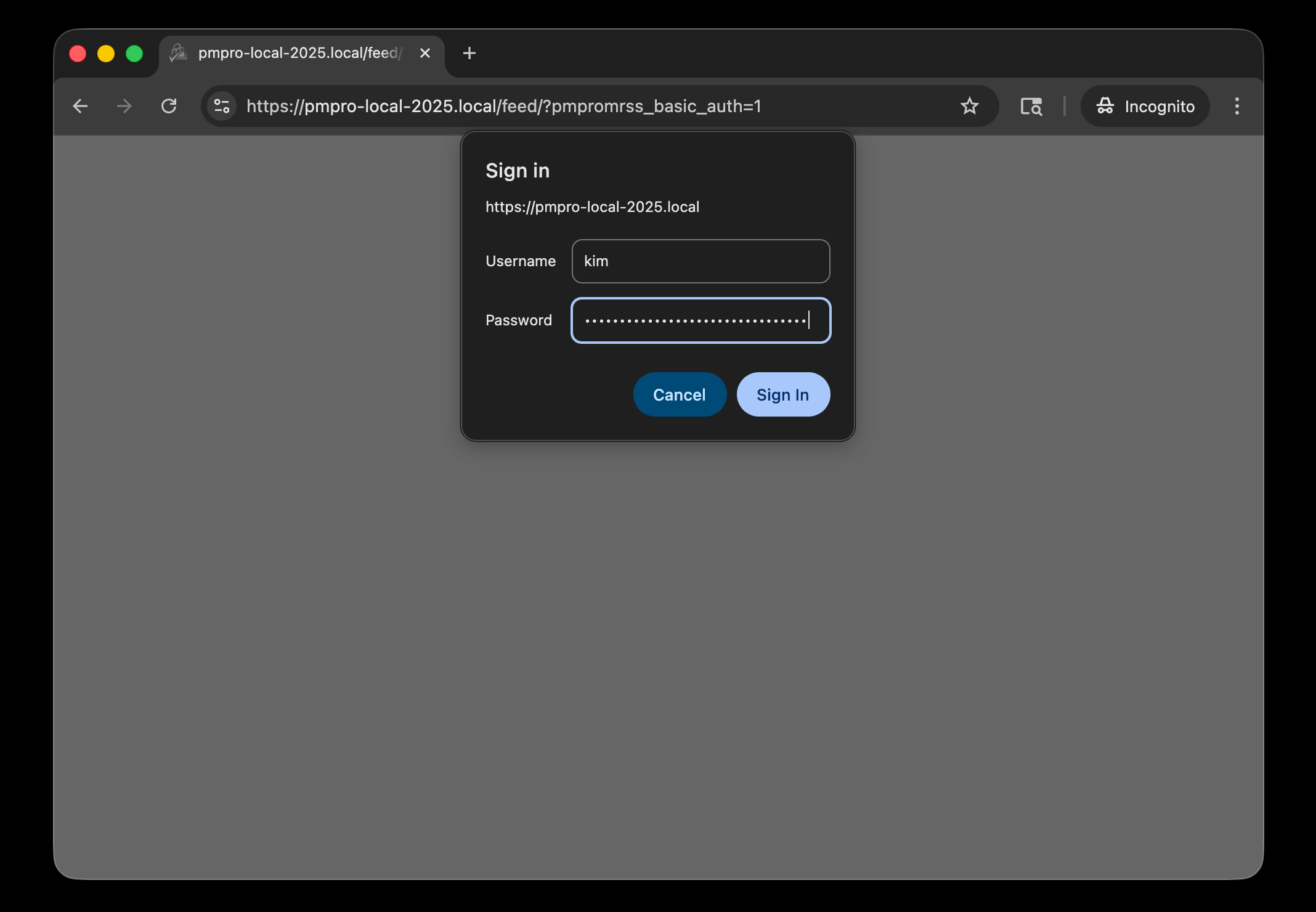
Set to Yes to allow members to authenticate using their WordPress username and an Application Password. Members append ?pmpromrss_basic_auth=1 to the feed URL instead of a memberkey, then enter credentials when prompted by their RSS reader.
- Default: No (members use the
memberkeyURL method)
Allow memberkey as Basic Auth Password
When Basic Authentication is enabled, members normally use a WordPress Application Password. Set this to Yes to also allow the memberkey itself as the password in Basic Auth requests, a useful fallback for RSS readers that do not support Application Passwords.
- Default: No (Application Password required)
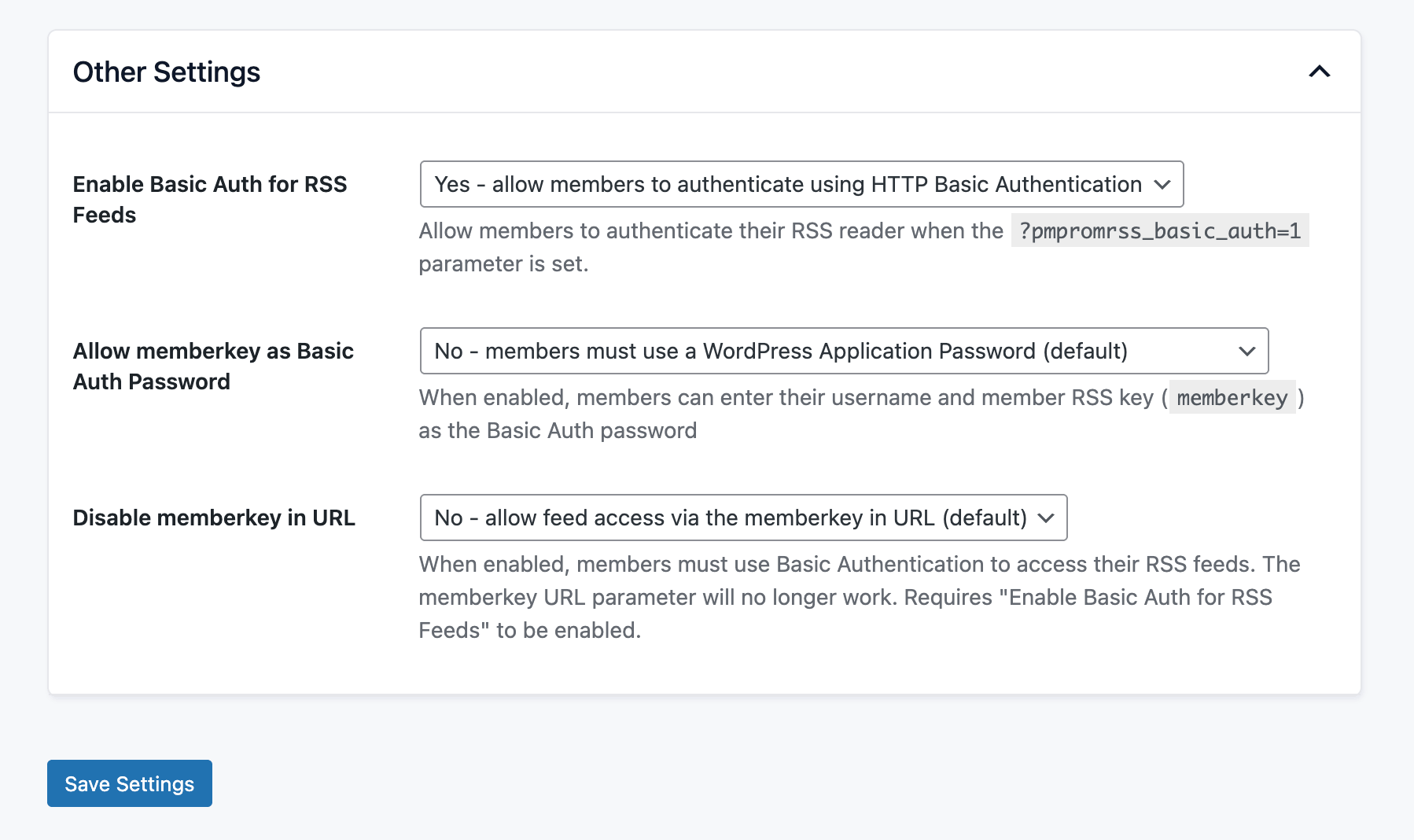
Disable memberkey in URL
Set to Yes to turn off the ?memberkey= URL parameter method entirely, requiring members to use Basic Authentication instead. Requires Enable Basic Auth for RSS Feeds to be enabled first.
- Default: No (URL
memberkeymethod is active)
Set Up a Dedicated Member RSS Feeds Page
By default, feed URLs appear directly in the Member Links section of the Membership Account page. We recommend setting up the dedicated page for members to view and manage their feeds.
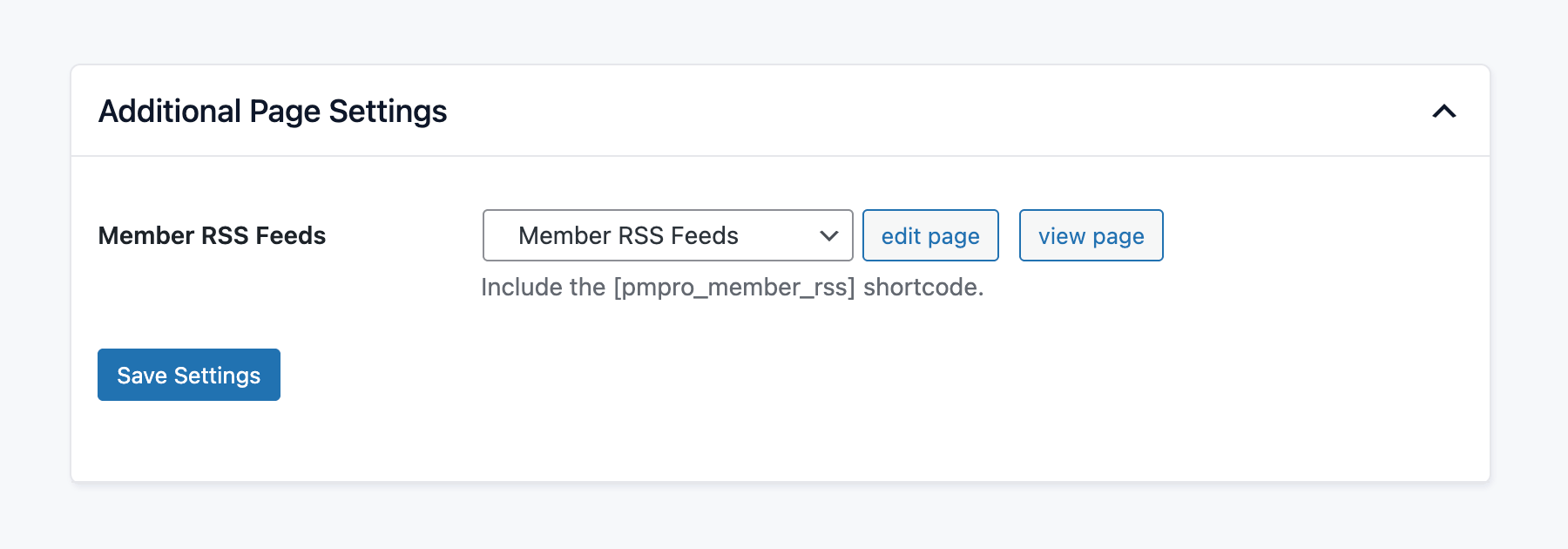
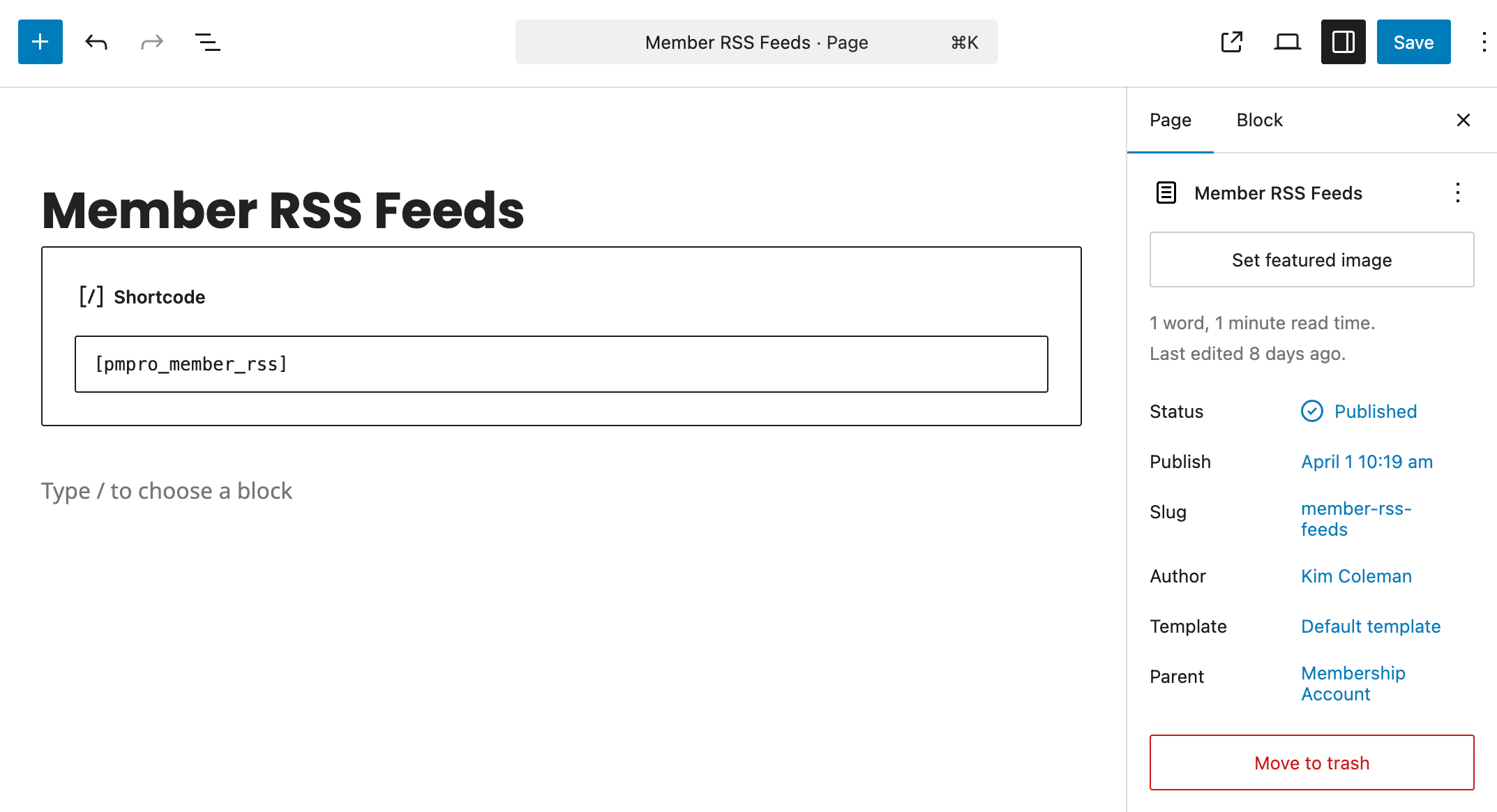
- Create a new WordPress page. Set its Parent to Membership Account in the page settings sidebar.
- Add the
[pmpro_member_rss]shortcode to the page and publish it. - Navigate to Memberships > Settings > Page Settings and scroll to Additional Page Settings.
- Set the Member RSS Feeds field to your new page.
- Click Save Settings.
When a Member RSS Feeds page is configured, the Membership Account page shows a “Member RSS Feeds” link to that page instead of displaying feed URLs inline.
The [pmpro_member_rss] Shortcode
Add this shortcode to any page to render the full feeds management interface for logged-in members.
[pmpro_member_rss]
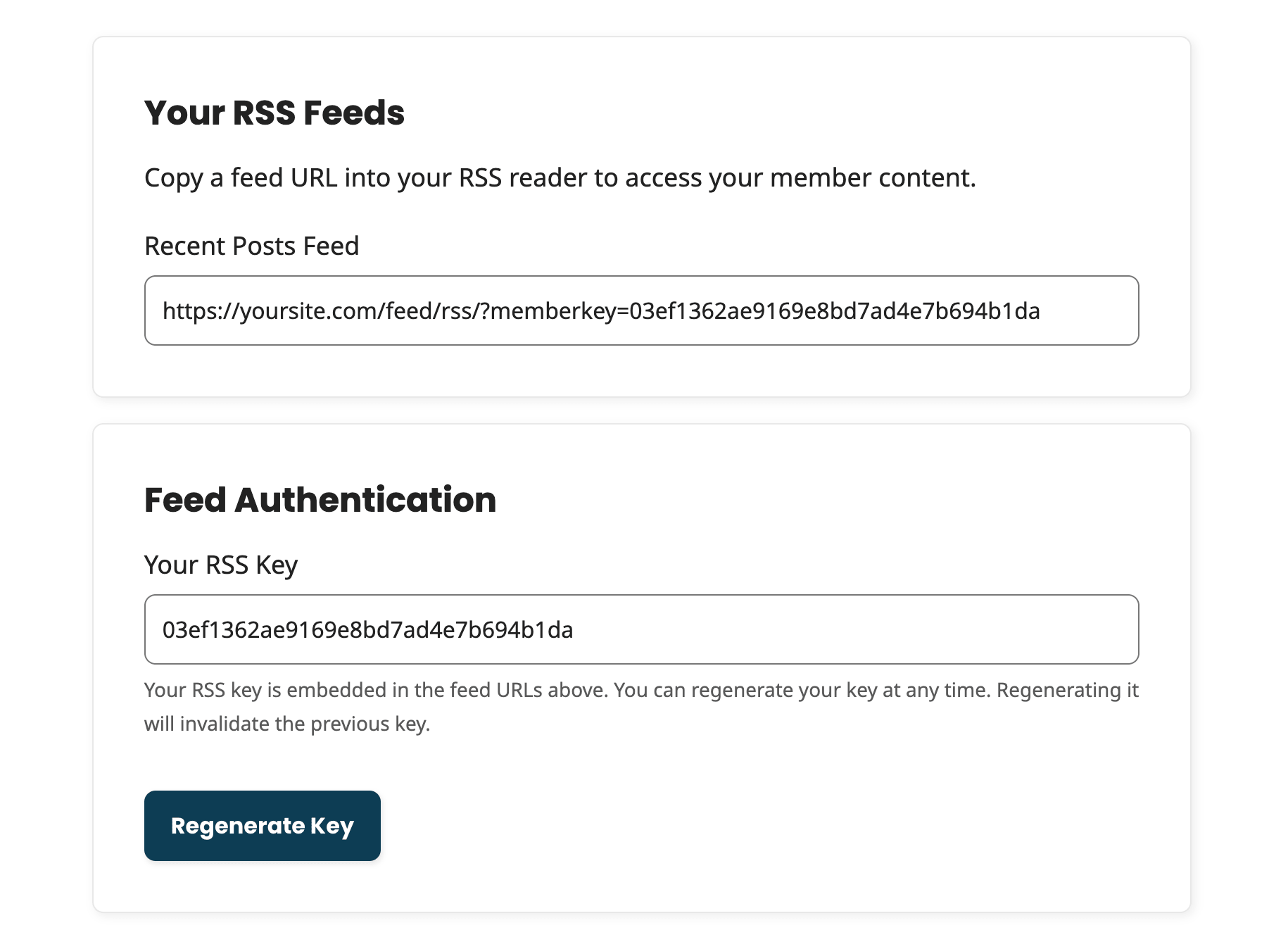
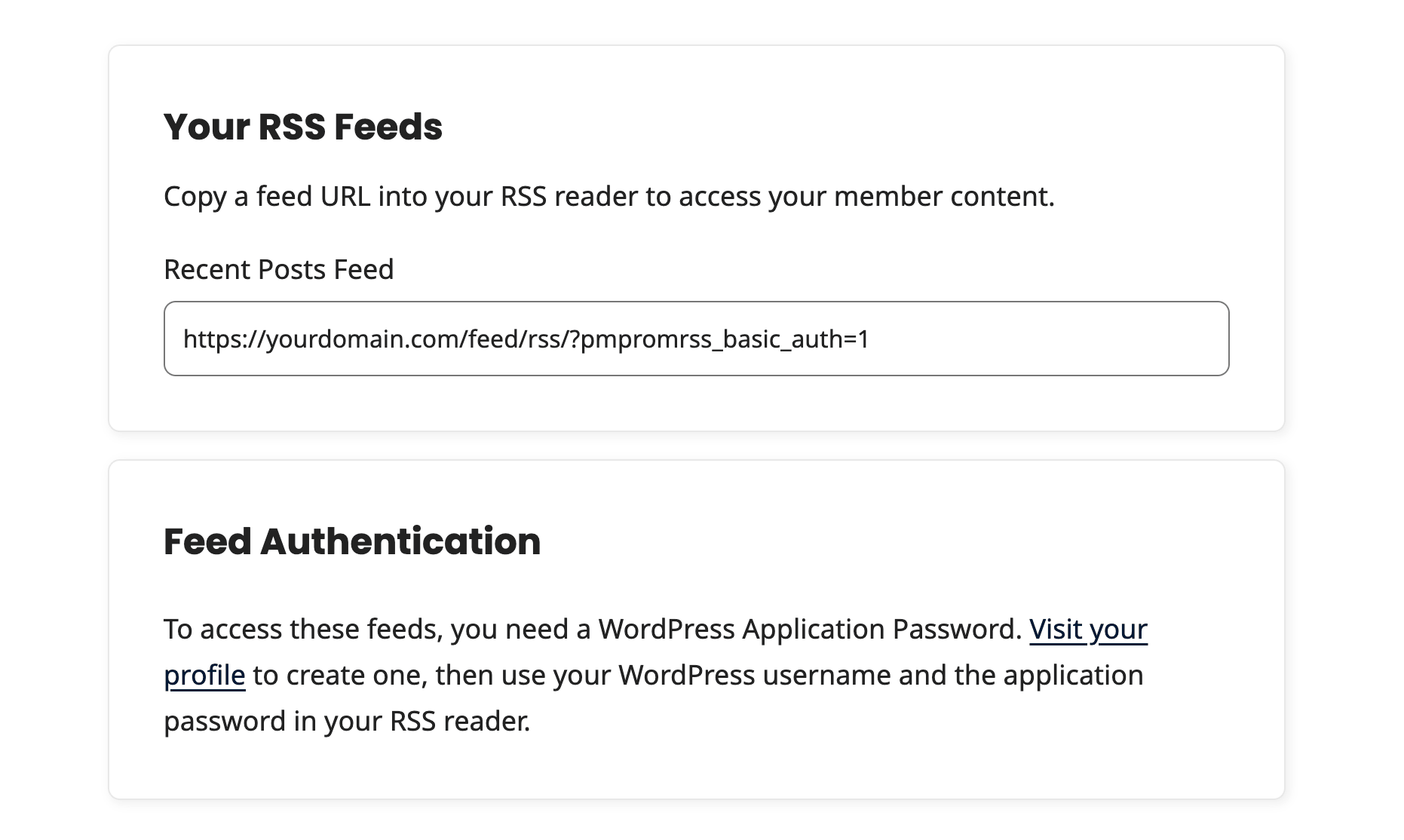
The shortcode page displays:
- All available RSS feed URLs, with the appropriate authentication parameter appended
- The member’s current key in a read-only field (when URL
memberkeyor Memberkey as Password is enabled) - A Regenerate Key button (when applicable)
- Application Password setup instructions (when Basic Auth is enabled without memberkey fallback)
The display adapts based on which authentication settings are active.
How Members Access Their Feed
Option 1: URL Memberkey
- Log in to the site and navigate to the Membership Account page (or the Member RSS Feeds page if configured).
- Copy the feed URL. The
?memberkey=parameter is appended automatically. - Paste the URL into any RSS or podcast reader.
The URL format looks like:
https://www.yoursite.com/feed/?memberkey=58efacdc83d88e3edf
Members can use this format with any WordPress feed URL (category feeds, tag feeds, or custom feed endpoints) by appending ?memberkey={key} to the end.
Option 2: Basic Authentication
Enable Basic Auth for RSS Feeds must be set to Yes in Memberships > Settings > Advanced before members can use this method.
- Navigate to your WordPress user profile and create a new Application Password specifically for your RSS reader.
- Append
?pmpromrss_basic_auth=1to the feed URL. - Open the URL in your RSS reader. When prompted, enter your WordPress username and the Application Password.
Managing and Regenerating Member Keys
The plugin automatically generates a memberkey for each user on first access and whenever a member’s level changes.
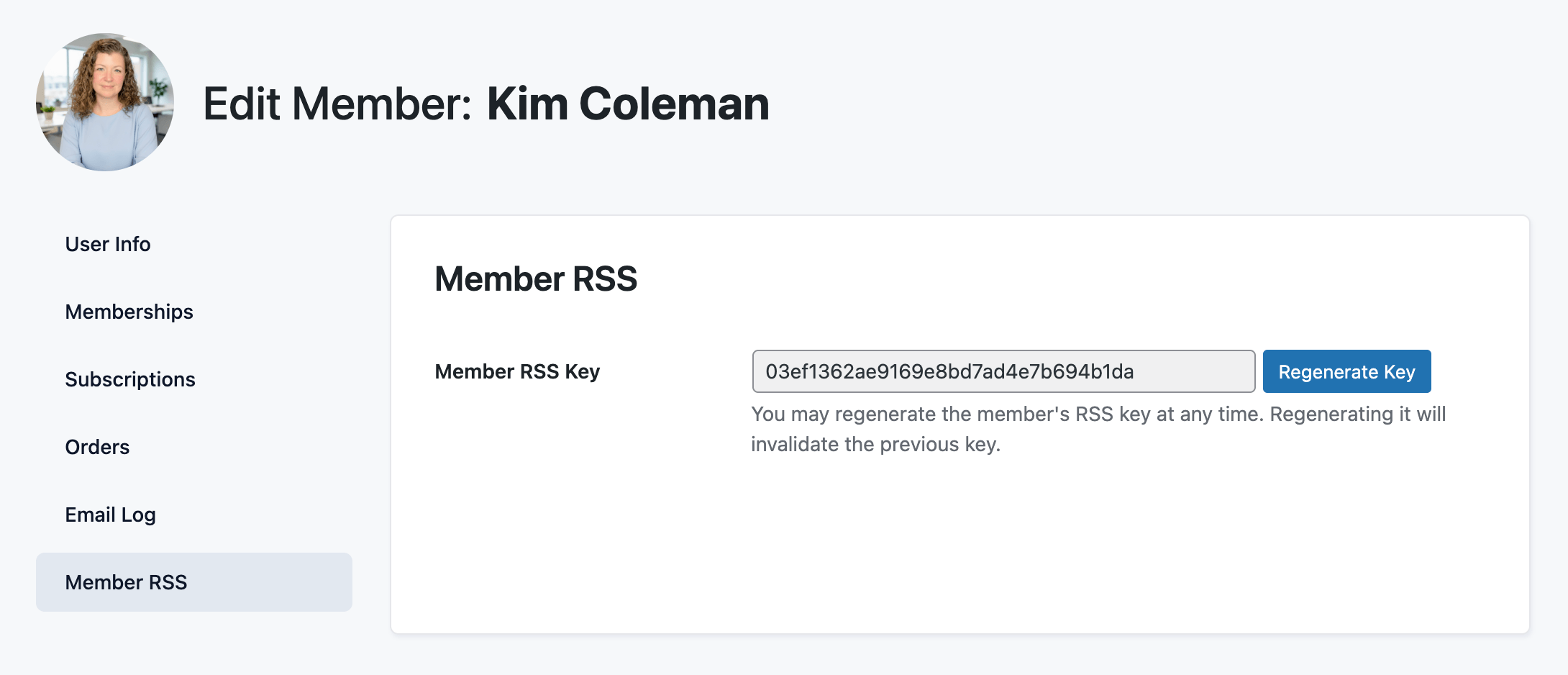
Regenerating a key permanently deletes the old key. Any RSS reader using the old key loses access immediately and must be updated with the new URL.
Members and administrators can regenerate a key from three places:
- Frontend profile page: the Feed Authentication card (only shown if no dedicated Member RSS Feeds page is configured)
- Member RSS Feed page: If a dedicated feeds page is configured
- Edit Member screen in the Admin: Navigate to Memberships > Members > Edit Member for any member of your site. Choose the Member RSS panel to manage a key.
Security and Spam Protection
- The
memberkeyinput is sanitized to hex characters only before lookup - Keys are cached in the WordPress object cache for 12 hours; the cache clears automatically when a key is updated
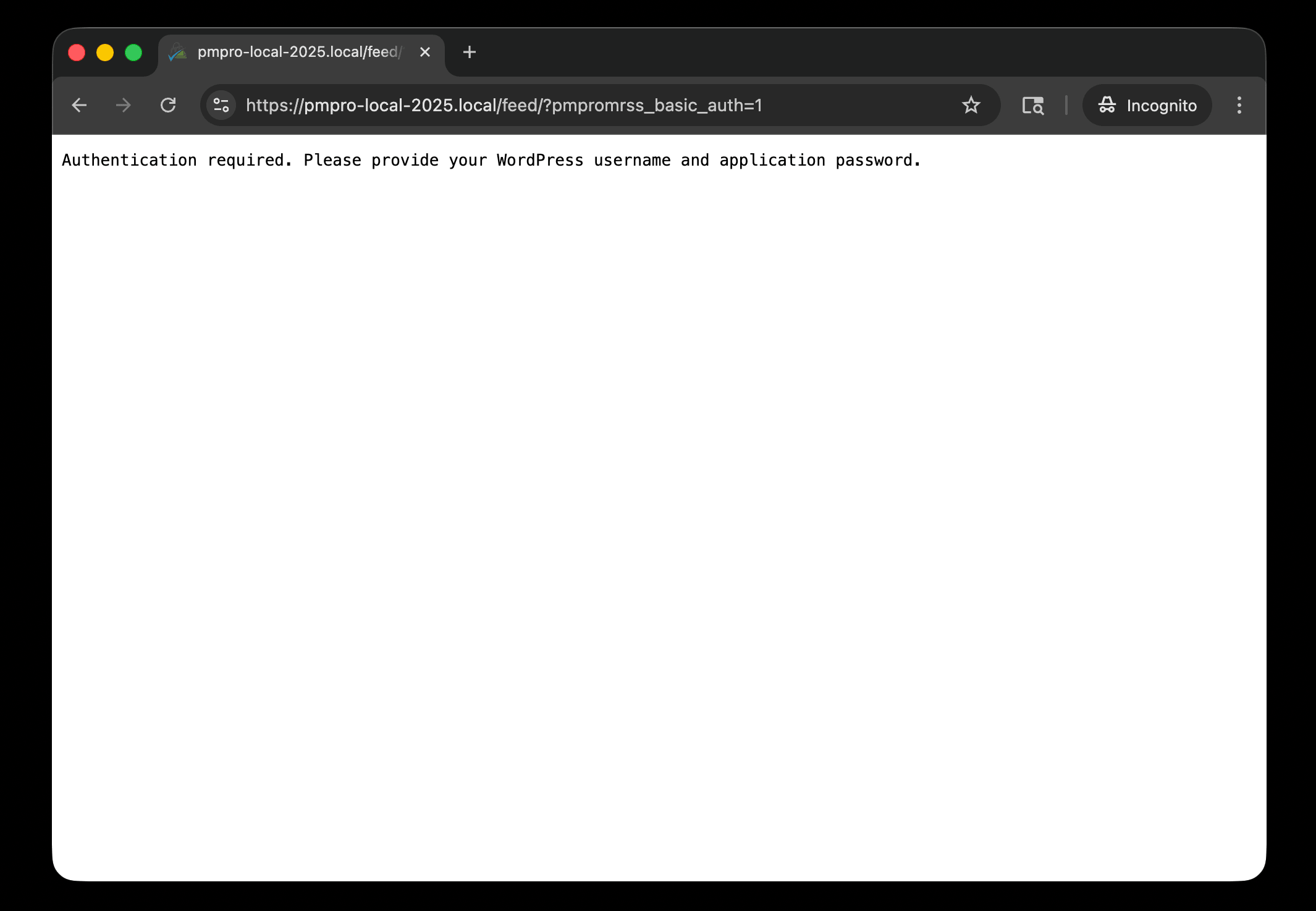
- Failed Basic Authentication attempts integrate with PMPro’s built-in spam protection
- Repeated failures result in a block. The feed returns an authentication required error
- Basic Authentication requires Application Passwords (not the member’s account password) maintaining a security boundary between the RSS reader and the member’s WordPress login
Action and Filter Hooks
apply_filters( 'pmpromrss_feeds', $feeds );
Modify the list of RSS feed URLs shown to members on the account page or shortcode page.
- Parameters:
$feeds: associative array of'Feed Title' => 'Feed URL' - Default value:
array( 'Recent Posts Feed' => get_bloginfo( 'rss_url' ) )
Frequently Asked Questions
The feed shows all posts the member can access based on their current PMPro level, plus all public (unprotected) content. It does not limit the feed to members-only posts. It reflects the member’s full access on the site.
Depending on your authentication settings, anyone with the URL and memberkey can access the feed as that member. If a key is compromised, the member can generate a new one from their profile or the Member RSS Feeds page. The old key is immediately revoked.
Yes. The Add On works with standard WordPress feeds and popular podcast plugins such as Blubrry PowerPress. Protected audio enclosures are stripped from feed items the member cannot access.
The plugin automatically generates a new memberkey when a membership level changes. Members will need to update their RSS reader with the new URL.
Yes. Use the pmpromrss_feeds filter to add category feeds, tag feeds, podcast feeds, or any custom RSS endpoint. All registered feeds appear in the member’s feed list.
Yes. Set Disable memberkey in URL to Yes in Memberships > Settings > Advanced. Enable Basic Auth for RSS Feeds must be enabled first. This setting requires it.
The key is stored as WordPress user meta (pmpromrss_key), as a 32-character hex MD5 hash. It is cached in the WordPress object cache for 12 hours.
Screenshots
This is a Premium Add On
Premium plans include a dedicated hosting environment, all Add Ons, priority support, unlimited "Do It For Me" development requests, and access to an AI Skills library.

