The Compare Table layout lets you list the features of each membership level in rows, so visitors can see what they get at each price. This page explains how to write the comparison rows in the block or shortcode, add links, and preview how the table displays on small screens.
How Comparison Rows Work
Comparison rows are entered as a single line of text. Separate each row with a semicolon (;). Within a row, enter the row label first, then one value for each level, separated by commas (,). Values are matched to levels in the same order as your Levels setting.
| Value | What Displays |
|---|---|
1 | A checkmark. Screen readers announce “Yes.” |
0 | A dash. Screen readers announce “No.” |
| Any other text | The text as entered, such as 5 per month or Unlimited. |
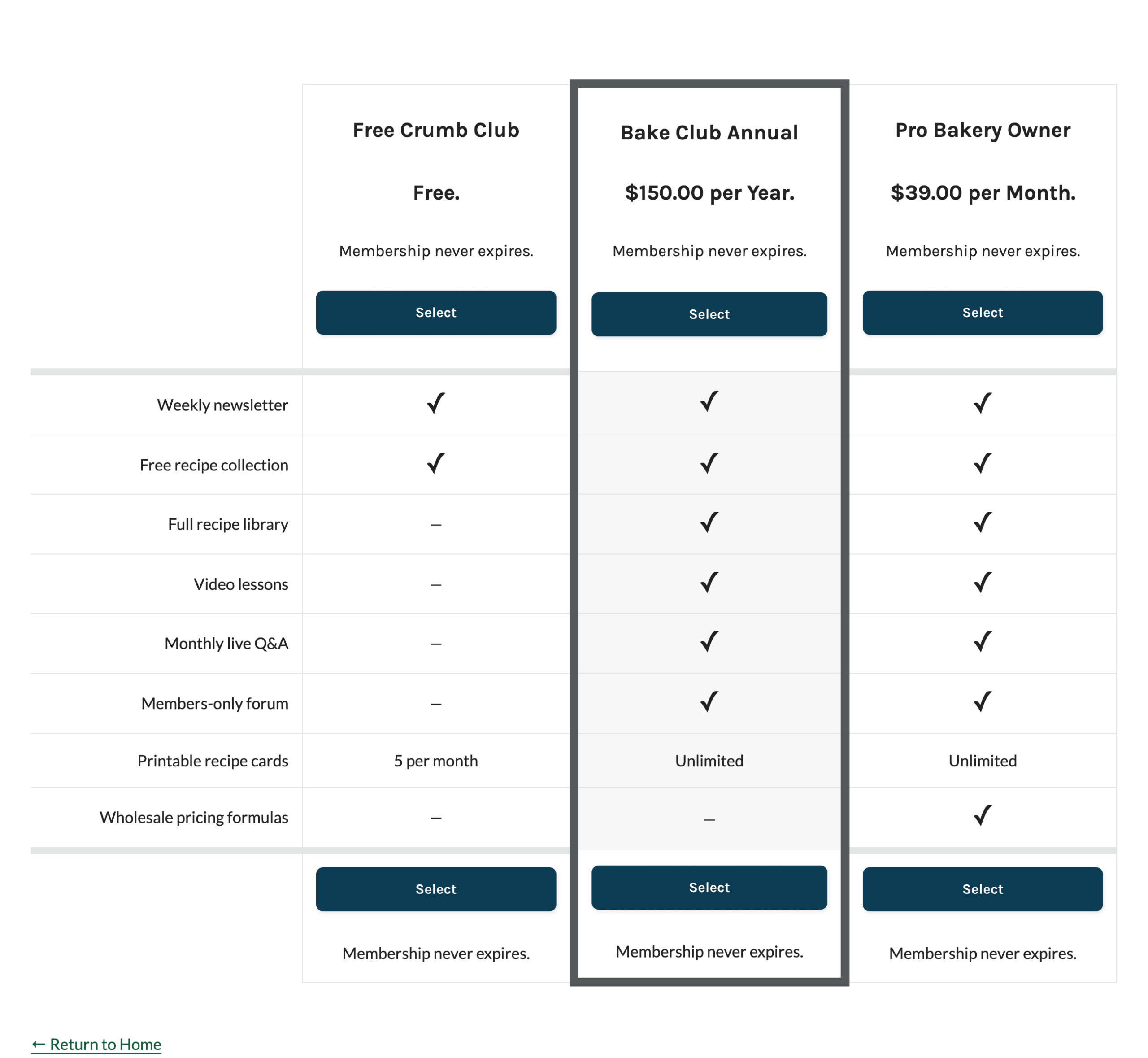
Here is the set of rows used for the example table on this page, with levels 1,5,7:
Weekly newsletter,1,1,1;Free recipe collection,1,1,1;Full recipe library,0,1,1;Video lessons,0,1,1;Monthly live Q&A,0,1,1;Members-only forum,0,1,1;Printable recipe cards,5 per month,Unlimited,Unlimited;Wholesale pricing formulas,0,0,1
Add Comparison Rows in the Block
- Select the PMPro Advanced Levels Page block.
- In the Levels field, enter your level IDs in the order you want the columns to appear.
- Set Layout to Compare Table. The Compare Table Items field appears.
- Enter your comparison rows in the Compare Table Items field.
- Save the page.
Add Comparison Rows in the Shortcode
Use the compare attribute with layout="compare_table":
[pmpro_advanced_levels levels="1,5,7" layout="compare_table" description="false" highlight="5" compare="Weekly newsletter,1,1,1;Free recipe collection,1,1,1;Full recipe library,0,1,1;Video lessons,0,1,1;Monthly live Q&A,0,1,1;Members-only forum,0,1,1;Printable recipe cards,5 per month,Unlimited,Unlimited;Wholesale pricing formulas,0,0,1"]
See the shortcode attribute reference for the other attributes you can combine with this layout.
Formatting Tips
- Set the Levels field: Always enter your level IDs so the order of values in each row matches the order of columns. If you leave it blank, the columns follow your level order on Memberships > Settings > Levels, which can change later.
- Give each row one value per level: Values beyond the number of levels are ignored. If a row has too few values, the remaining cells are left empty.
- Don’t use commas in labels or values: A comma always starts a new value.
- Don’t add spaces around commas: Write
Video lessons,0,1,1, notVideo lessons, 0, 1, 1. Extra spaces can make the small-screen view show a raw value, such as “Video lessons: 1,” or list a feature the level doesn’t include. - Trailing semicolons are fine: A semicolon after the last row is removed automatically.
- Basic HTML is allowed: Labels and values can include links (
<a>) and the<p>,<b>,<strong>,<em>,<br>, and<strike>tags. Other HTML is removed. Developers can change the allowed tags with the pmproal_allowed_html filter.
Add Links to Row Labels
Row labels and values can link to a page that explains the feature in more detail. We do this on our own pricing page.
In the block, type the link HTML directly in the Compare Table Items field. In the shortcode, be careful with quotes so the link doesn’t end the attribute early:
- Use single quotes to wrap the shortcode attributes:
layout='compare_table'
- Use double quotes for the link inside the row labels:
compare='<a href="/item-1/">Item 1</a>,1,1;<a href="/item-2/">Item 2</a>,0,1'
Here is a full example of using linked row labels with the Compare Table layout:
How the Comparison Table Displays on Small Screens
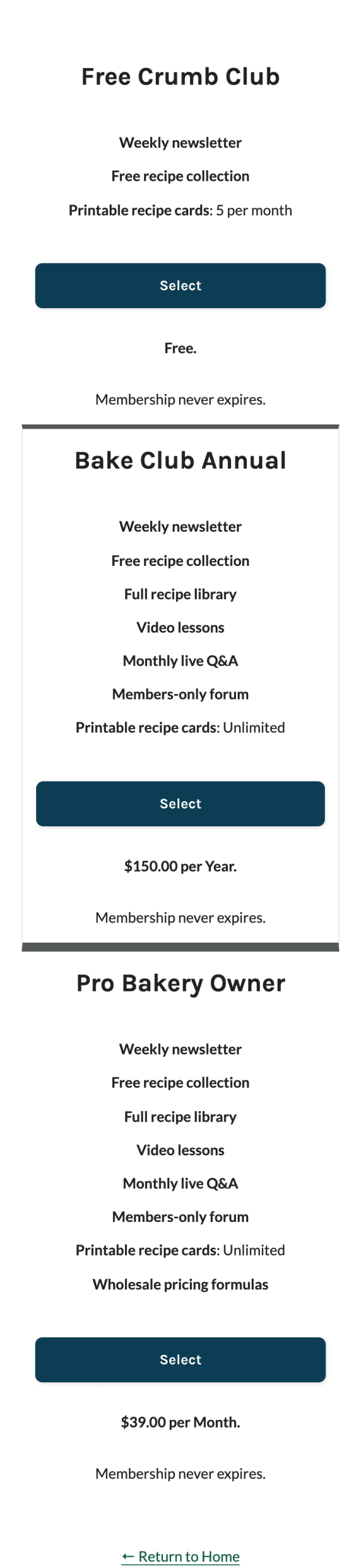
On screens 767 pixels wide and below, the comparison table is replaced with a stacked card for each level. Each card shows the level name, description, the features included with that level, the checkout button, price, and expiration.
- Rows with a value of
1show the row label. - Rows with custom text show the label followed by the text, such as “Printable recipe cards: 5 per month.”
- Rows with a value of
0or an empty value are left out of that level’s card.
Get Support From Our Team of Experts
Have a question about how to use this feature? Our Support Page outlines three ways to get support.
Our Max plans include hands-on help customizing your membership site and implementing new features. Upgrade to PMPro Max now »
Last updated on November 9, 2026

