Here’s what the gift giver and the recipient see, from the gift checkout to the moment the recipient’s membership starts. It also covers how the single-use gift code works and where givers find the codes they’ve bought.
Buying a Gift Membership
The gift giver chooses a gift level from your Membership Levels page (or a link you share) and completes checkout like any other purchase. If they aren’t logged in, checkout creates an account for them. Existing members can buy gifts too.
When Allow Gift Emails is turned on for the gift level, checkout includes a Gift Code section. The giver can check Automatically deliver the gift code by email after checkout. to show two more fields:
- Recipient Email Address: Where to send the Gift Recipient email. If the box is checked and this field is empty or not a valid email address, checkout stops with the message “Gift recipient’s email address is not valid.”
- Add a Personalized Message (optional): A note from the giver that’s included in the Gift Recipient email.
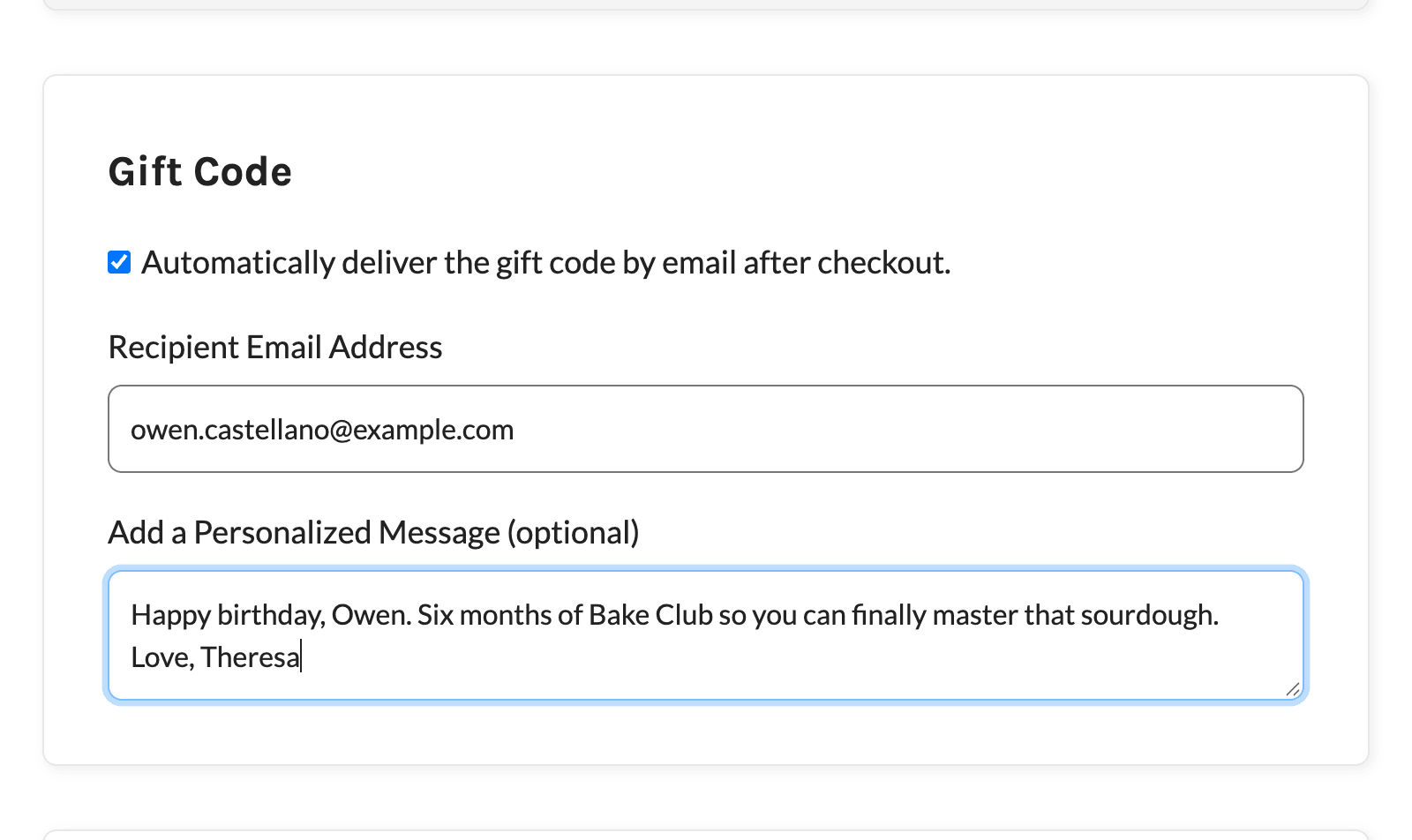
Each checkout buys one gift code. To give several gifts, the giver checks out once for each one.
What Happens After Checkout
Once payment is complete, the Add On:
- Creates a new gift code for the Level to Gift.
- Removes the gift level from the giver’s account, so the giver doesn’t become a member through the gift purchase. Any membership the giver already had is left as it was.
- Sends the Gift Purchased email to the giver and the Gift Purchased (admin) email to the site admin in place of the usual checkout emails. If the giver entered a recipient email address, the recipient gets the Gift Recipient email. Learn more in Gift Membership Email Templates.
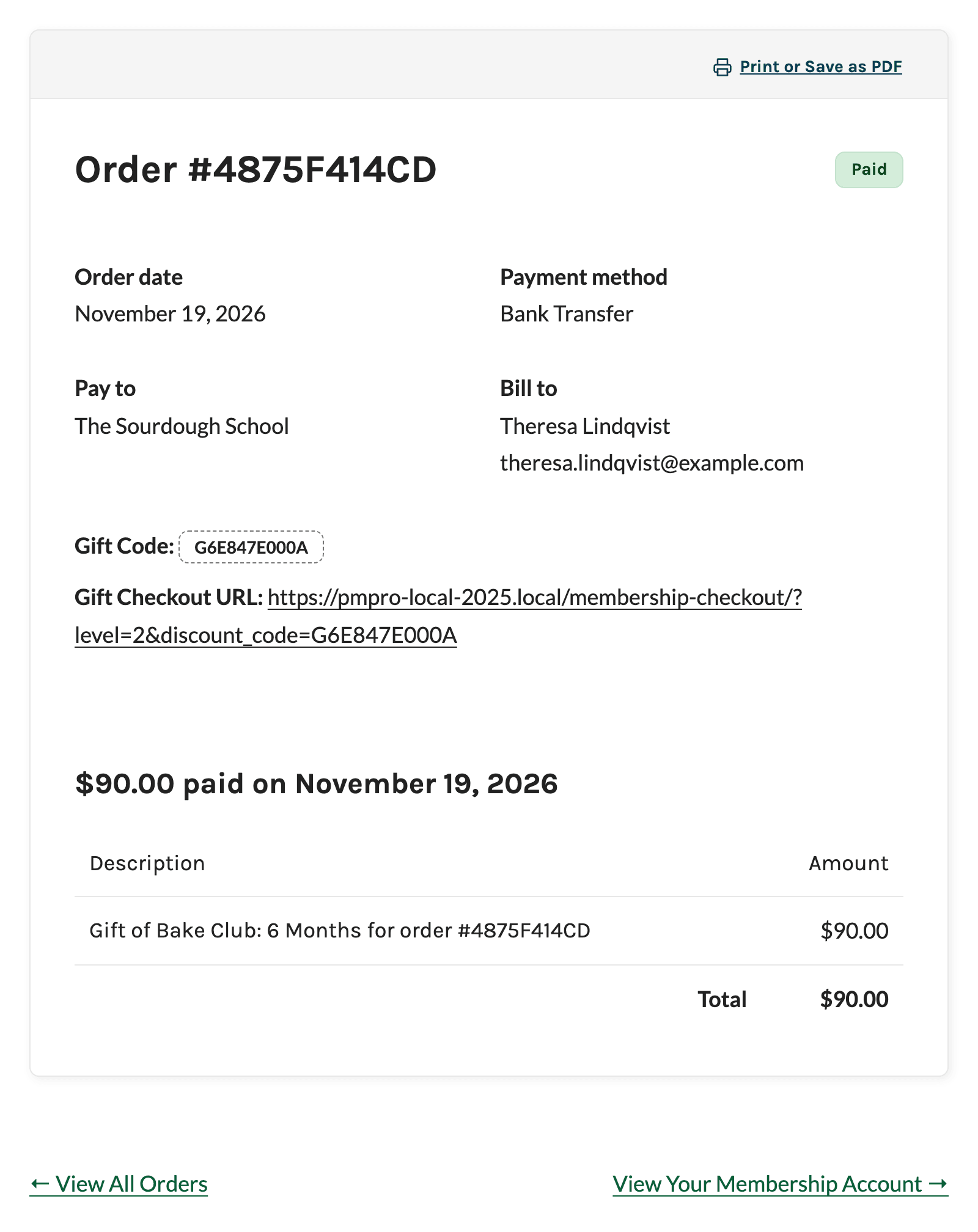
- Sends the giver to the order page instead of the membership confirmation page. The order shows the Gift Code and a Gift Checkout URL the giver can copy and share.
Gifts Paid by Check or Other Offline Payment
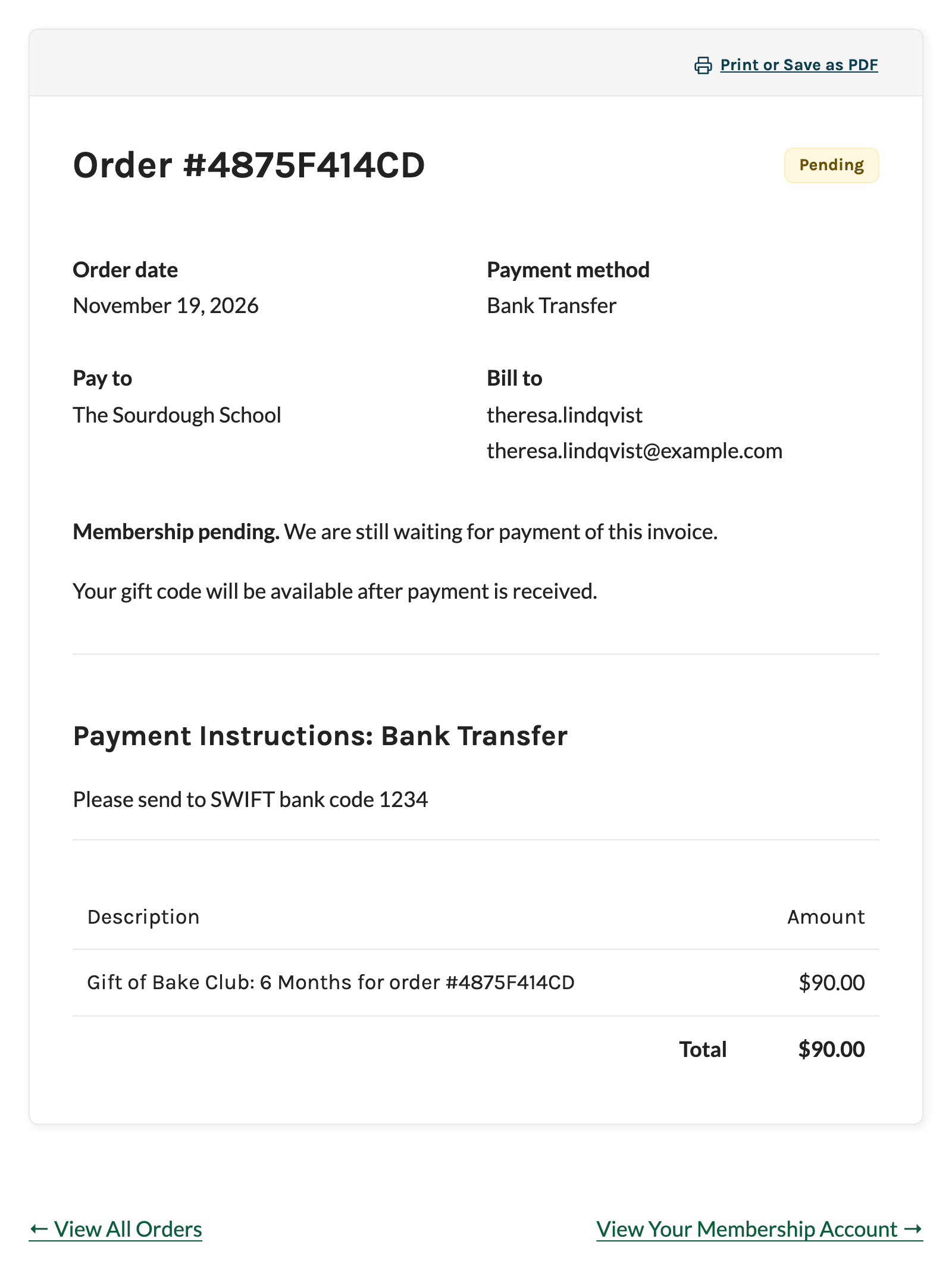
If the giver chooses a payment method that leaves the order pending, such as check or bank transfer with the Manual and Offline Payments Add On, they are still sent to the order page after checkout. The order page shows “Your gift code will be available after payment is received.”
When you mark the order as paid, the gift code is created and the gift emails are sent, including the Gift Recipient email if the giver entered an address at checkout. The giver can then see the code on the order page and on their Membership Account page.
How the Gift Code Works
A gift code is a discount code that the Add On creates for each gift purchase. Every gift code:
- Starts with the letter G, followed by a random string of letters and numbers (for example,
G6E847E000A). - Can be used once.
- Works right away and stays valid for one year from the date it was created. After that, the code expires and can’t be redeemed.
- Applies only to the Level to Gift, at no cost and with the gift’s expiration period.
Gift codes are listed with your other codes under Memberships > Settings > Discount Codes, where you can change a code’s expiration date. See Manage Gift Codes and Gift Orders. Developers can change the default code settings with the pmprogl_gift_code_settings filter.
Redeeming a Gift Code
The recipient claims their gift by opening the gift link from the Gift Recipient email or from the giver. The link opens checkout for the gifted level with the code already applied, so the price shows as $0.00 and the membership expiration matches the gift.
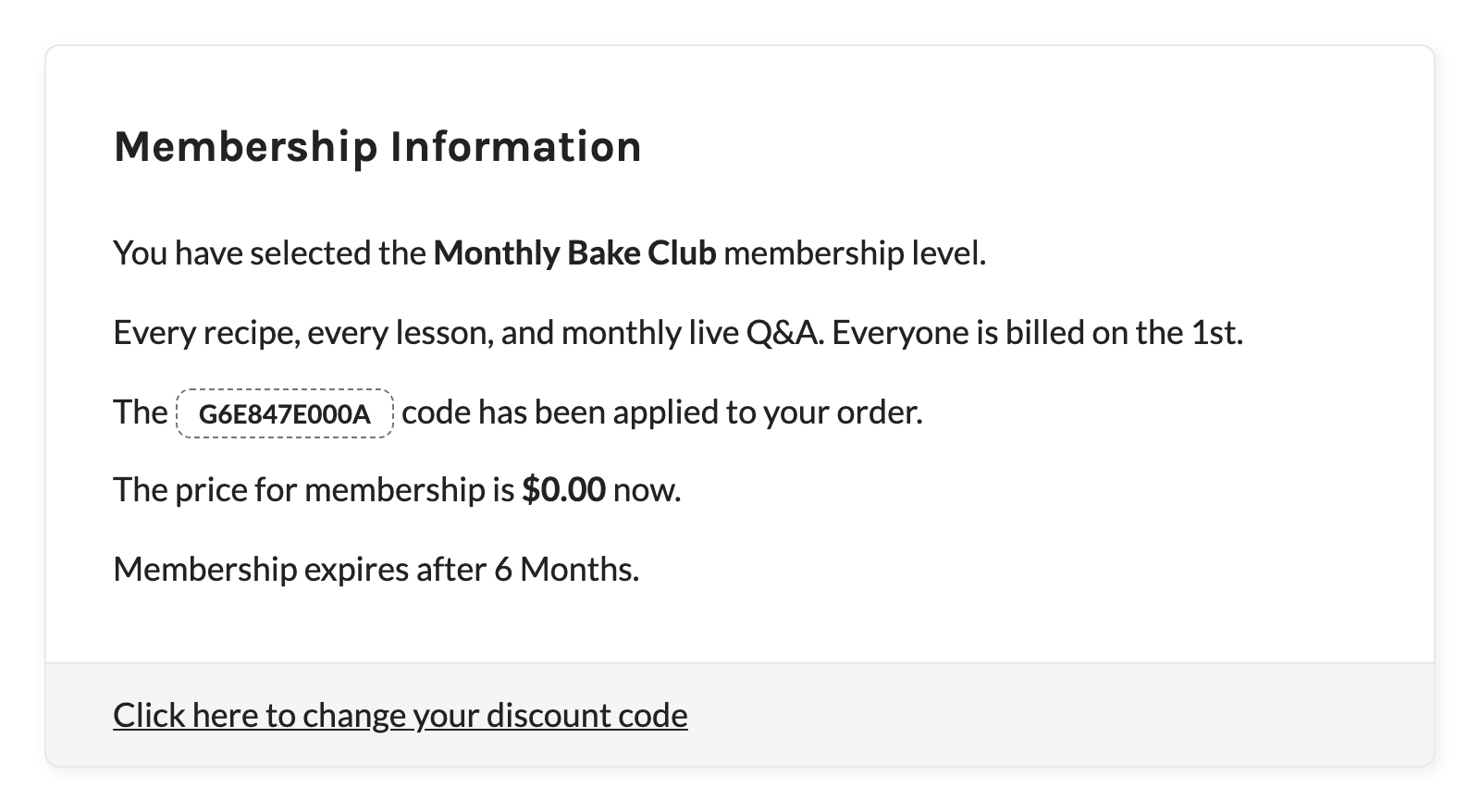
- Open the gift link. If you only have the code, go to checkout for the gifted level, click Click here to enter your discount code, and enter the code.
- Create an account, or log in first if you already have one.
- Complete checkout. No payment information is needed.
The membership starts right away, and the recipient gets your site’s normal checkout emails for the level. Once a code is used, it shows as claimed for the giver and can’t be used again.
Purchased Gift Codes on the Membership Account Page
Gift givers can find every code they’ve bought in the Purchased Gift Codes section of their Membership Account page. It appears below the account profile once the giver has at least one gift code.
- Unclaimed Codes: Show as a link to the gift checkout URL, so the giver can open or copy it to share.
- Claimed Codes: Show the code and the name of the member who redeemed it, such as “G6E847E000A: claimed by Owen Castellano”.
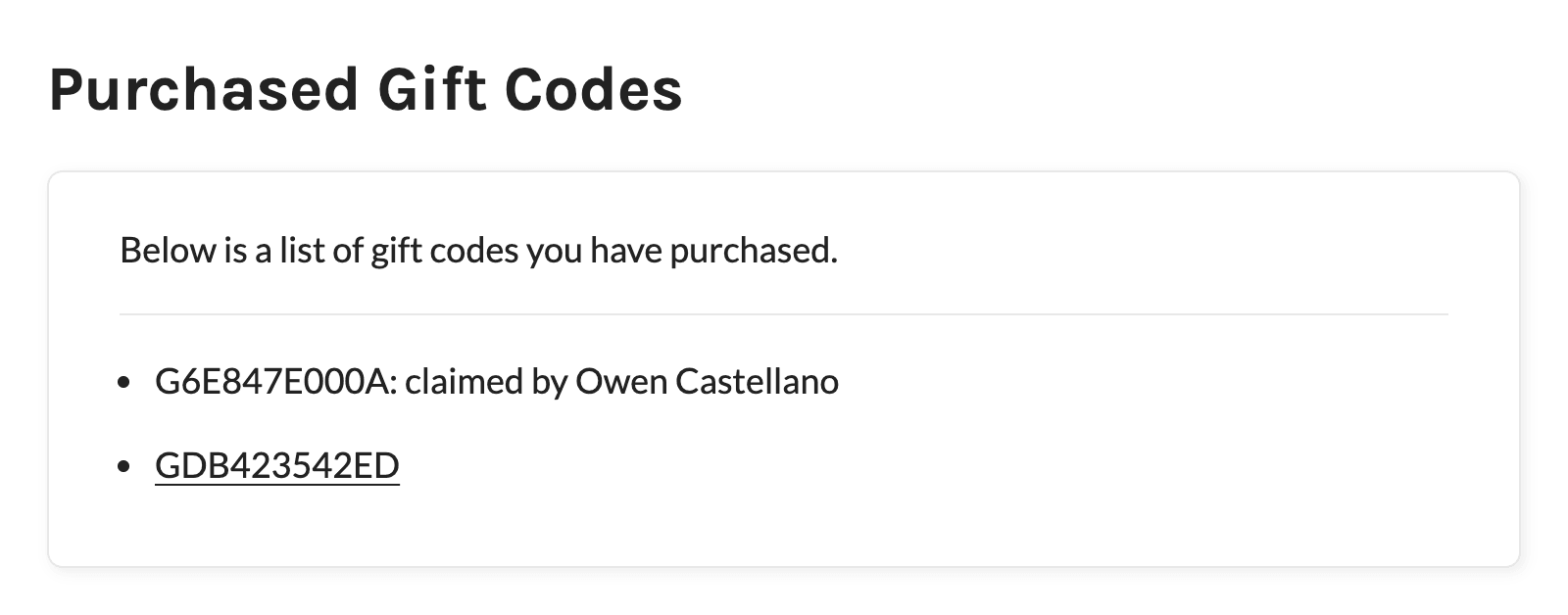
Each gift purchase also appears in the giver’s order history, and each order page shows its gift code and link.
Get Support From Our Team of Experts
Have a question about how to use this feature? Our Support Page outlines three ways to get support.
Our Max plans include hands-on help customizing your membership site and implementing new features. Upgrade to PMPro Max now »
Last updated on November 19, 2026