A gift level is a membership level that people buy for someone else. Create one for each gift you want to sell, then choose which level the recipient gets and how long their gifted membership lasts.
How Gift Levels Work
Every gift involves two membership levels:
- The Gift Level: The level the gift giver checks out for. Its price is what the giver pays for the gift. The giver does not keep this level after checkout, and any membership they already hold stays as it was.
- The Level to Gift: The level the recipient gets when they redeem the gift code. This is usually one of your regular membership levels.
For example, to sell six months of your Monthly Bake Club level as a gift, create a “Gift of Bake Club: 6 Months” level with a one-time price of $90. Set Monthly Bake Club as the Level to Gift and set the gift to expire after 6 months. The giver pays $90 and gets a code. The recipient pays nothing and gets Monthly Bake Club for six months.
Put Gift Levels in Their Own Level Group
We recommend creating your gift levels in a separate level group from your main levels. This keeps gift options together on your Membership Levels page and avoids conflicts with Add Ons that look at the levels in a group, such as Proration.
- Navigate to Memberships > Settings > Levels.
- Click Add New Group.
- Enter a name, such as “Gift Memberships”, and save the group.
Create a Gift Level
- Navigate to Memberships > Settings > Levels and click Add New Level.
- Choose the Gift template. It starts you with a one-time payment, no recurring subscription, no membership expiration, and the Gift Membership settings turned on.
- Enter a Name that makes it clear this is a gift, such as “Gift of Bake Club: 6 Months”, and choose your gift level group in the Group field.
- Set the price the gift giver pays in Billing Details. The template starts at $25.
- Configure the Gift Membership settings described below.
- Click Save Level.
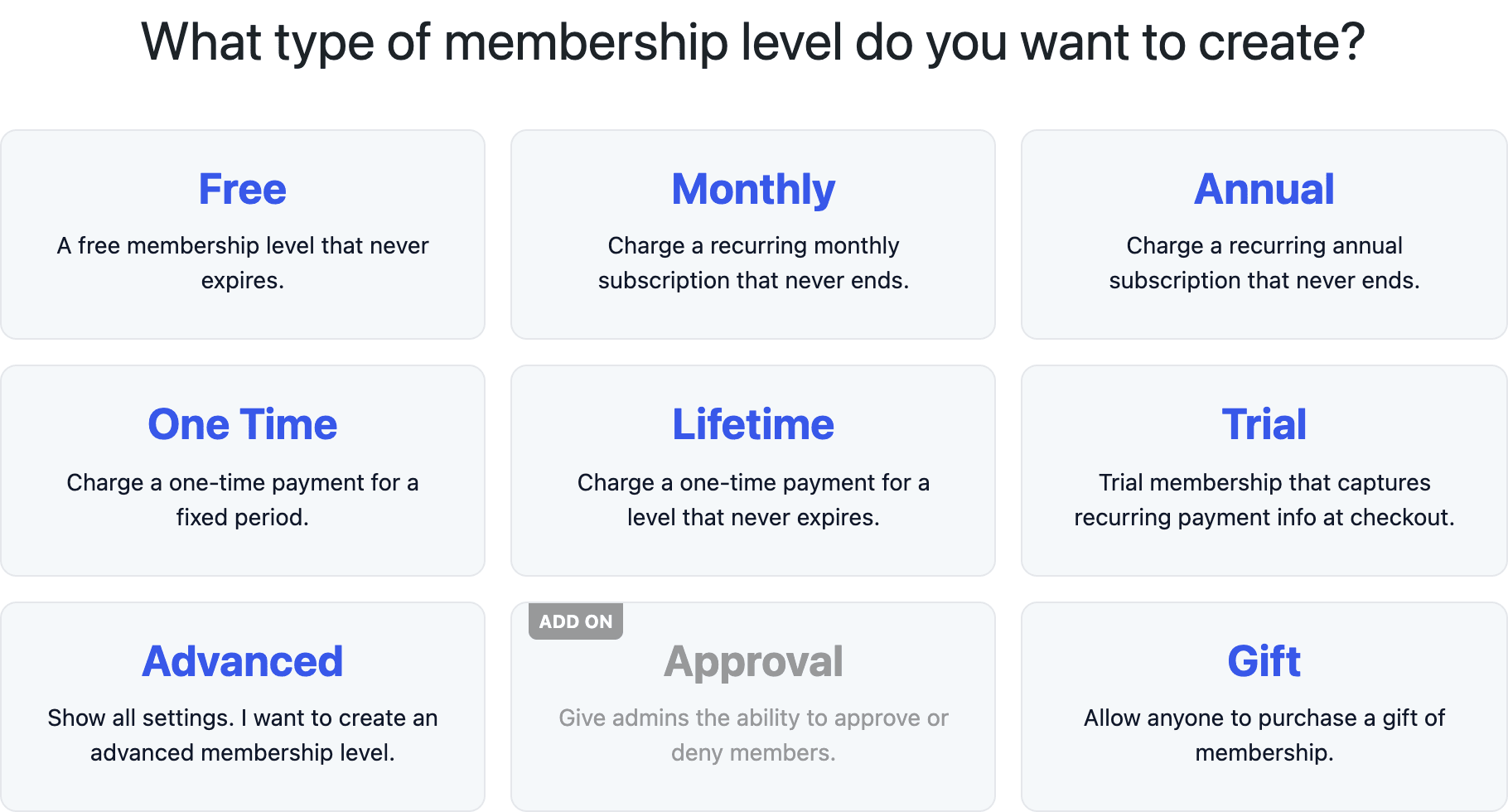
You can also turn an existing level into a gift level. Edit the level and check Gift Level? in the Gift Membership section.
Gift Membership Settings
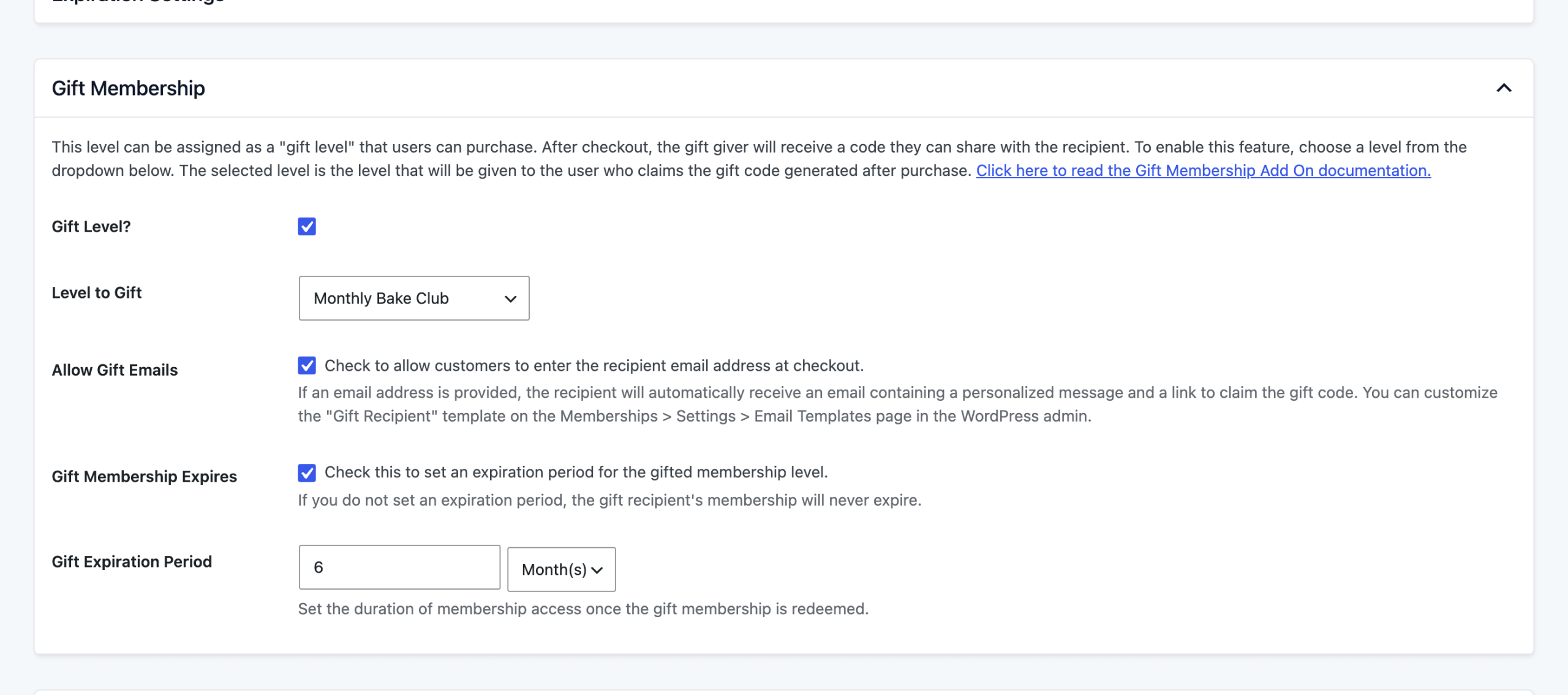
These settings are in the Gift Membership section of the Edit Membership Level screen. Only Gift Level? shows until you check it.
- Gift Level?: Check this box to make the level a gift level. People who check out for it get a gift code instead of a membership.
- Level to Gift: The membership level the recipient gets when they redeem the gift code. The list includes every level except the one you’re editing.
- Allow Gift Emails: Check this box to add a Gift Code section to checkout where the giver can enter the recipient’s email address and a personalized message. The recipient then gets the Gift Recipient email with a link to claim their gift. Leave it unchecked if givers should share the code themselves. Off by default on existing levels; on in the Gift template.
- Gift Membership Expires: Check this box to give the gifted membership an end date. If you leave it unchecked, the recipient’s membership never expires.
- Gift Expiration Period: How long the recipient’s membership lasts after they redeem the code. Enter a number and choose Day(s), Week(s), Month(s), or Year(s). The Gift template starts at 3 Month(s). This setting only appears when Gift Membership Expires is checked.
What the Recipient Gets
Each gift code is set up to give the Level to Gift at no cost. The recipient pays nothing at checkout and doesn’t start a subscription, even if the level normally has a recurring price. Their membership ends after the Gift Expiration Period, or never ends if the gift doesn’t expire. After a gifted membership ends, the member can check out for the level at its regular price like anyone else.
Redeeming a gift code is a normal checkout for the Level to Gift, so your level group rules apply. If the recipient already holds a level in the same group and that group only allows one level, the gifted level replaces it.
Next, see how members buy and redeem a gift membership.
Get Support From Our Team of Experts
Have a question about how to use this feature? Our Support Page outlines three ways to get support.
Our Max plans include hands-on help customizing your membership site and implementing new features. Upgrade to PMPro Max now »
Last updated on November 19, 2026