The Gift Membership Add On sends three emails after a gift purchase, and you can edit each one from the Email Templates screen. Here’s who gets each email, when it’s sent, and which variables you can use.
Emails Sent After a Gift Purchase
When someone buys a gift membership, these emails are sent in place of the usual checkout emails. For orders paid by check or another offline method, they’re sent when you mark the order as paid.
- Gift Purchased: Sent to the gift giver as a receipt. The default email includes the order number, date, and total, the gift link to share with the recipient, and links to log in and view the order. Default subject: “Gift membership purchase confirmation for [your site name]”.
- Gift Purchased (admin): Sent to the site admin email address. The default email includes the giver’s name and email, the order details, and the gift code. Default subject: “[giver’s display name] has purchased a gift membership to [your site name]”.
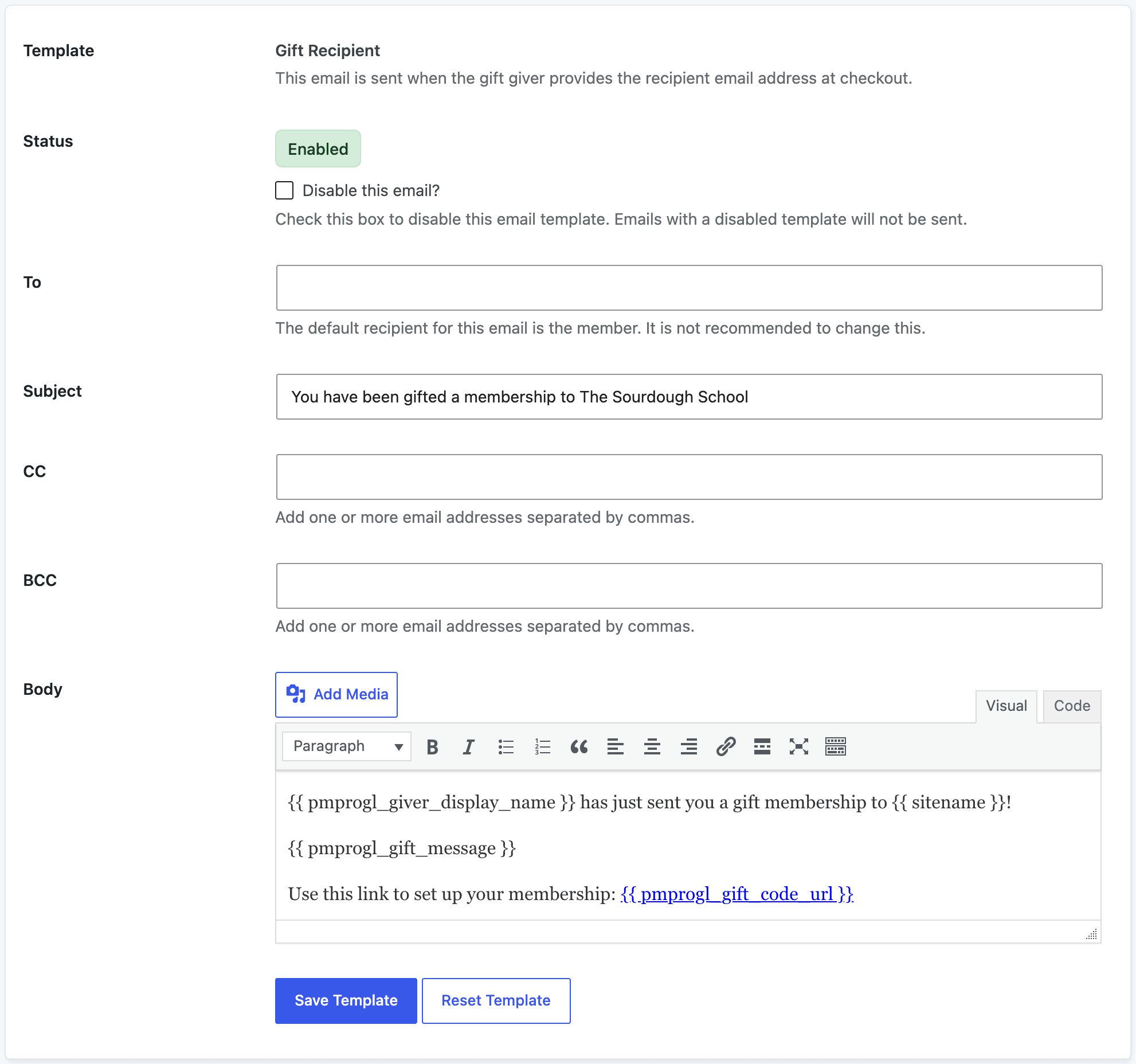
- Gift Recipient: Sent to the recipient only when the giver checked Automatically deliver the gift code by email after checkout. and entered the recipient’s email address. The default email names the giver, includes their personalized message, and links to checkout with the gift code applied. Default subject: “You have been gifted a membership to [your site name]”.
The recipient gets your normal checkout emails for the gifted level when they redeem the code.
Customize the Gift Emails
- Navigate to Memberships > Settings > Email Templates.
- Click Gift Purchased, Gift Purchased (admin), or Gift Recipient.
- Edit the Subject and Body. You can also add CC or BCC addresses, or check Disable this email? to stop sending it.
- Click Save Template. To go back to the default content, click Reset Template.
Email Template Variables
All three gift templates support these variables, along with the general variables available in every template, such as {{ sitename }} and {{ login_url }}. The full list for each template is shown on its edit screen.
| Variable | Description |
|---|---|
{{ pmprogl_giver_display_name }} | The display name of the member who bought the gift. |
{{ pmprogl_giver_email }} | The email address of the member who bought the gift. |
{{ pmprogl_gift_code }} | The gift code the recipient uses to redeem their gift. |
{{ pmprogl_gift_code_url }} | The checkout URL for the gifted level with the gift code applied. |
{{ pmprogl_gift_message }} | The personalized message the giver entered at checkout. Empty if they didn’t enter one. |
{{ pmpro_gift_recipient_email }} | The recipient’s email address. Only use this in the Gift Recipient email. In the other two templates it holds the address that email is sent to (the giver or the admin), not the recipient’s. |
{{ order_id }} | The order number for the gift purchase. |
{{ order_date }} | The date of the order. |
{{ order_total }} | The order total, formatted as a price. |
{{ order_url }} | A link to view the order on your site. The member is asked to log in first if needed. |
{{ billing_name }}, {{ billing_street }}, {{ billing_city }}, {{ billing_state }}, {{ billing_zip }}, {{ billing_country }}, {{ billing_phone }}, {{ billing_address }} | Billing information from the order. {{ billing_address }} is the complete formatted address. |
{{ cardtype }}, {{ accountnumber }}, {{ expirationmonth }}, {{ expirationyear }} | Card details from the order, when the gateway stores them. The account number shows only the last 4 digits. |
Get Support From Our Team of Experts
Have a question about how to use this feature? Our Support Page outlines three ways to get support.
Our Max plans include hands-on help customizing your membership site and implementing new features. Upgrade to PMPro Max now »
Last updated on November 19, 2026