Gift codes and gift orders show up in a few places in the WordPress admin. Use them to answer “Did my gift go through?” questions, find a code to resend, or give a recipient more time to redeem.
See a Member’s Purchased Gift Codes
Navigate to Memberships > Members, edit the gift giver, and open the Purchased Gift Codes panel. It lists every gift code the member has bought. Claimed codes show the name of the member who redeemed them. Unclaimed codes link to the gift checkout URL, which you can copy and send to the giver or the recipient.

Find the Gift Code for an Order
- Navigate to Memberships > Orders and open the gift order.
- Click Edit Order.
- Scroll to the bottom of the order settings.
Gift Code Purchased shows the code created for the order, or [DELETED] if the code was deleted. Gift Recipient Email shows the address the giver entered at checkout, when they entered one.
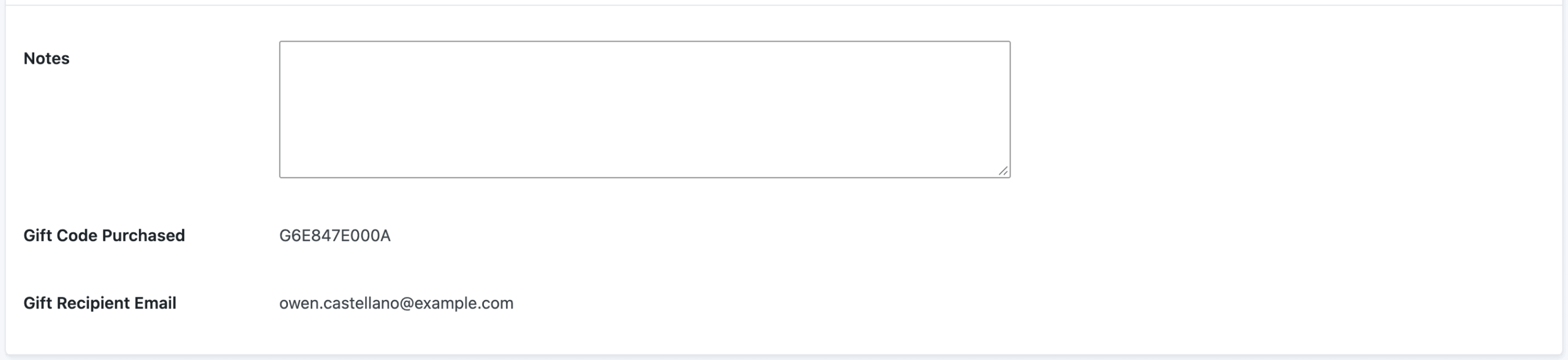
If the order is still pending, the gift code is created when you change the order status to paid.
Gift Codes on the Discount Codes Screen
Every gift code is a discount code, so you’ll find them under Memberships > Settings > Discount Codes. Gift codes start with the letter G. When you edit a gift code, the General Discount Code Settings section shows “This discount code was purchased as a gift by” with a link to the giver’s user profile.
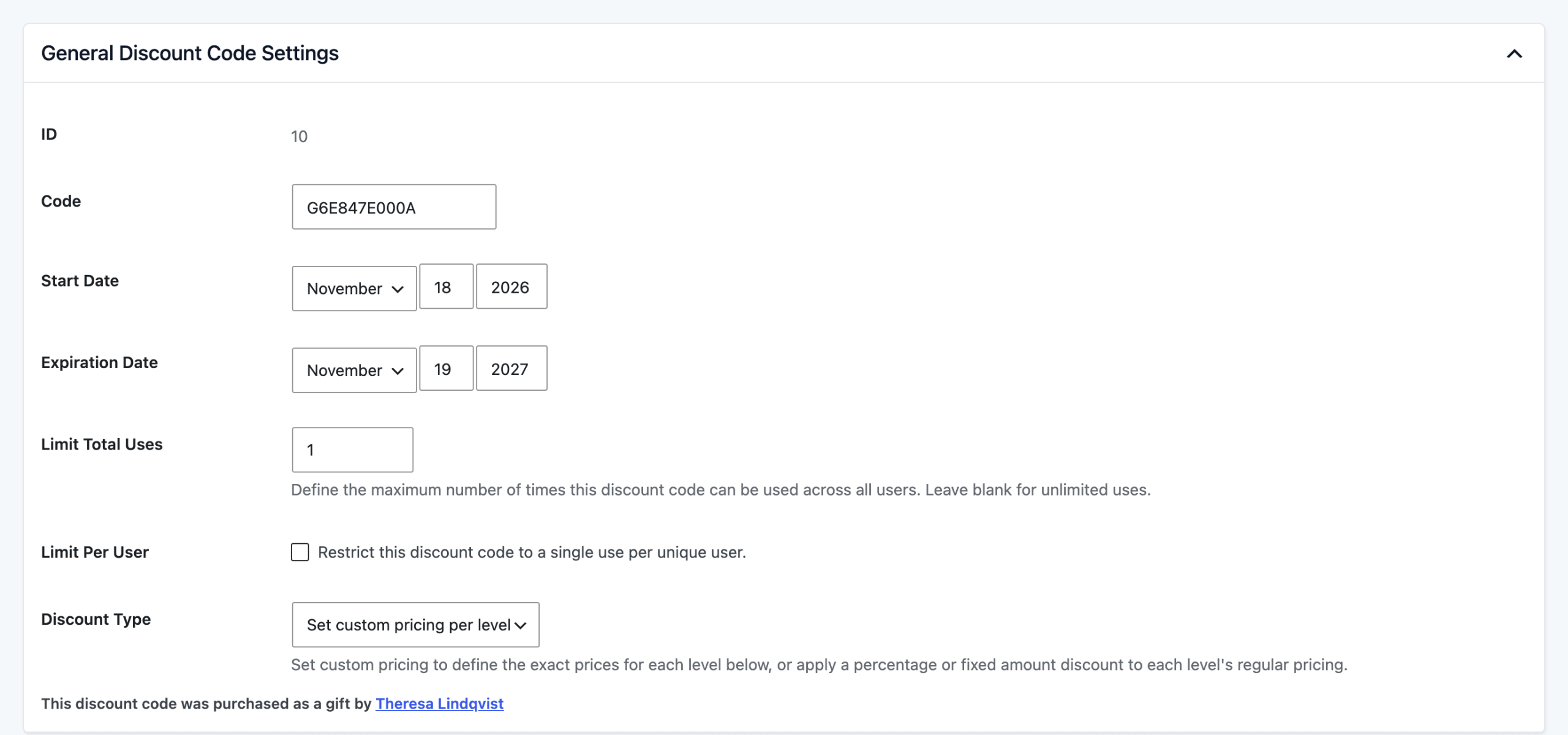
From this screen you can:
- Extend the Redemption Window: Change the Expiration Date if a recipient needs more time to redeem their gift. New codes expire one year after they’re created.
- Check the Gifted Membership: The level settings for the code show which level the recipient gets and how long it lasts.
Get Support From Our Team of Experts
Have a question about how to use this feature? Our Support Page outlines three ways to get support.
Our Max plans include hands-on help customizing your membership site and implementing new features. Upgrade to PMPro Max now »
Last updated on November 19, 2026