Members enter their mailing address in a Mailing Address section on the Membership Checkout page. When your checkout also asks for a billing address, members can copy it into the mailing address with one checkbox.
Mailing Address Fields
The Mailing Address section shows on checkout for every level that collects a mailing address (see Choose Which Levels Collect a Mailing Address). It includes these fields:
- First Name: Required.
- Last Name: Required.
- Address 1: Required.
- Address 2: Optional. The only field members can leave blank.
- City: Required.
- State: Required. A free text field.
- Postal Code: Required.
- Phone: Required.
- Country: Required. A dropdown of countries that defaults to your site’s default country (United States unless you’ve changed it).
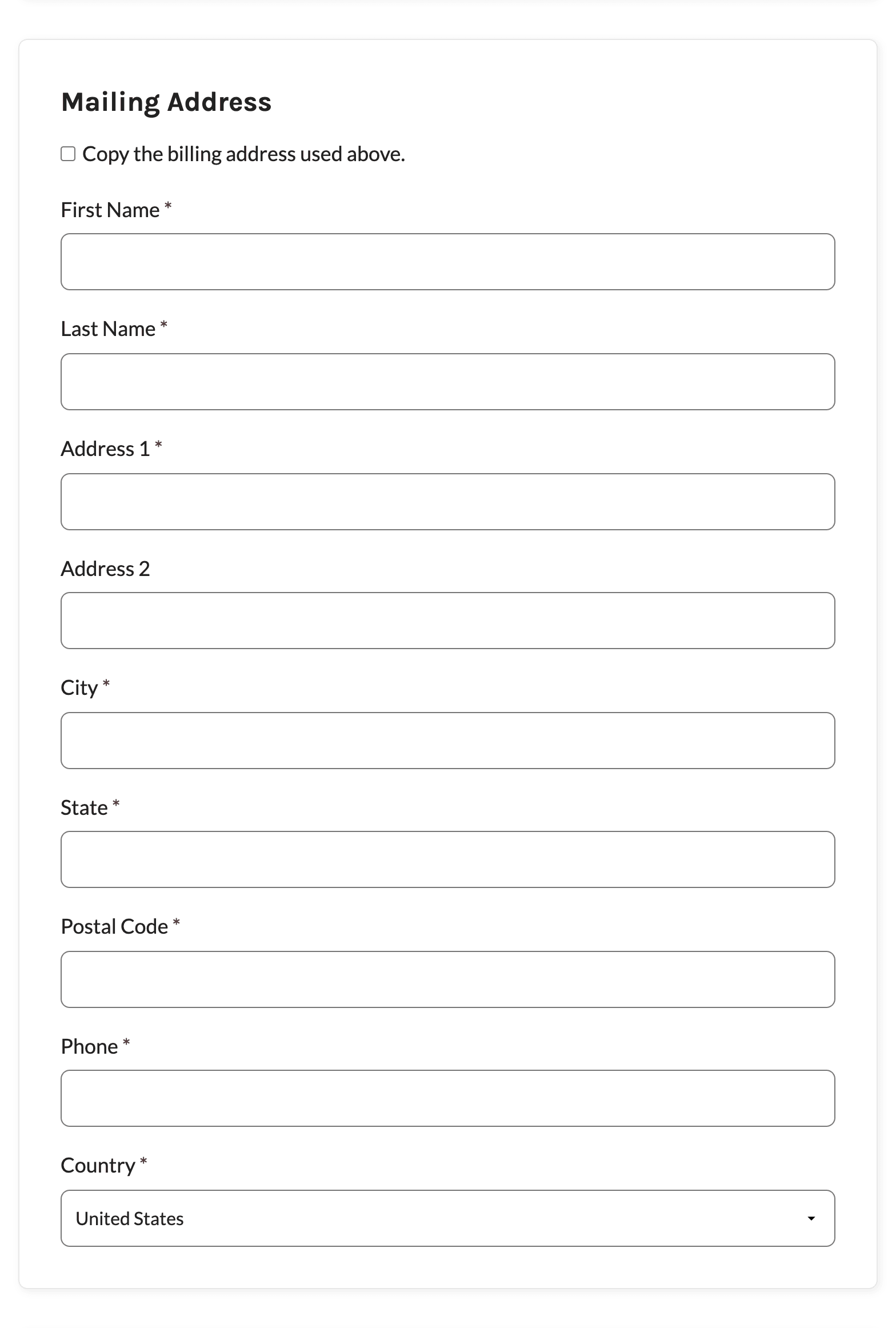
The fields are saved to the member’s user account when they complete checkout.
Copy the Billing Address
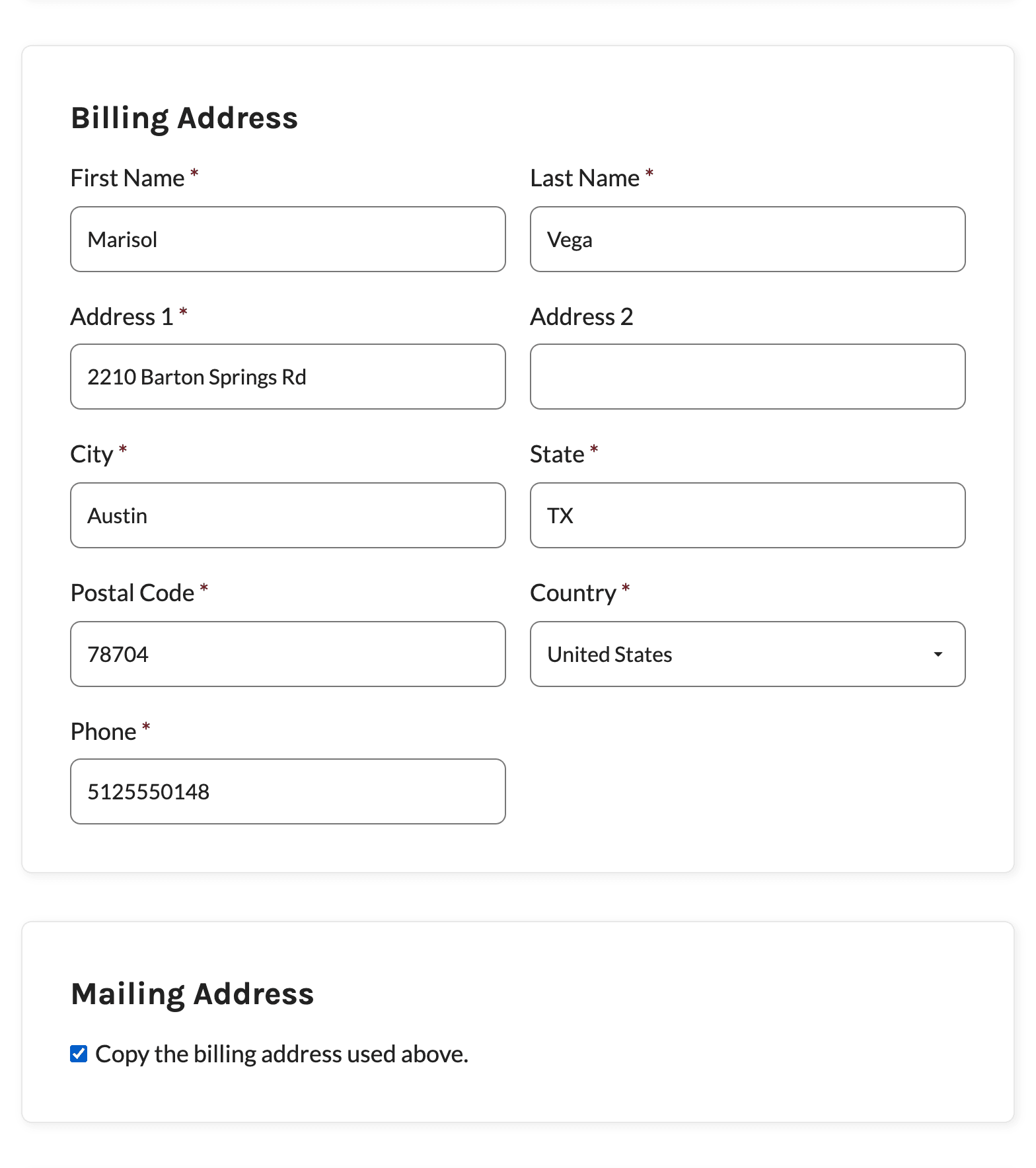
When the checkout page shows Billing Address fields, the Mailing Address section moves directly below them and adds a checkbox: Copy the billing address used above.
When a member checks the box, the mailing address fields are hidden and filled in with the billing name, address, city, state, postal code, phone, and country. The Add On copies the billing values again when the member clicks the checkout button, so any changes they make to the billing address are saved as their mailing address too. Unchecking the box shows the mailing address fields again.
Checkouts Without Billing Address Fields
Many checkouts don’t collect a billing address. Free levels don’t, and some payment gateways don’t (for example, Stripe only shows them when its Show Billing Address Fields in PMPro Checkout Form setting is on). On these checkouts, the copy checkbox is hidden and members fill in the mailing address fields themselves.
Some Add Ons show the billing fields after the page loads, such as the Capture Name & Address for Free Levels or Offsite Gateway Add On or the Donations Add On. The copy checkbox appears as soon as the billing fields do.
Get Support From Our Team of Experts
Have a question about how to use this feature? Our Support Page outlines three ways to get support.
Our Max plans include hands-on help customizing your membership site and implementing new features. Upgrade to PMPro Max now »
Last updated on November 19, 2026