As soon as you activate the Mailing Address Add On, every membership level asks for a mailing address at checkout. There’s no settings page to configure. If some of your levels don’t need an address, turn the fields off for those levels in the level settings.
What Happens After You Activate the Add On
With the Add On active, a Mailing Address section appears on the Membership Checkout page for every level, including free levels and levels you add later. The same fields also show on the Member Profile Edit page and the Edit Member screen for anyone who holds a level that collects a mailing address.
See Mailing Address Fields at Checkout for the full list of fields and how they work.
Hide the Mailing Address Fields for a Level
If you only need a mailing address for specific levels, such as a level that includes a printed magazine, hide the fields on every other level.
- Navigate to Memberships > Settings > Levels in the WordPress admin.
- Select the level you want to edit to open the Edit Membership Level screen.
- Expand the Other Settings section and scroll to the Mailing Address heading.
- Check the Hide Mailing Address box.
- Click Save Level.
- Repeat these steps for each level that should not ask for a mailing address.
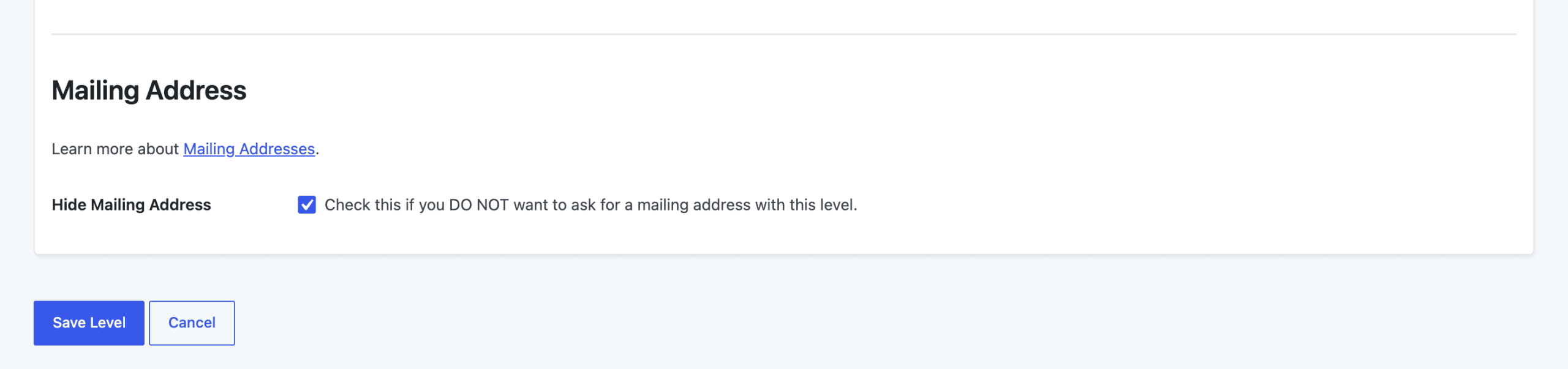
Level Setting
- Hide Mailing Address: Check this if you do not want to ask for a mailing address with this level. Unchecked by default, so new levels collect a mailing address until you check it.
What Hiding the Fields Changes
When Hide Mailing Address is checked for a level:
- The Mailing Address section doesn’t show at checkout for that level.
- Members who only hold that level don’t see the mailing address fields on the Member Profile Edit page, and you won’t see them on their Edit Member screen. A member who holds another level that collects an address still sees the fields.
- Addresses members already saved are kept. Hiding the fields doesn’t delete anything, and a saved address still appears in the Members list, the CSV export, and membership emails.
Get Support From Our Team of Experts
Have a question about how to use this feature? Our Support Page outlines three ways to get support.
Our Max plans include hands-on help customizing your membership site and implementing new features. Upgrade to PMPro Max now »
Last updated on November 19, 2026