After checkout, members see the mailing address they entered on the Membership Confirmation page and in many of their membership emails. They can update it any time from the Member Profile Edit page.
Membership Confirmation Page
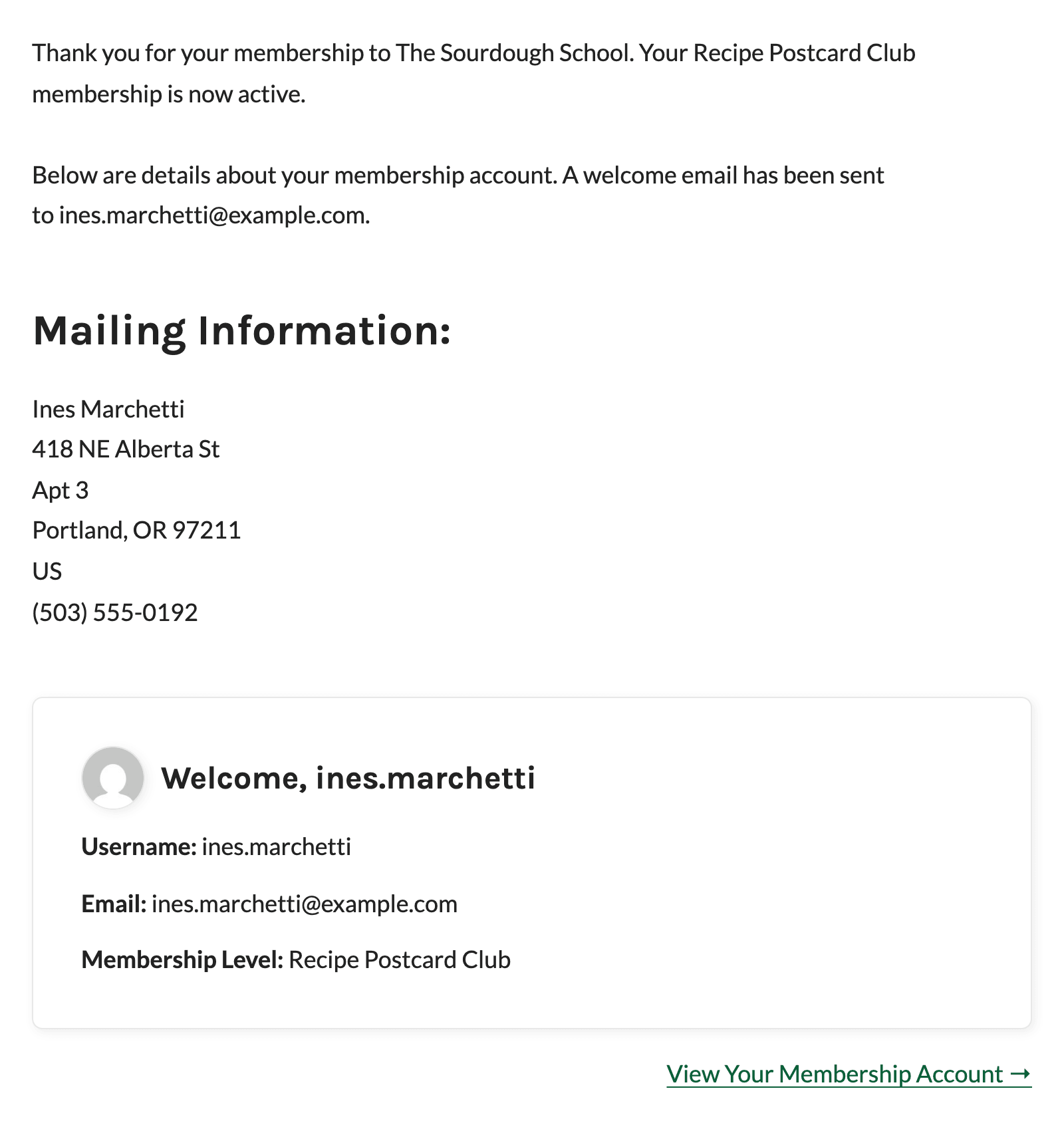
The Membership Confirmation page adds a Mailing Information heading after the confirmation message, followed by the member’s name, address, country, and phone number. Members can check the address right away and fix a typo before you send anything.
Membership Emails
When a member has a saved mailing address, the Add On adds it to the body of membership emails under a Mailing Address: label. It looks for two lines from the default email templates and places the address just above the first one it finds:
- Billing Information: Found in emails that include billing details, such as the checkout email for paid levels, the billing information updated email, and invoices. Admin versions of these emails include the member’s mailing address too.
- Log in to your membership account here: Used when the email has no billing section, such as the checkout email for free levels or Pay by Check orders, the membership expiring email, and the email sent when an admin changes a member’s level.
The address shown belongs to the member the email is about. For emails tied to an order, the Add On uses the order’s member.
Members Update Their Own Address
Members can change their mailing address from the Member Profile Edit page, which they reach from the Membership Account page. The Mailing Address section shows there for members who hold at least one level that collects a mailing address. The Copy the billing address used above checkbox only appears at checkout, so members edit each field directly.
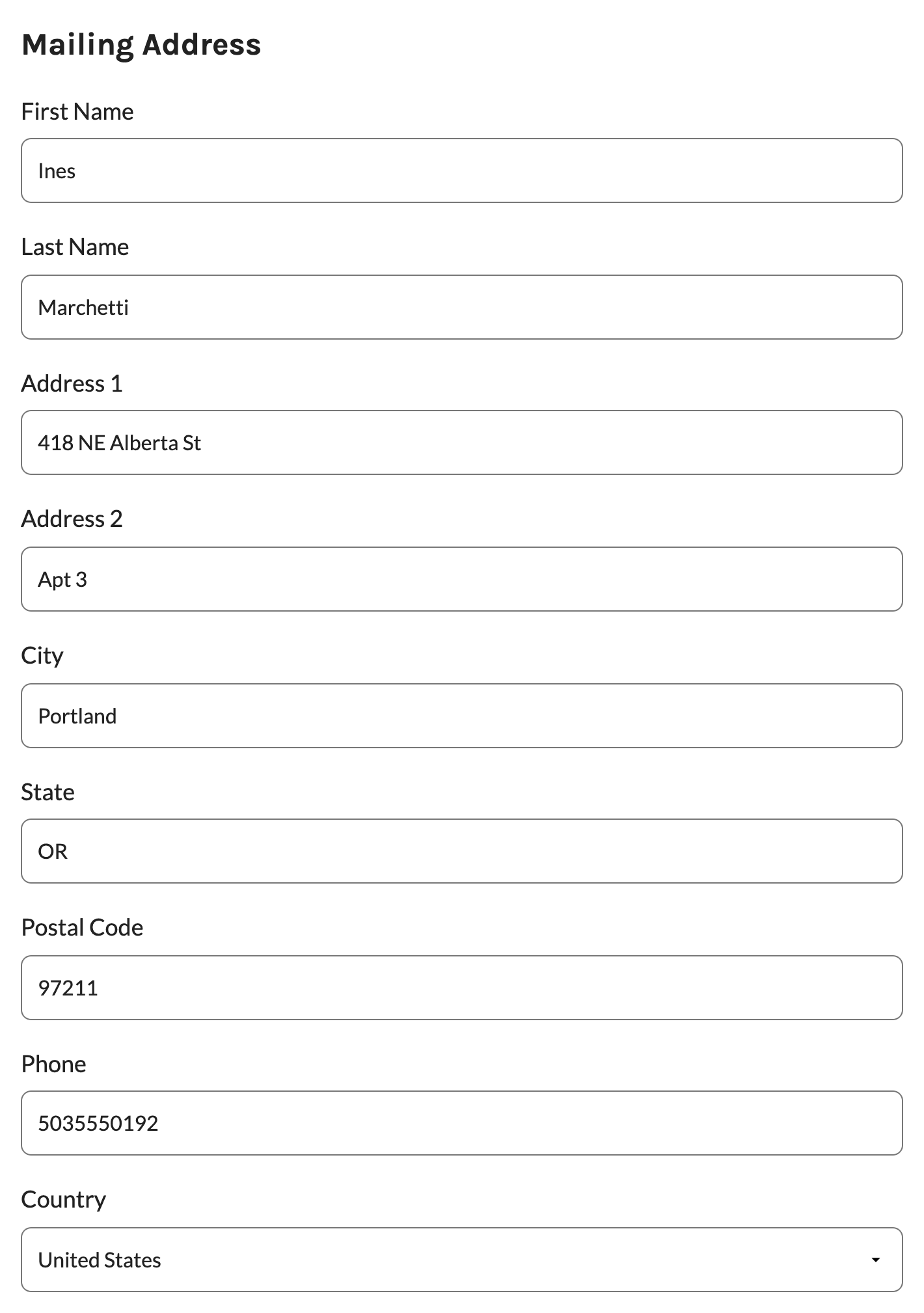
Changes are saved to the same user fields, so the Members list, CSV export, and future emails use the updated address.
Get Support From Our Team of Experts
Have a question about how to use this feature? Our Support Page outlines three ways to get support.
Our Max plans include hands-on help customizing your membership site and implementing new features. Upgrade to PMPro Max now »
Last updated on November 19, 2026