After you activate the Add On, a new Membership Manager role is available on your site. Give it to any new or existing user from the WordPress Users screen. There are no settings to configure.
How the Role Is Added to Your Site
This is a drop-in Add On. The Membership Manager role (role slug pmpro_membership_manager) is created the first time anyone loads a page in the WordPress admin after activation. The Add On then rebuilds the role on every admin page load, so its capabilities always match the list the Add On defines. You can see the full list in Membership Manager Capabilities and Restrictions.
Give an Existing User the Role
- Navigate to Users > All Users in the WordPress admin.
- Hover over the user and click Edit.
- Change the Role field to Membership Manager.
- Scroll to the bottom of the screen and click Update User.
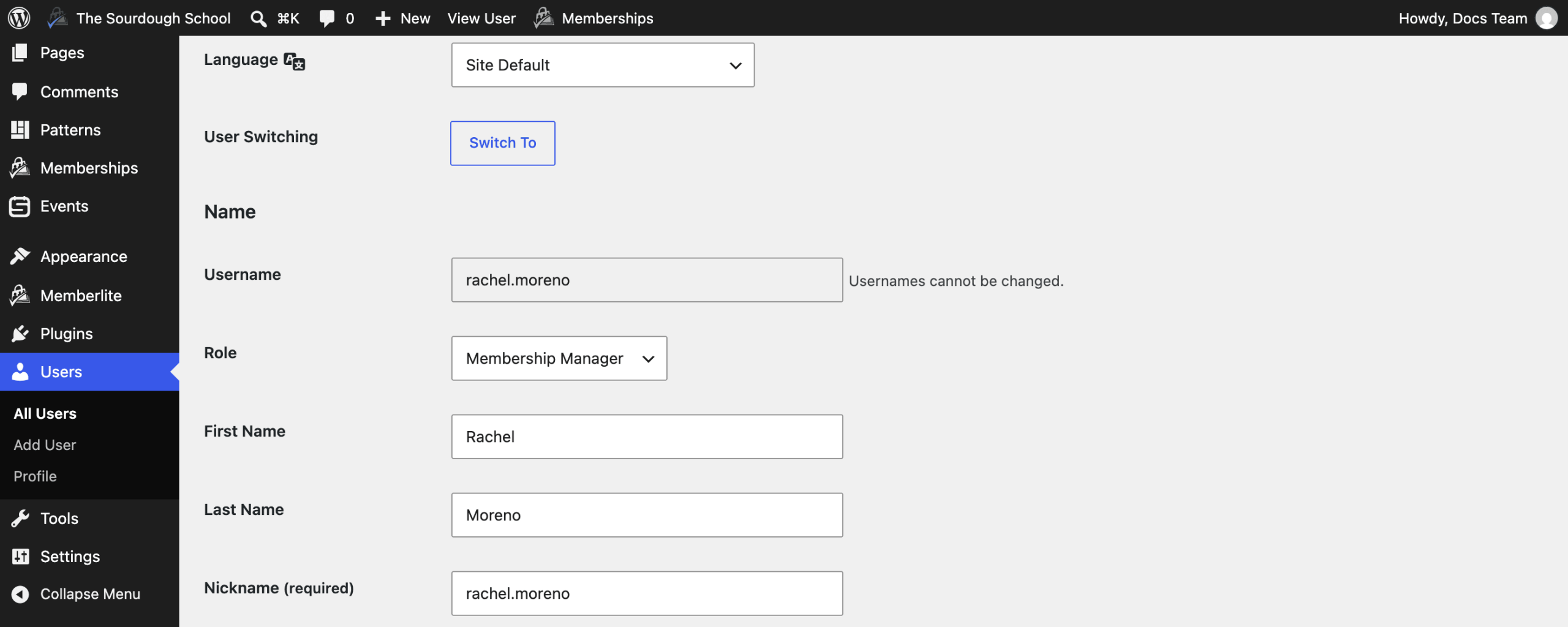
You can also change several users at once. On the Users > All Users screen, check the box next to each user, choose Membership Manager from the Change role to… dropdown, and click Change.
Add a New Membership Manager
- Navigate to Users > Add User in the WordPress admin.
- Enter the person’s username, email address, and name.
- Leave Send User Notification checked if you want WordPress to email them a link to set their password.
- Set the Role field to Membership Manager.
- Click Add User.
What a Membership Manager Sees
When a Membership Manager logs in, the WordPress admin menu shows the Dashboard, the Memberships menu, and Users. Other plugins on your site may add their own menu items if they check a capability the role includes.
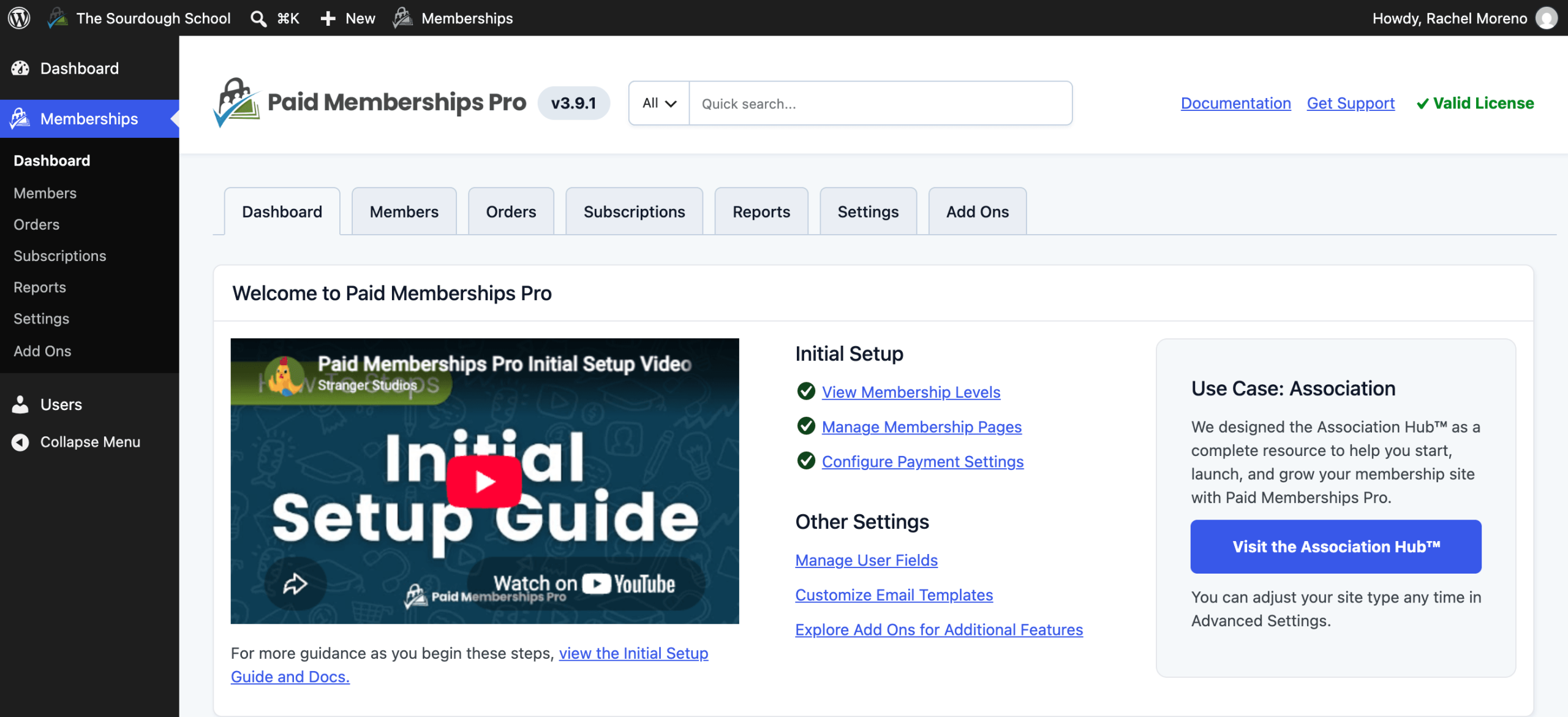
Under Memberships, managers can open the Dashboard, Members, Orders, Subscriptions, Reports, Settings, and Add Ons screens. The License screen is only available to administrators.
Remove the Role or Deactivate the Add On
To take away a manager’s access, edit the user and change their Role to another role, such as Subscriber.
When you deactivate the Add On, the Membership Manager role is deleted from your site. Users who had the role lose the access it gave them, and the role no longer appears in the Role dropdown. Their role assignment is still stored on their account, so if you reactivate the Add On, the role is recreated on the next admin page load and those users get their access back.
Get Support From Our Team of Experts
Have a question about how to use this feature? Our Support Page outlines three ways to get support.
Our Max plans include hands-on help customizing your membership site and implementing new features. Upgrade to PMPro Max now »
Last updated on November 12, 2026

