Membership Managers can run the day-to-day side of your membership site from the Memberships menu. This page lists every capability the role includes, what it leaves out, and how the Add On keeps managers from editing administrator and editor accounts.
What Membership Managers Can Do
The role includes the Paid Memberships Pro capabilities below, plus the WordPress capabilities needed to log in to the admin and manage user accounts.
| Area | What a manager can do | Capabilities |
|---|---|---|
| Memberships Dashboard | See the Memberships menu and its Dashboard. | pmpro_memberships_menu, pmpro_dashboard |
| Members and Subscriptions | Browse, search, and export the Members list. Add members, and edit a member’s memberships, subscriptions, and profile from the Edit Member screen. | pmpro_memberslist, pmpro_memberslistcsv, pmpro_edit_members, pmpro_edit_memberships, pmpro_subscriptions |
| Orders | Search, view, and refund orders, and export orders to CSV. | pmpro_orders, pmpro_orderscsv |
| Reports | View reports, and export the Memberships and Logins reports to CSV. | pmpro_reports, pmpro_reportscsv, pmpro_loginscsv |
| Settings | Manage Levels, Discount Codes, Pages, Payments, Email Settings, Email Templates, User Fields, and Advanced settings. | pmpro_membershiplevels, pmpro_discountcodes, pmpro_pagesettings, pmpro_paymentsettings, pmpro_emailsettings, pmpro_emailtemplates, pmpro_userfields, pmpro_advancedsettings |
| Add Ons and Setup Wizard | Open the Memberships > Add Ons screen and the Setup Wizard. | pmpro_addons, pmpro_wizard |
| Approvals | Review and approve applications when the Approval Process for Membership Add On is active. | pmpro_approvals |
| WordPress Users | View, add, edit, and delete users and change their roles, except for users with a restricted role. | list_users, create_users, add_users, edit_users, delete_users, remove_users, promote_users |
| Admin Access | Log in to the WordPress admin. Plugins such as WooCommerce check view_admin_dashboard before letting a user into the admin. | read, view_admin_dashboard |
Other Add Ons that check these standard capabilities work for Membership Managers too. For example, the Mobile Reports Dashboard Add On checks pmpro_reports.
What Membership Managers Can’t Do
The role does not include every capability Paid Memberships Pro gives administrators. Membership Managers can’t:
- Open the Security or Design settings screens (
pmpro_securitysettings,pmpro_designsettings). - Export the Sales and Revenue report to CSV (
pmpro_sales_report_csv). - View or change your license key on the Memberships > License screen.
- Run database updates from the Updates Required screen (
pmpro_updates). - Turn off pause mode, which Paid Memberships Pro turns on when your site’s URL changes (
pmpro_manage_pause_mode). - Use the admin toolbar menu that previews your site with or without membership access (
pmpro_view_as). - Edit posts, pages, or media, or manage plugins, themes, and WordPress settings.
If your managers need one of these, a developer can add it with the pmpro_membership_manager_caps filter.
Restricted Roles: Administrators and Editors
Membership Managers can manage most user accounts, but they can’t touch accounts with a restricted role. By default, the restricted roles are Administrator and Editor. A user counts as restricted if they have either role, even alongside other roles.
For users with a restricted role, a Membership Manager can’t:
- Edit their profile, email address, or password.
- Change their role.
- Delete them, or remove them from the site.
- Send them a password reset.
- Switch to their account with the User Switching plugin.
Membership Managers also can’t give anyone a restricted role. Administrator and Editor are left out of every Role dropdown they see, including the Edit User and Add User screens and the Change role to… bulk action.
These rules apply anywhere WordPress checks whether the current user can edit, promote, delete, or remove a specific user. That includes the Users screen, the WordPress REST API, and Paid Memberships Pro screens. On the Users > All Users screen, restricted users have no Edit or Delete links.
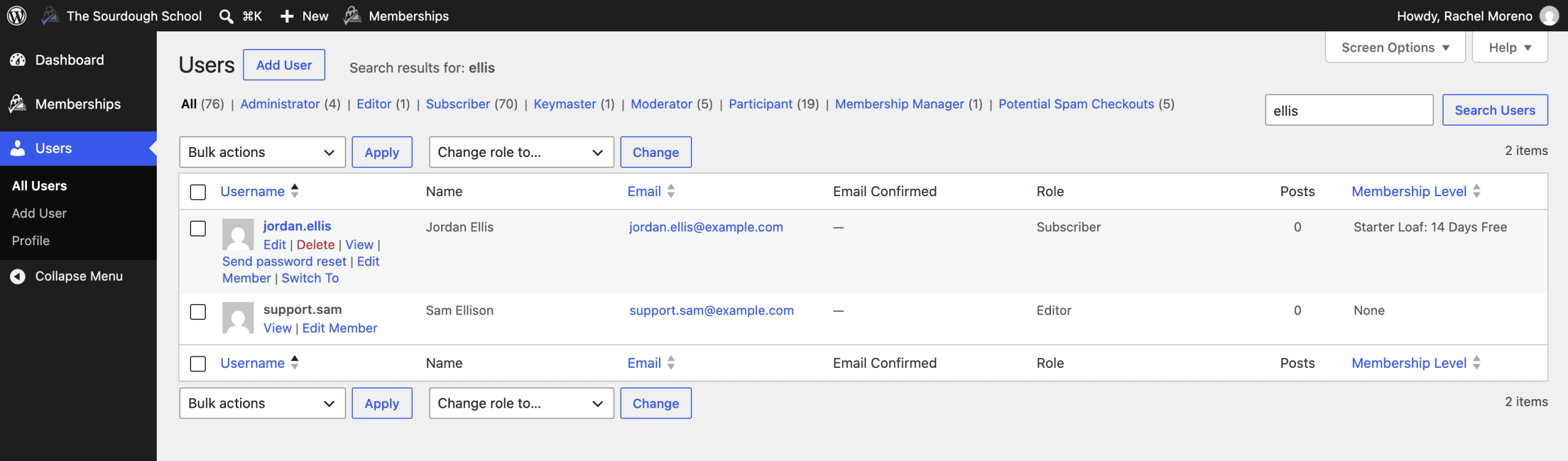
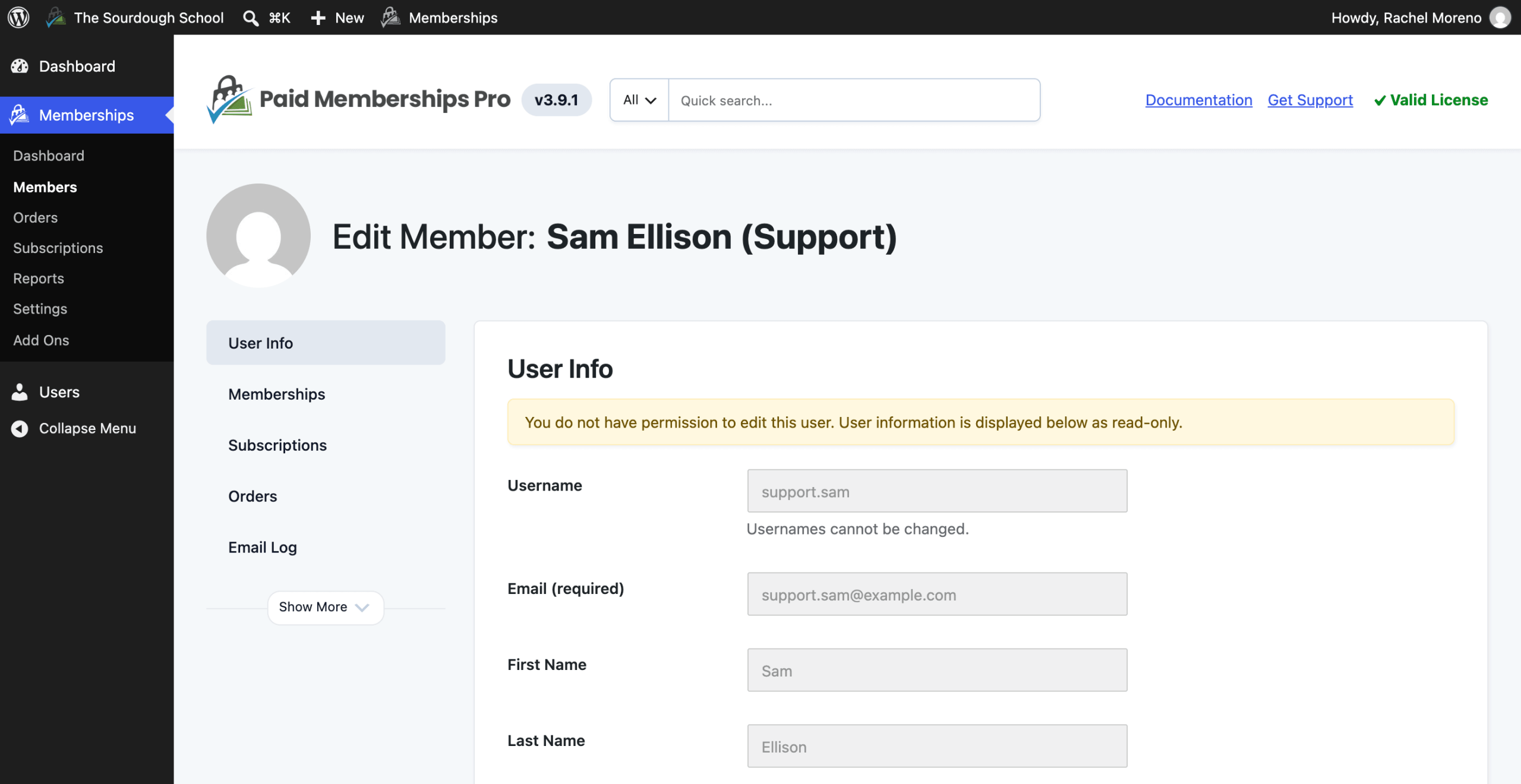
If a Membership Manager opens a restricted user’s profile directly, WordPress stops with a message such as “You are not authorized to edit users with the administrator role.” On the Memberships > Members > Edit Member screen, the User Info panel is read-only for these users.
A few things to know about how restricted roles work:
- Their own account: Membership Managers can always edit their own profile.
- Administrators aren’t limited: The restrictions only apply to Membership Managers. Administrators and network super admins can still edit every user.
- Other managers aren’t restricted: Membership Managers can edit other Membership Managers and give the Membership Manager role to other users.
- Roles from other plugins: Only Administrator and Editor are restricted by default. If your site has other roles with elevated access, such as Shop Manager from WooCommerce or Keymaster from bbPress, Membership Managers can assign those roles and edit users who have them. Add these roles to the restricted list with the pmprommr_restricted_roles filter.
Customize the Membership Manager Role
The Add On deletes and recreates the Membership Manager role on every WordPress admin page load, using its built-in list of capabilities. Any change you make to the role with a role editor plugin is overwritten the next time someone loads an admin page.
New capabilities from future Paid Memberships Pro releases or other Add Ons are not added to the role automatically. The role only gets a capability when it’s in the Add On’s list or added with the pmpro_membership_manager_caps filter.
You have two ways to give staff a different set of permissions:
- Filter the role’s capabilities: Use the pmpro_membership_manager_caps filter to add or remove capabilities for every Membership Manager.
- Create a separate role: Follow our guide to duplicate and customize the Membership Manager role using the User Role Editor plugin. Your copy is a separate role, so the Add On doesn’t overwrite it. The restricted role protections on this page only apply to the Membership Manager role itself.
Review Who Has Access
To see everyone with the role, go to Users > All Users and click the Membership Manager filter above the list. Paid Memberships Pro’s admin activity email also lists your administrators and Membership Managers, so you can check regularly who has access to your membership data.
Get Support From Our Team of Experts
Have a question about how to use this feature? Our Support Page outlines three ways to get support.
Our Max plans include hands-on help customizing your membership site and implementing new features. Upgrade to PMPro Max now »
Last updated on November 12, 2026

