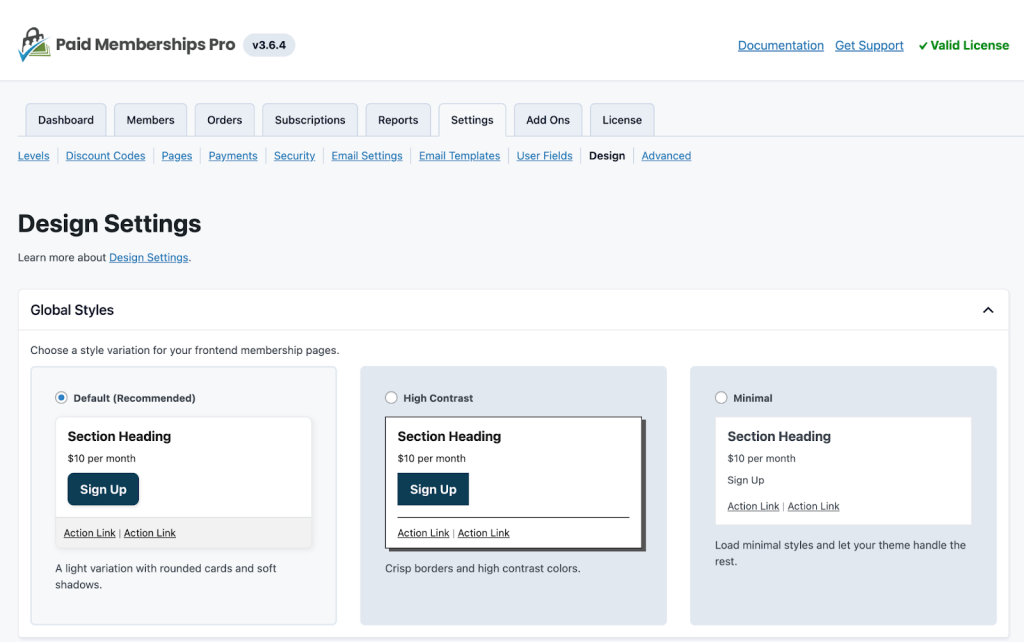
The Membership Card automatically inherits styling from your core Paid Memberships Pro settings.
To adjust the colors and general appearance:
- Go to Memberships > Settings > Design in your WordPress dashboard.
- Adjust your frontend typography and button colors. The card will update to match your site’s branding.
If you need further styling, the plugin applies specific CSS classes that you can target with custom CSS. If you want to create advanced customizations, please refer to our guide on Creating Custom Membership Cards.
Adding Images and Logos
Visual branding is a key part of a membership card. There are two primary ways to include images on your card.
1. Adding a Company Logo (Featured Image)
To display your organization’s logo or a background graphic on the card:
- Edit the specific Page where the Membership Card shortcode or block is located.
- Locate the Featured Image box in the right-hand document sidebar.
- Upload your logo or card graphic and set it as the Featured Image.
- Once you save the page, the image will automatically show up on all membership cards.
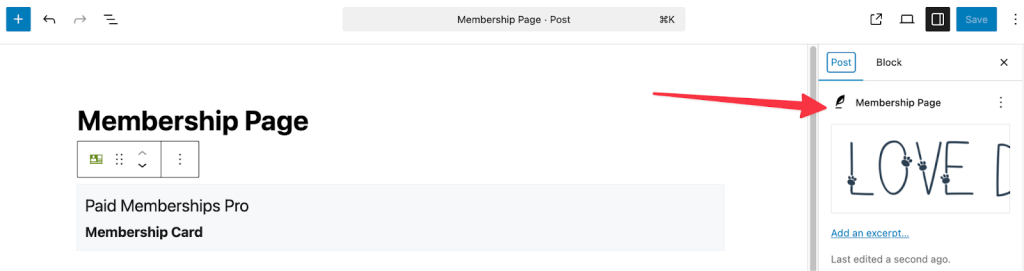
For example, the above settings will create a membership card that looks like this:

2. Showing the User Avatar
To display the individual member’s face:
- Block Editor: Simply toggle the Show Avatar switch to “On” in the block settings.
- Shortcode: Add
show_avatar="true"to your shortcode attributes.
This will pull the user’s Gravatar or the custom avatar they have uploaded to their WordPress user profile.
Creating a Custom Membership Card Template
If the provided block settings, shortcode attributes, custom CSS, or action/filter hooks do not offer the level of customization you need, you can create a custom template file to take complete control over the card’s HTML and structure.
Steps to Create a Custom Template:
- Locate the Default Template File:
The default Membership Card template file is located within the Add On’s plugin directory.- Existing Path:
wp-content/plugins/pmpro-membership-card/templates/membership-card.php
- Existing Path:
- Copy the Template File:
Copy the entiremembership-card.phpfile. - Place the Custom Template in Your Theme: Paste the copied file into the root of your active WordPress theme’s directory.
- Target Path Example:
wp-content/themes/your-active-theme/membership-card.php
- Target Path Example:
By placing the file in this exact location (.../themes/my-theme/membership-card.php), the Membership Card Add On will automatically detect and load your custom template instead of the default one. You can now modify the HTML, PHP, and structure within this file to achieve your desired custom card design.
Note: When the plugin is updated, your custom template will remain untouched. However, you are responsible for ensuring that your custom template remains compatible with any future updates to the Membership Card Add On.
Get Support From Our Team of Experts
For more help with this PMPro feature, check out our Support Page with three ways to get support as a free or premium member.
Last updated on February 5, 2026

