If you are using the Classic Editor, want to place the card in a template file, or want to insert it into a page using a page builder, you can use the shortcode.
Basic Usage
[pmpro_membership_card]
Advanced Customization
If you are manually implementing the card using the [pmpro_membership_card] shortcode, then you can use the following attributes to replicate the block settings.
Shortcode Attributes
- print_size: Specifies which size options are available in the print window.
- Values: small, medium, large, or all.
- Example:
[pmpro_membership_card print_size="small"](Forces a wallet-sized card).
- qr_code: Determines if the QR code should be displayed.
- Values: true or false.
- qr_data: Specifies the data returned when the QR code is scanned.
- Values: email, ID, level, or other.
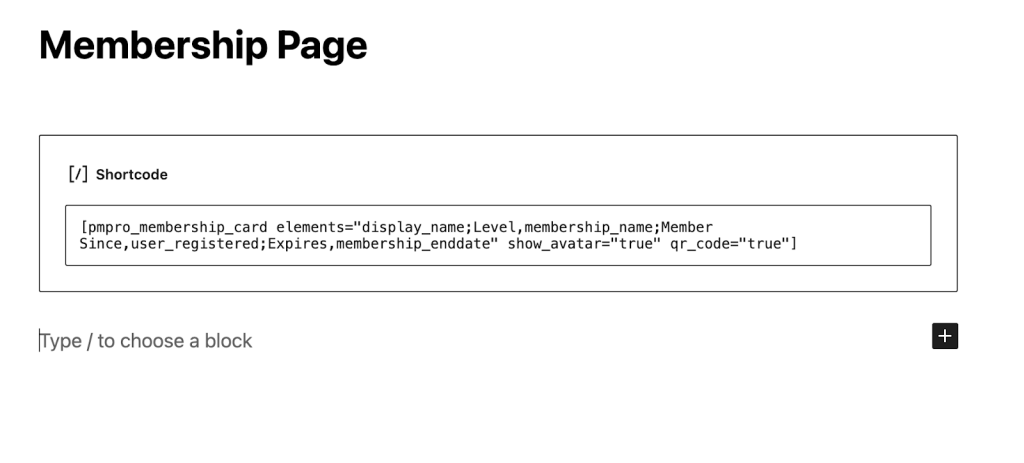
elements: You can use the elements attribute to customize the data displayed on the card. Unlike the Block Editor (which uses new lines), the shortcode separates fields with a semicolon (;).
[pmpro_membership_card elements="display_name;Level,membership_name;Member Since,user_registered;Expires,membership_enddate" show_avatar="true" qr_code="true"]
Available Element Fields
You can display standard user data or custom fields on your card. Here are the predefined elements you can use in the Membership Card Block settings or Shortcode.
- site_logo → Displays the site logo (No label required).
- featured_image → Displays the featured image of the post/page (No label required).
- display_name → The member’s WordPress display name.
- membership_name → The name of the member’s active level(s).
- membership_startdate → The date the user joined.
- membership_enddate → The date the membership expires.
- pmpro_shipping_address/pmpro_mailing_address -> The member’s shipping/mailing Address. These are interchangeable.
- user_email → The member’s email address.
- user_login → The member’s username.
Note: Any other elements will try to automatically get the user_meta and assume it’s the user meta key. For custom user fields, you may use the field’s name (i.e., Company Name,company) where “company” is the field’s name/key.
Get Support From Our Team of Experts
For more help with this PMPro feature, check out our Support Page with three ways to get support as a free or premium member.
Last updated on February 5, 2026

