A series is a list of posts or pages, each with a delay in days. Create a series, add your content with its delay, and choose which membership levels can access it. Members unlock each item once they’ve been a member for that many days.
Create a Series
Once the Add On is active, you’ll see a new Series menu in the WordPress admin. It lists every series on your site.
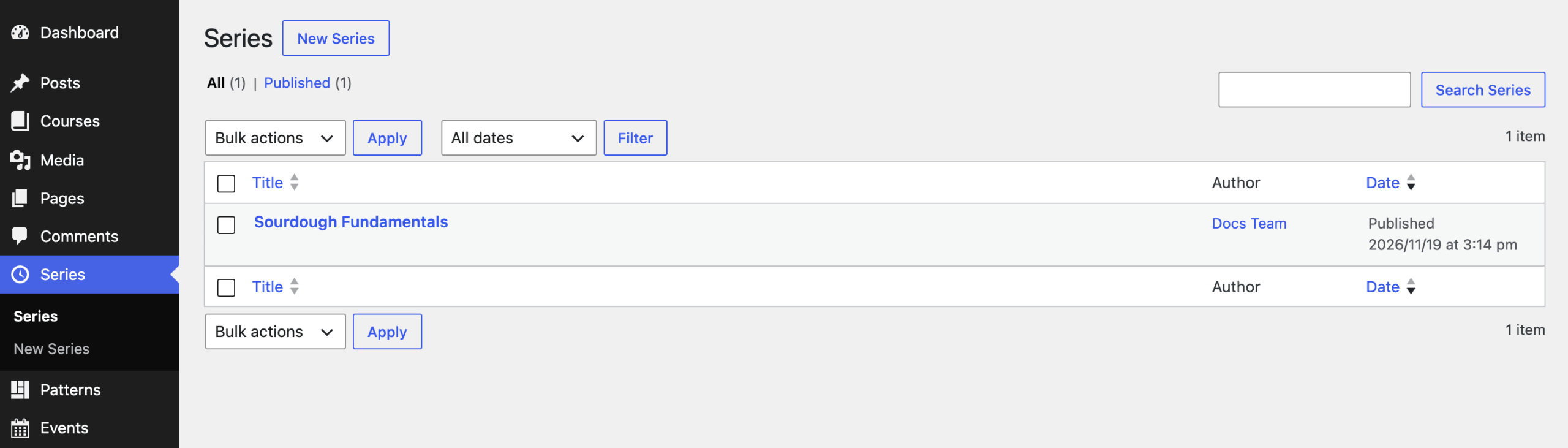
- Navigate to Series > New Series in the WordPress admin.
- Enter a title for the series, such as “Sourdough Fundamentals” or “Welcome Pack.”
- Optionally, add a description in the editor. Members with access see the series schedule in its place. Visitors without access see the description as a teaser if Show Excerpts to Non-Members? is on in your Paid Memberships Pro advanced settings (see What Members See).
- Add your content and delays in the Manage Series box (below).
- In the Require Membership box, check the membership levels that should have access to this series.
- Click Publish.
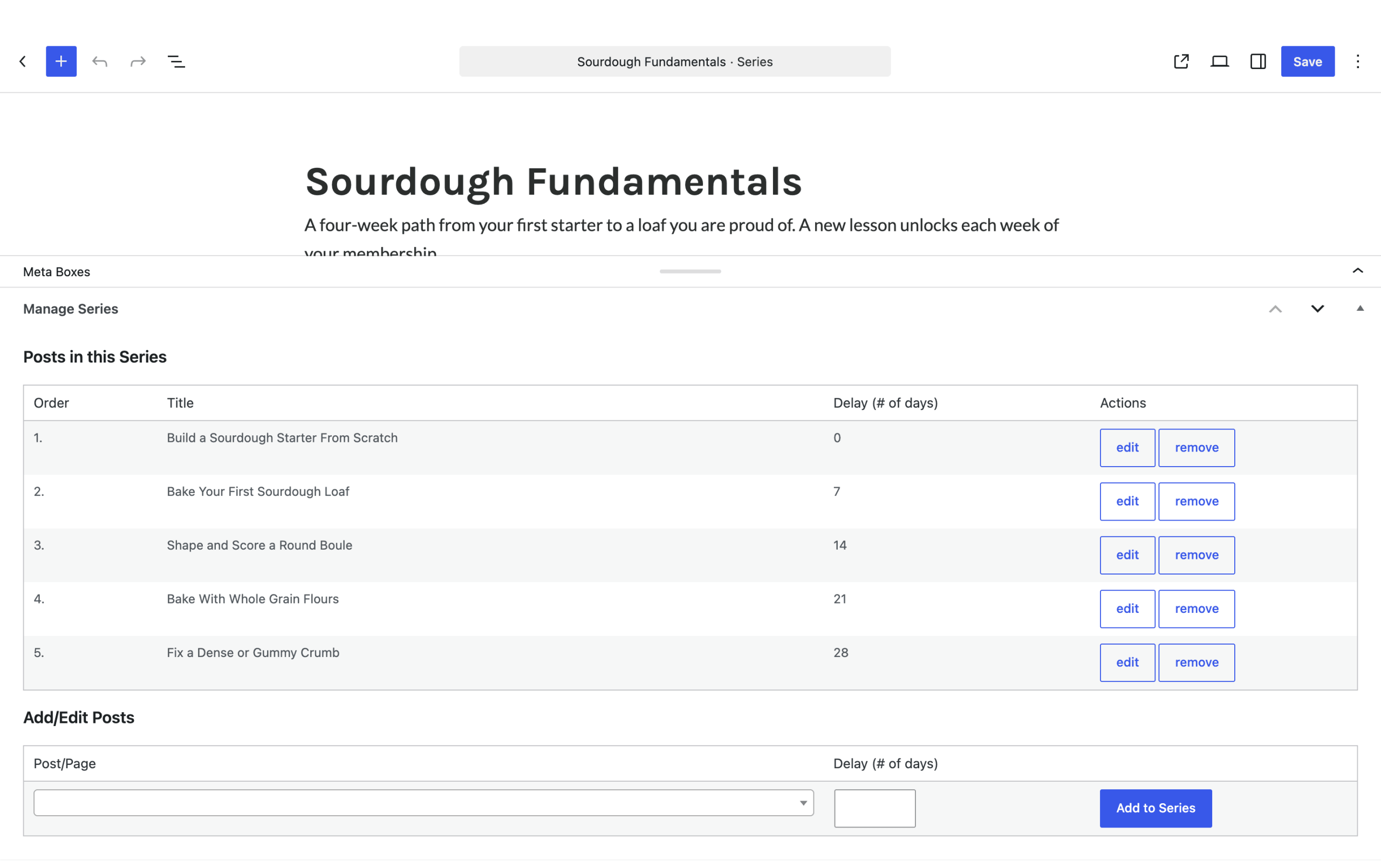
In the block editor, the Manage Series box is in the meta boxes panel at the bottom of the screen. Click Meta Boxes to expand it if it’s collapsed. The Require Membership box is in the settings sidebar.
Add Content and Set the Delay
The Manage Series box has two parts: Posts in this Series, which lists the content in the series sorted by delay, and Add/Edit Posts, where you add content to the list.
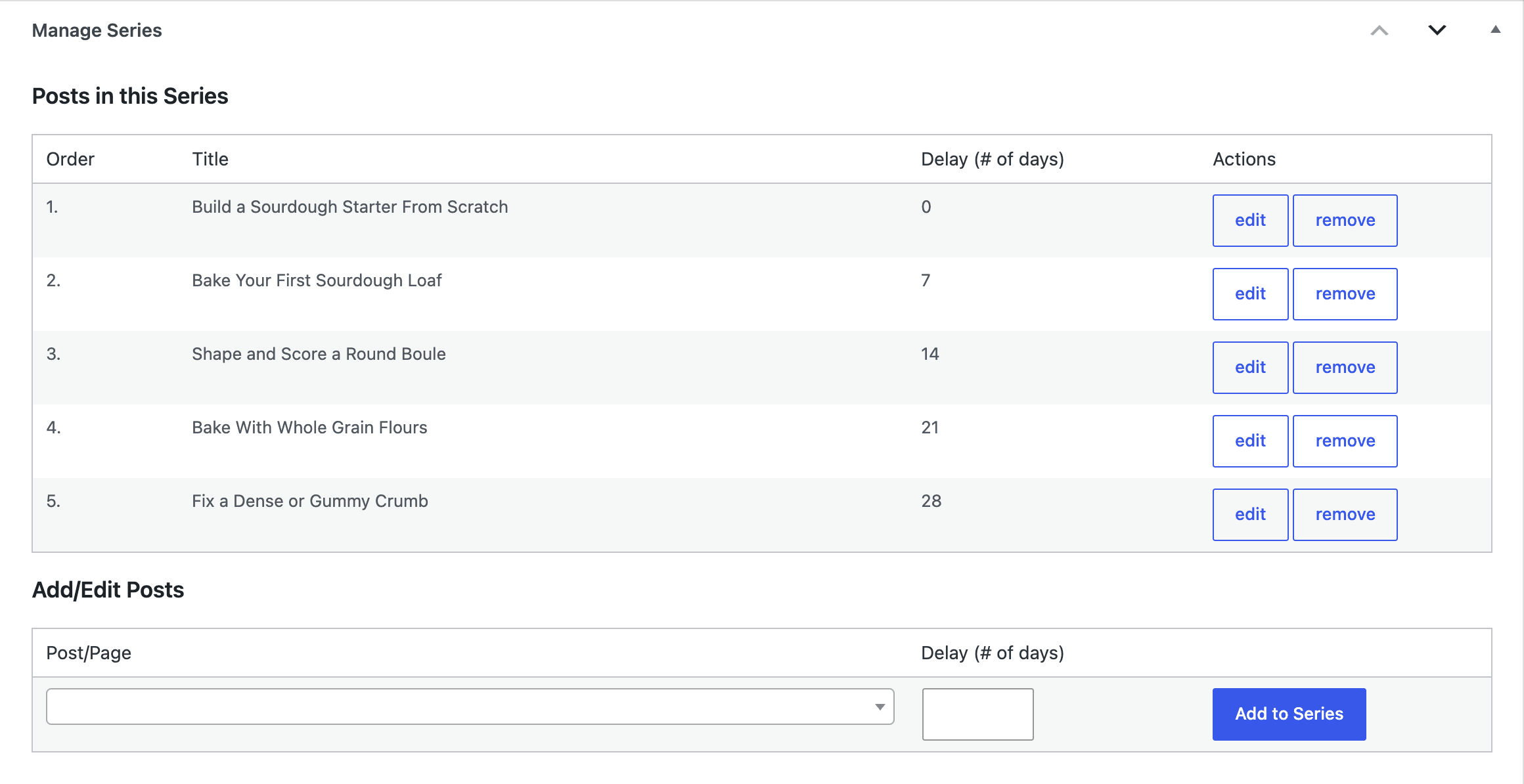
- In the Post/Page dropdown, select the content to add. You can type to search. Drafts are listed with “-DRAFT” after the post ID, so you can schedule content before you publish it.
- In Delay (# of days), enter the number of days after the member’s start date that this content unlocks. Enter
0to make it available right away. - Click Add to Series.
Changes to the list save right away. You don’t need to update the series to keep them.
- Change a Delay: Click edit next to the item. Its title and delay load into the Add/Edit Posts form. Enter the new delay, then click Save.
- Remove an Item: Click remove next to the item. The content stays on your site; it’s only taken out of the series.
You can only add content you have permission to edit. By default, the dropdown includes posts and pages. To drip a custom post type, such as courses or recipes, follow our guide to adding custom post types to your drip series, which uses the pmpros_post_types filter.
Choose Which Levels Can Access the Series
Check one or more levels in the Require Membership box on the series. This does two things:
- Locks the Content in the Series: Every post or page in the series is restricted to members of those levels, even if you didn’t restrict the post itself. You don’t need to set up access on each post.
- Sets Where the Clock Starts: Delays count from the date the member started one of those levels.
If a post in the series also has its own membership requirement, the member needs to meet both: a level that can access the post and enough days in the series.
How the Delay Is Counted
The Add On compares each item’s delay to the number of full days the member has held a level that can access the series.
- Start Date: The count starts from the start date of the member’s active membership in one of the series’ levels. If they hold more than one of those levels, the Add On uses whichever they’ve had the longest.
- Full Days: Content with a delay of 7 unlocks once the member has been a member for 7 full days, counted from the time of day they joined.
- Changing Levels: The count follows the member’s current membership. If a member moves to a different level, or their membership ends and they join again later, the count starts over from the new start date.
- Content in More Than One Series: A post can belong to several series. The member can view it as soon as any of those series unlocks it for them.
Delays are always relative to each member’s start date. If you’d rather release content on fixed calendar dates for everyone, see Unlocking Content on Specific Dates. To have every member start on the same day of the week, see Have All Memberships Start on the Same Day of the Week.
Preview Your Series as a Member
Administrators get no special treatment. If your own account doesn’t hold one of the series’ levels, the series page and its content show you the same membership required message a visitor sees. To check the schedule, log in as a test member who holds one of the series’ levels, or give your account a level.
Get Support From Our Team of Experts
Have a question about how to use this feature? Our Support Page outlines three ways to get support.
Our Max plans include hands-on help customizing your membership site and implementing new features. Upgrade to PMPro Max now »
Last updated on November 19, 2026