When a level has Variable Pricing turned on, the checkout page asks the member to enter their price. Here’s what they see, how the price range is enforced, and what happens to the price they choose.
The Membership Pricing Section
The Add On adds a Membership Pricing section to the checkout form. It has a short description of the price range and a required Your Price field. The field starts with the level’s Suggested Price filled in, or empty if you didn’t set one.
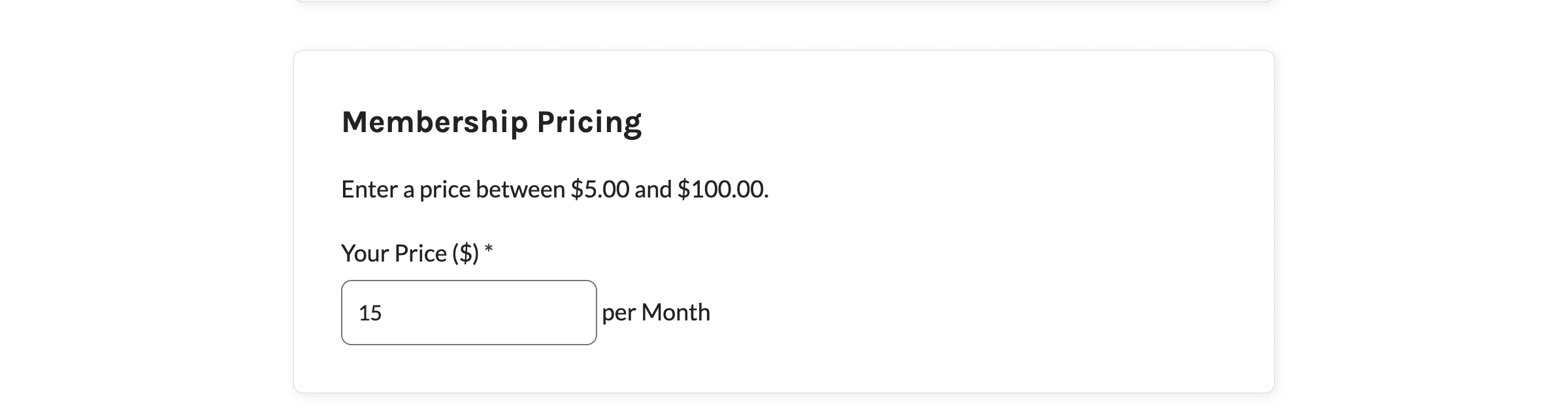
For a recurring level, the billing period appears next to the field, such as “per Month” or “every 3 Months”, so the member knows they’re choosing the amount for each payment. A one-time level shows the field on its own.
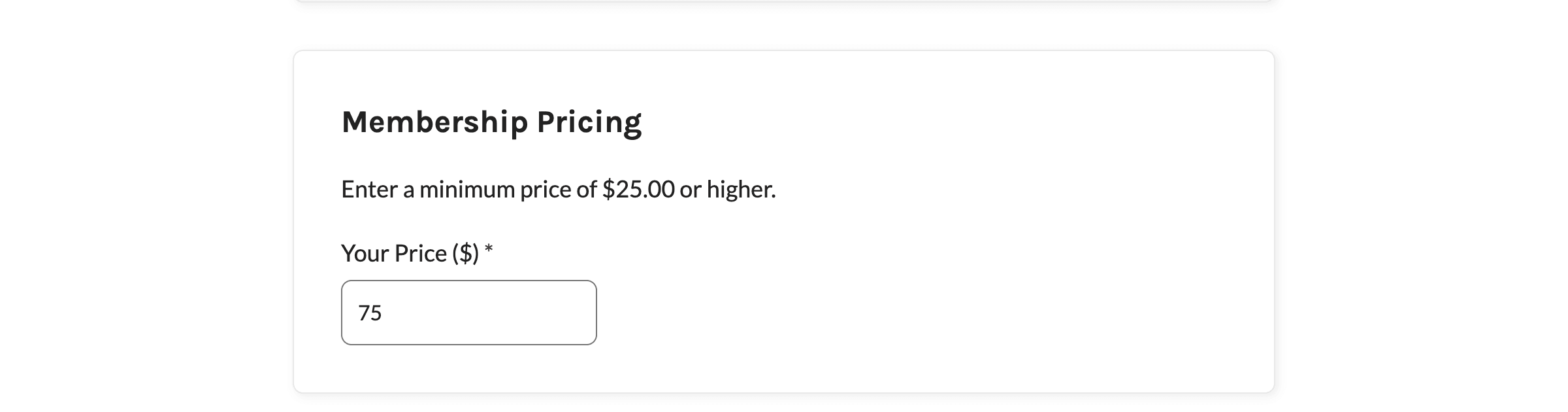
The field label includes your currency symbol, such as “Your Price ($)”, when your currency places the symbol before the amount. For currencies that put the symbol after the amount, the label is “Your Price”.
Price Description Text
The description above the field depends on which prices you set for the level:
| Level Settings | Description at Checkout |
|---|---|
| Min Price and Max Price | Enter a price between $5.00 and $100.00. |
| Min Price only | Enter a minimum price of $25.00 or higher. |
| Max Price only | Enter a price of $50.00 or lower. |
| Neither | Enter a price for your membership |
Developers can change this text and the field label with the pmpropvp_checkout_price_description and pmprovp_checkout_price_input_label filters.
The Level’s Regular Price Is Hidden
On the checkout page, the Membership Information section shows the level name and description but not the level’s regular price, since the member is choosing their own. The level’s expiration text still shows if the level expires.
How the Price Range Is Enforced
If you set a Min Price or Max Price, the price is checked twice. As the member types, the browser checks the amount against your range. If it’s outside the range, the field is marked as an error and the form won’t submit until they fix it. The browser’s message repeats the price description.
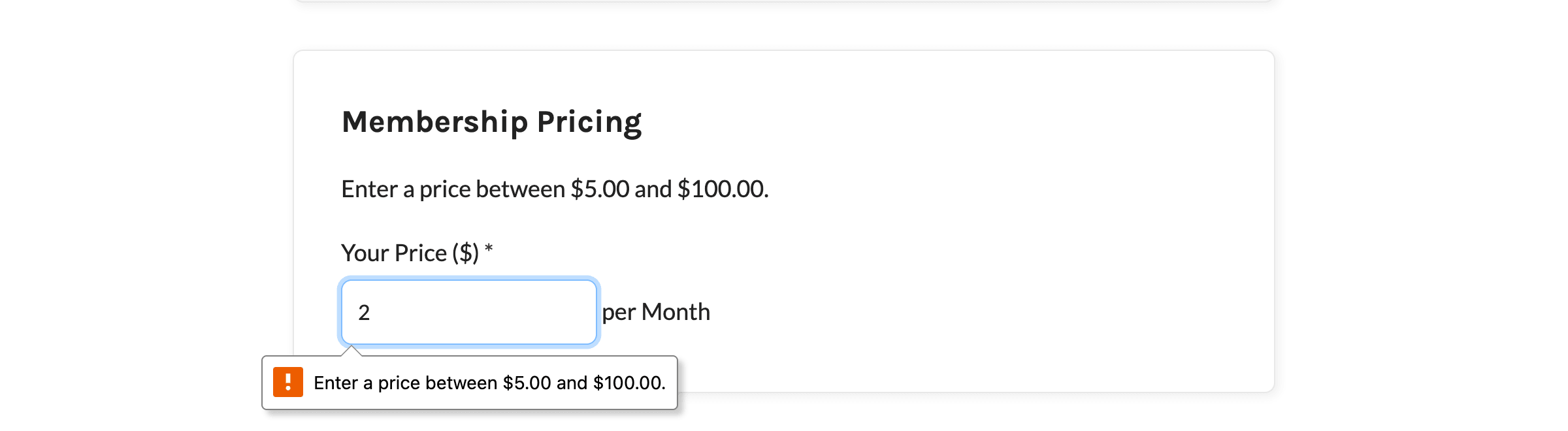
The price is checked again when checkout is submitted. If it’s too low or too high, checkout stops with one of these messages:
- The lowest accepted price is $5. Please enter a new amount.
- The highest accepted price is $100. Please enter a new amount.
When a Member Enters 0
A price of 0 is only accepted when the level’s Min Price is blank or 0. If a member enters 0, the payment fields are hidden and they check out without paying. To require a payment, set a Min Price above 0.
Discount Codes and Other Price Changes
Discount Codes: A discount code doesn’t lower the member’s chosen price. The price they enter replaces the discounted price for a Variable Pricing level, the same way it replaces the level’s regular price. After a code is applied, the Membership Information section may show the code’s price text, but the member is charged the amount in the Your Price field.
Price Add Ons: The member’s price is set before other Add Ons adjust the checkout price, so those adjustments build on the price the member chose:
- Proration and Delayed Downgrades prorates the member’s chosen price when they upgrade or downgrade.
- Addon Packages adds the package price to the member’s chosen price.
- Group Accounts adds the seat cost to the member’s chosen price.
After Checkout
The member’s membership is saved with the price they chose, and the order is charged that amount. Their checkout email and their membership history on the Edit Member screen show the price they pay, not the price range.
If you use PayPal Express, the chosen price is kept while the member goes to PayPal to approve the payment. On the review step when they return, the Membership Pricing section is hidden and the level price shows the amount they chose.
Get Support From Our Team of Experts
Have a question about how to use this feature? Our Support Page outlines three ways to get support.
Our Max plans include hands-on help customizing your membership site and implementing new features. Upgrade to PMPro Max now »
Last updated on November 19, 2026