Variable Pricing is set per membership level. Turn it on for the levels where members should choose their own price, then set the range they can choose from and the amount you’d like to suggest.
Turn On Variable Pricing for a Level
- Navigate to Memberships > Settings > Levels in the WordPress admin.
- Edit the level you want to change, or add a new level.
- Set up the level’s billing as you normally would. For a one-time payment, enter an Initial Payment. For a membership that renews, also check Recurring Subscription and enter a Billing Amount and billing cycle. The member’s price replaces these amounts, but the billing cycle stays the same.
- Expand the Variable Pricing Settings section.
- Check Enable Variable Pricing. The price fields appear once the box is checked.
- Enter a Min Price, and optionally a Max Price and Suggested Price.
- Click Save Level.
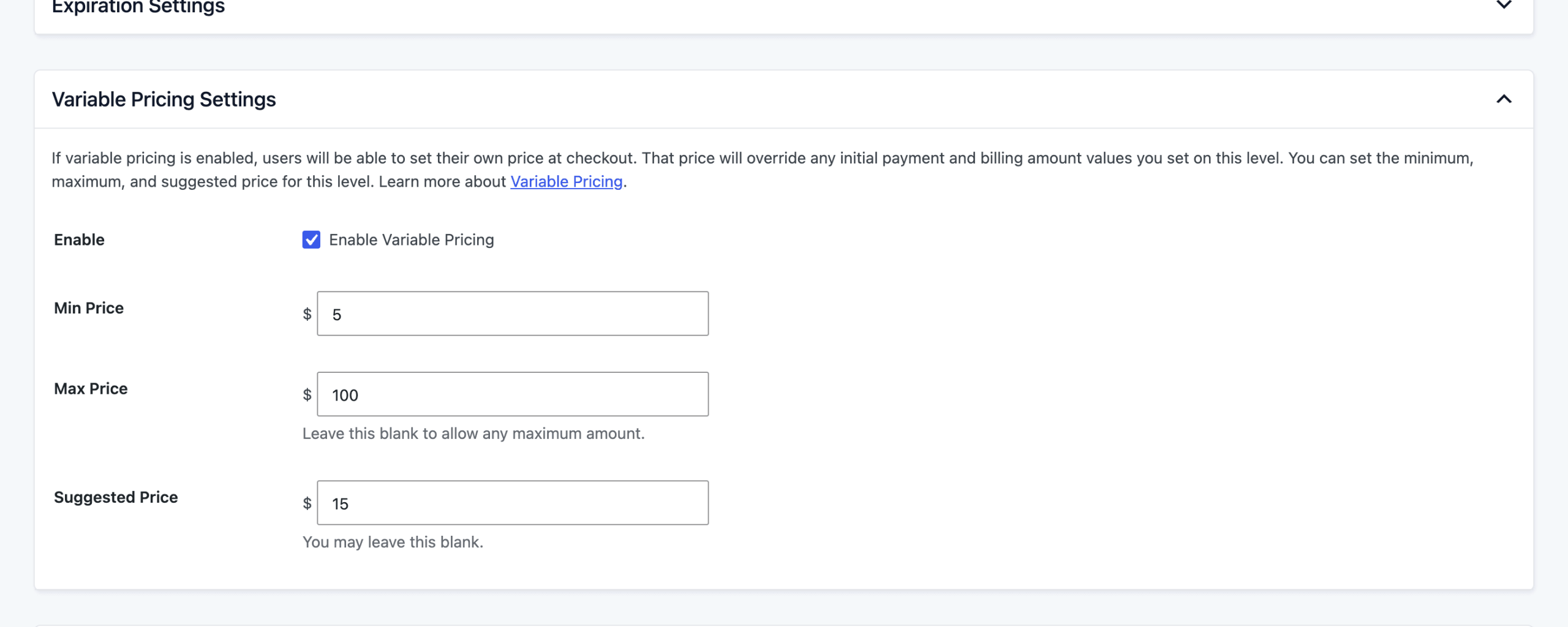
Variable Pricing Settings
- Enable Variable Pricing: Check this to let members set their own price at checkout for this level. Off by default. When it’s off, the section stays collapsed and the level uses its normal price.
- Min Price: The lowest amount a member can enter. If you leave it blank, there is no minimum, so a member can enter 0 and join without paying.
- Max Price: The highest amount a member can enter. Leave it blank to allow any amount.
- Suggested Price: The amount filled in for the member when the checkout page loads. They can change it. Leave it blank to show an empty price field. The suggested price is also shown on your levels page.
What the Member’s Price Replaces
The price a member enters at checkout replaces the level’s Initial Payment. If the level has a recurring Billing Amount greater than zero, the member’s price replaces that too, so they pay the same amount at checkout and on every renewal.
Everything else about the level stays as you set it:
- Billing Cycle: A level billed every month is still billed every month at the member’s price.
- One-Time Levels: A level with no recurring Billing Amount stays a one-time payment. The member’s price is charged once.
- Trial, Billing Limit, and Expiration: These settings aren’t changed. A trial keeps the trial amount you set; it doesn’t use the member’s price.
See Which Levels Use Variable Pricing
The Memberships > Settings > Levels screen has a Variable Pricing column. For each level with Variable Pricing turned on, it shows the price range and the suggested price. Levels without Variable Pricing show a dash.
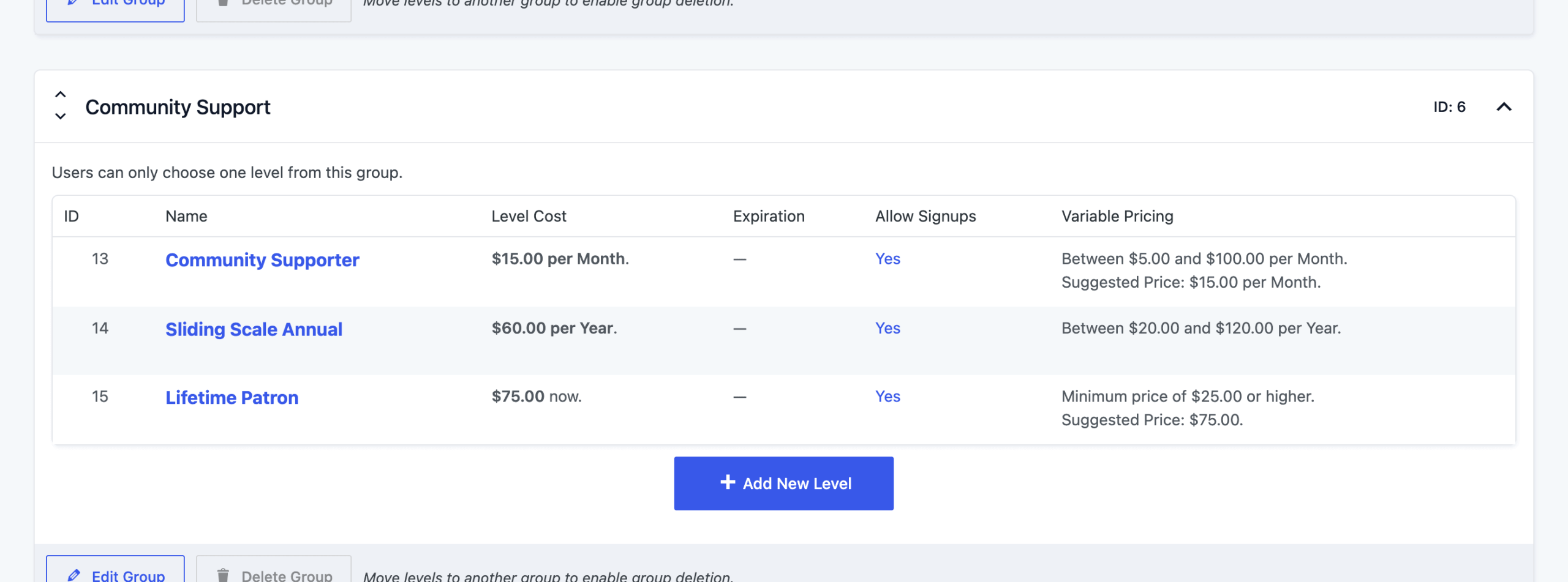
The Level Cost column still shows the level’s regular price. That’s the price you entered in the level’s billing settings, which a member’s own price replaces at checkout.
Get Support From Our Team of Experts
Have a question about how to use this feature? Our Support Page outlines three ways to get support.
Our Max plans include hands-on help customizing your membership site and implementing new features. Upgrade to PMPro Max now »
Last updated on November 19, 2026