Easily manage sidebars and widgets in Memberlite to customize your layout with custom sidebars, widget areas, and dynamic content options.
Default Widget Areas
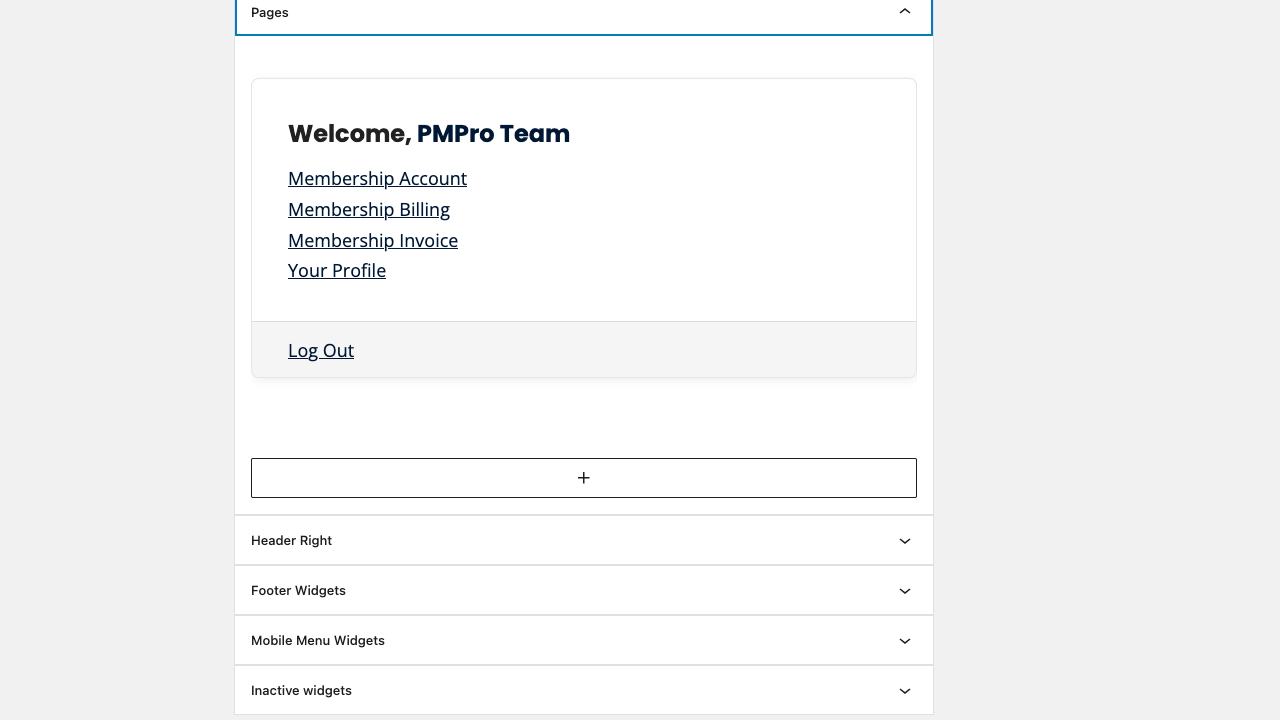
Memberlite includes the following widget areas:
Posts and Archives
Shown on the latest posts page (front page or as defined under Settings > Reading), category and tag archives, and single posts.
Pages
Shown on all pages.
Header Right
Shown in the upper right area of the header. Suggestions for this area include a menu, social networking links, or a search form if desired. Note that the “Meta Menu” theme location will precede this widget area if a menu is set under Appearance > Menus.
Footer
Shown in the footer throughout the site. Each widget will fill a column; you can set the number of footer columns under Appearance > Customize > Footer.
Mobile Menu
Shown in the pop-out menu area on smaller devices. Suggestions for this area include menus, a search form, and a log-in form if desired.
Add a New Custom Sidebar
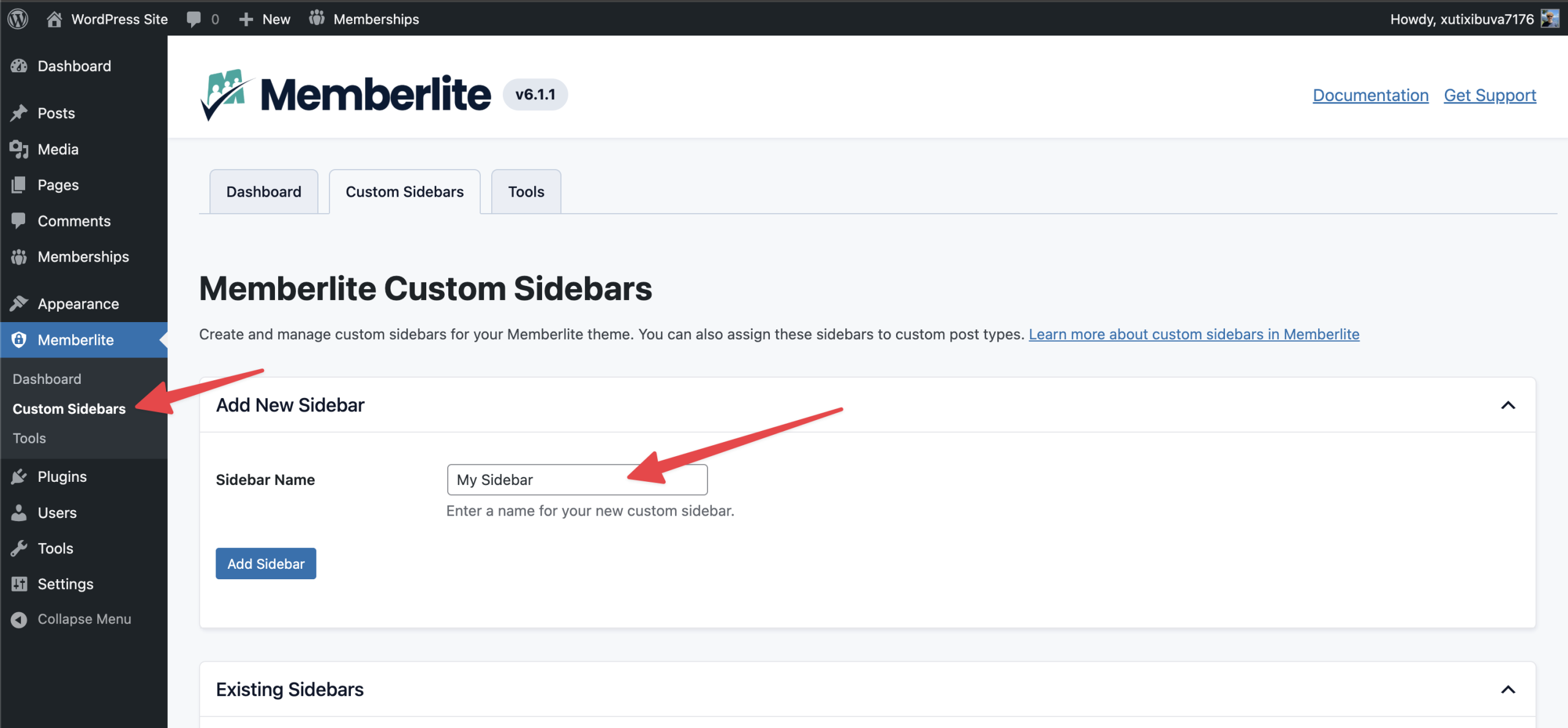
- Log in to your WordPress admin.
- Navigate to Memberlite > Custom Sidebars.
- Click “Add New Sidebar” to expand that section.
- Enter a Sidebar Name in the text field.
- Click “Add Sidebar”.
Enable the Sidebar Option for Gutenberg
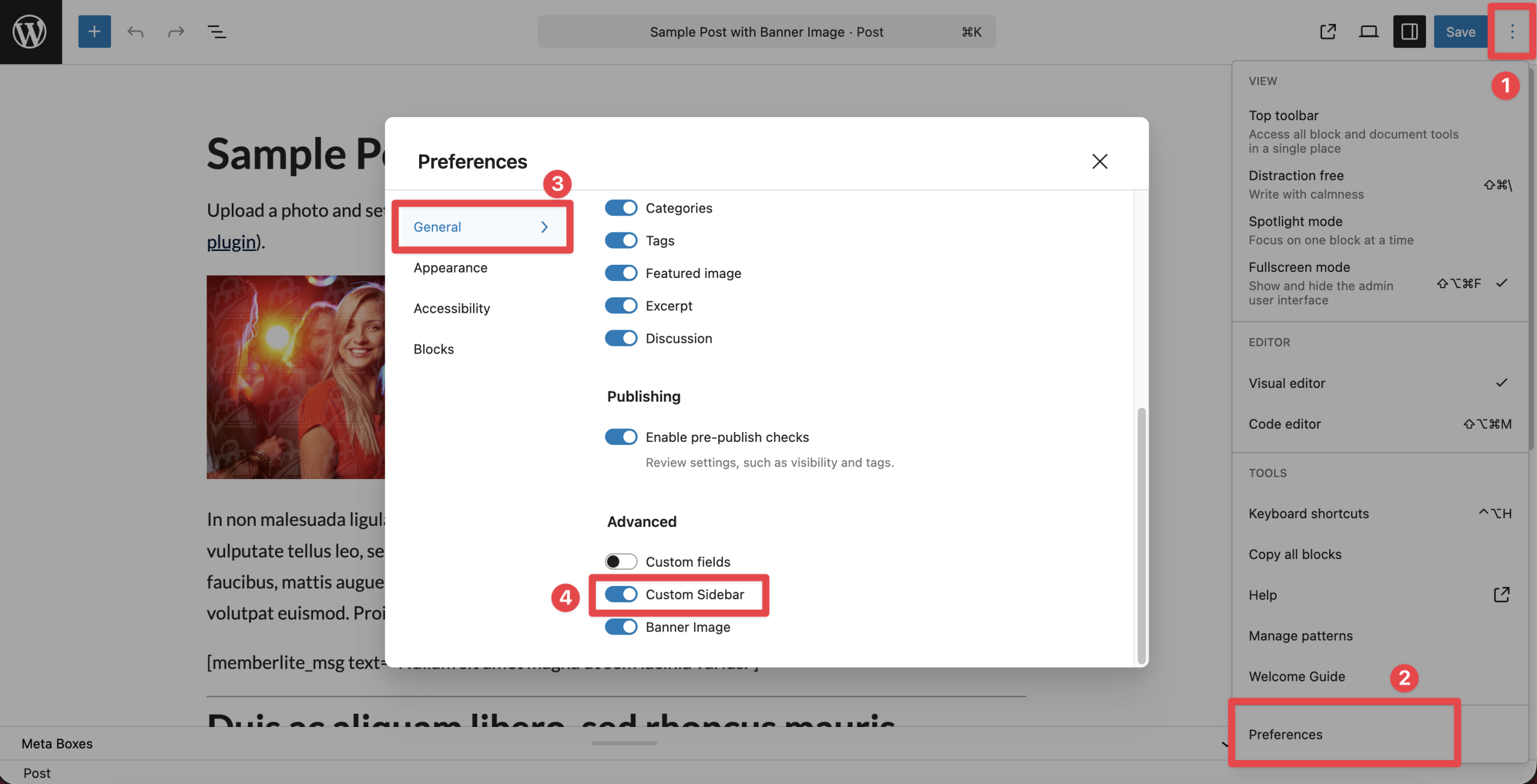
- Open the page or post editor and click on the three-dots menu icon in the top right corner.
- Select the “Preferences” option.
- In the Preferences modal, scroll down to the Advanced section, then click the “Custom Sidebar” toggle to enable it.
Update Default Sidebar Per Page/Post
Memberlite allows you to update the default sidebar behavior for a single page or post.
- To update the default sidebar display, select a page or post to edit.
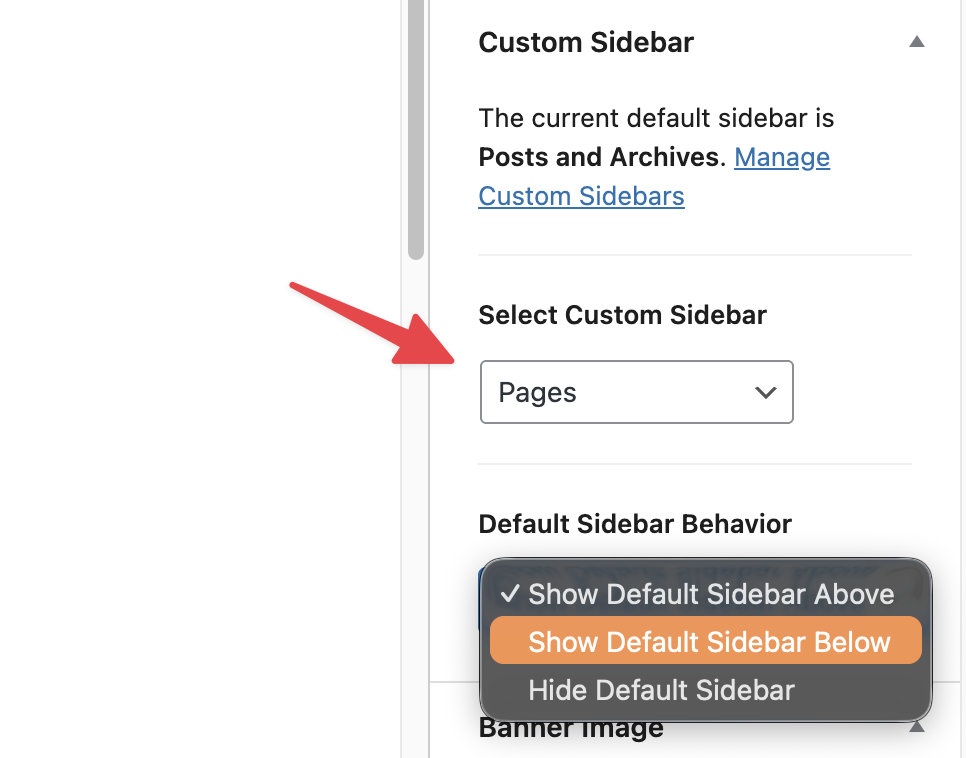
- Locate the Custom Sidebar section in the right sidebar.
- Select a Custom Sidebar from the dropdown.
- Modify the default sidebar display in the dropdown Default Sidebar Behavior. Options include: Show Default Sidebar Above, Show Default Sidebar Below, or Hide Default Sidebar.
- Update the page or post to save settings.
Assign Custom Sidebars by CPT
If you are using a third-party plugin that adds a new custom post type (such as an events plugin or an ecommerce plugin), you can create and assign a unique custom sidebar at the CPT level.
- Navigate to Memberlite > Custom Sidebars.
- Scroll to the Assign Sidebars to Custom Post Types section.
- For each detected custom post type, select the sidebar you would like to display from the dropdown.
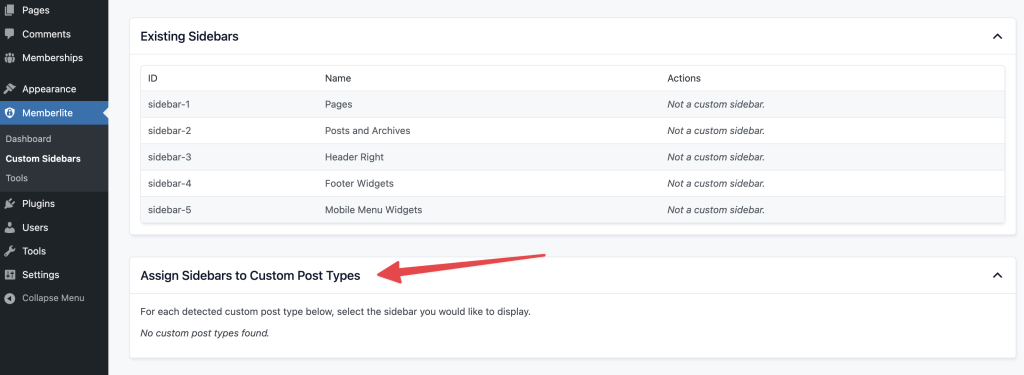
For example, the Events Manager plugin creates custom post types (CPTs) for Events and Locations. You can assign a custom sidebar and set unique widgets for its areas.
In most cases, you are setting a global sidebar override at the CPT level, but you can still change the custom sidebar at the single CPT level. For example, if you are using bbPress, you can assign a Custom Sidebar to all “Forum” CPTs, then change a single forum’s custom sidebar on the “Edit Forum” page. This may be true of other CPTs; it just depends on how your plugin displays the CPT publicly.
Hide/Show Pages Submenu
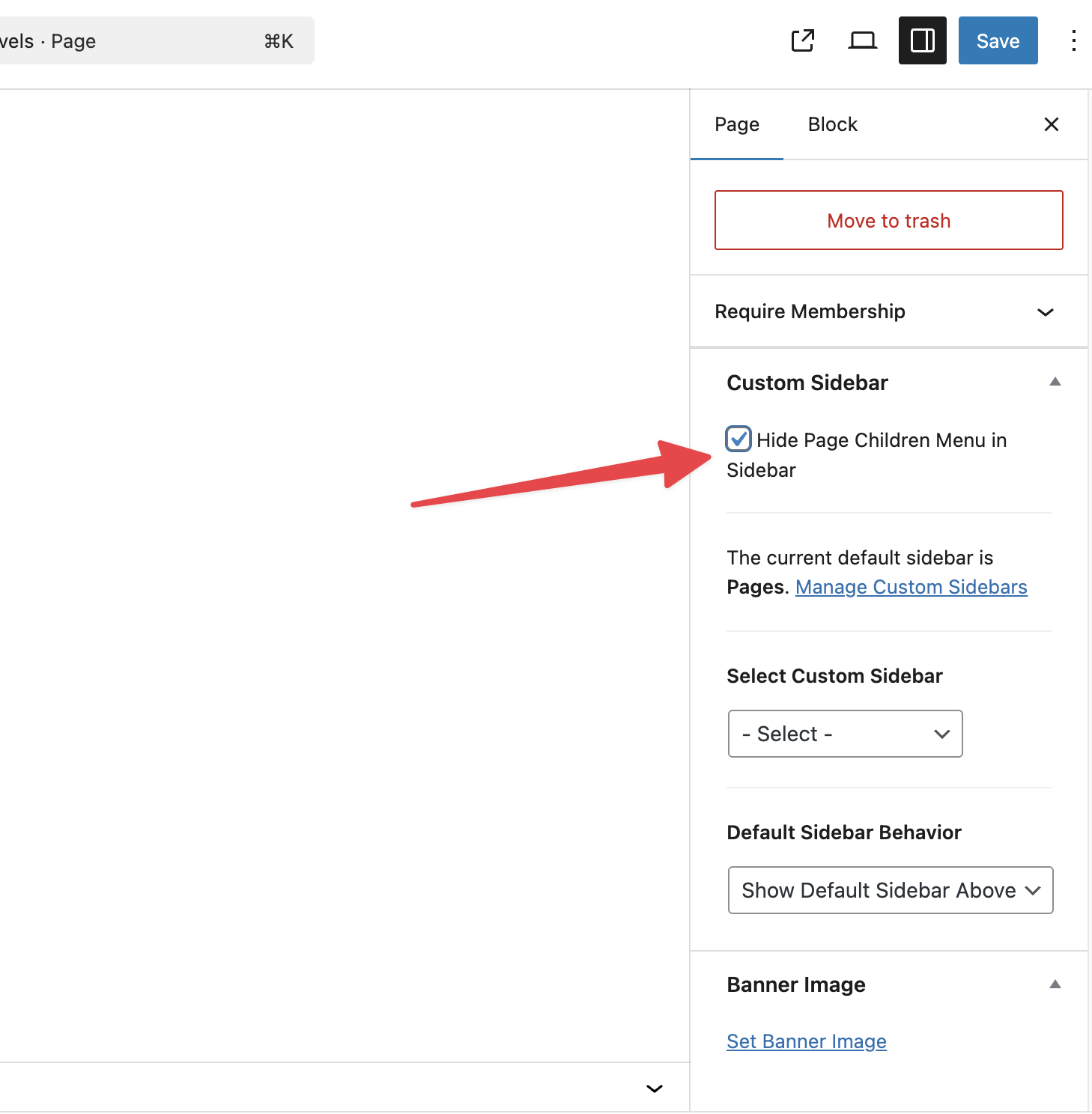
Pages display a menu of all child pages in the page’s ancestor hierarchy by default.
- To disable or enable this menu, select a page to edit.
- Locate the Custom Sidebar section in the right sidebar.
- Check or uncheck the “Hide Page Children Menu” in the Sidebar box.
- Update the page to save your changes.
Get Support From Our Team of Experts
For more help with this PMPro feature, check out our Support Page with three ways to get support as a free or premium member.
Last updated on March 11, 2026

