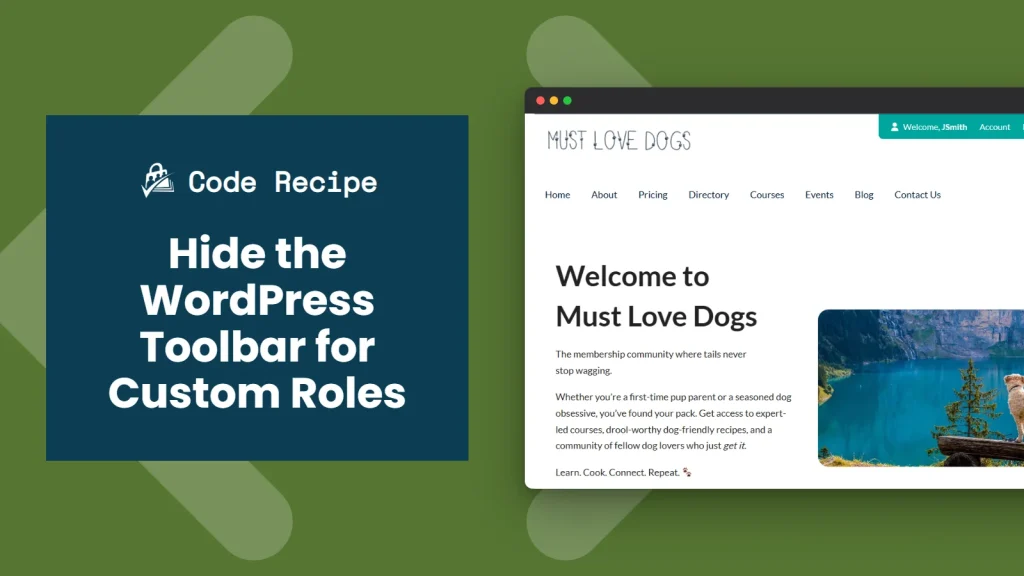
Paid Memberships Pro’s built-in setting for hiding the WordPress Toolbar only covers members with the Subscriber role. If your site uses custom roles, whether through the Roles for Membership Levels Add On or your own code, those members still see the full admin toolbar when they are logged in on the front end.
This code recipe uses the pmpro_hide_toolbar filter to extend that same toolbar-hiding behavior to any custom roles you specify.
Do You Need This Recipe?
This recipe is a good fit if:
- Your site assigns members custom user roles, through the Roles for Membership Levels Add On or your own code.
- Members with those custom roles can still see the WordPress Toolbar when they are logged in on the front end.
- You want the same toolbar-hiding behavior Paid Memberships Pro already provides for the Subscriber role.
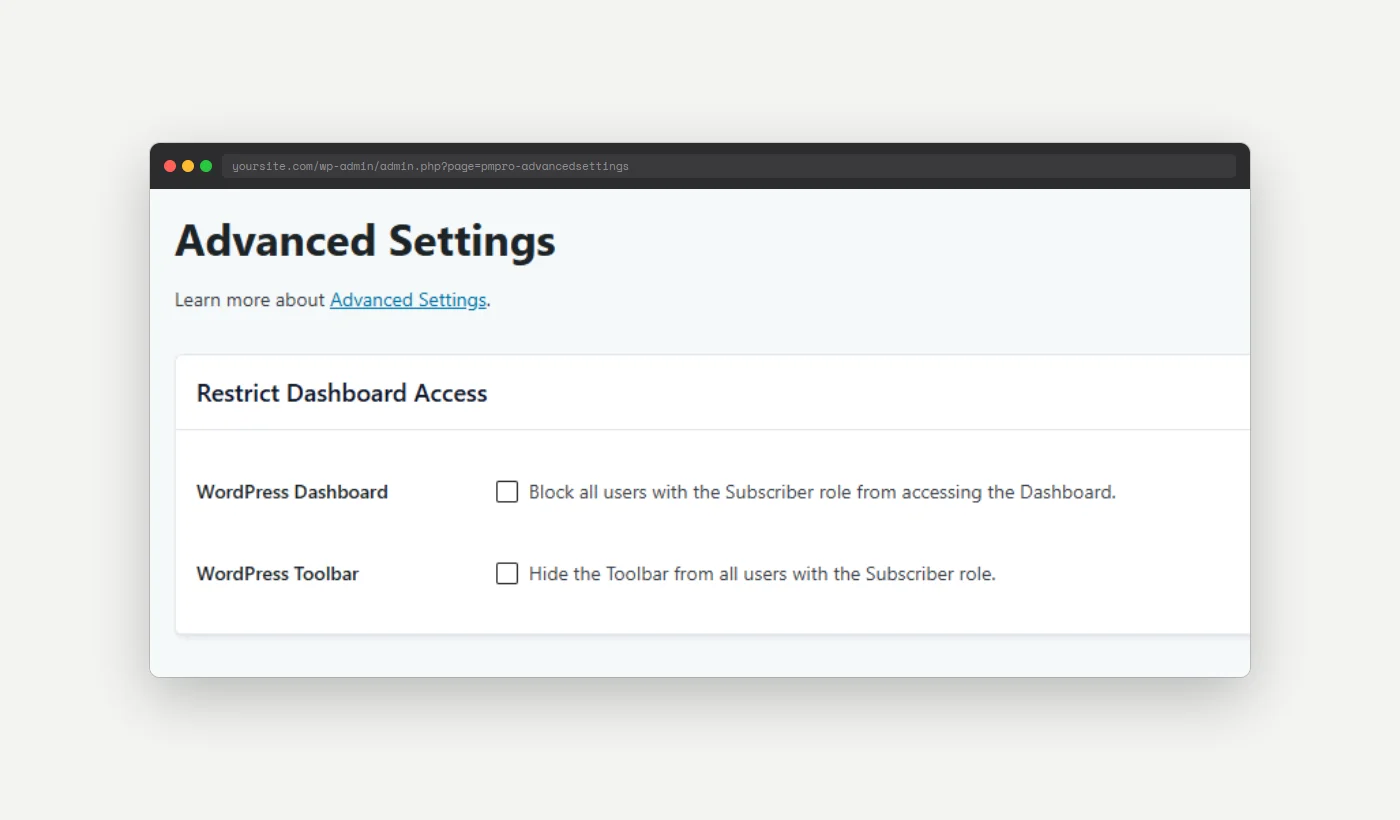
If every member on your site uses the built-in Subscriber role, you do not need this recipe. Turn on PMPro’s built-in setting instead, under Memberships > Settings > Advanced.
About the Code Recipe
The pmpro_hide_toolbar filter receives a boolean, $hide, and PMPro checks that value to decide whether to remove the toolbar for the current user. PMPro’s built-in setting already returns true for the Subscriber role. This recipe hooks into the same filter and checks the logged-in user’s roles against a list you define with array_intersect(). If there is a match, it sets $hide to true, and the toolbar is hidden for that member too, the same as it would be for a Subscriber.
Because the check runs on $current_user->roles, it works for any role, whether it is one WordPress ships with (such as editor) or a custom role your site created, including roles added by the Roles for Membership Levels Add On.
The Code Recipe
Adding the Recipe to Your Website
You can add this recipe to your site by creating a custom plugin or using the Code Snippets plugin available for free in the WordPress repository. Read this companion article for step-by-step directions on either method.
How To Customize This Code Recipe
- Add your custom roles (line 20): Update the
$roles_to_hidearray with the role slugs you want to hide the toolbar for. Role slugs are case-sensitive and must match exactly, such aseditorfor WordPress’s built-in Editor role, or a custom role slug created by the Roles for Membership Levels Add On.

Get Support From Our Team of Experts
Have a question about how to use this feature? Our Support Page outlines three ways to get support.
Our Max plans include hands-on help customizing your membership site and implementing new features. Upgrade to PMPro Max now »