Thinking about migrating to Paid Memberships Pro but unsure about the process?
Maybe you are outgrowing your current membership system, or you need a more flexible, scalable solution. But with members, payments, and content access at stake, migration feels risky.
The good news? You can move to PMPro without breaking your site, disrupting payments, or losing SEO rankings.
This guide will walk you through the exact steps to transition smoothly, with links to platform-specific guides for detailed instructions.
Migrating from a Specific Platform?
This guide gives you the general migration roadmap, but every platform has its own quirks: how data exports, whether subscriptions can transfer cleanly, and what content protections need to be rebuilt. We’ve written dedicated, step-by-step guides for the platforms we see most often:
- Migrate from MemberPress to PMPro: Preserve active Stripe and PayPal subscriptions, map custom fields, and retire MemberPress cleanly.
- Migrate from Kadence Memberships (RCP) to PMPro: A developer-focused walkthrough for moving members, subscriptions, and gateway data out of RCP.
- Migrate from s2Member to PMPro: Convert s2Member roles and subscriptions to PMPro levels, including scripts to fully remove s2Member’s custom role data.
- Migrate from Ultimate Member to PMPro: Bring your user profiles, custom fields, and member directory into PMPro, with an option to skip the CSV import entirely for simpler sites.
- Migrate from WooCommerce Subscriptions to PMPro: Transition off WooCommerce Subscriptions’ database-driven billing to PMPro’s gateway-native recurring payments.
- Migrate from Substack to PMPro: Move your posts and subscriber list, carry paid readers through their current billing period, and retire Substack without losing a paying subscriber.
Don’t see your platform? You’re not stuck. Our team has a general process that works for any migration, and PMPro supports imports from any system that can export member data to CSV. If you’re coming from a SaaS platform like Kajabi, Memberful, Substack, Patreon, Squarespace, or Mighty Networks, the core steps are the same, you’ll just need to adapt the export process to your current tool. Reach out to our support team to chat through how we can facilitate the migration process for you.
An Overview of the Migration Process
This guide provides a general overview of the migration process to PMPro. While the steps outlined below cover the essential elements, specific platforms may have unique requirements or additional steps that need to be addressed.
Here are the basic steps to migrate to Paid Memberships Pro:
- Backup Your Website
- Prepare Your Environment
- Install and Configure PMPro
- Export Data from Your Current Platform
- Prepare Data for Import
- Import Data into PMPro
- Test the Migration
- Go Live
As you move through this guide, you will see links to five platform-specific migration guides. These guides offer more detailed instructions tailored to your the membership system you’re migrating away from. If we do not have a specific migration guide, you may want to consider working with a developer.
1. Backup Your Website
Before making any changes, create a complete backup of your website, including the database, files, and media. This ensures you can restore your site if anything goes wrong during the migration process.
Use tools like BlogVault, UpdraftPlus, or your hosting provider’s backup features. Having a recent backup also allows you to quickly revert if any errors occur during the migration process.
2. Prepare Your Environment
Prepare your site for migration by using one of the two methods explained below. The method you choose depends on where you are migrating from.
Method 1: Pause Your Live Site
If you are currently using a membership plugin in a WordPress environment and choose to use the same site after migrating to PMPro, you will want to pause your live site.
By temporarily pausing your site, you are preventing any new member data to be created or altered while you complete the process. To pause:
- Disconnect your payment gateway within your current membership plugin
- Turn off all new membership signups
- Put your main website in “Coming Soon” or “Maintenance” mode
Method 2: Set Up a Staging Site
A staging environment ensures that you can safely test the entire process without affecting your active members’ experience. There are a couple of scenarios where a staging site is the better method.
Scenario 1: You are migrating from a membership platform that is not a WordPress plugin and creating a new WordPress site.
Scenario 2: You are migrating from a WordPress membership platform but you are creating a new WordPress environment rather than using the site that is currently built.
If you create a staging site, the goal is to push the staging to a live environment once all migration steps have been completed.
3. Install and Configure PMPro
Now it is time to download, install, and activate Paid Memberships Pro either in your existing WordPress site or a new WordPress staging site.
There are a few things that you should configure before proceeding with the migration process. We recommend that you do not complete the Setup Wizard, but rather go through a manual setup process.
- Configure membership levels (Step 3 in Initial Setup Documentation)
- Assign membership pages (Step 4 in Initial Setup Documentation)
- Set up User Fields to match or enhance your current setup. (Step 9 in Initial Setup Documentation)
- Disable all emails on your site. To do this, we recommended the Stop Emails plugin by Sal Ferrarello.
Related: Initial Setup Documentation
4. Export Data from Your Current Platform
Exporting your data is the most technical part of the migration. Carefully review your exported files to ensure no data is missing or improperly formatted. Here’s what to focus on:
- Member data: Names, emails, membership levels
- Subscription details: Start dates, billing cycles, payment methods
- Custom fields: Any additional profile data specific to your current platform
How you access and export member data varies depending on your current platform. We fully explain the export process in these platform-specific migration guides:
5. Prepare Data for Import
Before importing, format your data correctly so it aligns with PMPro’s import requirements. The most critical fields include:
- Unique Username:
user_login - User Email:
user_email - Membership Level:
membership_id - Start and End Dates: optional; End date should only be set if your members currently have an expiration date. Members with recurring payments should not have an end date.
Pro Tip: Use Google Sheets or Excel to clean your data and fix formatting issues before importing. If you’re unsure about formatting, our premium support team can review your CSV before import and run a test using a subset of your members.
6. Import Data into PMPro
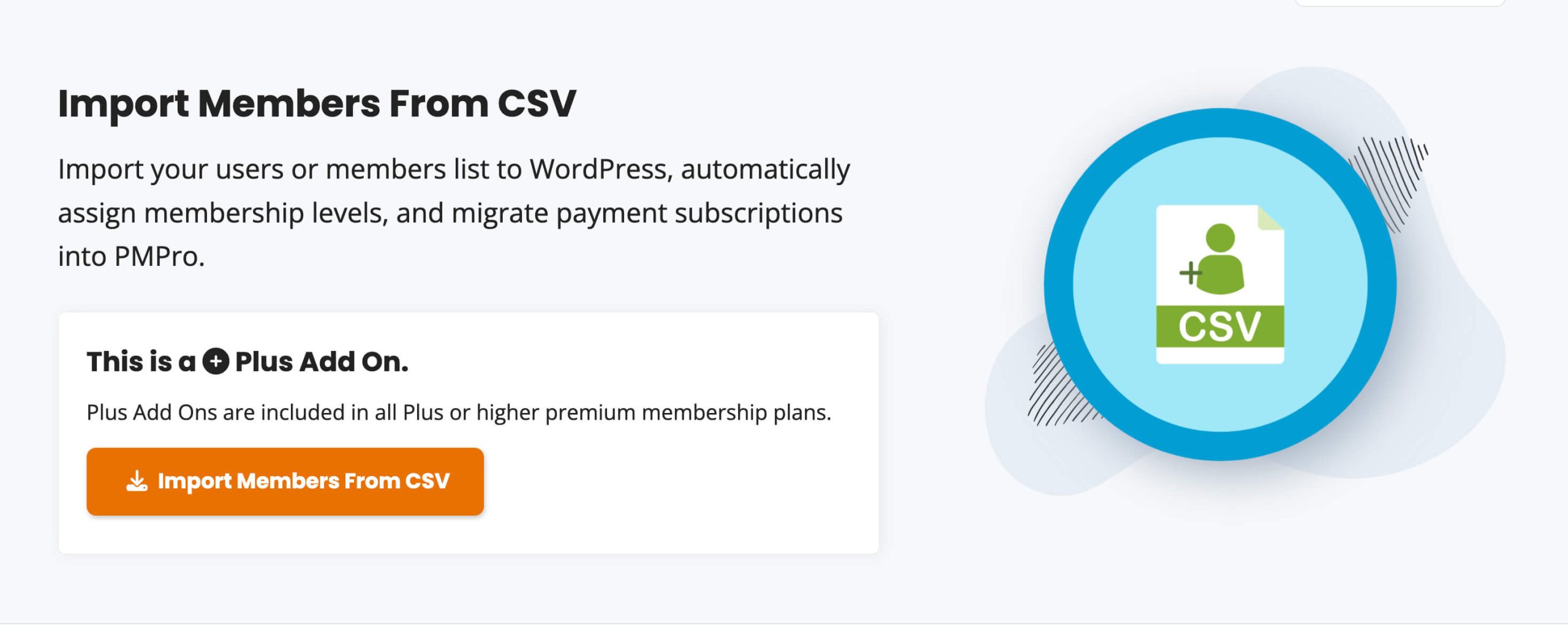
Install and activate our Import Members from CSV Add On to import your prepared data. Test the process with a small data set before importing all members. Conducting a test import allows you to identify and resolve any issues before committing to the full migration.
7. Test the Migration
- Verify member details.
- Test content access rules for each membership level.
- Confirm automated emails are functioning correctly.
Use tools like MailHog for email testing in a staging environment. Simulate member actions, such as logging in or updating profiles, to confirm that all aspects of the membership site are functional.
8. Go Live
Before switching to PMPro fully, double-check these areas:
- Membership access: Do members have the correct levels?
- Recurring payments: Are subscriptions processing correctly?
- Content restrictions: Is gated content protected as expected?
- Emails & notifications: Are system emails being delivered?
Once testing is complete:
- Deactivate your previous membership plugin (if in WordPress)
- Resume your live site or deploy the migrated site to your live environment.
- Configure your payment gateway in PMPro.
- Enable emails.
- Monitor the site closely to resolve any issues quickly.
We also recommend that you notify your members about the migration—do not assume members will just figure things out.
Send out an email as soon as your new PMPro-powered memberships are live, letting them know:
- Why the change is happening
- What they need to do (e.g., reset passwords, update billing info)
- How to get support if they have issues, such as:
- A dedicated FAQ page
- A helpdesk email/chat option
- A community post or announcement
Video: Migrating to PMPro
Unlock the Full Potential of PMPro
You migrated to Paid Memberships Pro for a reason: you needed a membership platform that grows with you. Now that you have completed the migration, it’s time to expand and optimize your membership offering.
PMPro is built for flexibility, whether you want to:
- Offer new membership benefits
- Improve member retention and engagement
- Automate billing, content access, and marketing
- Integrate with hundreds of third-parties to extend your membership
Your membership site should evolve as your business grows. Explore what’s possible with PMPro’s extensive Add On library and unlock new ways to serve your members.
Let Us Handle It: Migration with PMPro Max
If doing this yourself feels overwhelming, PMPro Max includes hands-on migration support as part of the service. We handle the move from these platforms and many others, with the goal of getting you up and running on PMPro with as little disruption to your business as possible.
Here’s our honest commitment on what that looks like:
- When we can preserve your active member subscriptions, we will. For most WordPress-to-WordPress migrations and some gateway-to-gateway transitions, your members keep paying without interruption and without needing to re-enter their billing info.
- When we can’t preserve subscriptions, we’ll be upfront about it and give you a clear plan. Some platforms (WooCommerce Subscriptions, most SaaS tools) create subscriptions in ways that can’t be transferred to another system, even with the same payment gateway. In those cases, we’ll help you set appropriate expiration dates, craft the member communication, and use PMPro’s renewal flow to bring members back into an active subscription on the new platform.
- Either way, you keep your members and your revenue. The goal isn’t just to move data, it’s to land you on a membership platform built for where your business is going, not where it started.

Free Download: The AI-Powered Membership Site Blueprint
Download the free guide: Learn how to plan, build, and grow a membership site using AI as your strategic partner: from buyer persona to launch and beyond.