As of Paid Memberships Pro v3.0, users who cancel their recurring membership retain access until their next scheduled payment date. This allows them to cancel their subscription without immediately losing membership benefits.
In this post, we will explain the expected behavior with cancellations, the conditions of the cancellation flow, and provide guidance on troubleshooting cancellation issues when they may not be working as expected.
Expected Behavior
Paid Memberships Pro implements the “cancel on next payment date” flow in two cases:
- When a user cancels their membership via the Membership Cancel page.
- When a payment subscription is terminated through a payment gateway, triggering a membership cancellation.
Memberships cancelled through other means, such as API calls or custom code, are removed immediately.
Memberships cancelled by admin through the Edit Member screen may be cancelled immediately or maintain access through the next payment date.
Related Reading: Cancel a Member
Conditions for the Cancellation Flow to Work
For a membership to remain active until the next payment date, the user must have an active payment subscription for the membership level being cancelled.
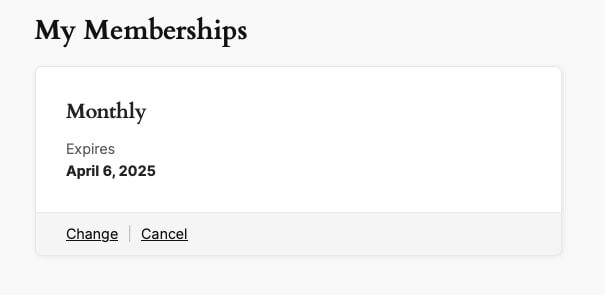
If this applies, the next payment date and amount should appear on the Membership Account page.
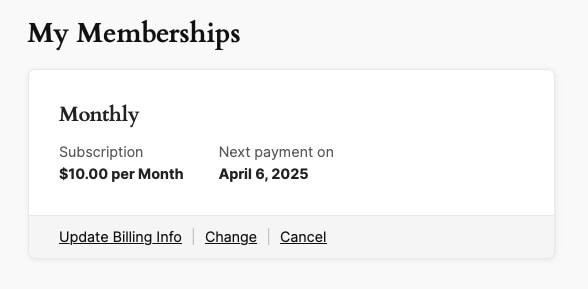
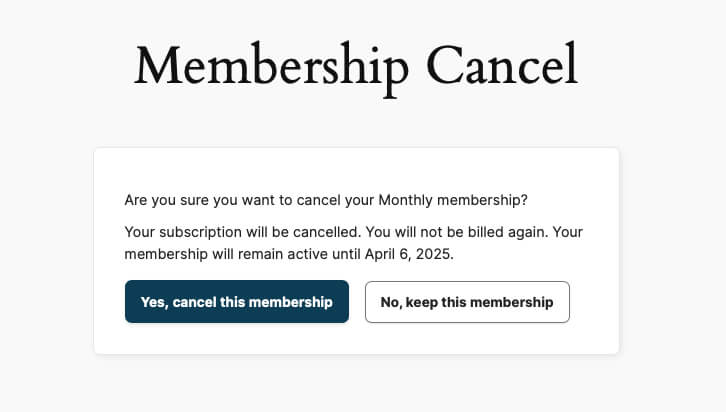
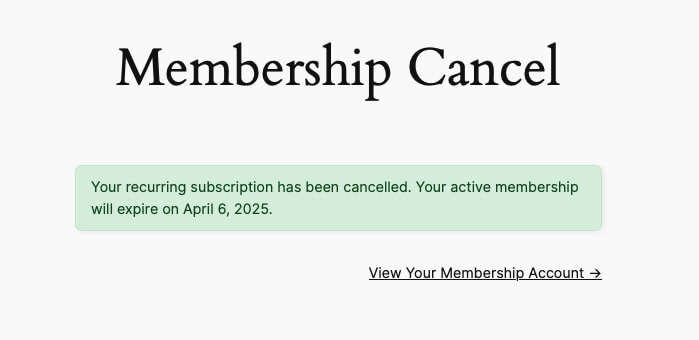
When a user cancels their membership, they should see a confirmation message stating their membership will remain active until the next payment date.
After confirming, the expiration date should be displayed on both the cancellation screen and the Membership Account page.
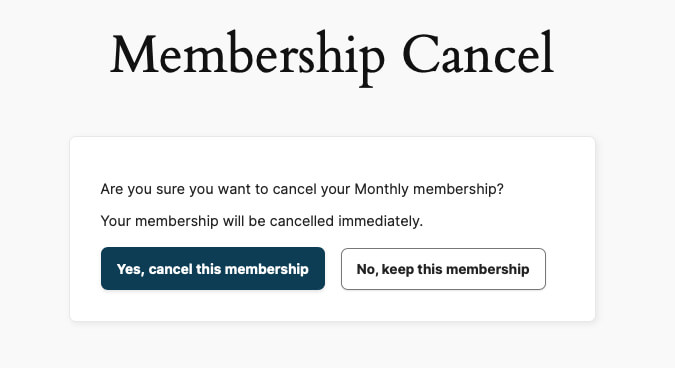
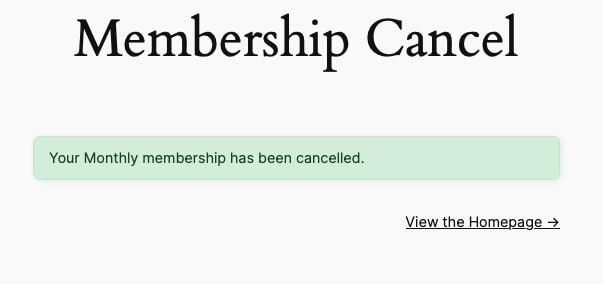
Since the subscription is now cancelled, going through the cancellation process again will immediately remove the membership.
Troubleshooting Issues
If this behavior is not functioning correctly, follow these steps:
- Replicate the issue
- Purchase a recurring membership. You can use a discount code for the level so you are not charged.
- Go through the cancellation process and check if:
- The next payment date is displayed correctly.
- The membership expiration date updates correctly after cancellation.
- Verify potential causes
If you confirm an issue, check the following:- When troubleshooting cancellation issues, ensure your site is running the latest version of Paid Memberships Pro
- Disable any caching and retest (More information on caching).
- Check for custom code using the
`pmpro_cancel_on_next_payment_date`filter, which might be disabling this feature.
- When troubleshooting cancellation issues, ensure your site is running the latest version of Paid Memberships Pro
- User-Specific Issues
If you can’t replicate the issue, it may be a user error. Possible causes include:- The user cancelled twice, first cancelling their payment subscription, then their membership.
- The user never had a payment subscription (check this on their Edit Member page in the WP dashboard under Memberships > Members > Edit Member).
- Seek Additional Support
If the issue persists, contact Paid Memberships Pro support. When opening a ticket, include:- Screenshots of discrepancies in the cancellation process.
- Details of affected users.
Fixing Affected Users
If a user accidentally cancelled their membership, you can restore it by following these steps:
- Navigate to the Memberships > Members > Edit Member page for the affected user.
- Select the Memberships panel.
- Select Add Membership.
- Set an expiration date for when their next payment was originally scheduled. (Optionally, extend the expiration date to compensate for lost time.)
How to Remove the Cancel Link
When a member cancels a recurring subscription, Paid Memberships Pro keeps their membership active until the end of the current billing period. During this time, the subscription status changes, but the member still has access to their courses.
The default account page may still show a “Cancel” link during this period. Members often click this link again because they don’t realize their previous cancellation request was successful. This can create some confusion, leading to unnecessary support requests. Removing the link after the initial cancellation helps confirm to the member that their request was successful.
Method 1: Remove the Link for Canceled Subscriptions
This code checks if the order status is already “Canceled.” If it is, the “Cancel” action disappears so the user cannot click it again.
Method 2: Remove the Link Based on Expiration Date
This code checks if the membership has a scheduled end date. If an expiration date exists, the system hides the “Cancel” link because the membership has already ended.
By removing this link, you can provide a clearer experience for your members and reduce the manual support you need for billing questions.
Adding the Recipe to Your Website
You can add these recipes to your site by creating a custom plugin or using the Code Snippets plugin available for free in the WordPress repository. Read this companion article for step-by-step directions on either method.
Key Takeaways on Membership Cancellations
The “Cancel On Next Payment Date” feature in Paid Memberships Pro ensures that users retain access to their membership benefits until their next scheduled payment date. If this process isn’t working as expected, troubleshooting steps like verifying subscription status, checking for custom code conflicts, and ensuring the latest version of the plugin is installed can help resolve the issue.
By following these steps and seeking support when necessary, you can ensure a smooth cancellation experience for your members while maintaining proper subscription management.

Free Download: The AI-Powered Membership Site Blueprint
Download the free guide: Learn how to plan, build, and grow a membership site using AI as your strategic partner: from buyer persona to launch and beyond.