Members who apply for a level that requires approval can complete checkout, but they can’t view that level’s restricted content until you approve them. Here’s what pending and denied members see at checkout, on restricted content, and on their Membership Account page.
At Checkout
Checkout works as usual for a level that requires admin approval. The member is charged the initial payment and any recurring subscription you set for the level, and their membership starts as pending. The Add On does not hold or delay the payment.
Checkout is blocked, with an error message at the top of the checkout page, in these cases:
| When | Message |
|---|---|
| The member was denied for this level before. | “Your previous application for this level has been denied. You will not be allowed to check out.” |
| The level requires an approved membership in a different level, and the member was denied for that level. | “Since your application to the [Level] level has been denied, you may not check out for this level.” |
| The level requires an approved membership in a different level, and the member holds that level but is still pending. | “Your application to [Level] is still pending.” |
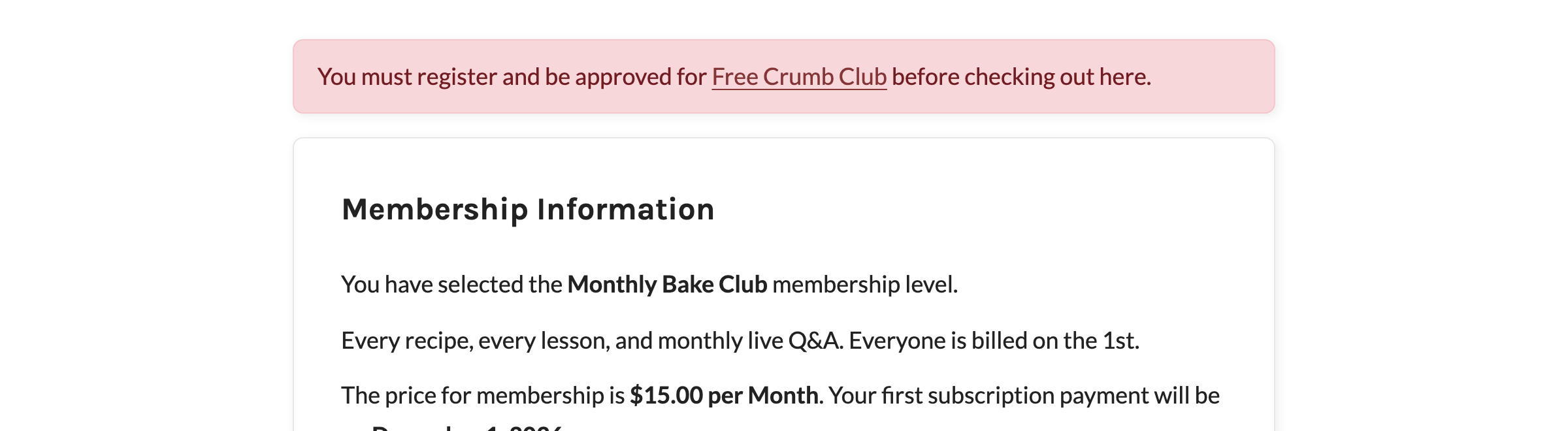
| The level requires an approved membership in a different level, and the member (or a logged-out visitor) hasn’t applied for it. | “You must register and be approved for [Level] before checking out here.” The level name links to checkout for that level. |
Confirmation Page and Checkout Email
For levels that require approval, the Add On replaces the confirmation page message with the member’s approval status:
Thank you for your membership to [Site Name]. Your [Level] membership status is: pending.
The rest of the confirmation page (membership details and the invoice) still appears below it. A few details to know:
- The confirmation message you set on the level itself is not shown by default. Developers can turn it back on with the pmpro_approvals_show_level_confirmation_message filter.
- If the member paid with the Pay by Check Add On for a paid level, your payment instructions are included in the message.
- If the Email Confirmation Add On is active and the member hasn’t confirmed their email address yet, the status shows as pending.
The member’s checkout email is adjusted too. In the default checkout email templates, the sentence “Your membership account is now active.” is replaced with “Your membership account is now pending. You will be notified once your account has been approved/denied.” If you’ve rewritten that sentence in your own checkout email templates, update the wording yourself so members know to wait for a decision.
At the same time, the site admin receives the Approval Pending (admin) email with a link to the new application. See Approval Email Templates.
Restricted Content
While a member is pending or denied, Paid Memberships Pro treats them as not having that level. They can’t view posts, pages, or other content restricted to the level, and content inside the [membership] shortcode for that level stays hidden. If content is available to several levels, a member who is approved for any one of them gets access.
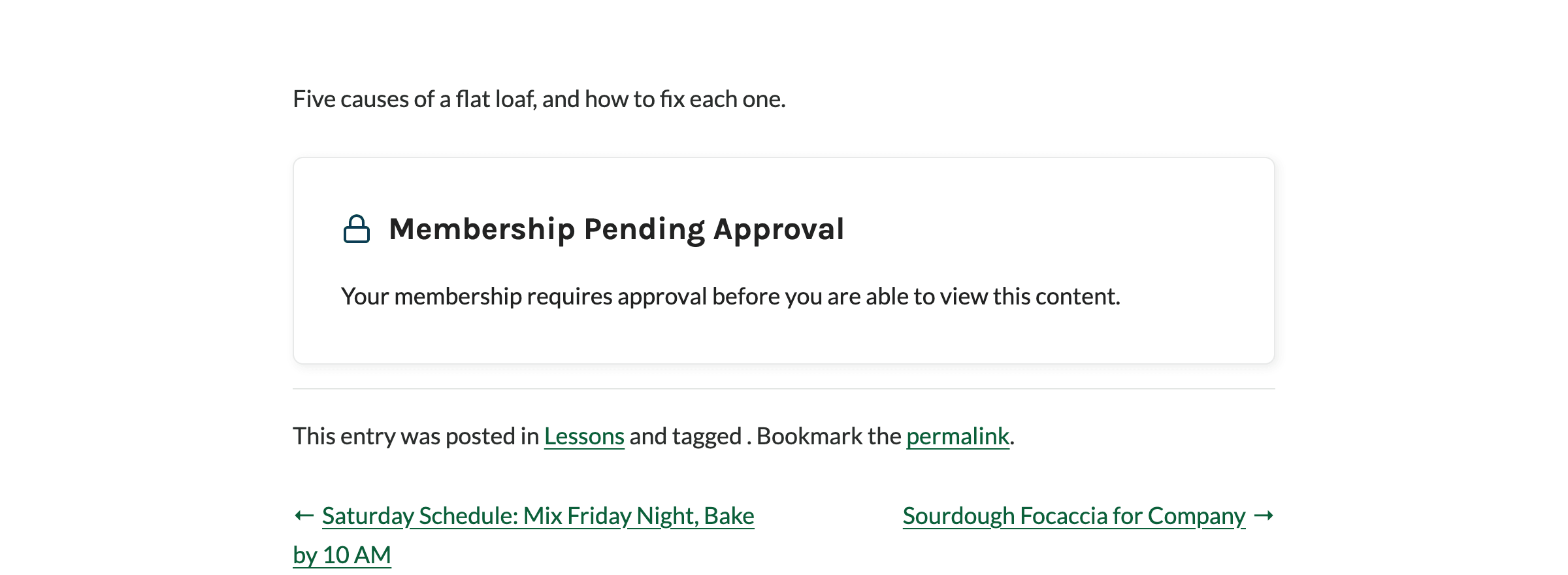
On restricted content, the standard no-access message is replaced with an approval message:
- Pending members: “Membership Pending Approval” with the text “Your membership requires approval before you are able to view this content.”
- Denied members: “Membership Denied” with the text “Your membership application has been denied. Contact the site owners if you believe this is an error.”
Pending and denied members can still use the Paid Memberships Pro frontend pages, such as the Membership Account, Membership Billing, and Membership Cancel pages. That means they can update billing details or cancel while they wait.
Membership Account Page
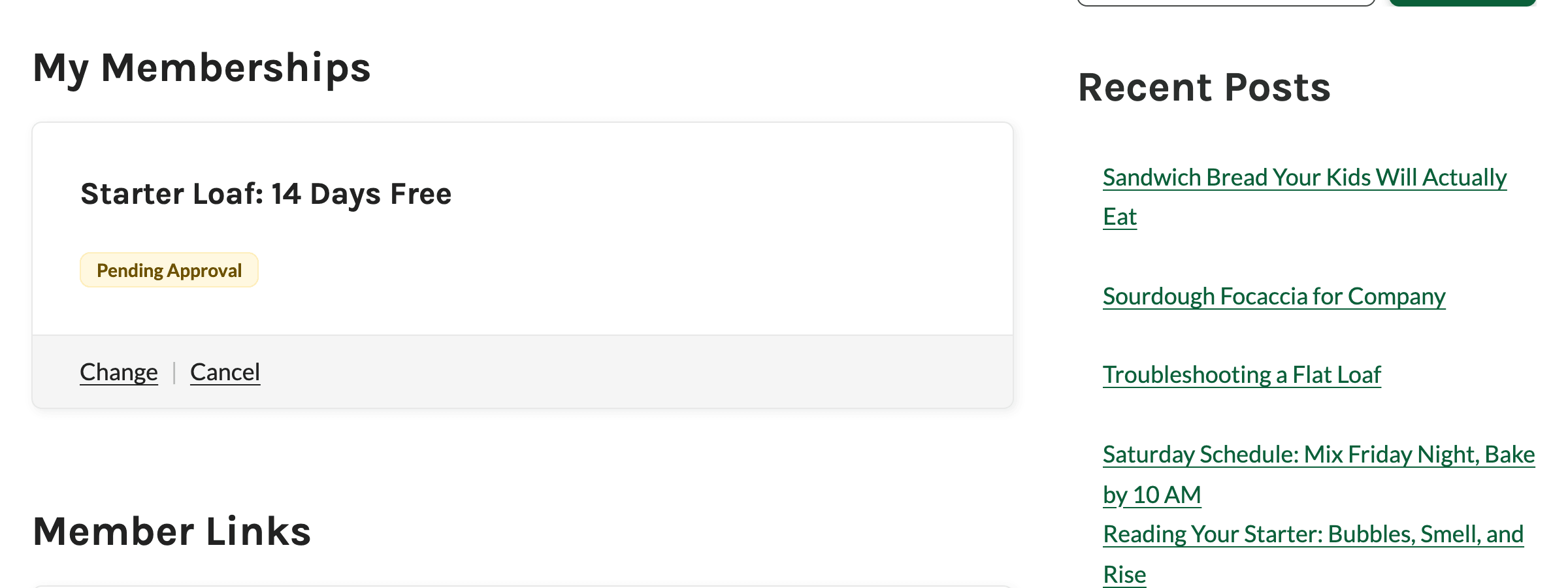
On the Membership Account page, the card for a level that requires approval shows a Pending Approval or Denied Approval tag. Approved members don’t see an extra tag.
Member Directories
Pending and denied members are left out of member directories, so your community only lists people you’ve approved:
- Member Directory and Profile Pages: Pending and denied members don’t appear in the directory, and they can’t view directory or profile pages that are restricted to their level.
- BuddyPress and BuddyBoss Integration: Pending and denied members are hidden from the member directory when you limit it by membership level.
Cancelling or Changing Levels
- If a pending member cancels or switches away from a level, the Add On clears their pending application for that level. They drop off the Approvals screen.
- Approved and denied decisions are kept. An approved member who checks out for the same level again stays approved. A denied member can’t check out for that level again. If they still hold the level, you can reset their approval from the Approvals screen.
Get Support From Our Team of Experts
Have a question about how to use this feature? Our Support Page outlines three ways to get support.
Our Max plans include hands-on help customizing your membership site and implementing new features. Upgrade to PMPro Max now »
Last updated on November 9, 2026

