Approval is set per membership level. You can require an administrator to approve new members of a level, require members to hold an approved membership in a different level before they can check out, or combine both for a two-step application process.
Set a Level to Require Approval
- Navigate to Memberships > Settings > Levels in the WordPress admin.
- Edit an existing level, or click Add New Level to create one.
- Open the Approval Settings section. This section is collapsed by default on levels that don’t require approval yet.
- Choose an option for Requires Approval? (described below).
- If you chose an option that requires a different level, select that level in the Which Level? field.
- Click Save Level.
Approval Settings Reference
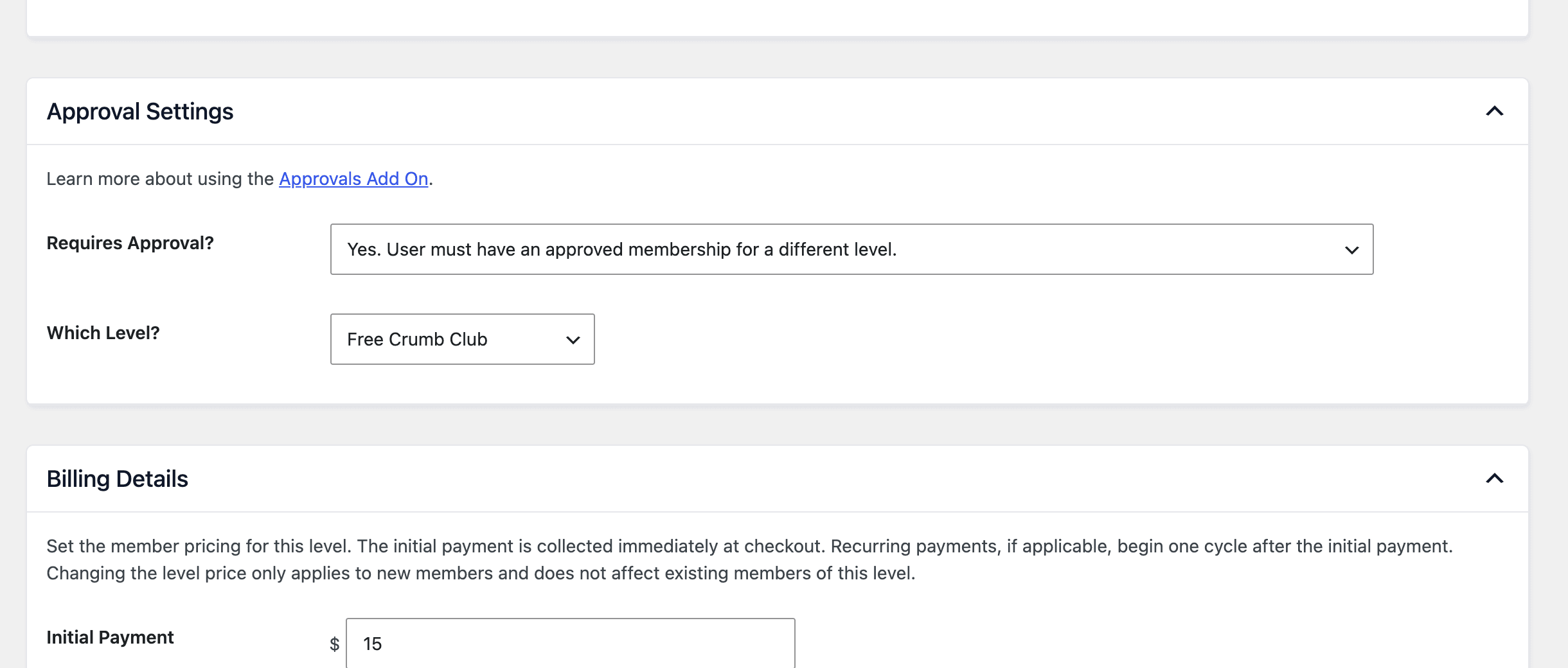
- Requires Approval?: Controls how approval works for this level. The default is No. Options are:
- No. Members get access as soon as they complete checkout.
- Yes. Admin must approve new members for this level. New members of this level are pending until someone approves them on the Memberships > Approvals screen.
- Yes. User must have an approved membership for a different level. Members can’t check out for this level until they’re approved for the level you choose in Which Level?. Members of this level don’t need a second approval.
- Yes. User must have an approved membership for a different level AND admin must approve new members for this level. Members need an approved membership in the other level to check out, and then need a second approval for this level.
- Which Level?: The level a member must be approved for before checking out for this level. This field only appears when you choose one of the “different level” options. The two “different level” options only appear when your site has at least one other membership level.
Create a Level From the Approval Template
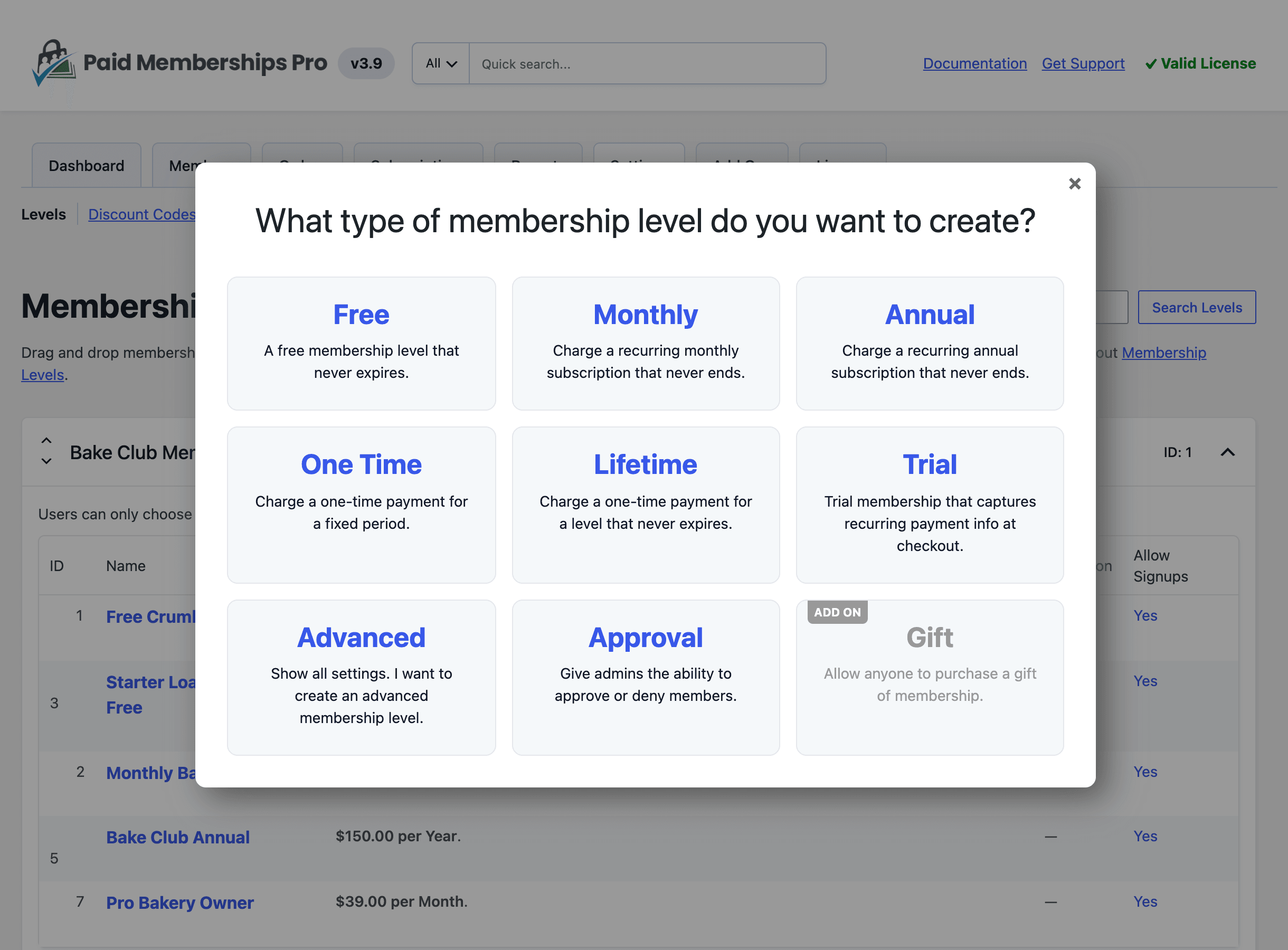
When the Add On is active, the Approval template is available in the popup that opens when you click Add New Level. Choosing it opens a new level with the billing fields cleared and the Approval Settings section expanded with approval turned on. Review the Requires Approval? and Which Level? values before you click Save Level.
Set Up a Two-Step Application
A two-step model separates the application from the full membership. Members first apply through an “application” level (free, or with an application fee). Once you approve them, they can check out for the main level with your regular recurring price.
- Create the application level. Set any application fee in its Billing Details, then set Requires Approval? to Yes. Admin must approve new members for this level.
- Edit the main level and set Requires Approval? to Yes. User must have an approved membership for a different level. (or the option that also requires a second approval).
- In Which Level?, select the application level, then save.
Think about level groups when you plan this model. If both levels are in the same group and that group only allows one level per member, checking out for the main level replaces the application level. If they’re in a group that allows multiple selections (or in different groups), the member keeps both.
To see the messages members get when they try to check out before they’re approved, read What Pending and Denied Members See.
What Happens to Existing Members
Turning on approval for a level does not lock out the people who already hold it. Members who had the level before it required approval are treated as approved. Only members who check out (or are given the level) after you turn on approval start out as pending.
Get Support From Our Team of Experts
Have a question about how to use this feature? Our Support Page outlines three ways to get support.
Our Max plans include hands-on help customizing your membership site and implementing new features. Upgrade to PMPro Max now »
Last updated on November 9, 2026

