Review new applications from the Memberships > Approvals screen. You can approve or deny members right from the list, open a full application to see their profile details, and reset a decision you need to revisit.
Who Can Approve Members
Access to the Approvals screen is controlled by the pmpro_approvals capability. These users have it out of the box:
- Administrators: The Add On adds the capability to the Administrator role.
- Membership Managers: The Membership Manager role from the Membership Manager Role Add On includes approvals.
- Membership Approvers: The Add On creates a Membership Approver role when you activate it. This role can log in to the WordPress admin, open the Memberships menu, view the Members list, and approve, deny, or reset applications. It has no other admin access.
To give someone the Membership Approver role, edit their account under Users > All Users, choose Membership Approver in the Role field, and save.
The Approvals Screen
Navigate to Memberships > Approvals in the WordPress admin. When members are waiting for review, a count of pending applications appears next to the Memberships menu, the Approvals menu item, and the Approvals link in the admin bar.
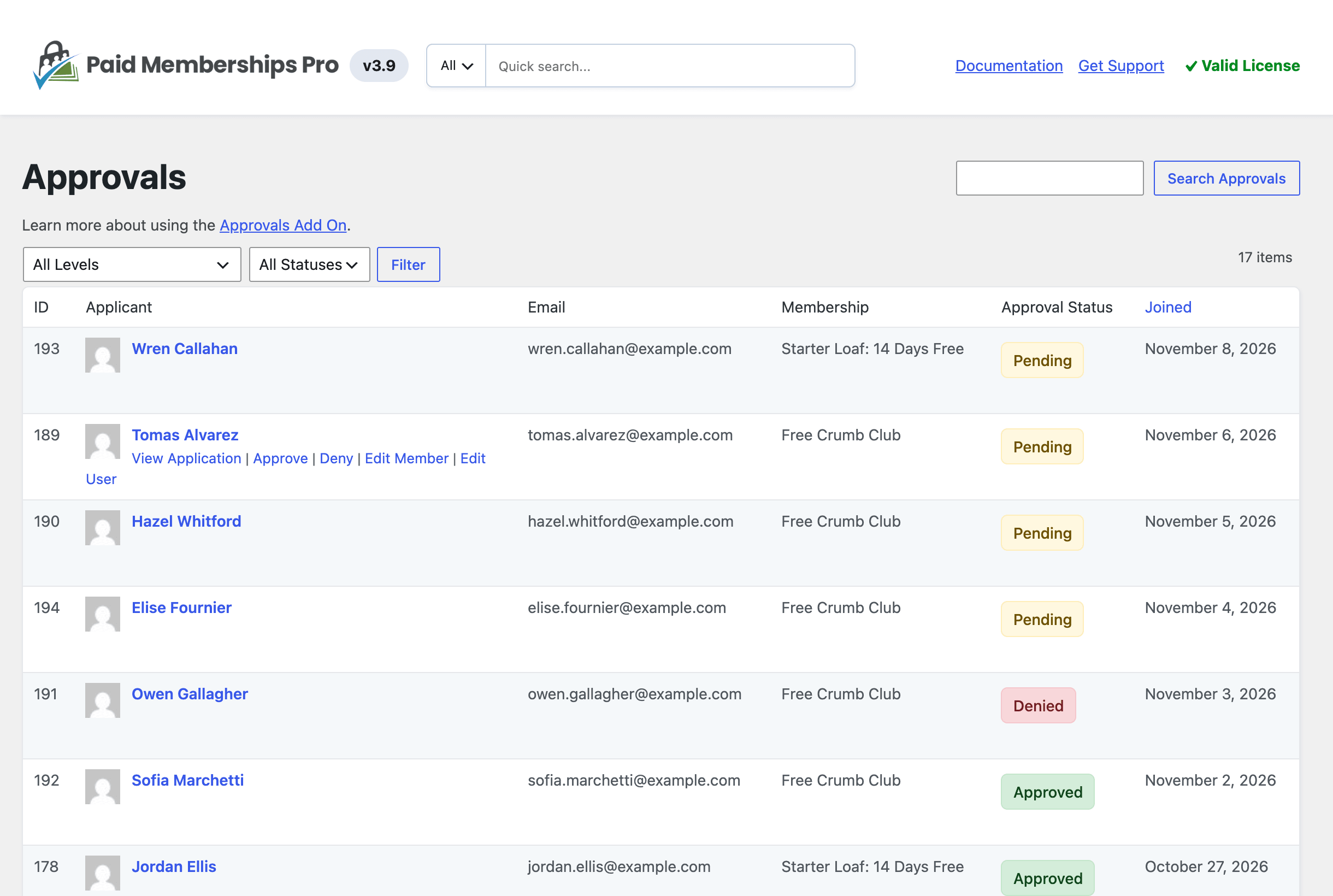
The list shows every member who currently holds a level that requires admin approval, with these columns:
- ID: The member’s user ID.
- Applicant: The member’s avatar and display name, linked to their application.
- Email: The member’s email address.
- Email Confirmation: Whether the member has confirmed their email address. This column only appears when the Email Confirmation Add On is active.
- Membership: The level the member applied for.
- Approval Status: A Pending, Approved, or Denied badge.
- Joined: The date the member’s user account was created. Click the column heading to change the sort order. The newest members are listed first by default.
Use the level and status dropdowns above the table, then click Filter to narrow the list. The status filter defaults to All Statuses. Choose Pending to see only the applications waiting on you. The Search Approvals box matches a member’s username, email address, or display name. The list shows 15 members per page.
Approve or Deny From the List
Hover over a member’s row to see their actions:
- View Application: Opens the full application for this member and level.
- Approve: Approves the member for this level. Shown for pending members.
- Deny: Denies the member for this level. Shown for pending members.
- Reset Approval: Sets an approved or denied member back to pending, after you confirm. Shown in place of Approve and Deny once a decision has been made.
- Edit Member and Edit User: Shortcuts to the member’s admin screens, shown when you have permission to edit members or users.
Review an Individual Application
Click a member’s name or the View Application link to open their application. Use the Approvals breadcrumb at the top of the screen to return to the full list.
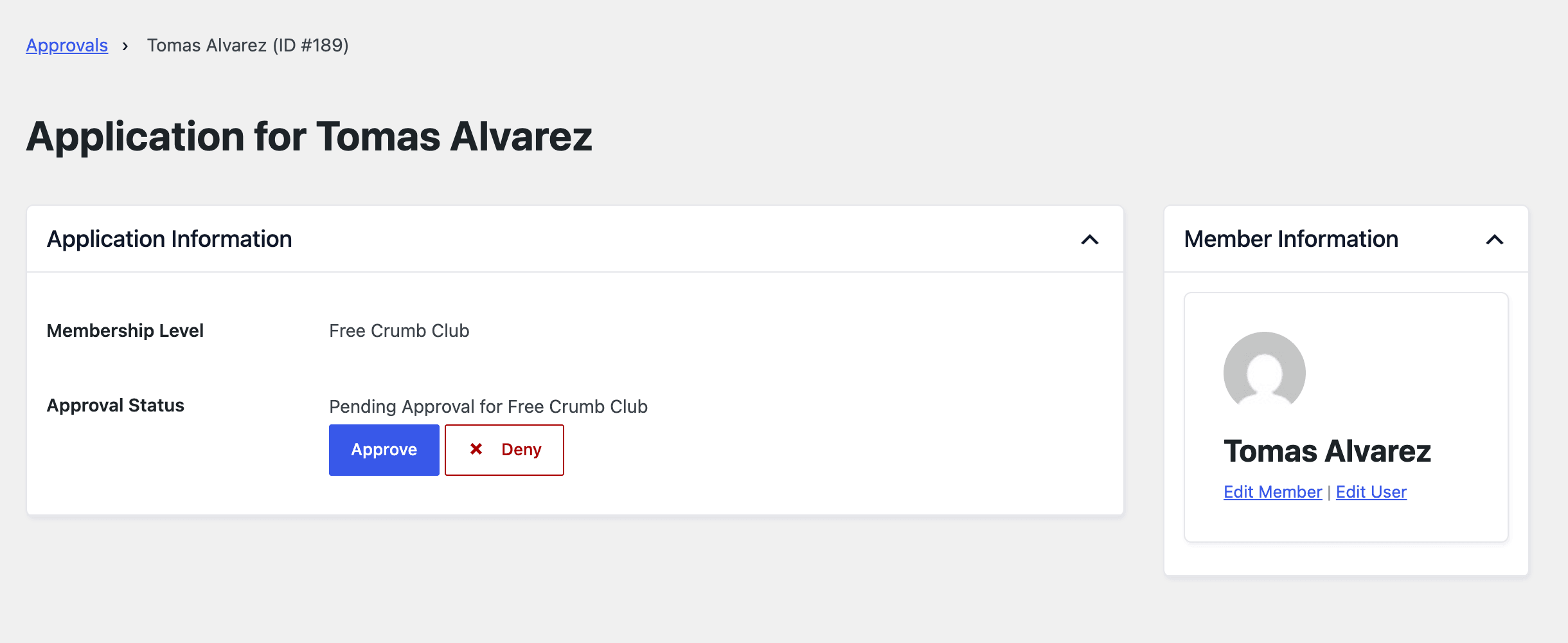
The application screen includes:
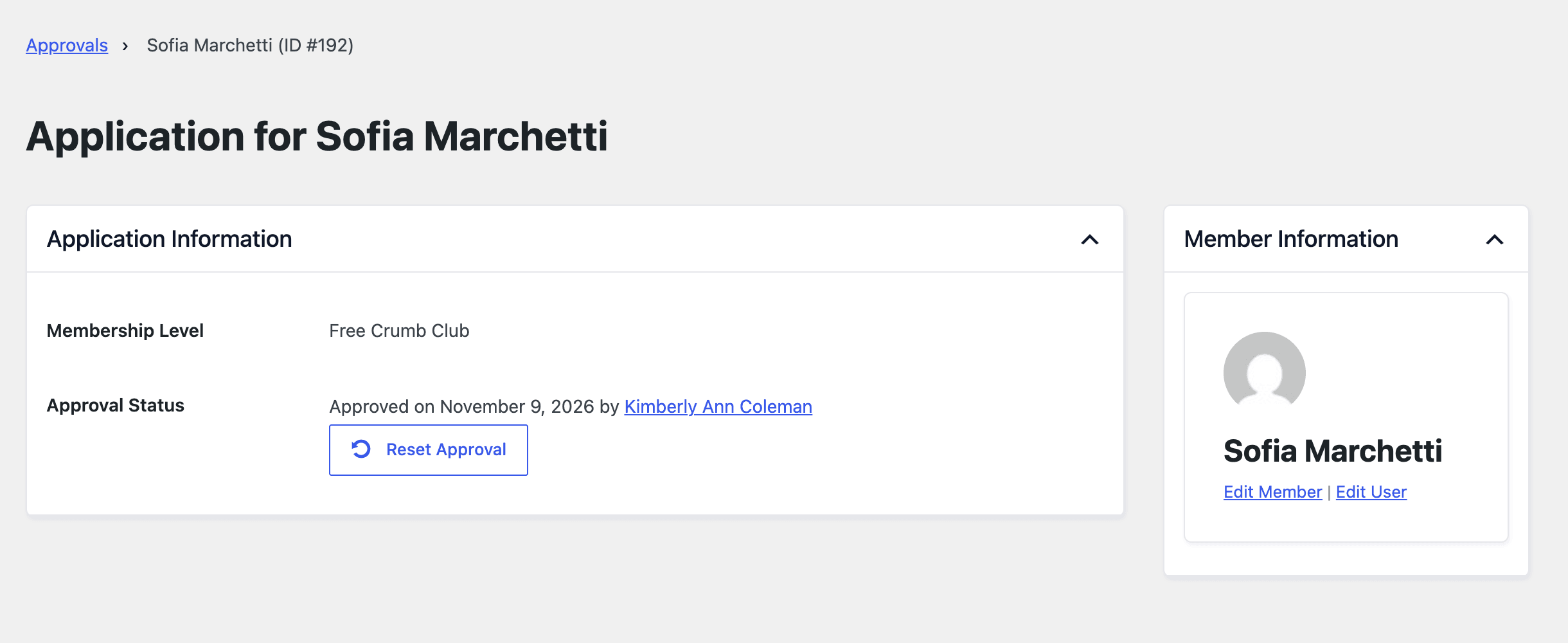
- Application Information: The Membership Level the member applied for and their Approval Status. Pending members show Approve and Deny buttons. Approved or denied members show the decision, the date, and who made it, with a Reset Approval button. When the Email Confirmation Add On is active, this section also shows whether the member has confirmed their email address.
- User fields: Each of your user field groups appears as its own read-only section with the member’s answers. Fields limited to specific levels only appear on applications for those levels, and fields hidden from profiles are left out.
- Member Information: A sidebar with the member’s avatar and name, plus links to Edit Member and Edit User.

What Approving or Denying Does
Each decision is saved for that member and level, along with the date and the user who made it, and is added to the member’s approval history.
- Approve: The member gets access to the content for that level right away. The member receives the Approval Approved email and the site admin receives the Approval Approved (admin) email.
- Deny: The member keeps the level on their account but can’t view content restricted to it, and can’t check out for that level again. The member receives the Approval Denied email and the site admin receives the Approval Denied (admin) email.
- Reset Approval: The member goes back to pending and loses access until you approve them again. No emails are sent when you reset an approval.
Learn more about the emails in Approval Email Templates, and what members see at each status in What Pending and Denied Members See.
View Approval History on the Edit Member Screen
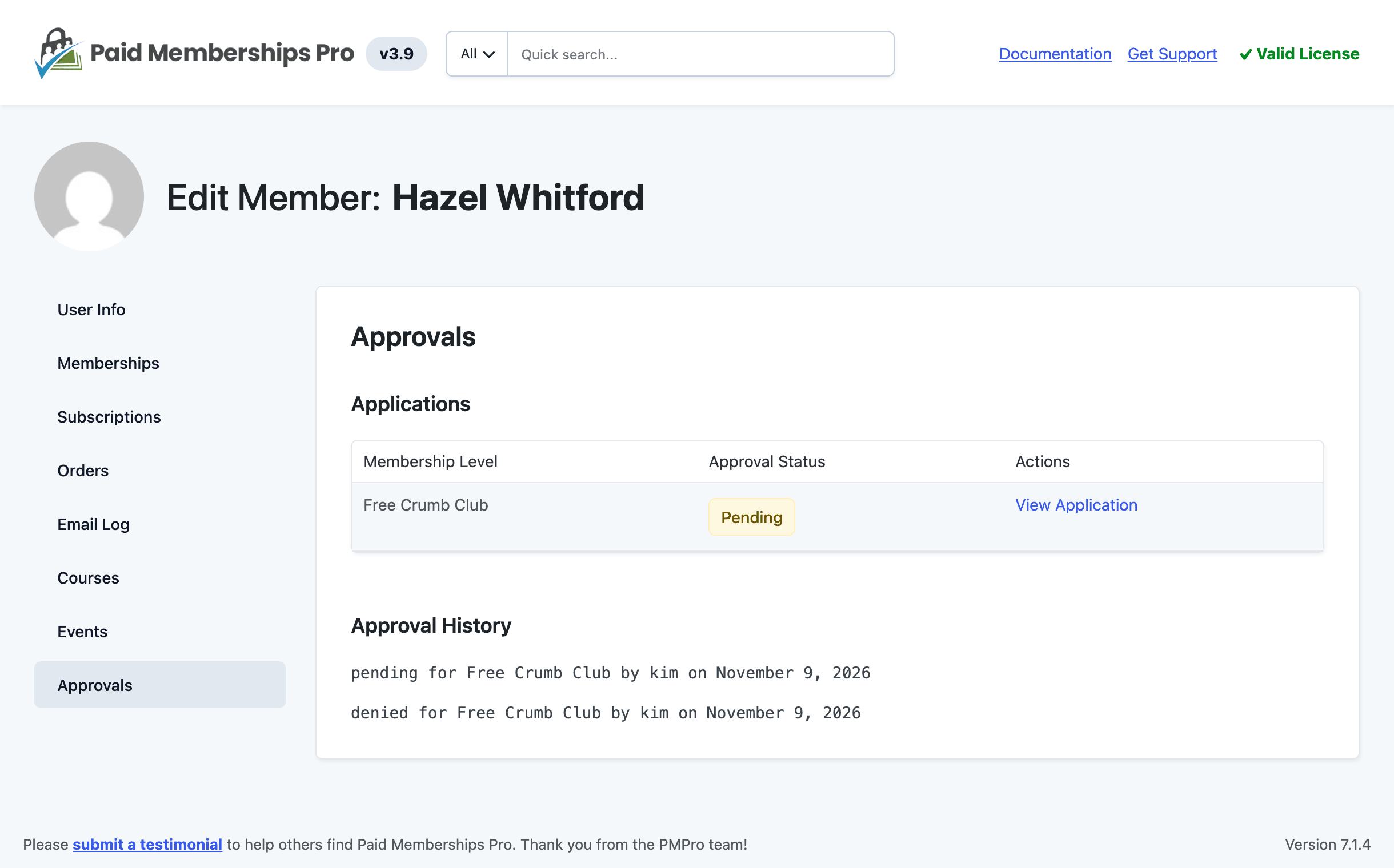
The Add On adds an Approvals panel to the Memberships > Members > Edit Member screen. The panel appears when at least one level on your site requires approval and you have permission to edit members. It has two parts:
- Applications: One row for each level that requires approval where the member has a recorded decision or currently holds the level. Each row shows the level, a status badge, and a View Application link. When the Email Confirmation Add On is active, the table also shows whether the member has confirmed their email address.
- Approval History: A log of every approve, deny, and reset action for this member, newest first. Each entry shows the status, the level, the username of the person who made the change, and the date.
Get Support From Our Team of Experts
Have a question about how to use this feature? Our Support Page outlines three ways to get support.
Our Max plans include hands-on help customizing your membership site and implementing new features. Upgrade to PMPro Max now »
Last updated on November 9, 2026

