The default module of the Courses for Memberships Add On allows you display all courses or courses available to the current logged-in member.
Table of contents
Shortcode Attributes
[pmpro_my_courses limit="3" filter="all"]
Show a list of courses that the current logged in user can access as part of their membership level. This shortcode accepts two optional attributes:
limit– The number of courses to display. Omit this attribute to show all courses for the member (no limit).filter– Controls which courses are shown based on the member’s current access. Acceptsall(default),active, orinactive.- Use
activeto show only courses tied to the member’s current active membership level. - Use
inactiveto show courses the member previously had access to but no longer does.
- Use
[pmpro_all_courses limit="10"]
Show all courses available in the site, regardless of whether the visitor or user can access them. This shortcode accepts one attribute: limit. If you do not add this attribute the shortcode will show all courses in the site (no limit).
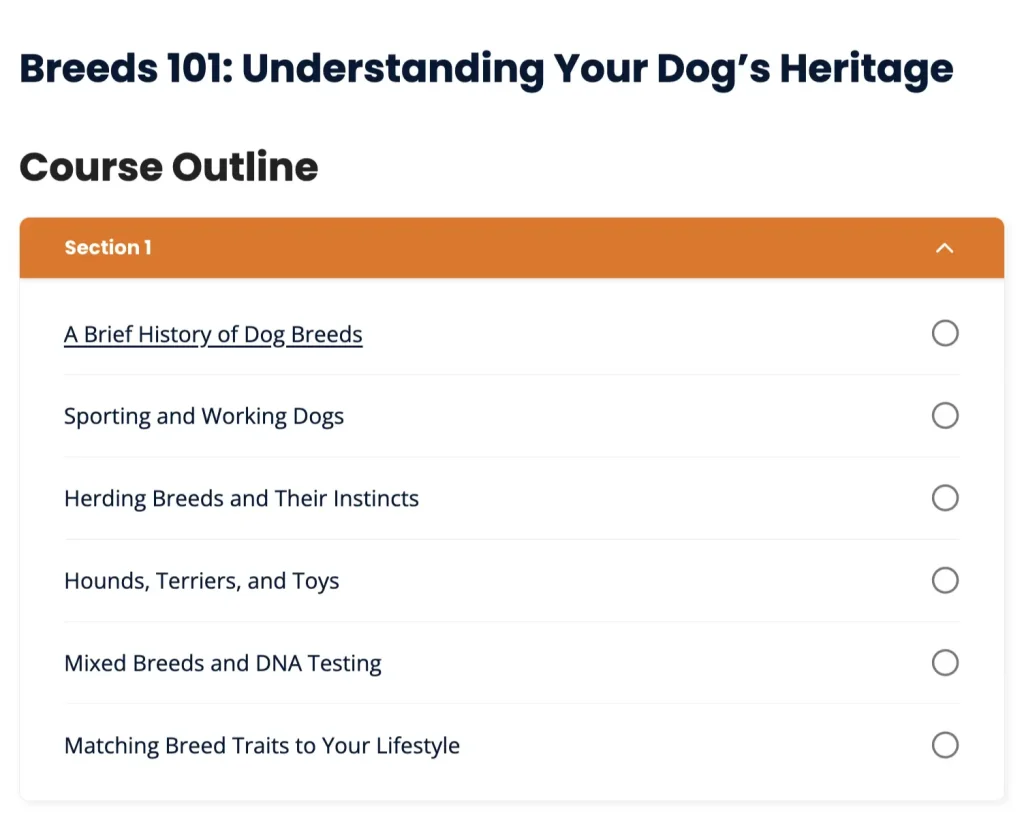
[pmpro_course_outline course_id="" show_course_title="true"]
Display a course outline with lesson titles, sections (if used), and the current member’s completion status for each lesson. This shortcode works on any page or post, not just the course page itself.
course_id– The ID of the course to display. On a single course page this is detected automatically. On any other page, you must supply the course ID.show_course_title– Controls whether the course title is displayed above the outline. Defaults totrue. Set tofalseto hide the course title when the page heading already includes the course name.
Courses for Membership Blocks
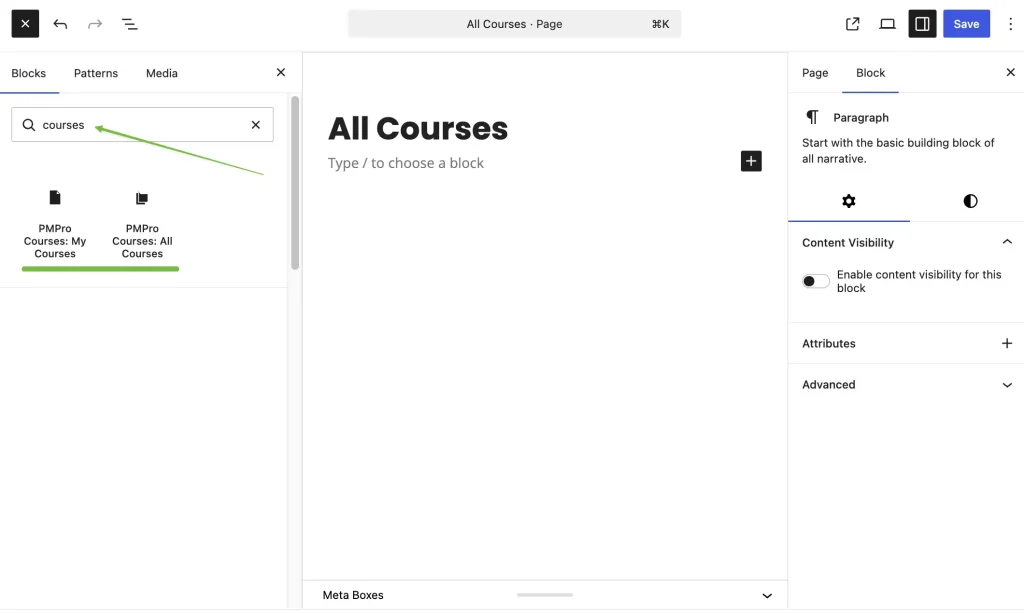
Two blocks are available in the WordPress block editor and produce the same output as the shortcodes above.
- All Courses – Displays all courses on the site. Equivalent to
[pmpro_all_courses]. Use the block settings sidebar to set a “limit” on how many courses to show. - My Courses – Displays courses available to the current logged-in member. Equivalent to
[pmpro_my_courses]. Use the block settings sidebar to set a “limit” .
To add either block, open the block editor on any page or post, click + to insert a block, and search for “Courses“.
Get Support From Our Team of Experts
Have a question about how to use this feature? Our Support Page outlines three ways to get support.
Our Max plans include hands-on help customizing your membership site and implementing new features. Upgrade to PMPro Max now »
Last updated on June 2, 2026

