Our Courses for Membership Add On connects Sensei LMS courses to your Paid Memberships Pro membership levels. Members are enrolled in the courses for their level, and lessons in a restricted course stay locked for everyone else.
How to Protect Sensei LMS Courses with PMPro
- Install and activate Paid Memberships Pro, the Courses for Membership Add On (free), and Sensei LMS.
- Navigate to Memberships > Course Settings in the WordPress admin.
- Check the box for Sensei LMS and click Save Settings.
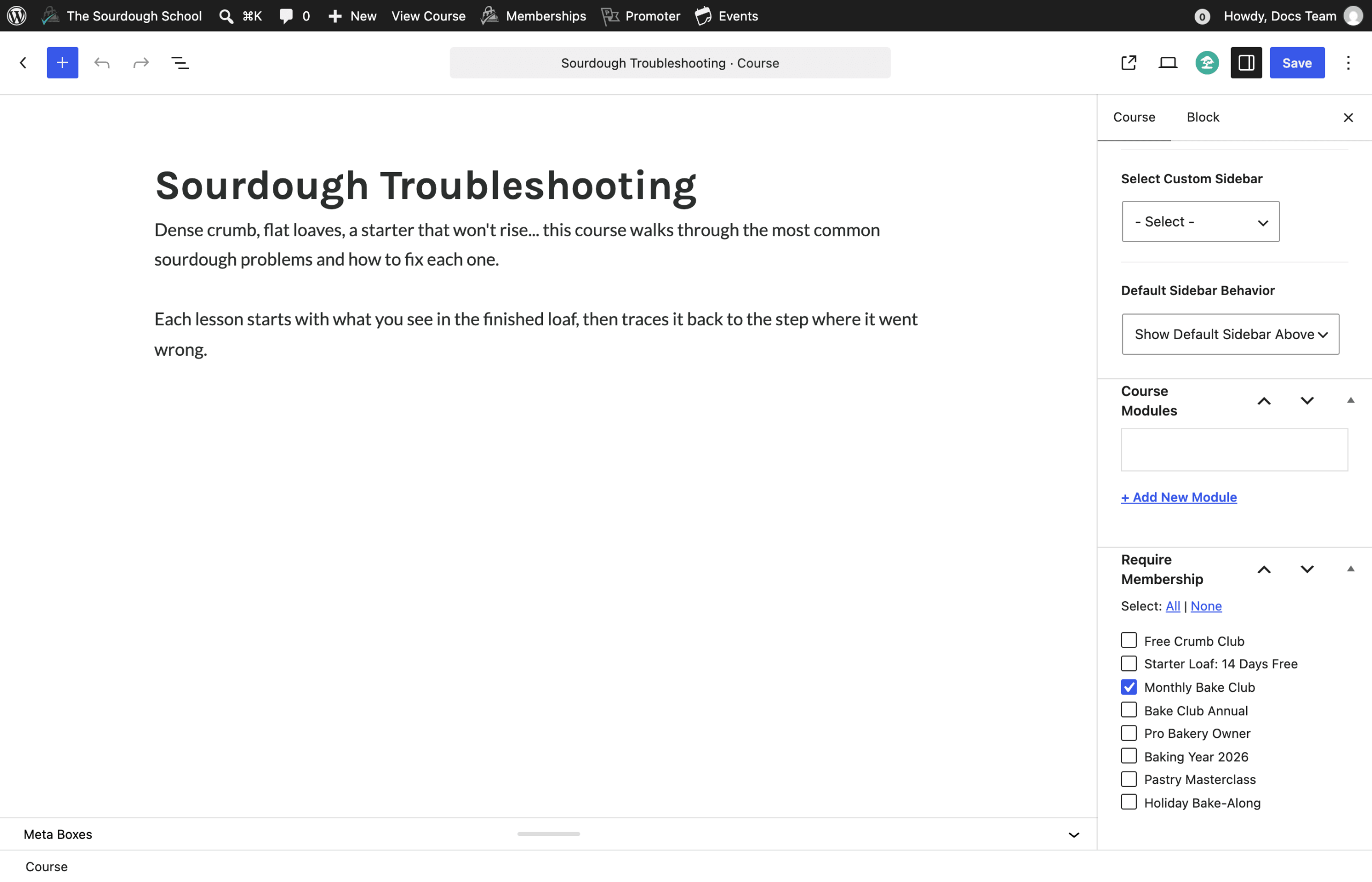
- Edit a Sensei LMS course. In the Course tab of the editor sidebar, locate the Require Membership panel.
- Check the membership levels that should have access to the course.
- Save the course.
You don’t need to set up Sensei LMS’s own course access or payment features to restrict courses this way. Paid Memberships Pro handles checkout and membership levels.
What Non-Members See
The course page stays visible to everyone, so you can use it to describe the course. Visitors without one of the course’s levels see the course description followed by the protected content message.
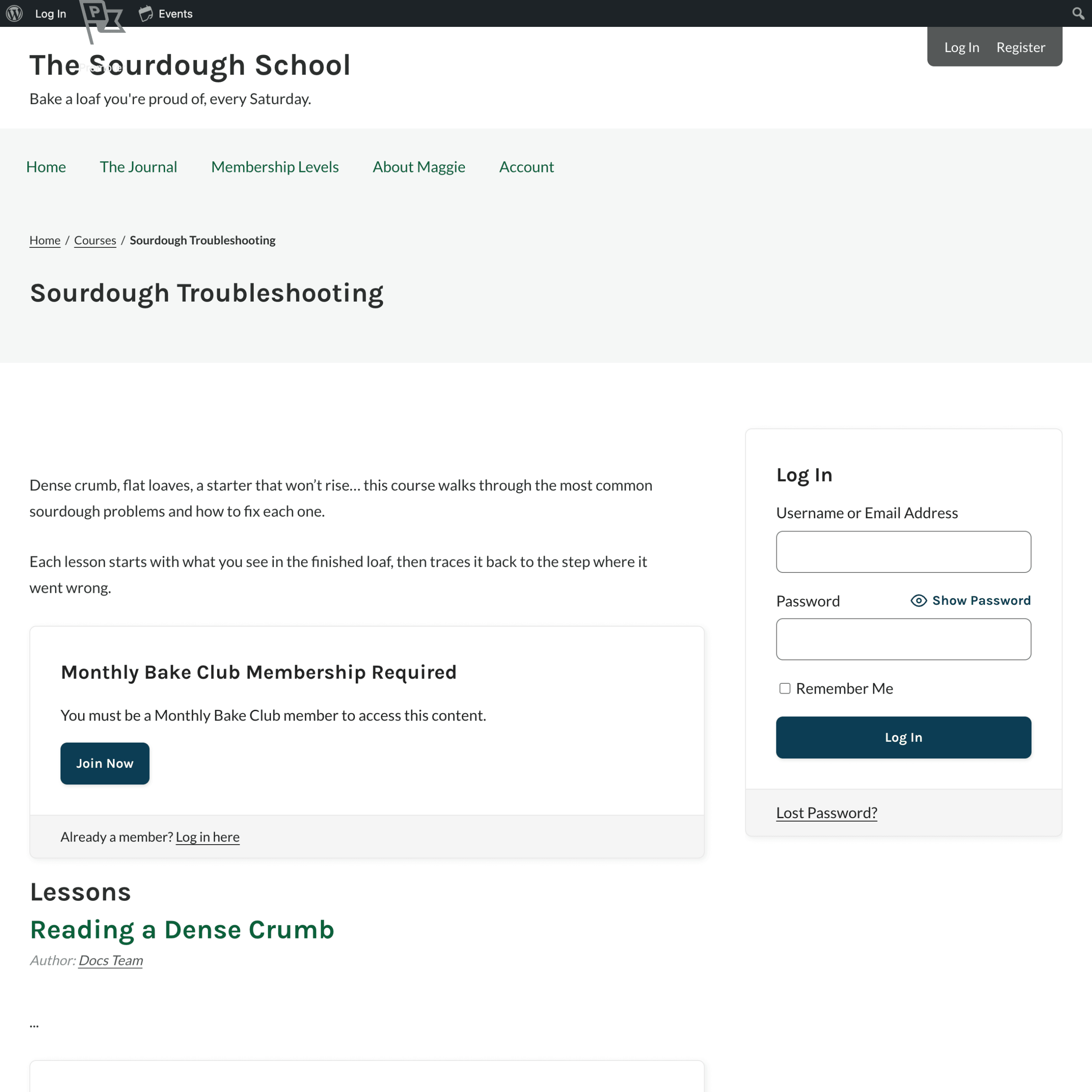
Lessons and questions in a restricted course follow the course’s membership levels:
- Visitors without one of the course’s levels who open a lesson’s URL are redirected to the course page.
- The lesson content is replaced with the no-access message in the REST API and RSS feeds.
- Administrators can always view a course’s lessons.
Managing Course Enrollment
When a member gets a membership level, they are enrolled in every Sensei LMS course that requires that level. If a member changes levels or cancels, they are removed from any courses their new level doesn’t include.
Non-members can’t enroll themselves in a course that requires membership. Sensei LMS hides the course’s enroll button for logged-in users without one of the course’s levels. Administrators can still enroll.
Existing Course Enrollments
Enrollment is updated only when a member’s level changes. If you add membership levels to a course that already has members, those members are not enrolled automatically.
- Manually enroll current members in newly protected courses.
- Manually remove enrolled users who don’t have the correct membership level for access.
Get Support From Our Team of Experts
Have a question about how to use this feature? Our Support Page outlines three ways to get support.
Our Max plans include hands-on help customizing your membership site and implementing new features. Upgrade to PMPro Max now »
Last updated on November 12, 2026

