Each download holds one protected file. Create downloads from the Downloads menu in the WordPress admin, then choose which membership levels can access each one, either per download or for a whole download category.
Before You Begin
- Paid Memberships Pro: The Add On uses the protected files system in Paid Memberships Pro. Protecting downloads by category requires PMPro 3.8.1 or higher.
- Block editor: Downloads are created in the block editor. If the Classic Editor plugin is active, the Add On still opens downloads in the block editor so the file upload tools are available.
- Displaying downloads: You can show downloads with blocks or with shortcodes, so they work in the Classic Editor and page builders too.
Create a Download
- Navigate to Downloads > Add New Download in the WordPress admin.
- Enter a name in the Download Name field. This is the title members see by default.
- In the Download File box on the editor canvas, click Upload File and choose the file from your computer. The file uploads right away and is stored in the protected files folder.
- Optional: Open the Description panel in the right sidebar and enter a short description. The description appears in the card display template.
- Optional: Open the Categories panel and assign one or more download categories.
- Set the membership levels that can access the file in the Require Membership panel (see Restrict a Download by Membership Level).
- Click Publish. Only published downloads appear on your site.
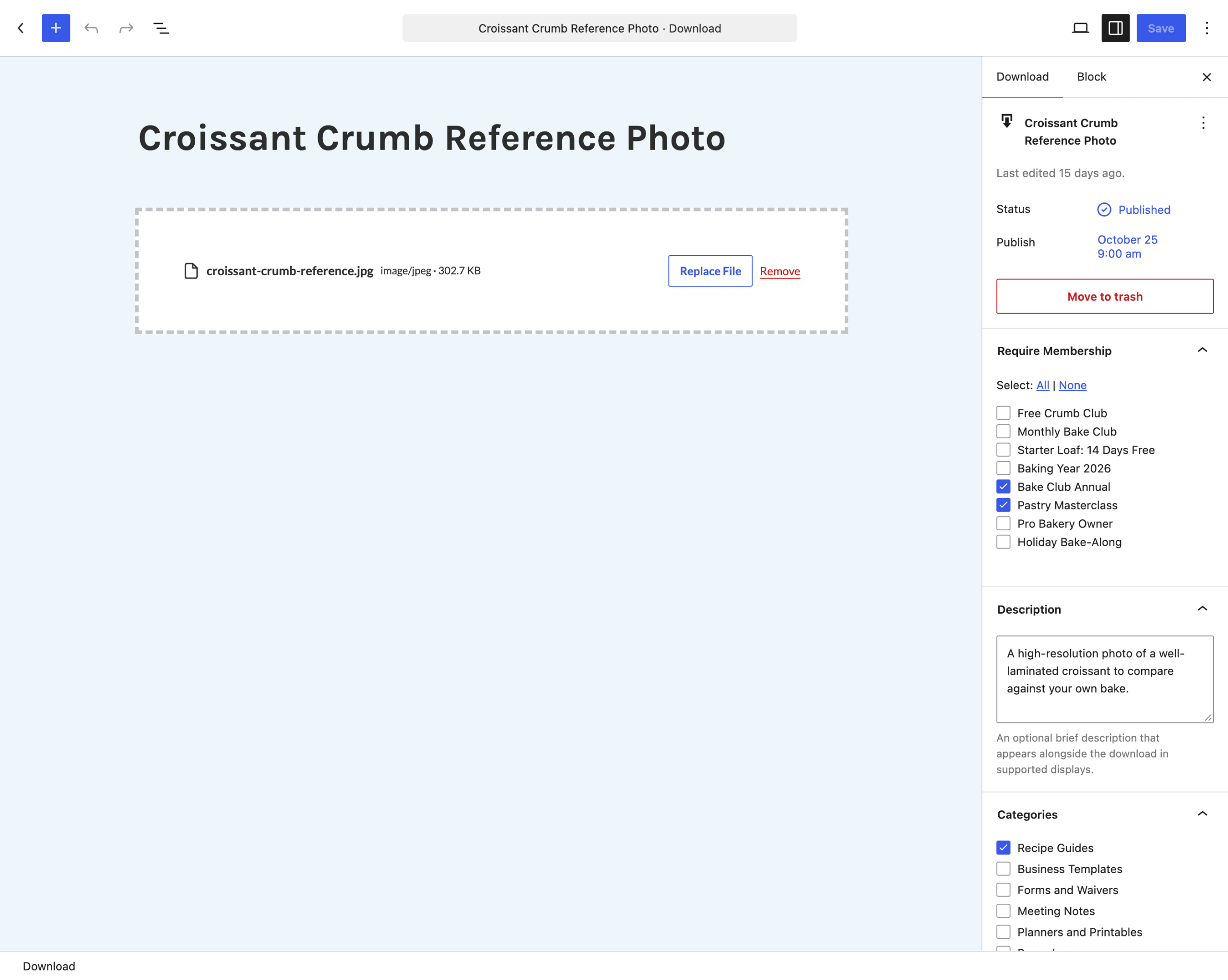
Manage the Attached File
After a file is uploaded, the Download File box shows the file name, file type, and file size.
- Replace File: Upload a new file. The previous file is deleted from the server only after the new file uploads successfully.
- Remove: Deletes the file from the server and clears the file details. Members with access won’t see this download until you upload a new file.
Restrict a Download by Membership Level
Downloads use the standard content restriction settings in Paid Memberships Pro.
- Open the download in the editor.
- In the Require Membership panel of the right sidebar, check each membership level that should have access.
- Save the download.
Members of any checked level can download the file. Everyone else sees a locked version of the download with the required level names and a link to join.
Protect Downloads by Category
Download Categories let you organize downloads into groups and protect an entire group at once. Every download in a protected category requires one of that category’s membership levels.
- Navigate to Downloads > Categories.
- Add a new category, or click an existing category to edit it.
- In the Require Membership section, check the levels that should have access to downloads in this category.
- Save the category.
- Assign downloads to the category from the Categories panel in the download editor.
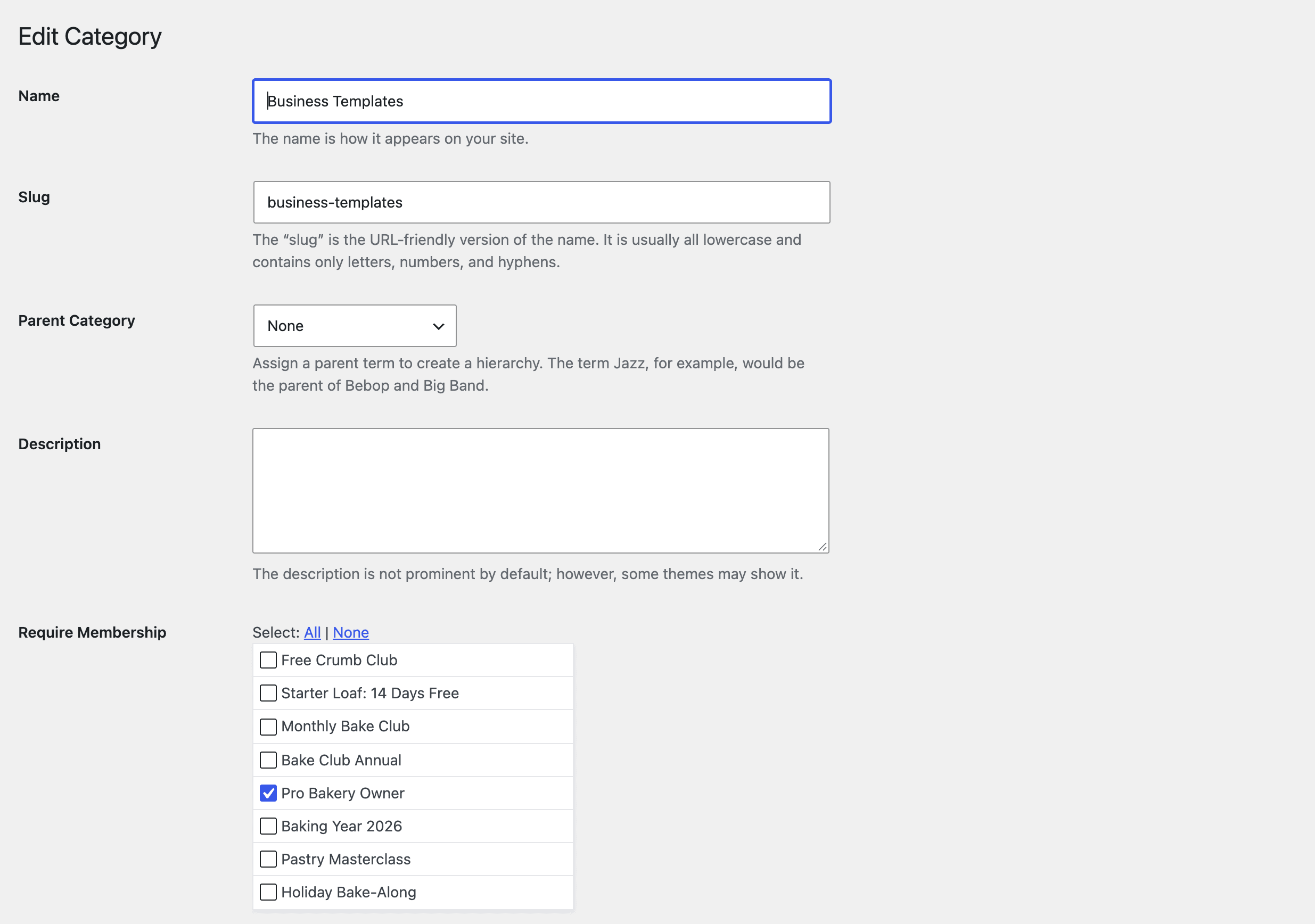
When a download has levels set directly and is also in a protected category, members of any of those levels can access it. You can also use categories to limit which downloads appear in a Download Library.
Manage Downloads in the Admin
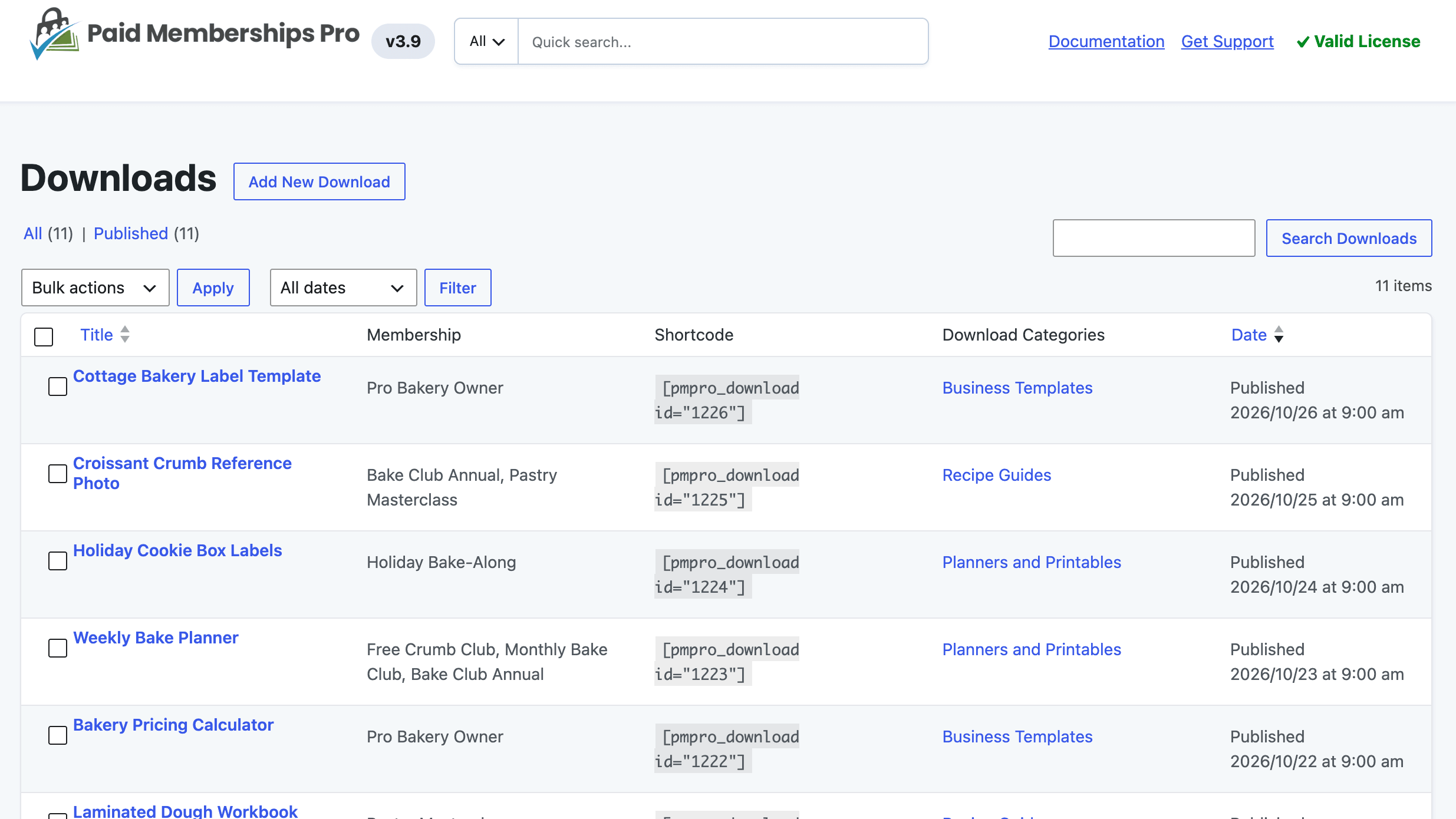
Navigate to Downloads > All Downloads to see every download. Along with the title and date, the list includes:
- Membership: The levels that can access each download, including levels inherited from a protected category. A dash means the download is not restricted.
- Shortcode: A ready-to-copy
[pmpro_download id="123"]shortcode with the download’s ID. - Download Categories: The categories assigned to each download.
Next, learn how to display downloads on your site.
Get Support From Our Team of Experts
Have a question about how to use this feature? Our Support Page outlines three ways to get support.
Our Max plans include hands-on help customizing your membership site and implementing new features. Upgrade to PMPro Max now »
Last updated on November 9, 2026

