Page Caching stores static HTML snapshots of pages and serves them to visitors without hitting PHP or the database. This is the biggest single performance gain for most sites.
The Page Caching panel allows you to toggle page caching on or off. When Page Caching is toggle on:
- Installs the bundled Surge page caching engine (
wp-content/advanced-cache.php). - Adds
define('WP_CACHE', true)towp-config.php. - Begins serving cached pages to logged-out visitors immediately.
What is not cached:
- Any logged-in user request.
- PMPro-specific pages: checkout, account, login, confirmation, and payment gateway webhook handlers.
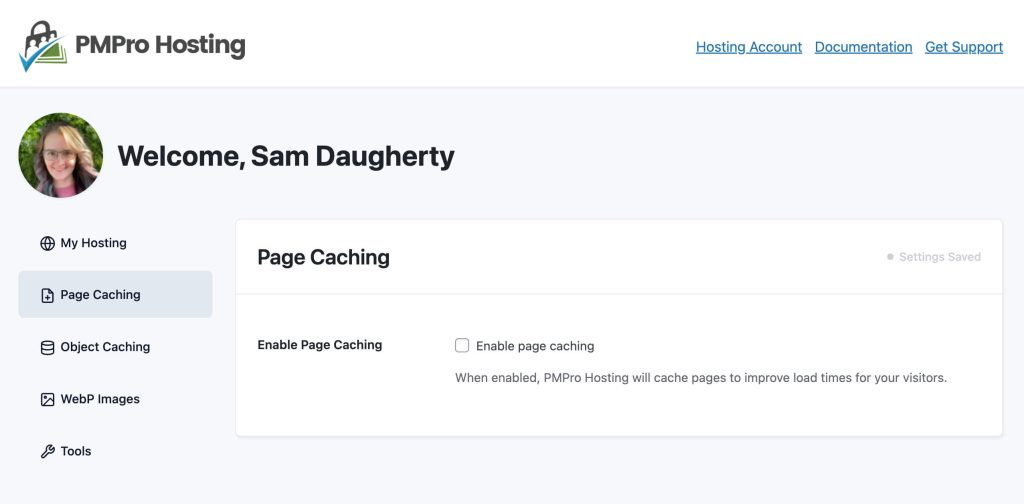
Recommendation: Enable this unless you are already using a dedicated caching plugin.
Clear All Caches
This button appears in the Page Caching tab and also in the Tools tab — both do the same thing. It:
- Expires the Surge page cache for the entire site.
- Flushes the WordPress object cache.
- Resets PHP’s OPcache (bytecode cache).
- Calls the cache-clear function for any active third-party caching plugin.
- Purges the Cloudflare cache, if the site has Cloudflare configured server-side.
Safe to run at any time. No content is deleted or changed.
Get Support From Our Team of Experts
For more help with this PMPro feature, check out our Support Page with three ways to get support as a free or premium member.
Last updated on March 26, 2026
Was this article helpful?
YesNo

