
WebP is a modern image format that produces significantly smaller files than JPEG or PNG, often 25–35% smaller, without a visible drop in quality. Smaller images mean faster page loads, lower bandwidth usage, and better Core Web Vitals scores.
This panel has two toggles and two action buttons for managing WebP on your site.
Should I Turn This On?
Yes, for almost every site. WebP is supported by every modern browser, and PMPro Hosting keeps the original JPEG or PNG file as a fallback for anything that can’t render WebP. There’s no visual change for your visitors, just faster loads.
The only reason to leave this off is if you’re already running a third-party image optimization plugin that handles WebP itself (see the compatibility note below).
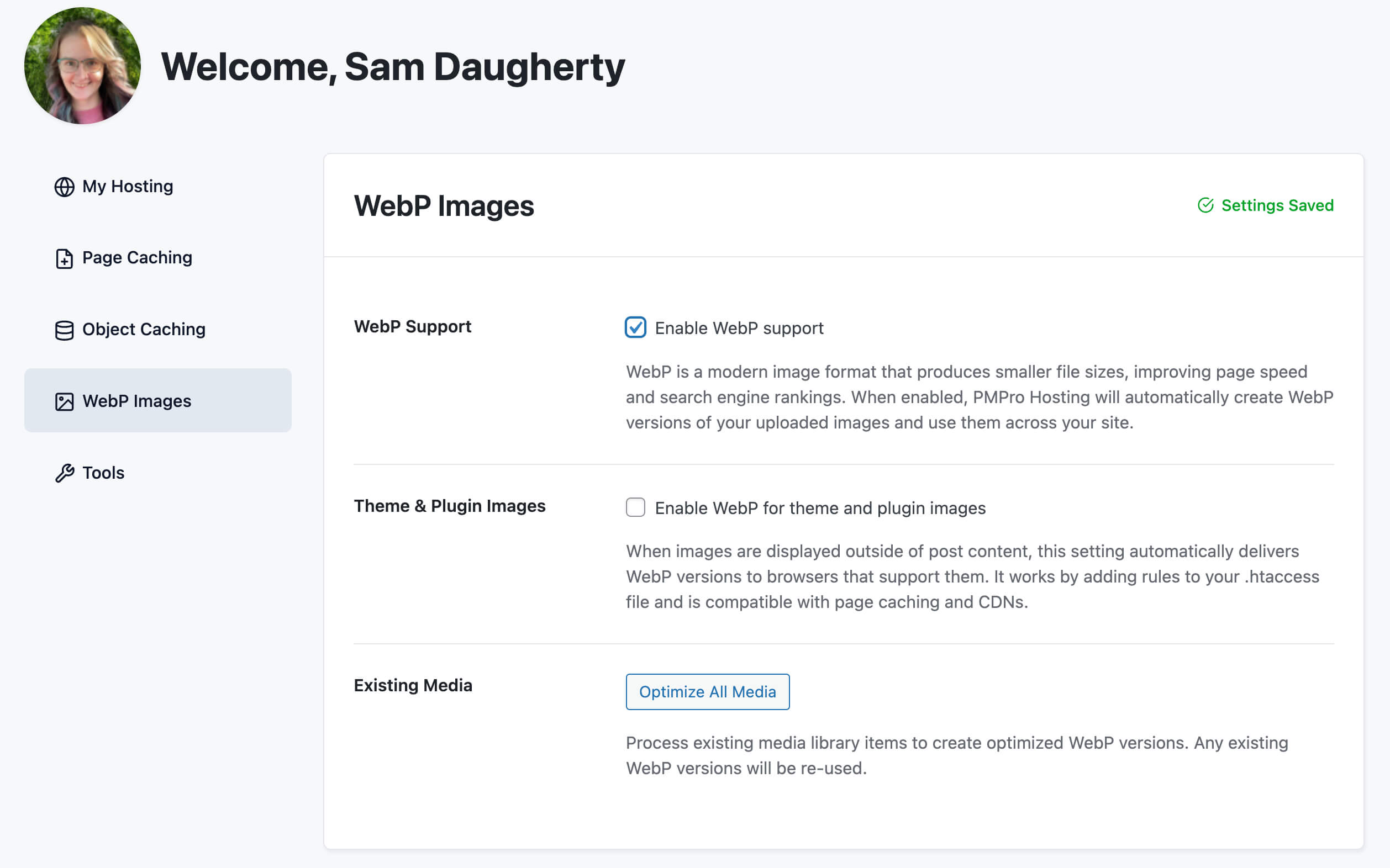
WebP Support
This is the master switch for WebP on your site. When you toggle it on, PMPro Hosting:
- Activates the bundled Modern Image Formats plugin.
- Automatically converts new image uploads to WebP alongside the original format.
- Outputs HTML
<picture>elements so browsers that support WebP get the smaller file, and browsers that don’t get the original JPEG or PNG as a fallback.
Existing images in your media library are not affected when you first enable this, only new uploads. To convert images you’ve already uploaded, use Optimize Existing Media below.
Turning it off stops WebP generation for new uploads. Existing WebP files in your media library are left in place. If you want to remove them too, use Delete WebP Versions.
Compatibility With Other Plugins
WebP Support can’t be enabled if a third-party image optimization plugin with its own WebP conversion is active. This is to prevent conflicts where both systems try to generate or serve WebP at the same time. The toggle will be disabled if any of the following are active:
- Modern Image Formats
- WebP Express
- ShortPixel Image Optimizer
- Imagify
- EWWW Image Optimizer
- Optimus
- Smush
To use PMPro Hosting’s WebP support, deactivate the conflicting plugin first. If you’d rather keep your existing optimizer, just leave this toggle off. Your setup will continue to work as it does today.
Theme & Plugin Images
Most images on your site are loaded through WordPress’s standard image functions, which means they get WebP automatically once WebP Support is on. But themes and plugins sometimes load images directly, for example, a slider plugin that references an image URL in its own markup. Those don’t go through WordPress’s <picture> element logic.
This toggle catches those cases by adding content-negotiation rules to wp-content/uploads/.htaccess. Here’s what it does:
- When a browser indicates it supports WebP (via an
Accept: image/webpheader), Apache automatically serves the WebP version if one exists alongside the original. - Browsers that don’t support WebP get the original image.
- Works correctly with page caching and CDNs (the
Vary: Acceptresponse header is set so caches store both versions correctly).
Turning it off cleanly removes the rules from .htaccess without affecting anything else.
Optimize Existing Media
This button runs a background batch job to generate WebP versions for every JPEG and PNG already in your media library. It’s the one-time action to run after enabling WebP Support if you have an established site. Otherwise, only new uploads will get the WebP treatment.
How to run it:
- Click Optimize Existing Media.
- The button changes to show a progress percentage as images are processed.
- The job continues in the background even if you navigate away or close the tab.
- A Cancel button appears while the job runs. Clicking it stops the job cleanly at its current position with no data loss. Already-converted images stay converted.
Depending on how many images are in your media library, this can take anywhere from a few seconds to an hour or more. You can keep using your site normally while it runs.
Smart Detection of Existing WebP Files
Before converting an image, the job checks for WebP files that may already exist on disk from a previous plugin (Imagify, ShortPixel, Smush, EWWW, etc.). If it finds one, it adds that file to the WordPress media library metadata instead of regenerating it. This saves time and preserves the work any previous optimizer already did.
Running via WP-CLI
If you prefer the command line, you can trigger the same job with the following command:
wp pmpro-hosting webp-convert
Our support team can also run this command for you, just reach out.
Delete WebP Versions
This button appears after optimization has run at least once. It removes all WebP files and metadata, restoring your media library to a pre-WebP state.
When to use it:
- You’re switching to a third-party image optimizer and want a clean slate first.
- You want to reset and re-run optimization from scratch.
- You’re turning WebP off entirely and want to reclaim the disk space.
What it does:
- Deletes all WebP files from disk.
- Removes WebP metadata from every media library item.
- Runs as a background batch job with a progress percentage on the button, just like Optimize Existing Media.
You can also run this from the command line with the following command:
wp pmpro-hosting webp-cleanup
Our support team can also run this command for you, just reach out.
Deleting WebP versions doesn’t affect your original images in any way: the JPEGs and PNGs stay exactly where they are.
Get Support From Our Team of Experts
Have a question about how to use this feature? Our Support Page outlines three ways to get support.
Our Max plans include hands-on help customizing your membership site and implementing new features. Upgrade to PMPro Max now »
Last updated on April 17, 2026

