
This document covers each panel in the PMPro Hosting admin page, what is shown, and recommended settings.
The admin page is found at PMPro Hosting in the WordPress admin sidebar. It uses a tabbed layout with vertical tabs on the left and the active panel’s content on the right. Settings auto-save when changed.
My Hosting
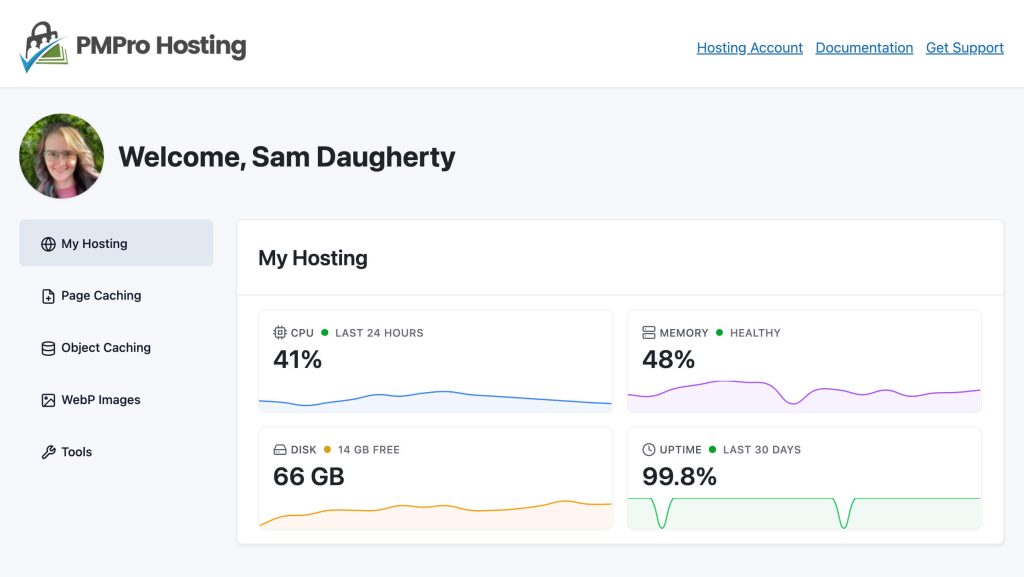
The My Hosting tab is the default landing panel and serves as a dashboard overview. It displays server health metrics in a card layout:
- CPU Usage: Current CPU utilization percentage with a sparkline chart showing recent trends.
- Memory Usage:Current RAM usage with a sparkline chart.
- Disk Usage: Storage consumption with a sparkline chart.
- Uptime: Server uptime with a sparkline chart.
Each card shows the current value alongside historical data (last 24 hours / 30 days).
This panel is display-only. There are no settings to configure here. Use it to monitor your server’s health at a glance.
Page Caching
Page Caching stores static HTML snapshots of your pages and serves them to visitors without running PHP or querying the database. For most sites, this is the single biggest performance improvement available. Cached pages load almost instantly.
(more...)Object Caching
Object Caching stores the results of database queries in memory (using Redis) so repeated queries return instantly instead of hitting the database every time. This is one of the biggest performance wins for logged-in experiences and dynamic pages that can’t be cached as static HTML.
(more...)WebP Images
WebP is a modern image format that produces significantly smaller files than JPEG or PNG, often 25–35% smaller, without a visible drop in quality. Smaller images mean faster page loads, lower bandwidth usage, and better Core Web Vitals scores. This panel has two toggles and two action buttons for managing WebP on your site.
(more...)Tools
The Tools tab contains utility actions for maintenance and troubleshooting. Use these when you need to reset part of your site’s state, like clearing cached data, forcing users to sign in again, or flushing caches after making changes. All actions in this tab show a confirmation prompt before running, so you won’t trigger anything by (more…)
(more...)Get Support From Our Team of Experts
Have a question about how to use this feature? Our Support Page outlines three ways to get support.
Our Max plans include hands-on help customizing your membership site and implementing new features. Upgrade to PMPro Max now »
Last updated on May 4, 2026

