SFTP (Secure File Transfer Protocol) lets you browse, upload, and download files on your PMPro Hosting server directly from your computer. This is available on PMPro Max plans and uses SSH key authentication, the same key pair described in the SSH Access documentation.
Before You Connect
SSH access is optional and intended for advanced users. Most PMPro Hosting customers never need it. Your site works fully without SSH. You can manage everything through the WordPress admin and the PMPro Hosting dashboard. Our support team can log in at your request to implement any change you are not comfortable or interested in doing on your own.
SFTP access requires an SSH key pair. If you haven’t done this yet:
- Follow the SSH Access guide to generate a key pair on your computer.
- Send your public key (the
.pubfile) to PMPro support. - Wait for confirmation that your key has been installed on the server.
Support will also provide your server IP address when they confirm access is ready.
Your Connection Details
| Setting | Value |
|---|---|
| Host: | Your server’s IP address (provided by support) |
| Port: | 22 |
| Username: | pmpro_sftp |
| Authentication: | SSH private key (the file on your computer, not the .pub file) |
| Password: | None. Leave this blank |
Connecting with an SFTP Client
Any SFTP client that supports SSH key authentication will work. Common options:
- FileZilla (Windows, macOS, Linux) — free
- WinSCP (Windows) — free
- Cyberduck (Windows, macOS) — free
- Transmit (macOS) — paid
FileZilla
- Open File > Site Manager, then click New Site.
- Set Protocol to
SFTP – SSH File Transfer Protocol. - Enter your server IP in Host and
22in Port. - Set Logon Type to
Key file. - Enter
pmpro_sftpas the User. - Click Browse next to the Key file field and select your SSH private key file.
- Click Connect.
WinSCP
- Open WinSCP and click New Session.
- Set File protocol to
SFTP. - Enter your server IP in Host name and
22in Port number. - Enter
pmpro_sftpas the Username. Leave Password blank. - Click Advanced > SSH > Authentication, then browse to your private key file under Private key file.
- Click OK, then Login.
Cyberduck
- Click Open Connection.
- Set the protocol dropdown to
SFTP (SSH File Transfer Protocol). - Enter your server IP in Server and
22in Port. - Enter
pmpro_sftpas the Username. Leave Password blank. - Set SSH Private Key to your private key file.
- Click Connect.
Transmit (macOS)
- Click the + button to create a new server.
- Set Protocol to
SFTP. - Enter your server IP in Address and
22in Port. - Enter
pmpro_sftpas the Username. - Set SSH Key to your private key file.
- Click Connect.
Your File Structure
Once connected, you will see one folder per site on your plan. Inside each folder, your WordPress files live at:
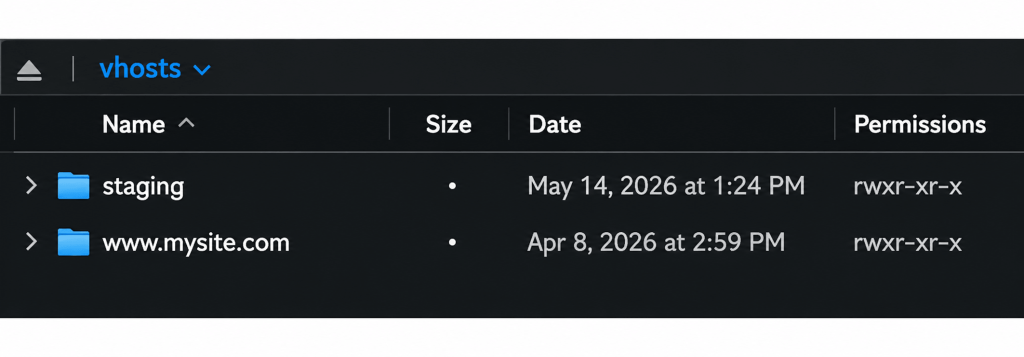
All WordPress file management, themes, plugins, uploads, happens inside the public/ folder.
Common Task: Disable a Plugin via SFTP
The most common reason to use SFTP is to disable a plugin when a fatal error is preventing you from accessing your WordPress dashboard.
- Connect to your server and navigate to
your-domain.com/public/wp-content/plugins/. - Find the folder for the plugin causing the problem.
- Rename the folder by adding a prefix or suffix. For example, rename
bad-plugintobad-plugin-off. - WordPress will no longer load the plugin. You should now be able to access your dashboard.
- Once you’ve resolved the issue, rename the folder back to its original name to re-enable the plugin.
For more detail on this technique, see: How to Disable a Plugin in WordPress
Troubleshooting
I can connect and browse files, but I can’t upload or delete anything.
File ownership on the server may need to be corrected. Contact PMPro support and let them know — this is a quick fix on our end.
My SFTP client says “Host key verification failed” or “Authentication failed.”
Double-check that you’re using your private key (not the .pub file) in your client settings, and that you’re connecting to the correct IP address on port 22 with username pmpro_sftp. If the problem persists, contact support.
My domain doesn’t connect, but the IP address does.
This is expected if your domain routes through a CDN. Always use the IP address for SFTP.
Managing Additional Keys
If you want to allow another person or device to connect using their own key, you can add additional public keys yourself. Your SFTP access grants you permission to do so. If you’re not sure how, contact support and we’ll add the key for you.
Get Support From Our Team of Experts
Have a question about how to use this feature? Our Support Page outlines three ways to get support.
Our Max plans include hands-on help customizing your membership site and implementing new features. Upgrade to PMPro Max now »
Last updated on July 23, 2026

