
Page Caching stores static HTML snapshots of your pages and serves them to visitors without running PHP or querying the database. For most sites, this is the single biggest performance improvement available. Cached pages load almost instantly.
When Page Caching Helps
Page Caching helps whenever visitors request a page that’s the same for everyone. That typically includes:
- Your homepage
- Blog posts and landing pages
- Pricing or membership level pages (the public-facing ones)
- Any marketing or content page without personalized elements
Pages that are different for every visitor, anything behind a login, or flows like checkout, can’t be safely cached. Those pages benefit from Object Caching instead. The two work together, and most sites should have both enabled.
Should I turn this on?
Yes, for almost every site. Page Caching is safe to enable and produces a large, immediate performance improvement for public-facing traffic. The only reason to leave it off is if you’re already running a different page caching plugin.
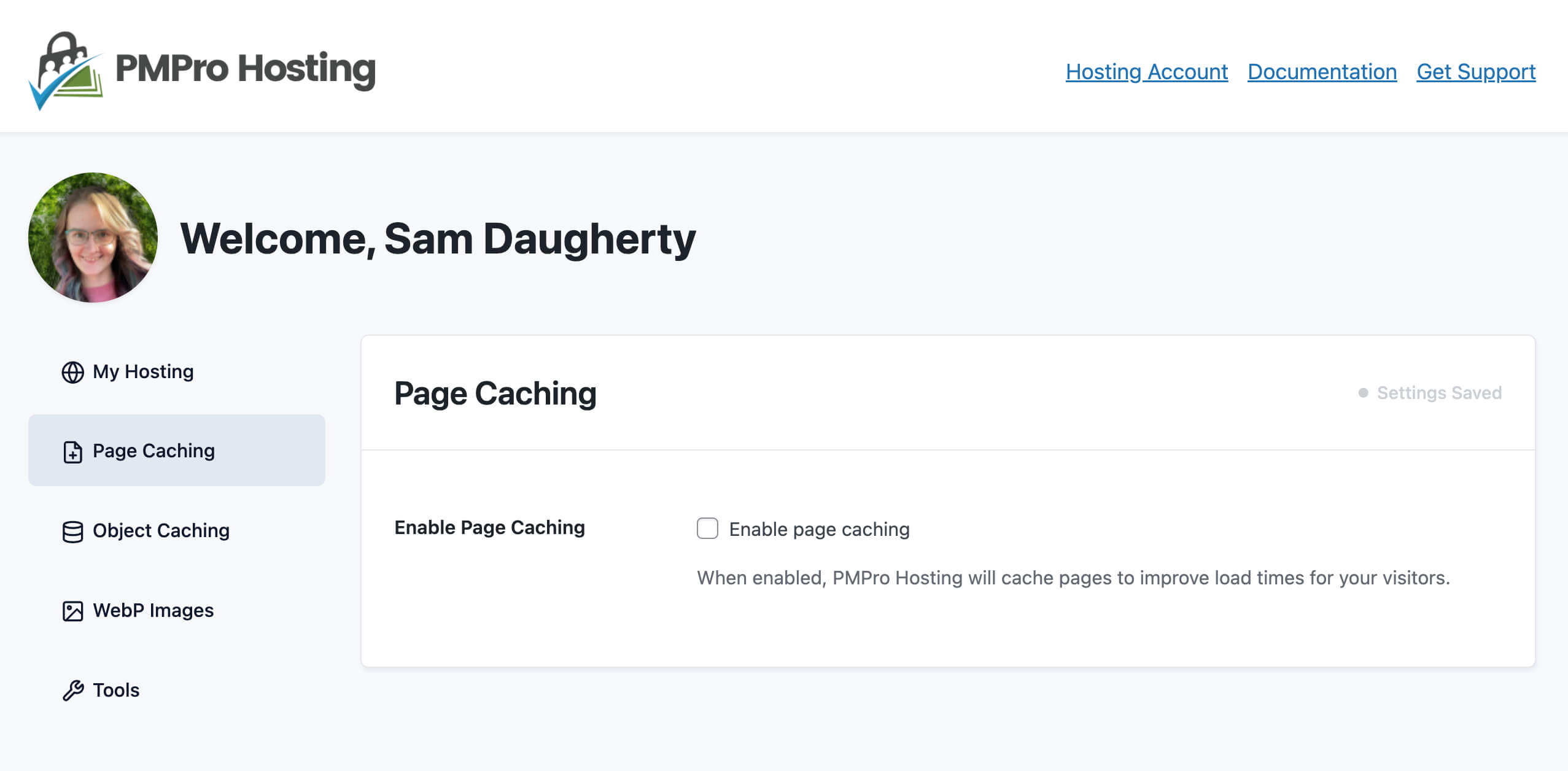
How It Works
When you toggle Page Caching on, PMPro Hosting:
- Installs the bundled Surge page caching engine at
wp-content/advanced-cache.php. - Adds
define('WP_CACHE', true)to yourwp-config.phpfile so WordPress knows to use it. - Begins serving cached pages to logged-out visitors right away.
From that point forward, the first visitor to a page generates a cached snapshot, and every visitor after that gets the snapshot. No PHP, no database query, just the HTML.
What Isn’t Cached
Page Caching is deliberately selective. The following are always served fresh so members see accurate, personalized content:
- Any logged-in user request. Logged-in visitors always get dynamically generated pages so their personalized content (account info, member-only content, etc.) is always correct.
- PMPro-specific pages: checkout, account, login, confirmation, and payment gateway webhook handlers. These pages change based on the user, the transaction, or the payment gateway, and caching them would break membership functionality.
If you have custom pages that need to bypass the cache, contact support and we can add them to the exclusion list.
Excluding Specific Pages
If you have custom pages shown to visitors who are not logged in that you’d like to be excluded from page caching, you can add them using *Cache Exclusions. *While less common, sometimes you need to exclude a page from the cache because of another plugin’s capabilities, or find that a page isn’t working properly with page caching enabled.
You can add pages by providing just the URL fragment path to the page in the exclusion text area. For example /my-custom-page/.
Pages excluded this way will be excluded from both the page cache on the website and (if you are using our Cloudflare DNS) on Cloudflare as well.
Turning It Off
Toggling Page Caching off removes the Surge drop-in and sets WP_CACHE back to false in wp-config.php. Your site will continue to work normally, just without the performance boost.
Flushing the Page Cache
The page cache is automatically flushed as part of Clear All Caches in the Tools tab. Use this if you’ve published a change that isn’t showing up for logged-out visitors: a stale cached snapshot is usually the cause.
The cache also clears itself automatically when you update a post, page, or site setting, so manual flushing is rarely necessary.
Get Support From Our Team of Experts
Have a question about how to use this feature? Our Support Page outlines three ways to get support.
Our Max plans include hands-on help customizing your membership site and implementing new features. Upgrade to PMPro Max now »
Last updated on July 14, 2026

