WebP is a modern image format that produces smaller files than JPEG or PNG, reducing page load times. This section has two toggles and two action buttons.
WebP Support
This is the master switch. Toggling it on:
- Activates the bundled Modern Image Formats plugin.
- New image uploads are automatically converted to WebP in addition to their original format.
- WordPress outputs
<picture>elements: WebP is served to browsers that support it, with a JPEG/PNG fallback for those that don’t.
Existing media library images are not affected when this is enabled — see Optimize Existing Media below.
Toggling this off stops WebP generation for new uploads. It does not delete existing WebP files from the media library.
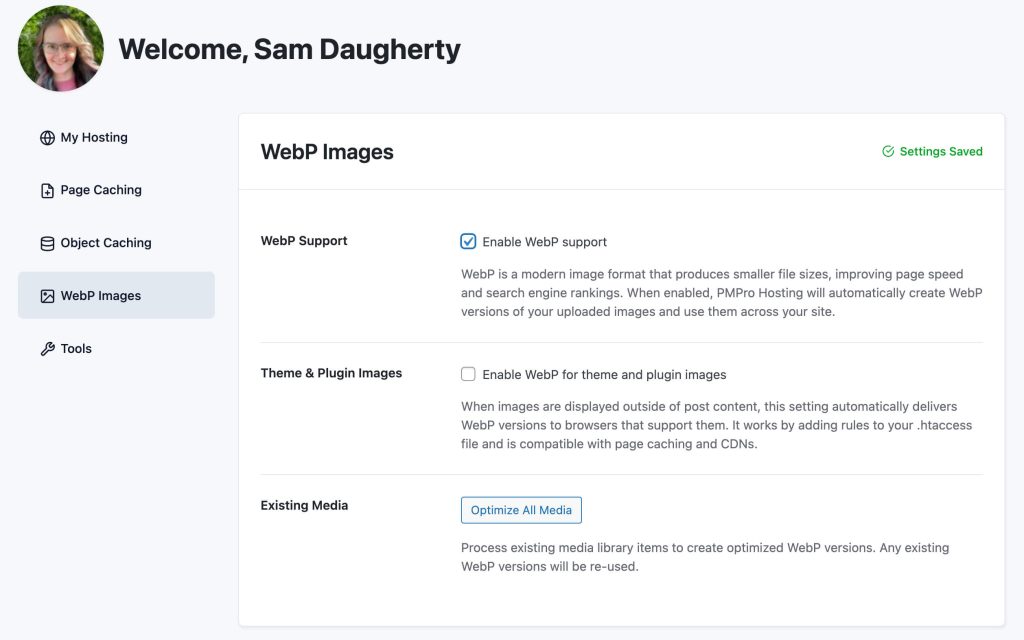
Theme & Plugin Images
Requires WebP Support to be enabled first.
Images loaded by themes and plugins directly (outside of post content) are not always output through WordPress’s <picture> element logic. This toggle handles those by adding content-negotiation rules to wp-content/uploads/.htaccess:
- When a browser sends an
Accept: image/webpheader, Apache automatically serves the WebP version of the image if one exists alongside the original. - Falls back to the original image for non-supporting browsers.
- Compatible with page caching and CDNs (sets the
Vary: Acceptresponse header so caches handle both versions correctly).
Toggling this off cleanly removes the rules from .htaccess, leaving everything else intact.
Optimize Existing Media
Runs a background batch job to generate WebP versions for all JPEG/PNG images already in the media library. This can also be triggered via WP-CLI with wp pmpro-hosting webp-convert.
Smart behaviour: Before converting, the job checks disk for WebP files that may have been created by a third-party plugin (Imagify, ShortPixel, Smush, EWWW). If found, those are indexed into the media library metadata rather than regenerated. Conversion only runs where no WebP exists.
To start:
- Click Optimize Existing Media.
- The button then changes to increment a percentage as images are processed.
- The job runs in the background, and will complete if the user navigates away.
- A Cancel button appears while running. Clicking it stops cleanly at the current position with no data loss.
Delete WebP Versions
This button appears after optimization has run. It can also be run via WP-CLI with wp pmpro-hosting webp-cleanup. It:
- Deletes all WebP files from disk.
- Removes WebP metadata from all media library items.
- Runs as a background batch job, while the button changes to increment a percentage as images are processed.
Use this when switching to a third-party image optimizer, or to do a full WebP reset before optimizing.
Get Support From Our Team of Experts
For more help with this PMPro feature, check out our Support Page with three ways to get support as a free or premium member.
Last updated on March 26, 2026

