The Deprecated Gateway Migration Tool moves your active subscriptions off a deprecated payment gateway so that you can remove the gateway from your site.
For each active subscription, the tool either recreates it at Stripe or cancels it and sets the membership to expire. It can email your members, cancels the old gateway subscription, and has a dry run so that you can preview the results. The last step deletes the gateway’s stored API credentials and stops loading the gateway. Your orders and subscriptions are kept.
Before You Start
The tool is available for these deprecated gateways:
- 2Checkout
- Authorize.net
- Braintree Payments
- CyberSource
- Payflow Pro/PayPal Pro
- PayPal Express
- PayPal Standard
- PayPal Website Payments Pro
Related: Incompatibilities and Deprecations
Check these items before you open the tool:
- You need to be an administrator or have the capability to manage payment settings.
- Action Scheduler must be available. The tool runs the migration in the background in small batches.
- Paid Memberships Pro services must not be paused. A staging or development copy of your site pauses services by default, and the tool will not run there.
- Take a backup of your site and your gateway account details first. A real migration changes subscriptions and cancels them at the old gateway. This cannot be undone.
- Decide how you want to handle members: move them to Stripe with the same price and billing schedule, or cancel and let them check out again. The next step explains both.
The tool only works on the gateway environment that is currently selected under Memberships > Settings > Payments. If you have subscriptions in both the live and sandbox environments, you run the tool once for each environment.
Open the Migration Tool
- Navigate to Memberships > Settings > Payments in the WordPress admin.
- In the Payment Gateway Settings section, select Edit Settings for the deprecated gateway.
- Find the notice titled “You Are Using a Deprecated Gateway“. If a migration is already running or was stopped, the notice also shows its progress.
- Select the “Migrate Subscriptions Off This Gateway” button.
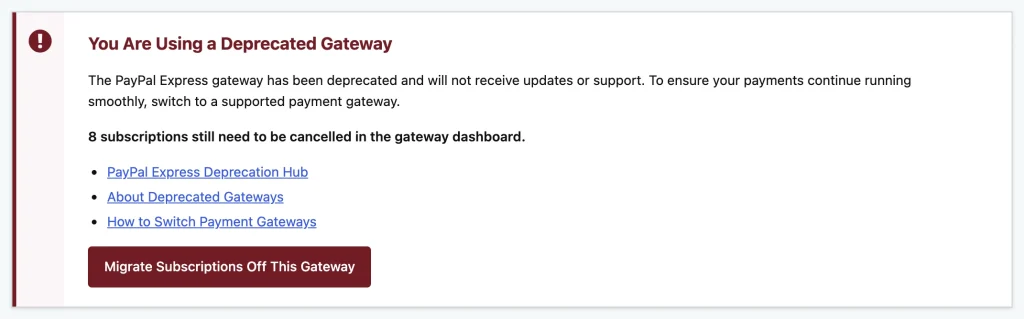
The page title changes to Migrate Subscriptions Off followed by the gateway name. The page shows a three-step progress bar:
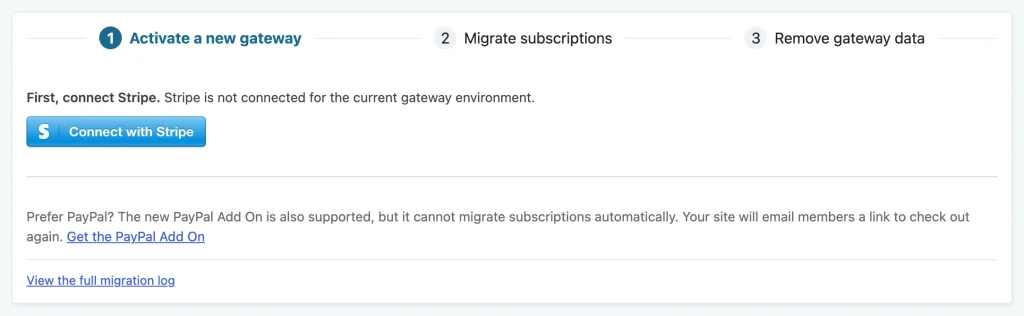
- Activate a new gateway
- Migrate subscriptions
- Remove gateway data.
Select Back to Payment Settings at the bottom of the page to leave the tool at any time.
Step 1: Activate a New Gateway
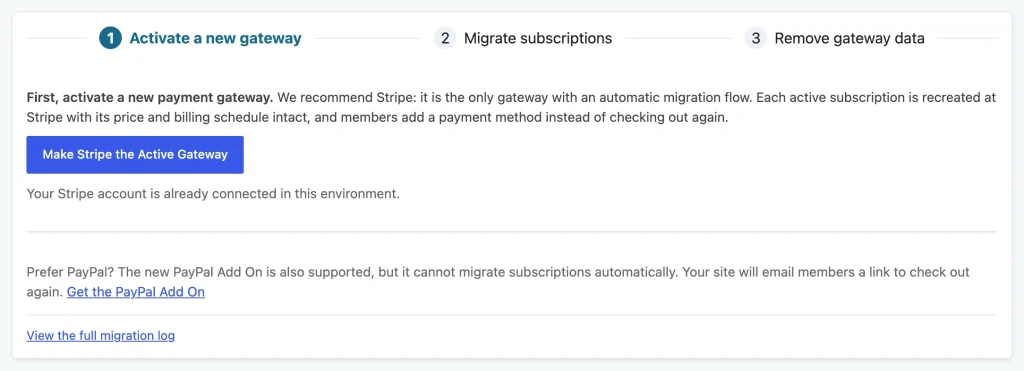
You need a working replacement gateway before you can migrate anything. The tool recommends Stripe because it is the only gateway with an automatic migration flow.
If Stripe is not connected for your current gateway environment, the tool shows the message “First, connect Stripe.” with a reason. Select the Connect with Stripe button to connect your Stripe account. You return to the migration tool when the connection finishes.
If Stripe is already connected in this environment, select Make Stripe the Active Gateway. This sets Stripe as your payment gateway and creates the Stripe webhook if it is missing.
If you choose a different gateway, such as the PayPal Gateway Add On, the Cancel subscriptions and set expiration dates is the only migration type is available.
The tool will not start while the deprecated gateway is still your active payment gateway. Once a replacement is active, the tool shows the number of Live subscriptions and Sandbox subscriptions that still need to be migrated, and the migration options appear.
Step 2: Migrate Subscriptions
Prior to beginning the migration, there are a few decisions that need to be made. Each section explains the options so you can make the best choice for your business.
Migration Type
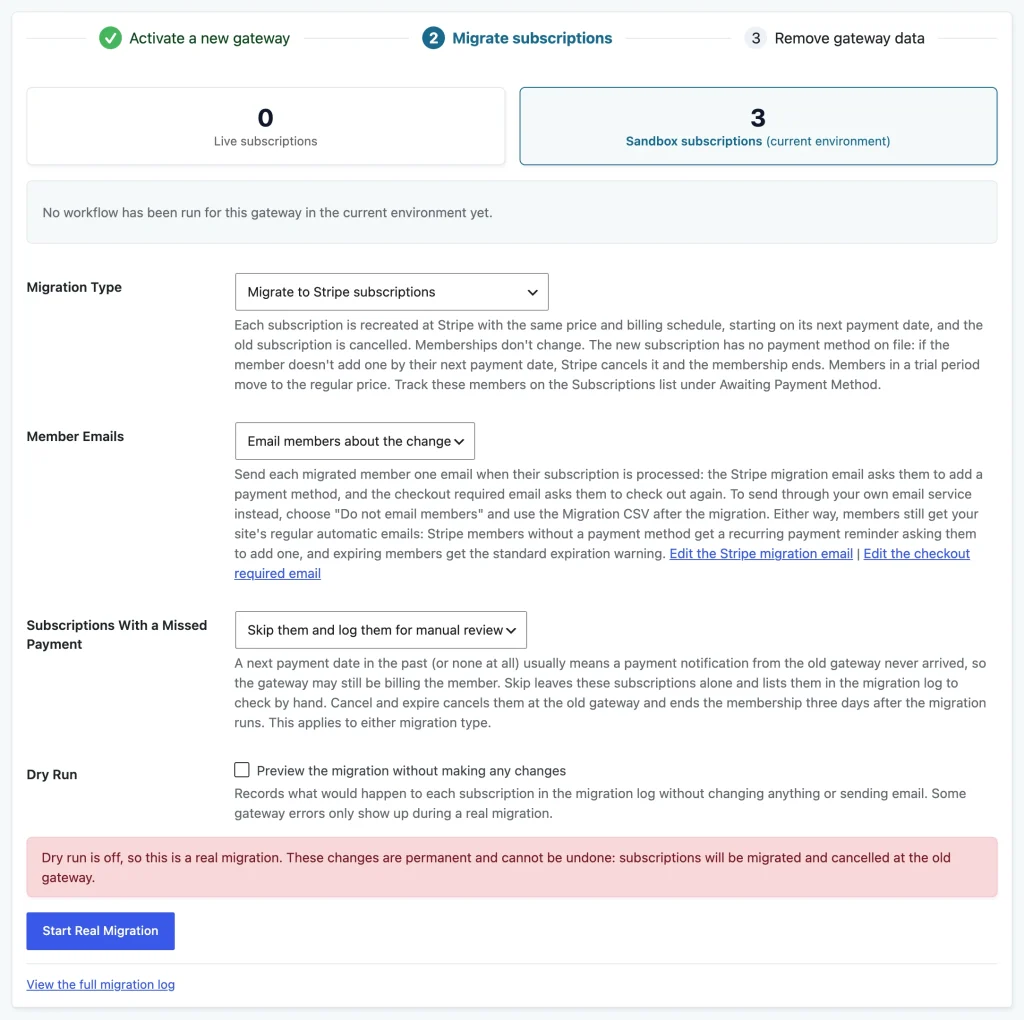
- Migrate to Stripe subscriptions: Each subscription is recreated at Stripe with the same price and billing schedule, starting on its next payment date, and the old subscription is cancelled. Memberships do not change. The new Stripe subscription has no payment method on file. If the member does not add one by their next payment date, Stripe cancels the subscription and the membership ends. Members in a trial period move to the regular price. This option is only available when Stripe is the active gateway.
- Cancel subscriptions and set expiration dates: Each old subscription is cancelled and the membership is set to expire on its next payment date. To stay, members check out again at your current level pricing, so they lose any legacy price or billing schedule.
Subscriptions with a billing limit keep their remaining payments when they move to Stripe. If the limit was already reached, the old subscription is cancelled and the membership is left unchanged.
The next payment date is the handoff date. If it is less than three days away, the tool moves the handoff date out to three days from the time the migration runs so that members have time to act on the email.
Member Emails
- Email members about the change: Sends each migrated member one email when their subscription is processed. Members moved to Stripe get the Deprecated Gateway Stripe Migration email, which asks them to add a payment method. Members whose memberships are set to expire get the Deprecated Gateway Checkout Required email, which asks them to check out again.
- Do not email members: Sends nothing from the migration. Use this option if you want to send your own message through your email service. The Migration CSV lists every member and their handoff date.
Either way, members still receive your regular automatic emails. Stripe members without a payment method get a Recurring Payment Reminder asking them to add one, and expiring members get the standard expiration warning.
Next to the setting, the Edit the Stripe migration email and Edit the checkout required email links open each template in Memberships > Settings > Email Templates. The email is sent before the old subscription is cancelled, and a member is never emailed twice for the same subscription if you run the tool again.
Subscriptions With a Missed Payment
A next payment date in the past, or no next payment date at all, usually means a payment notification from the old gateway never arrived. The gateway may still be billing the member. This setting applies to both migration types.
- Skip them and log them for manual review: Leaves these subscriptions alone and lists them in the migration log with a “[skipped]” entry so that you can check them by hand.
- Cancel them and expire the membership: Cancels these subscriptions at the old gateway and ends the membership three days after the migration runs.
Dry Run
The Dry Run checkbox is selected by default. A dry run goes through every subscription and records what would happen to each one in the migration log. It does not create subscriptions at Stripe, cancel anything, change memberships, or send email.
Some gateway errors only show up during a real migration, so a clean dry run does not guarantee that every subscription will succeed. Review the log from the dry run, then decide whether to run the real migration. You can stop a dry run and start it again as often as you like, and each new dry run starts from the beginning.
Start the Migration
While Dry Run is selected, the start button reads Preview Migration (Dry Run). Clear the checkbox and the button reads Start Real Migration, and a red message appears:
“Dry run is off, so this is a real migration. These changes are permanent and cannot be undone: subscriptions will be migrated and cancelled at the old gateway.”
When you select the button, your browser asks you to confirm. The message tells you how many active subscriptions will be processed in the current environment, whether members will be emailed, and what will happen to members who do not add a payment method or to subscriptions with a missed payment. Select OK to start.
The migration runs in the background in batches of five subscriptions. You can close the page and come back later.
To stop a migration, select Stop Workflow and confirm. Subscriptions that were already processed stay processed. The batch that is running finishes its current group of subscriptions and then stops. Start the migration again to continue where it left off. Subscriptions that were already processed are skipped.
Watch the Progress
While the tool runs, the page shows “Migration in progress” (or “Dry run in progress” for a dry run) and a count such as “12 of 40 subscriptions processed”. Three tags keep a running total of the results:
- Complete: The subscription was migrated or cancelled as planned.
- Skipped: The tool left the subscription alone. For example, the next payment date was in the past, or the subscription was no longer active.
- Needs Review: Something needs your attention, such as a failed gateway call, an email that did not send, or a gateway that cannot cancel automatically.
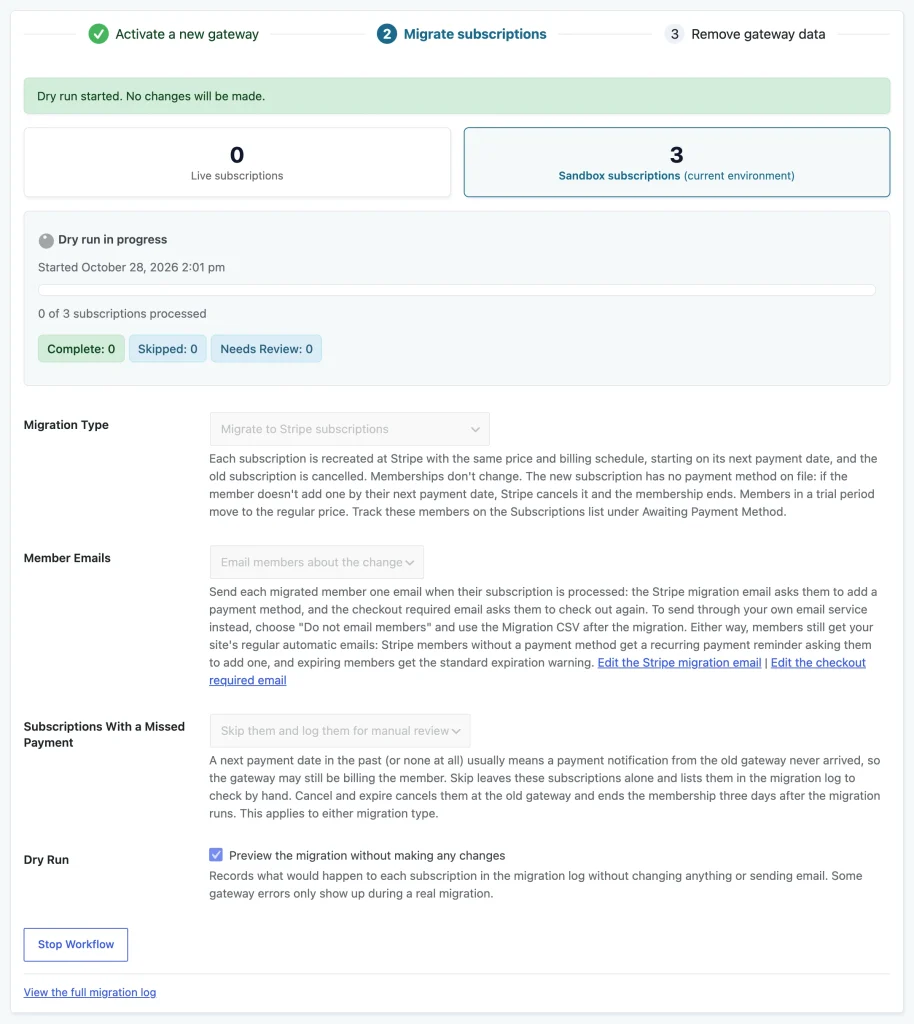
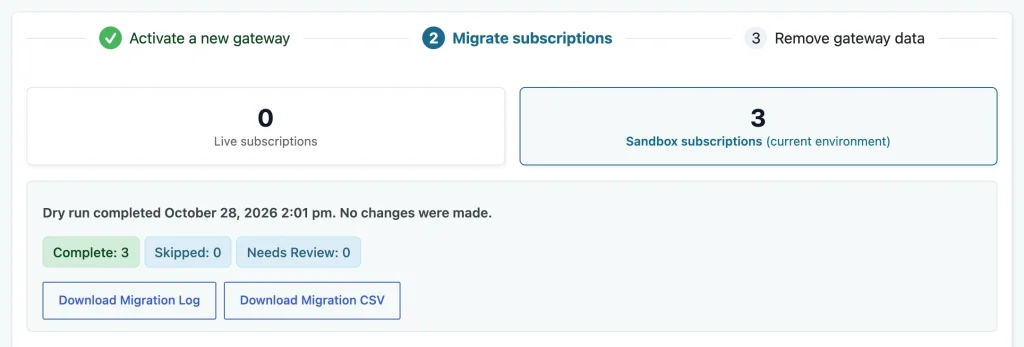
When the tool finishes, the page shows “Workflow completed” with the date. After a dry run, it shows “Dry run completed” and “No changes were made.” If any subscriptions were skipped or need review, a warning tells you to search the migration log for “[skipped]” or “[needs_review]” entries.
What Happens to Each Subscription
The tool decides what to do with each active subscription in the current environment.
| Situation | What the tool does |
|---|---|
| The member no longer has the membership level. | Cancels the old gateway subscription. Nothing is migrated and no email is sent. |
| The member already has another active subscription for the same level. | Cancels the old gateway subscription. Nothing is migrated. |
| The next payment date is missing or in the past. | Skips the subscription, or cancels it and expires the membership if you chose Cancel them and expire the membership. |
| Migrate to Stripe: billing limit already reached. | Cancels the old subscription and leaves the membership unchanged. No email is sent. |
| Migrate to Stripe: all other subscriptions. | Creates a Stripe subscription with the same price and billing schedule that starts on the handoff date, emails the member if emails are on, then cancels the old subscription. A Stripe subscription with a billing limit keeps its remaining payments. |
| Cancel and set expiration dates: all other subscriptions. | Sets the membership expiration date to the handoff date, emails the member if emails are on, then cancels the old subscription. |
If the tool cannot confirm that it cancelled the old subscription, the subscription is marked Needs Review and an error email is sent to the site administrator. Check it in your gateway dashboard.
Gateways That Cannot Cancel Automatically
Some gateways cannot cancel a subscription through their API from the migration tool:
- 2Checkout: Subscriptions cannot be cancelled automatically from the tool.
- PayPal Express, PayPal Standard, and PayPal Website Payments Pro: Subscriptions cannot be cancelled automatically unless the PayPal API username, password, and signature are saved in the gateway settings.
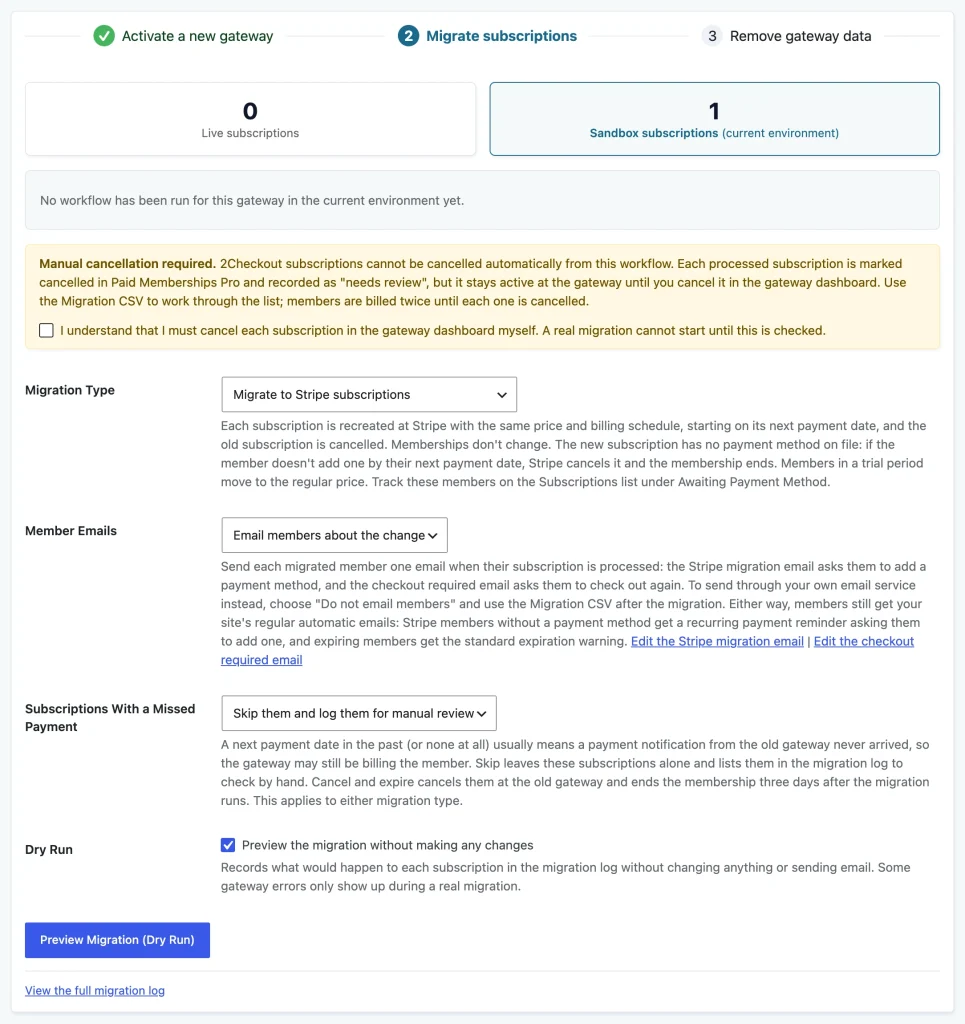
For these gateways, the tool shows a “Manual cancellation required” message. Each processed subscription is marked cancelled in Paid Memberships Pro and recorded as Needs Review, but it stays active at the gateway until you cancel it in the gateway dashboard. Members are billed twice until you cancel each one. Use the Migration CSV to work through the list.
A real migration cannot start until you select the checkbox that reads “I understand that I must cancel each subscription in the gateway dashboard myself.” This checkbox is not required for a dry run.
Live and Sandbox Environments
The tool only processes the environment that is selected as the Gateway Environment on the Payments page. If subscriptions remain in the other environment, the tool tells you how many and asks you to switch the Gateway Environment to Live/Production or Sandbox/Testing, update the gateway API keys as needed, and come back to migrate them. The Go to Payment Settings button takes you back.
Step 3: Remove Gateway Data
When no active subscriptions remain for the gateway in either environment, step 3 shows “All subscriptions have been migrated off this gateway.” It lists the Migration CSVs for the gateway so that you can download them before you continue.
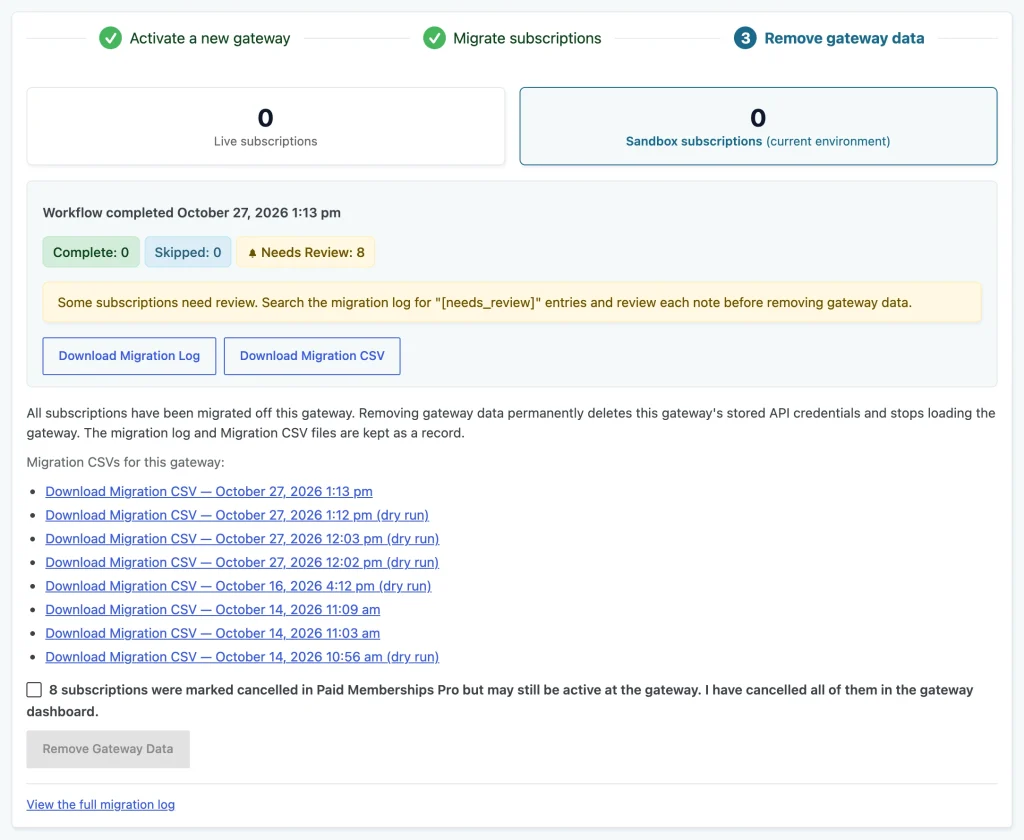
Select Remove Gateway Data and confirm. The confirmation reads: “This will permanently delete the stored credentials for this gateway and stop loading it on this site. Your Migration Log and Migration CSV files are kept.” You return to the Payments page with a message that the gateway and its stored data have been removed.
You cannot remove the gateway data while any of these are true:
- The deprecated gateway is still your active payment gateway.
- Any live or sandbox subscription is still active for the gateway. Live subscriptions block removal even if you are working in the sandbox environment, because the stored credentials are shared by both environments.
- A migration is queued or running for the gateway.
- Paid Memberships Pro services are paused.
- For PayPal Express, the Add PayPal Express Option at Checkout Add On is active and still offers the gateway at checkout. Deactivate the Add On first.
If any subscriptions were marked cancelled in Paid Memberships Pro but may still be active at the gateway, the tool shows a checkbox that says you have cancelled them in the gateway dashboard. You must select it before you can remove the data. If the old gateway reports a payment for a subscription after it was migrated, the tool records it in the log and asks you to confirm again.
What Is Deleted
Removing gateway data deletes the credentials that Paid Memberships Pro stored for the gateway and stops loading the gateway on your site. The tool deletes these settings:
| Gateway | Stored settings deleted |
|---|---|
| Authorize.net | pmpro_loginname, pmpro_transactionkey, pmpro_authnet_silent_post_token |
| Braintree Payments | pmpro_braintree_merchantid, pmpro_braintree_publickey, pmpro_braintree_privatekey, pmpro_braintree_encryptionkey |
| CyberSource | pmpro_cybersource_merchantid, pmpro_cybersource_securitykey |
| Payflow Pro/PayPal Pro | pmpro_payflow_partner, pmpro_payflow_vendor, pmpro_payflow_user, pmpro_payflow_pwd |
| 2Checkout | pmpro_twocheckout_apiusername, pmpro_twocheckout_apipassword, pmpro_twocheckout_accountnumber, pmpro_twocheckout_secretword |
| PayPal Express, PayPal Standard, and PayPal Website Payments Pro | These gateways share one set of credentials: pmpro_gateway_email, pmpro_apiusername, pmpro_apipassword, pmpro_apisignature, and pmpro_paypalexpress_skip_confirmation. They are only deleted when no PayPal gateway is still loaded or active. PayPal Website Payments Pro also deletes its 3-D Secure (Cardinal) settings. |
What Is Kept
- Your orders and subscriptions. Old subscriptions stay in the Subscriptions list, marked as cancelled.
- Your members and their membership levels.
- The migration log and every Migration CSV, so that you have a record of the migration.
After the Migration: Members Awaiting a Payment Method
Members moved to Stripe have no payment method on file until they add one. Paid Memberships Pro flags these subscriptions as “Awaiting Payment Method” and gives you several ways to follow up.
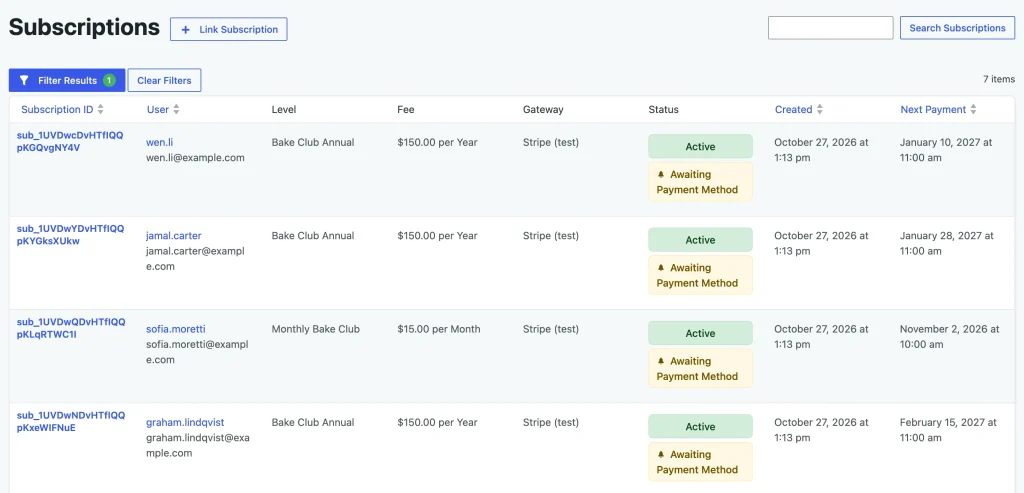
- Subscriptions list: Go to Memberships > Subscriptions. The Status filter has an Awaiting Payment Method option, and each flagged subscription shows an Awaiting Payment Method tag next to its status. The filter only appears while at least one migrated subscription in the current gateway environment is waiting for a payment method. See Subscriptions.
- Admin notice: On Paid Memberships Pro admin pages, a notice reads “1 migrated subscription is still waiting for the member to add a payment method” (or the plural). Select “View these subscriptions” to open the filtered list. The count covers the gateway environment that is currently selected.

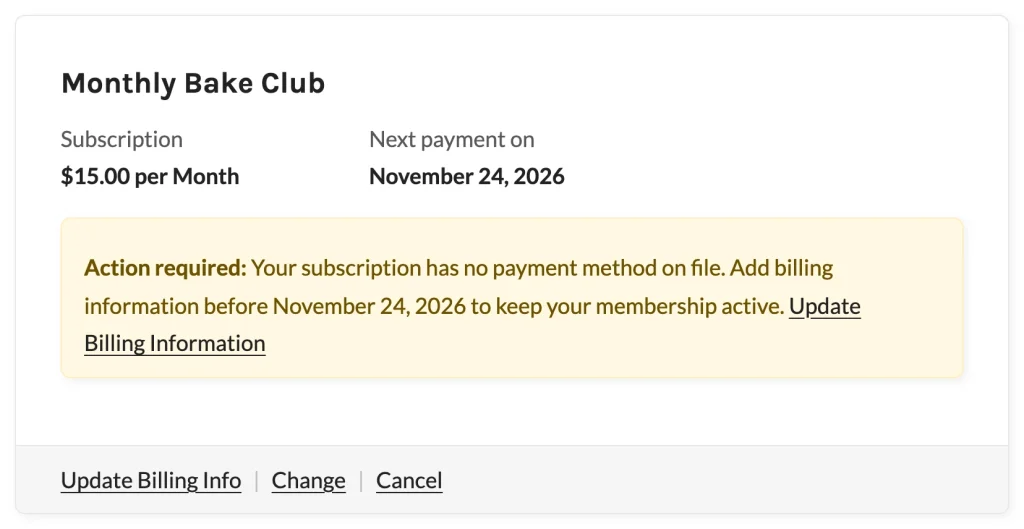
- Membership Account page: Each affected member sees an “Action required” notice on their membership card that says their subscription has no payment method on file. It shows the next payment date when there is one and links to the Billing page with an “Update Billing Information” link. See Membership Account.
- Recurring Payment Reminder email: The default Recurring Payment Reminder email asks these members to add a payment method. The reminder is skipped if the member received the migration email within the last two days, because it says the same thing.
The flag clears when a payment completes on the subscription or the member updates their billing information. Paid Memberships Pro also checks Stripe for a payment method on the subscription, at most once every six hours per subscription, so a payment method added from the Stripe dashboard clears the flag too.
If you customized the Recurring Payment Reminder email, your version may still tell these members that their membership will renew normally. In step 3, the tool shows a message titled “Your Recurring Payment Reminder email is customized” with an Edit the Recurring Payment Reminder email link when it finds this. Add the {% if needs_payment_method %} condition to your subject and body, or reset the template to the default.
Developer Reference
Use the pmpro_deprecated_gateway_batch_size filter to change how many subscriptions the migration processes in each batch. The default is 5. Each Stripe migration can make several calls to the Stripe API, so a larger batch can run past the PHP execution time limit and break the chain of batches. The filter passes the gateway slug and the gateway environment, so you can set a different size for each one.
function my_pmpro_deprecated_gateway_batch_size( $batch_size, $gateway, $environment ) {
	return 10;
}
add_filter( 'pmpro_deprecated_gateway_batch_size', 'my_pmpro_deprecated_gateway_batch_size', 10, 3 );
The pmpro_deprecated_gateways filter changes which gateways are treated as deprecated.
Get Support From Our Team of Experts
Have a question about how to use this feature? Our Support Page outlines three ways to get support.
Our Max plans include hands-on help customizing your membership site and implementing new features. Upgrade to PMPro Max now »
Last updated on October 29, 2026

