The core Paid Memberships Pro plugin allows members to upload a photo from their account page, and it shows up everywhere WordPress displays a user avatar. This includes blog comments, your member directory, member account page and more.
That is a real change from how this used to work. For years, letting members upload their own WordPress user avatar meant installing a separate plugin or wiring up a file field with custom code. A directory full of real faces reads very differently than a grid of gray silhouettes, so it was worth the trouble. Now it isn’t any trouble.
In this guide, we will walk through how to turn on built-in profile pictures, what members see when they upload a photo, how to display avatars anywhere on your site, and what to do if you are already using another avatar plugin and want to move to the built-in feature.

Table of contents
- Gravatar: The Default WordPress User Avatar System
- Turn On Built-In Profile Pictures in PMPro
- How Members Upload a Profile Picture
- How Admins Manage a Member’s Profile Picture
- Where Member Profile Pictures Appear
- Show a Member’s Avatar Anywhere With a Shortcode
- Moving From Another Avatar Plugin
- Sticking With Gravatar
- Want More Community Features?
- Frequently Asked Questions
Gravatar: The Default WordPress User Avatar System
Before you change anything, it helps to understand what WordPress does on its own. Out of the box, WordPress pulls user avatars from Gravatar, the “Globally Recognized Avatar” service run by Automattic. If a user has a Gravatar tied to their email address, WordPress shows it. If not, they get the default image you choose on the Settings > Discussion page.
In my experience, Gravatar adoption is very audience-specific. A quick scan of the Users screen in your WordPress admin will tell you where your audience lands: mostly real photos, or mostly the anonymous default.
If most of your members don’t have a Gravatar, you have two options. You can tell them how to create one, or you can let them upload a photo directly on your site. The rest of this post covers the second option, which is the one I recommend for nearly every community and directory site.
Turn On Built-In Profile Pictures in PMPro
Profile pictures are part of the core PMPro plugin. There is no Add On to install. You can enable the feature for every logged-in user on your site, or only for members who hold specific membership levels.
First, make sure Show Avatars is checked on the Settings > Discussion page in WordPress. If it is not, the Profile Pictures settings stay hidden. If Show Avatars is on and you still don’t see the setting, update PMPro to the latest release.
Enable Profile Pictures for Everyone
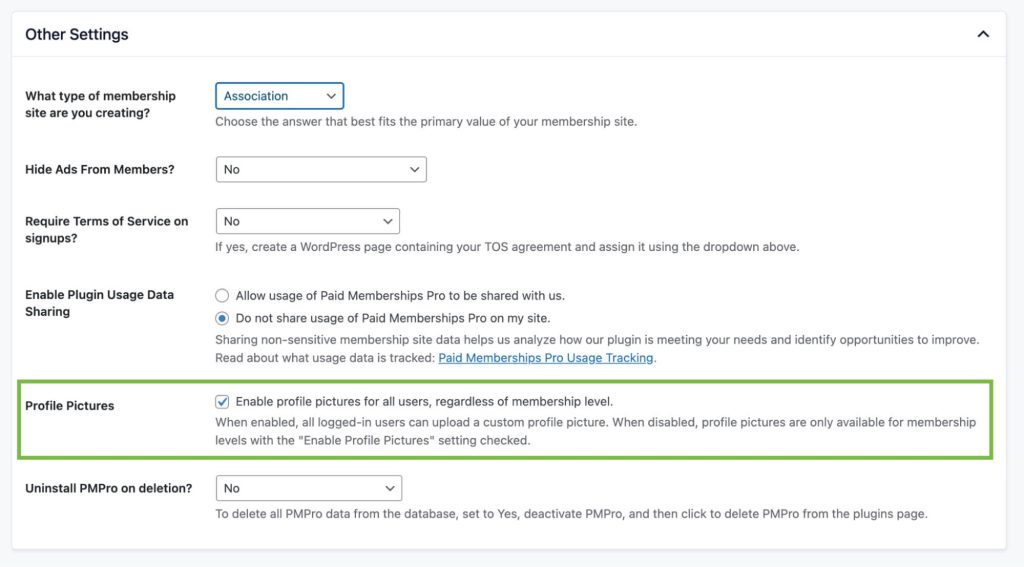
- Navigate to Memberships > Settings > Advanced in the WordPress admin.
- Scroll to the Other Settings section.
- Check the box for Profile Pictures.
- Save your settings.
With the sitewide setting on, any logged-in user can upload a profile picture, whether or not they have an active membership level.
Enable Profile Pictures for Specific Membership Levels
If you want to offer custom profile pictures as a perk of a paid level, leave the sitewide setting off and enable the feature on the level itself.
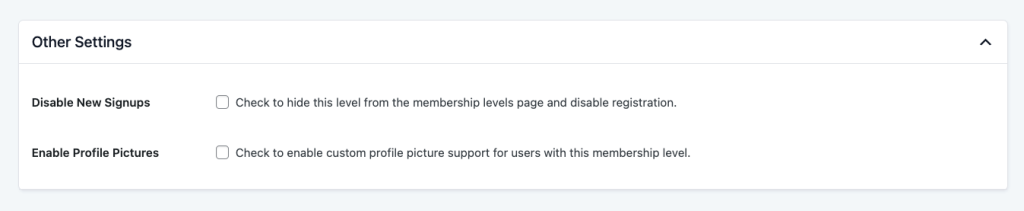
- Navigate to Memberships > Settings > Levels.
- Edit the membership level that should include profile pictures.
- Under Other Settings, check the box for Enable Profile Pictures.
- Save the level. Repeat for any other levels that should have the feature.
How Members Upload a Profile Picture
Once the feature is on, members manage their photo from the Change Profile Picture link in the Profile section of their Membership Account page. That link only appears when a Member Profile Edit page is assigned on the Memberships > Settings > Pages screen, so if you do not see it, check there first.
The Change Profile Picture page shows a preview of the member’s current image (their uploaded photo, their Gravatar, or the site default) along with a file upload field. From there a member can:
- Upload: Choose an image file from their device.
- Replace: Swap their current photo for a new one.
- Delete: Remove their uploaded photo and fall back to Gravatar or the site default.
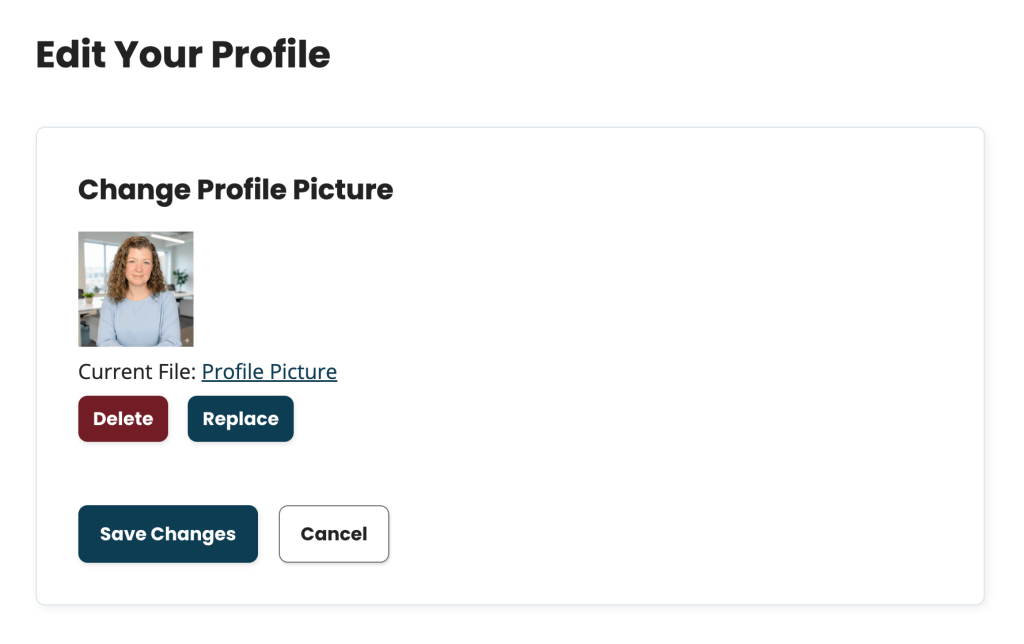
The upload field accepts PNG, JPG, JPEG, GIF, and WebP files up to 2 MB. PMPro crops the image to a square from the center, resizes it to a maximum of 1024 by 1024 pixels, and generates smaller retina-ready versions for the places WordPress requests a thumbnail-sized avatar. Members see these requirements as a hint under the upload field, so you don’t need to document them yourself.
Uploaded photos are stored in their own pmpro-avatars folder in your uploads directory, outside the Media Library, with directory listing turned off. They are public image URLs like any other avatar, and they are removed automatically if the user is ever deleted from WordPress.
How Admins Manage a Member’s Profile Picture
You can also upload, replace, or delete a photo on a member’s behalf. This is handy when a member emails you a headshot instead of uploading it, or when you need to remove an image that does not meet your community guidelines.
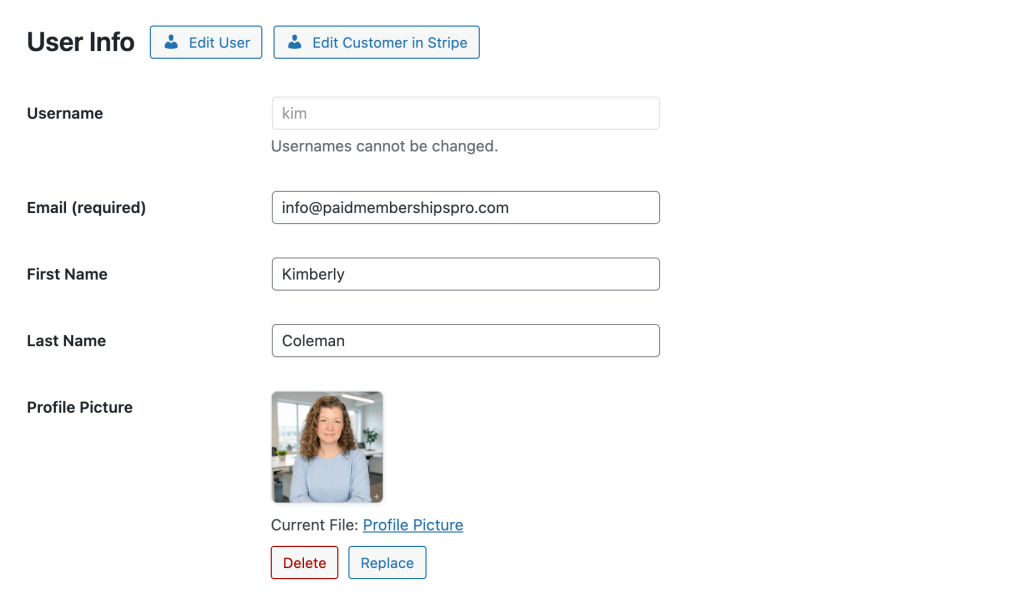
- Navigate to Memberships > Members.
- Click the member’s name to open the Edit Member screen.
- Find the profile picture field, which shows a preview of the current image. If you don’t see the field, that member’s level does not have Enable Profile Pictures checked (and the sitewide setting is off).
- Upload a new file, or delete the existing one, and save.
A short note also appears on the standard WordPress Users > Edit User screen whenever PMPro is managing that person’s avatar, with a link back to the Edit Member page. That keeps other admins from hunting for a Gravatar setting that no longer applies.
Where Member Profile Pictures Appear
A member’s uploaded photo replaces their Gravatar everywhere WordPress asks for an avatar. That includes blog comments, the admin bar, the Users list in the admin, and any plugin that uses the standard WordPress avatar function. In practice that means the photo shows up in:
- The Member Directory and Profile Pages Add On
- Comments on posts and pages
- The Users list and admin bar in the WordPress admin
- Your theme’s author boxes and any other avatar-aware widget or block
Anything that calls the standard WordPress avatar function picks up the uploaded photo with no extra configuration. Plugins that run their own avatar system, such as BuddyPress, may handle photos separately, so test those before you announce the feature to members.

Letting your members use their own avatar makes things feel more personal. It helps everyone show a bit of who they are and makes the community feel more like, well… a community.
—Kim White, Technical Support Engineer, PMPro
Show a Member’s Avatar Anywhere With a Shortcode
Sometimes you want to put the logged-in member’s photo somewhere WordPress would not normally show one: a welcome block at the top of a members-only page, a sidebar card, a header, or a custom dashboard layout. The pmpro_member shortcode, included in PMPro, handles that.
- Edit the post, page, template part, or widget area where you want the avatar to appear.
- Insert this shortcode:
- Save. The shortcode outputs the avatar of the current logged-in user. If no one is logged in, it outputs nothing.
Pair it with other fields from the same shortcode (display name, membership level, expiration date) to build a small “Welcome back” block without writing any PHP.
Moving From Another Avatar Plugin
If you added member avatars with a plugin or a custom field before this feature existed, here is how to move over without losing anyone’s photo.
If You Use Basic User Avatars
Basic User Avatars is a third-party plugin that adds an avatar upload field to the WordPress profile screen, plus a shortcode for frontend uploads. It still works, and nothing breaks if you keep it. But it is one more plugin to update, one more settings screen to explain to members, and it overlaps completely with what PMPro does on its own.
To switch:
- Enable Profile Pictures in Paid Memberships Pro using the steps above.
- Ask members to upload their photo through the Change Profile Picture link on their account page. Until they do, their existing Basic User Avatars image continues to display, so there is no gap.
- Once your active members have moved over, deactivate and delete Basic User Avatars. Any members who had not re-uploaded will fall back to Gravatar or your site default.
To check whether a member has moved over, open their Change Profile Picture page. A photo uploaded through Paid Memberships Pro shows a “Profile Picture” link with Replace and Delete buttons. If the preview is labeled “Site Default” or “via Gravatar” instead, they have not uploaded one yet.
If You Use the User Fields File-Upload Recipe
Some sites added an avatar field through Register Helper (now the built-in User Fields feature) and used a snippet to make WordPress show the uploaded file as the avatar. That recipe has been retired. The built-in feature does the same job with proper cropping, resizing, and admin management, so remove the snippet and the extra field once you have enabled Profile Pictures. Files uploaded through that field stay in your uploads folder, so nothing is lost. Members upload again through the new page.
If You Use ProfilePress or WP User Avatar
Sites that migrated to PMPro from ProfilePress (or its earlier version, WP User Avatar) often have hundreds of member photos stored in that plugin’s format. You don’t have to ask everyone to re-upload. Andrew on our team wrote a code recipe that migrates ProfilePress and WP User Avatar images into Paid Memberships Pro’s avatar system in the background, in batches, with a status screen under the Tools menu. Run it once, confirm the photos display, then clean up the old files.
Sticking With Gravatar
You can leave the Profile Pictures setting off and keep relying on Gravatar. In that case, the most helpful thing you can do is give members a direct way to update their Gravatar from their account page. Our snippets library includes a short recipe that adds a Gravatar link to the Profile section of the Membership Account page:
You can also run both, since Profile Pictures only overrides the avatar for members who upload a photo and everyone else keeps their Gravatar.
Want More Community Features?
Profile pictures are often the first community feature people add. Once members have faces, they usually want a directory to find each other in and a forum to talk in.
PMPro ties those pieces together: free and paid membership levels, a Member Directory and Profile Pages Add On, integrations for bbPress and BuddyPress, and now built-in profile pictures. Learn what else is included when you run your online community with Paid Memberships Pro.
Try a Demo: View the Communities demo site or build a free demo site in your browser.
Frequently Asked Questions
No. Profile pictures are built into the free Paid Memberships Pro plugin. Enable the feature on the Memberships > Settings > Advanced page, or per membership level, and members can upload a photo from their account page.
Check the Settings > Discussion page in WordPress and make sure Show Avatars is enabled. Paid Memberships Pro hides its profile picture settings when WordPress avatars are turned off.
Members use the Change Profile Picture link in the Profile section of the Membership Account page. The link appears once a Member Profile Edit page is assigned under Memberships > Settings > Pages.
PNG, JPG, JPEG, GIF, and WebP files up to 2 MB. Paid Memberships Pro crops the image to a square and resizes it to a maximum of 1024 by 1024 pixels.
Yes. The uploaded photo replaces the member’s Gravatar anywhere WordPress displays an avatar through its standard avatar function, including the Member Directory and Profile Pages Add On and post comments. Plugins with their own avatar system, such as BuddyPress, may need testing.
No, but we recommend it. The built-in feature covers the same need without an extra plugin, and it gives you admin management of member photos from the Edit Member screen. Enable Profile Pictures, ask members to re-upload, then remove Basic User Avatars.

Free Download: The AI-Powered Membership Site Blueprint
Download the free guide: Learn how to plan, build, and grow a membership site using AI as your strategic partner: from buyer persona to launch and beyond.