Whether you run a small content membership or a large community, renewals are what turn one-time signups into a long-term, sustainable business.
How renewals work depends entirely on how your membership levels are set up. Some members renew automatically through recurring billing, while others renew manually by checking out again when their access expires.
Paid Memberships Pro (PMPro) supports both renewal models out of the box. It includes built-in logic to handle renewals correctly, extend access without resetting member data, and keep billing and expiration rules consistent across your membership site.
With the right configuration, renewals can run smoothly in the background (for automatic renewals) or prompt members to take action at the right time (for manual renewals).
In this guide, we’ll walk through how membership renewals work in PMPro, what members see during the renewal process, and how to configure both automatic and manual renewals. By the end, you should be able to identify which renewal model your site uses and adjust the experience so members clearly understand how to renew their memberships.
Table of contents
- Understanding the Two Types of Membership Renewal
- Automatic vs. Manual Renewals: Quick Comparison
- How to Set Up & Manage Renewals on Your Membership Site
- Optional Add Ons to Improve Membership Renewals
- More Ways to Customize Membership Renewals
- Practical Tips for Improving Membership Renewals
- Final Thoughts
- Frequently Asked Questions
Understanding the Two Types of Membership Renewal
Most membership sites use one of two renewal models: automatic recurring subscriptions or fixed-term access that must be renewed manually.
A level can either renew automatically via a recurring subscription or expire and require the member to renew manually. Both approaches are fully supported in PMPro and are used by different types of membership sites.
Automatic vs. Manual Renewals: Quick Comparison
Both membership renewal models are widely used, and each has its place depending on how your membership site is structured. The table below summarizes the key differences:
| Renewal Type | Member Action Required | Billing Behavior | Typical Use Cases |
|---|---|---|---|
| Automatic Renewals (Recurring Subscriptions) | No action required after initial signup. Membership renews automatically. | The payment gateway charges the member at the billing interval configured for the level (for example, monthly or yearly). | Ongoing memberships, communities, subscription content, or services where uninterrupted access is expected. |
| Manual Renewals (Fixed-Term Memberships) | The member must return to the site and renew through checkout when the membership expires. | The member pays once for a defined period. When the expiration date is reached, the membership ends until it is renewed. | Annual memberships, seasonal programs, certifications, or memberships that run for a fixed duration. |
How to Set Up & Manage Renewals on Your Membership Site
Step 1: Decide How Each Membership Level Should Renew
The way your members renew their membership in PMPro is determined when you configure the membership level. Before setting up billing or expiration settings, decide whether the level should renew automatically or require the member to renew manually.
Each membership level can be configured to use either a recurring billing schedule or a fixed expiration period. The choice you make here determines how renewals will work for that level.
If the level uses recurring billing, members will be enrolled in a subscription, and their membership will renew automatically at the interval you define.
If the level has an expiration date, the membership will end at the expiration date. Members will then need to log in and complete checkout again to renew their membership.
Because renewal behavior is controlled at the level configuration stage, it is possible for different membership levels on the same site to use different renewal models. For example, one level might automatically renew each month, while another might run for 1 year and require members to renew manually.
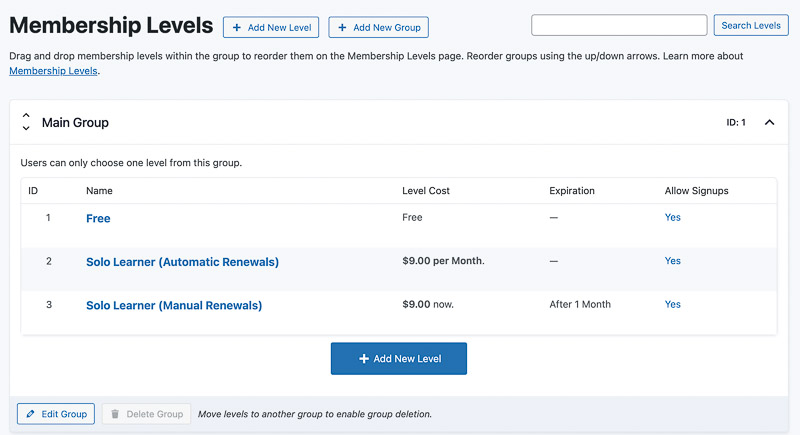
Once you have decided which renewal model a level should use, you can configure the appropriate settings for that level. The next sections explain how to set up automatic renewals and manual renewals in PMPro.
Step 2: Set Up Automatic Renewals (Recurring Subscriptions)
Automatic renewals in PMPro are configured through recurring billing on a membership level.
Configuring Recurring Billing in a Membership Level
To set up automatic renewals for a membership level, configure recurring billing when creating or editing the level.
- Go to Memberships > Settings > Levels in your WordPress dashboard.
- Click Add New Level or select Edit on an existing membership level.
- In the Billing Details section, set the Billing Amount for the membership level.
- Check the box for “Recurring Subscription“.
- Configure the Billing Amount and how often the member will be charged (for example, every 1 month or every 1 year).
- Save the membership level.
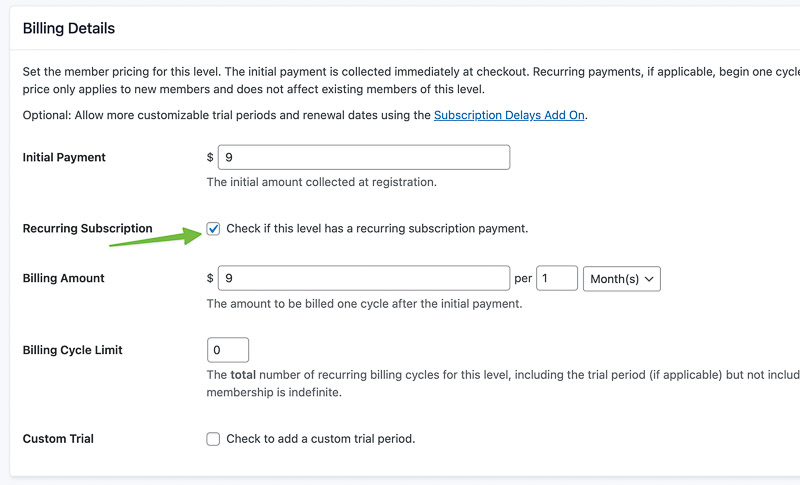
When a member checks out for this level, PMPro creates a recurring subscription with the configured billing schedule.
Important Behavior of Recurring Subscriptions
Recurring subscriptions in PMPro follow a few important rules that site administrators should understand.
First, when a recurring payment is successfully processed, the member’s access is automatically extended. Members do not need to log in or manually renew their membership.
Second, changing the price of a membership level does not automatically change the billing amount for members who already have an active recurring subscription. Existing subscribers continue paying the price set when their subscription was created, while new members are charged the updated price at checkout.
Note: Automatic renewals depend on your payment gateway supporting recurring billing, which is available with most major gateways supported by PMPro. In most cases, a failed renewal payment does not immediately remove access, giving members time to update their payment details.
Step 3: Set Up Manual Renewals (Memberships With Expiration Dates)
To configure a membership that requires manual renewal, set an expiration period for the membership level.
- Go to Memberships > Settings > Levels in your WordPress dashboard.
- Click Add New Level or select Edit on an existing level.
- In Billing Details, set the Initial Payment. This is what the member pays at checkout.
- In the Expiration Settings, check the box for “Membership Expiration” and set the length of time the membership should remain active (for example, 1 year).
- Save the membership level.
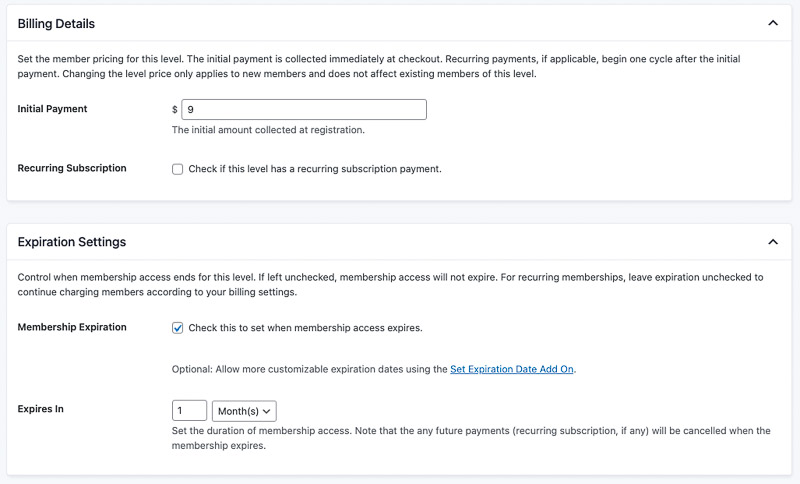
When a member purchases this level, their membership remains active for the defined period.
Once the expiration date is reached:
- The member’s access to protected content ends
- The membership status changes to expired
- The member must renew the membership through checkout to regain access
How Members Renew an Expired Membership
Prior to expiration, the member will see a Renew link on their Membership Account page. To renew, the member clicks the link and completes checkout.
When the membership has expired, the member loses access to protected content. To renew, they return to the site and complete checkout for the same level.
Here’s how the process works from the member’s perspective:
- The member logs in and navigates to the Membership Levels page.
- They select their previous membership level and complete checkout.
- After a successful checkout, they’re taken to the Membership Confirmation page and their access is restored. PMPro creates a new membership period based on the expiration settings for that level.
Site administrators often include a renewal link in reminder emails or direct members to the Membership Levels page when explaining how to renew. Providing a clear renewal path helps members complete the renewal process without confusion.
Customize the Renewal Process
If you want to make the renewal process easier for members to find, you can insert a “Renew Membership” button via a custom shortcode.
You can also schedule the display of a renewal link before expiration using the Schedule Display of Renew Link To Members Before Expiration recipe.
In some cases, site owners may want to block renewal of a level and require members to upgrade to another level. This can be done using the recipe Prevent Membership Renewal and Require a Different Level.
Configure Renewal Emails and Member Notifications
Email reminders play an important role for both automatic and manual renewals, from helping members understand when to expect an automated renewal to take place or when their access is about to expire.
PMPro includes several built-in email templates related to renewals.
Reviewing and customizing these emails helps ensure members know when their membership is about to expire and how to renew it.
Reviewing the Default PMPro Renewal Email Templates
PMPro sends several email notifications related to membership expiration and renewal.
You can review the full list of templates in our documentation here. These emails are generated automatically based on the membership settings you configured.
Common renewal-related email templates include:
- Membership Expiring: sent to members before their membership expires
- Membership Expired: sent after a membership has expired
Editing these templates lets you clarify renewal instructions and add helpful links so members can easily renew their memberships.
Using the {{ renew_url }} Variable in Email Templates
PMPro includes a built-in email variable that generates a renewal link for the member.
The {{ renew_url }} variable automatically inserts a personalized link that takes the member directly to the checkout page to renew their membership. To include the renewal link in an email template:
- Go to Memberships > Settings > Email Templates.
- Open the email template you want to modify.
- Add the variable
{{ renew_url }}where you want the renewal link to appear in the email. - Save the template.
When the email is sent, the variable is replaced with the correct renewal URL for that member.
If you want to customize the message members receive after renewing their membership, you can use the following recipe: Customize the Checkout Confirmation Email for Membership Renewals.
Sending Additional Expiration Reminder Emails
For additional expiration reminders sent at multiple intervals, see the Extra Expiration Emails Add On described in the Add Ons section below.
Optional Add Ons to Improve Membership Renewals
PMPro includes several Add Ons that can change how renewals work or improve the renewal experience for members. The following Add Ons are commonly used to give site owners more control over how and when memberships renew.
Auto-Renewal Checkbox Add On
The Auto-Renewal Checkbox Add On allows you to offer optional recurring billing for membership levels that would normally require manual renewal.
When this Add On is enabled, a checkbox appears on the checkout page that lets members choose whether to have their membership renew automatically. The Add On offers three configuration options:
- Opt-in (unchecked by default): The checkbox is unchecked. Members must actively choose automatic renewal.
- Opt-out (checked by default): The checkbox is pre-checked. Members can uncheck it to opt out.
- Required: The checkbox is always checked and cannot be changed. Automatic renewal is mandatory for this level.
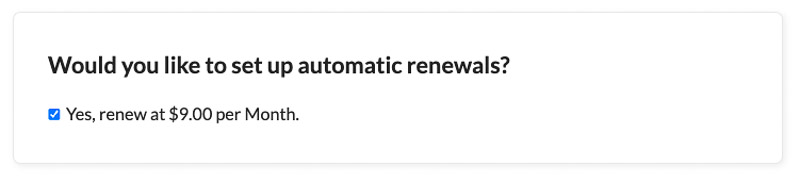
If the member selects the checkbox, a recurring subscription is created at checkout. If they leave it unchecked, the membership behaves like a fixed-term membership that must be renewed manually.
Extra Expiration Emails Add On
The Extra Expiration Emails Add On allows you to send additional reminder emails before a membership expires.
By default, the Add On sends reminders 90, 60, and 30 days before expiration. You can customize these intervals or add additional reminders to build a multi-touch sequence that fits your membership.
Sending multiple reminders helps ensure members are aware that their membership is about to expire and provides more opportunities for them to renew before access is lost.
More Ways to Customize Membership Renewals
The recipes linked throughout this guide cover the most common scenarios. A couple more worth knowing about:
Set Member Subscriptions to Renew on the Same Date or Schedule
Some membership sites want all subscriptions to renew on a specific day or synchronized schedule. The Set Member Subscriptions to Renew on Same Date or Schedule recipe standardizes renewal timing across your membership base.
Offer Discounts to Encourage Renewals
Discounts can encourage members to renew earlier or return after their membership has expired:
There are more renewal-related recipes available in the PMPro developer documentation.
Practical Tips for Improving Membership Renewals
Even when renewal settings are configured correctly, members may still miss renewal deadlines or become confused about how to renew. A few small adjustments to your membership setup and communication can make the renewal process clearer and reduce the number of expired memberships.
Make Renewal Links Easy to Find
Members should be able to find a renewal option quickly when their membership is about to expire.
You can make renewals easier by including a clear renewal link in reminder emails using the {{ renew_url }} variable. This directs members straight to the checkout page, where they can renew their membership.
Some sites also place a visible renewal button on account pages or member dashboards using the Insert a “Renew Membership” Button via Custom Shortcode recipe, making it easier for members to renew without having to search the site.
Remind Members Before Their Membership Expires
Members are more likely to renew if they receive a reminder before their access ends.
PMPro sends expiration-related emails by default, but you can increase visibility by customizing these templates and including a renewal link. You can also install the Extra Expiration Emails Add On to send multiple reminder emails before the expiration date.
Sending reminders several days or weeks before expiration helps ensure members have enough time to renew before losing access.
Final Thoughts
Membership renewals are a critical part of running a stable and sustainable membership site. When renewals are set up clearly and align with member expectations, your members know what to expect and are more likely to continue their membership without interruption.
Paid Memberships Pro supports multiple renewal models out of the box — with different levels on your site following different renewal patterns. You can also customize the renewal experience with optional Add Ons, including Extra Expiration Emails, and more.
If you have any questions about how renewals work, send us an email or join the PMPro Slack community to interact with PMPro team members and other membership site owners.
Frequently Asked Questions
It depends on the membership level setup. Levels with recurring billing renew automatically, while levels with an expiration date and no recurring subscription require the member to renew manually.
Members renew by logging in, visiting the Membership Levels page, selecting their level again, and completing checkout.
When a membership expires, the member loses access to protected content and their membership status changes to expired until they renew.
Yes. PMPro includes built-in expiration and renewal email templates, and you can customize them to explain how members should renew.
Yes. One level can renew automatically through recurring billing, while another can require manual renewal after expiration.
No. Existing recurring subscribers usually continue paying the price set when their subscription started. New members will see the updated price.
Yes. The Auto-Renewal Checkbox Add On lets you offer members the choice to enable automatic renewal during checkout.

Free Download: The AI-Powered Membership Site Blueprint
Download the free guide: Learn how to plan, build, and grow a membership site using AI as your strategic partner: from buyer persona to launch and beyond.