By default, Paid Memberships Pro shows members a “Renew” link on their Membership Account page, but that is the only place it shows up. If you want to prompt members to renew somewhere else, a dashboard page, a members-only email, a sidebar widget, you need another way to get the option in front of them.
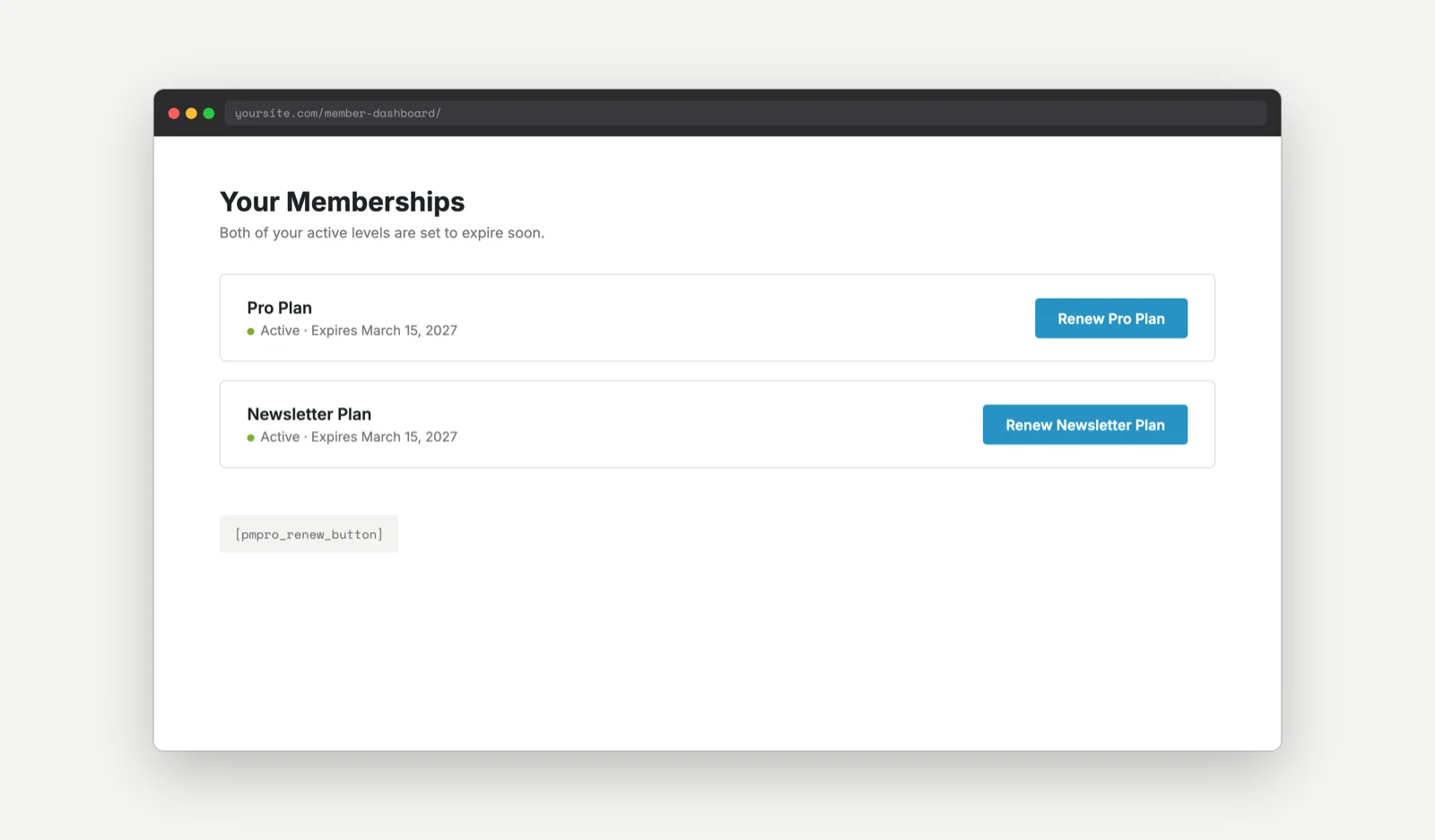
This code recipe adds a [pmpro_renew_button] shortcode you can drop into any page, post, or widget area. It checks whether the person viewing the page holds an active membership level that is set to expire, then displays a “Renew Membership” button linking straight to checkout with that level pre-selected. Members who hold more than one expiring level see a separate button for each one.
Best Practices and Considerations
Keep these in mind before adding the shortcode to your site:
- The button only appears for active levels that have an end date. Members on a level with no expiration (lifetime, or open-ended recurring) will not see a button for that level, since there is nothing to renew.
- Logged-out visitors never see the button.
- If a member holds more than one expiring level, one button renders per level, each labeled with that level’s name.
About the Code Recipe
The shortcode calls pmpro_getMembershipLevelsForUser() to look up every active level the current member holds, not just their first or primary level. It then filters that list down to levels that actually have an end date, since a level with no enddate never needs renewing.
Pass expiring_soon_only="yes" and the shortcode narrows that list further with pmpro_isLevelExpiringSoon(), the same check PMPro uses to decide whether to show the “Renew” link on the Membership Account page.
For each qualifying level, the shortcode hands off to PMPro core’s own pmpro_getCheckoutButton() to build the actual button. That function generates the checkout link (with ?pmpro_level= set to the right level), applies the pmpro_btn classes, and swaps !!name!! in your button text for the level’s name. Using the core helper instead of hand-building a link means the button styling and behavior stay consistent with the rest of your site, including any customizations you have already made to PMPro’s checkout buttons elsewhere.
The Code Recipe
Adding the Recipe to Your Website
You can add this recipe to your site by creating a custom plugin or using the Code Snippets plugin available for free in the WordPress repository. Read this companion article for step-by-step directions on either method.
Once the code recipe has been added to your site, place the [pmpro_renew_button] shortcode anywhere shortcodes are recognized: a page, a post, a text widget, or a Shortcode block.
How to Customize This Code Recipe
You do not need to edit the code snippet itself for any of this. Everything below is controlled through the shortcode’s own attributes or CSS.
- Use
[pmpro_renew_button expiring_soon_only="yes"]to only show the button within the same expiring-soon window as the Account page’s own “Renew” link, instead of for any active level with an end date. - Use
[pmpro_renew_button button_text="Renew Your !!name!! Membership"]to customize the button label.!!name!!is replaced with the level name. - To change how the button looks, target the
.pmpro-renew-buttonclass (or the shared.pmpro_btnclasses) in your theme’s CSS. See this companion article for where to put custom CSS.

Get Support From Our Team of Experts
Have a question about how to use this feature? Our Support Page outlines three ways to get support.
Our Max plans include hands-on help customizing your membership site and implementing new features. Upgrade to PMPro Max now »