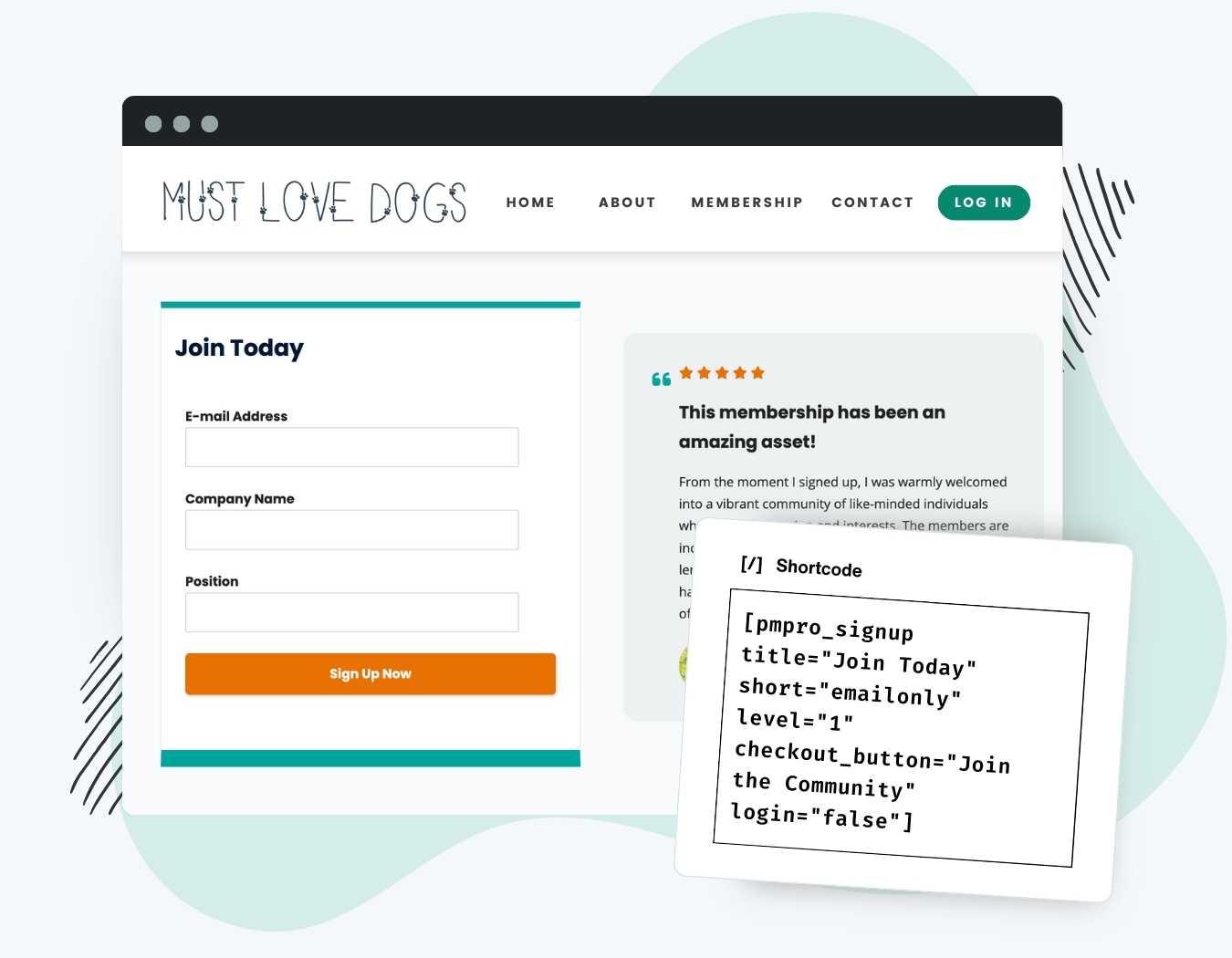
The Signup Shortcode & Block Add On lets you place a membership registration form on any page, post, or widget area of your WordPress site. This is useful when you want to create custom landing pages for specific membership levels instead of using the standard checkout page. This Add On lets you place a form for a specific level’s signup with custom fields on any page, post, or widget.
Try a Demo: View the PMPro demo site or launch a free private demo now.
Use shortcode attributes to customize the form, like:
- Display specific user registration or custom user fields.
- Reduce signup friction by auto-generating fields like username or password.
- Enable auto-login for members.
- Redirect users immediately after signup to the referring page or a specific page based on level.
Table of contents
Video Demo
Installation
You must have the Paid Memberships Pro plugin installed and activated with a valid license type to use this Add On.
- Navigate to Memberships > Add Ons in the WordPress admin.
- Locate the Add On and click Install Now.
- To install this plugin manually, download the .zip file above, then upload the compressed directory via the Plugins > Add New > Upload Plugin screen in the WordPress admin.
- Activate the plugin through the Plugins screen in the WordPress admin.
That’s it. Once activated, you can start using the features by adding a signup shortcode anywhere in your site.
How to Use the PMPro Signup Block
Follow these steps to add a registration form using the PMPro Signup block in the Block Editor:
- Navigate to the page or post where you want to add the form.
- Click the + icon to add a new block.
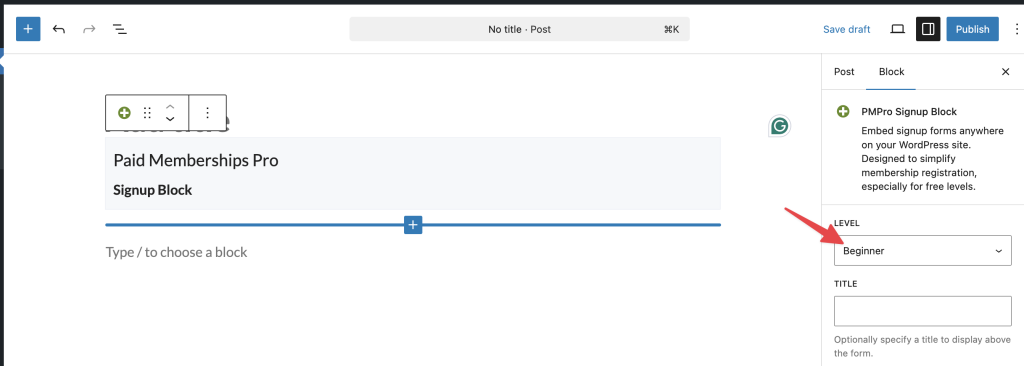
- Search for “PMPro Signup” and click the PMPro Signup Block.
- With the block selected, locate the “Level” field in the settings sidebar on the right.
- Select the membership level you want to display.
- Click Update or Publish to save your page.
How to Use the Signup Shortcode
If you use the Classic Editor or a page builder, you can add the form using a shortcode.
- Navigate to the editor for your page or post.
- Enter the shortcode
[ pmpro_signup level="1" ]into the content area. - Replace “1” with the ID of the membership level you want to show.
- Click Update or Publish to save your changes.
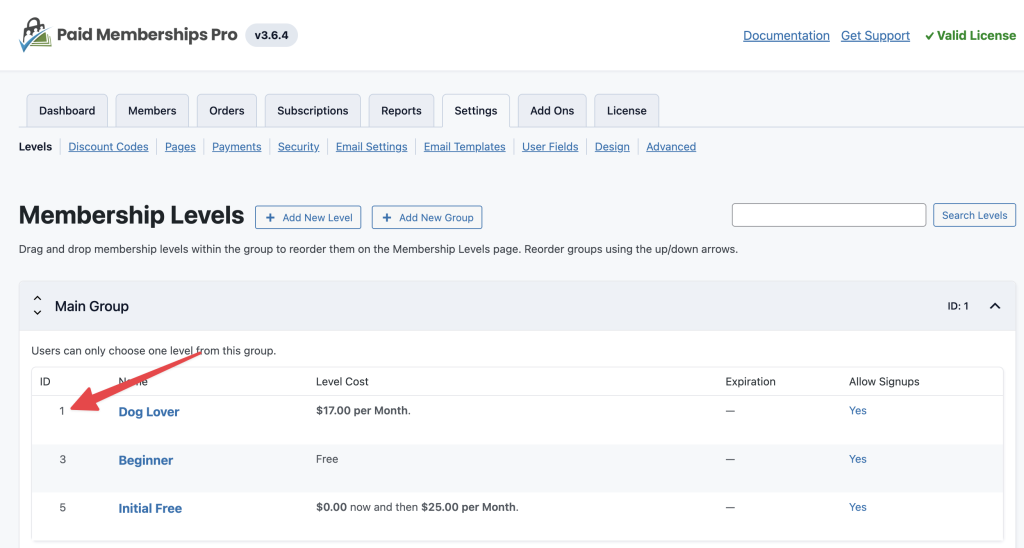
To find your Level ID, navigate to Memberships > Settings > Levels in your WordPress dashboard. The ID number is listed in the “ID” column for each level.
Signup Shortcode Attributes
Edit any page, post, or widget desired to add the signup shortcode.
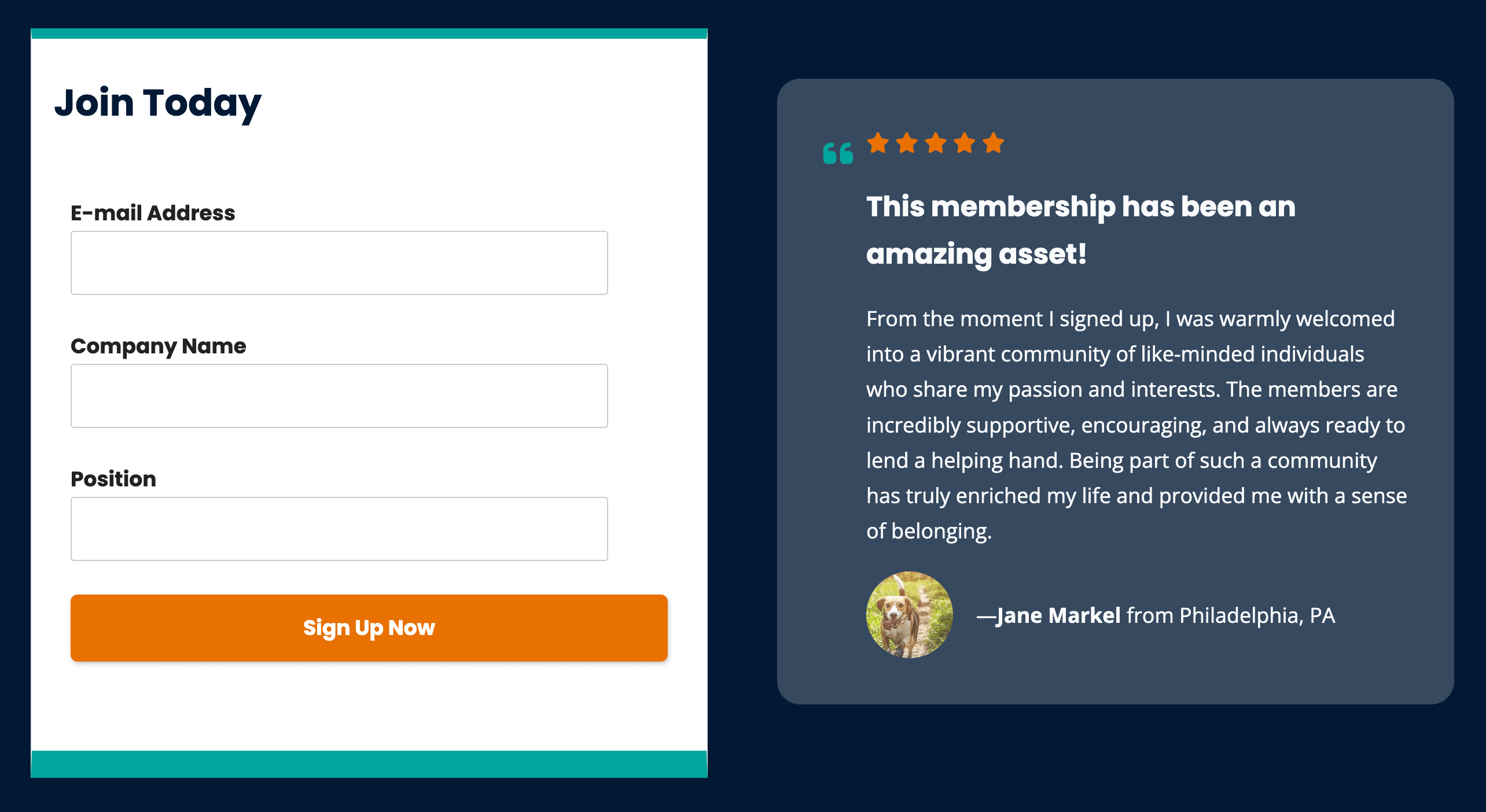
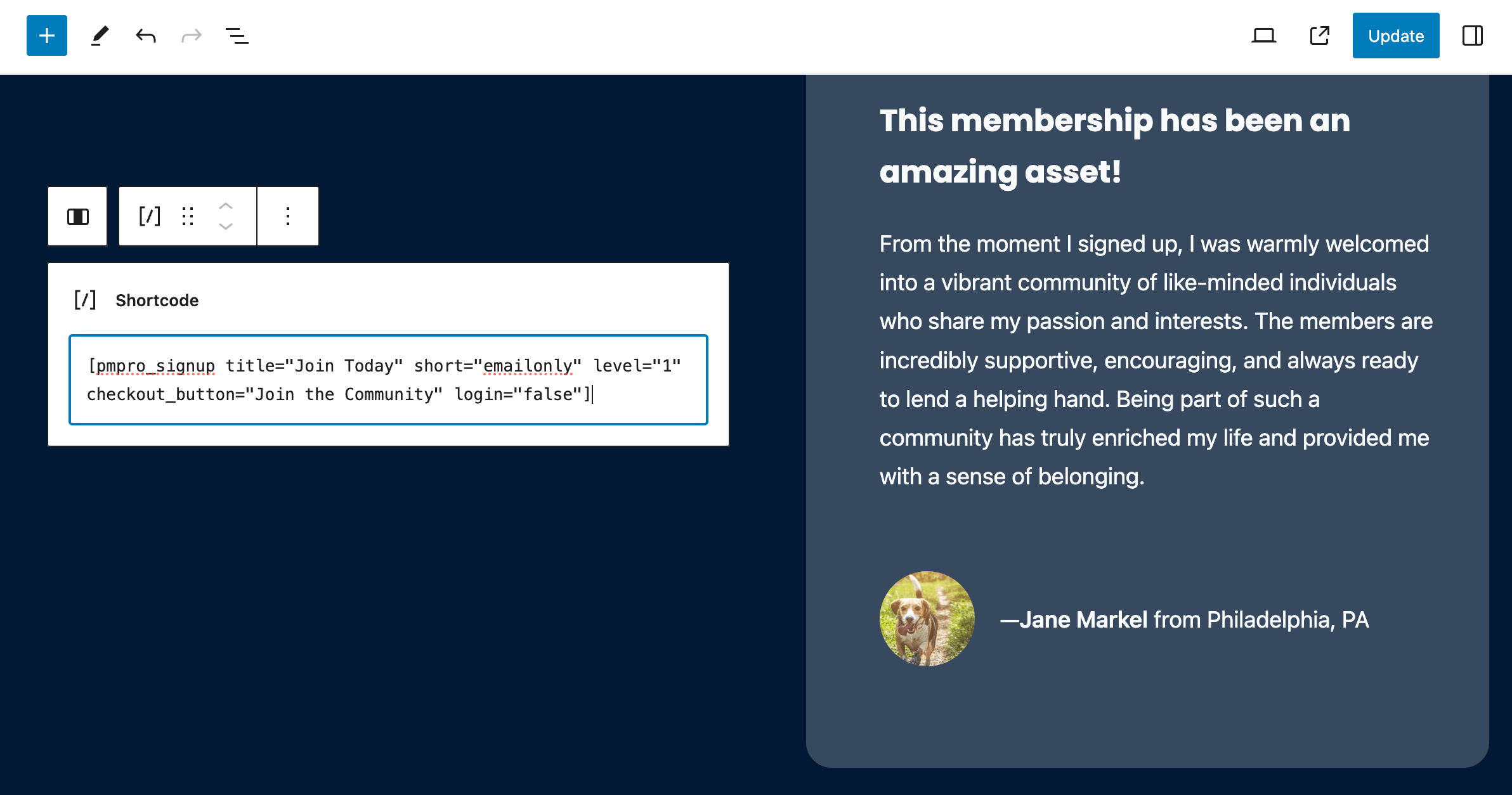
[pmpro_signup title="Join Today" short="emailonly" level="1" submit_button="Join the Community" login="false"]
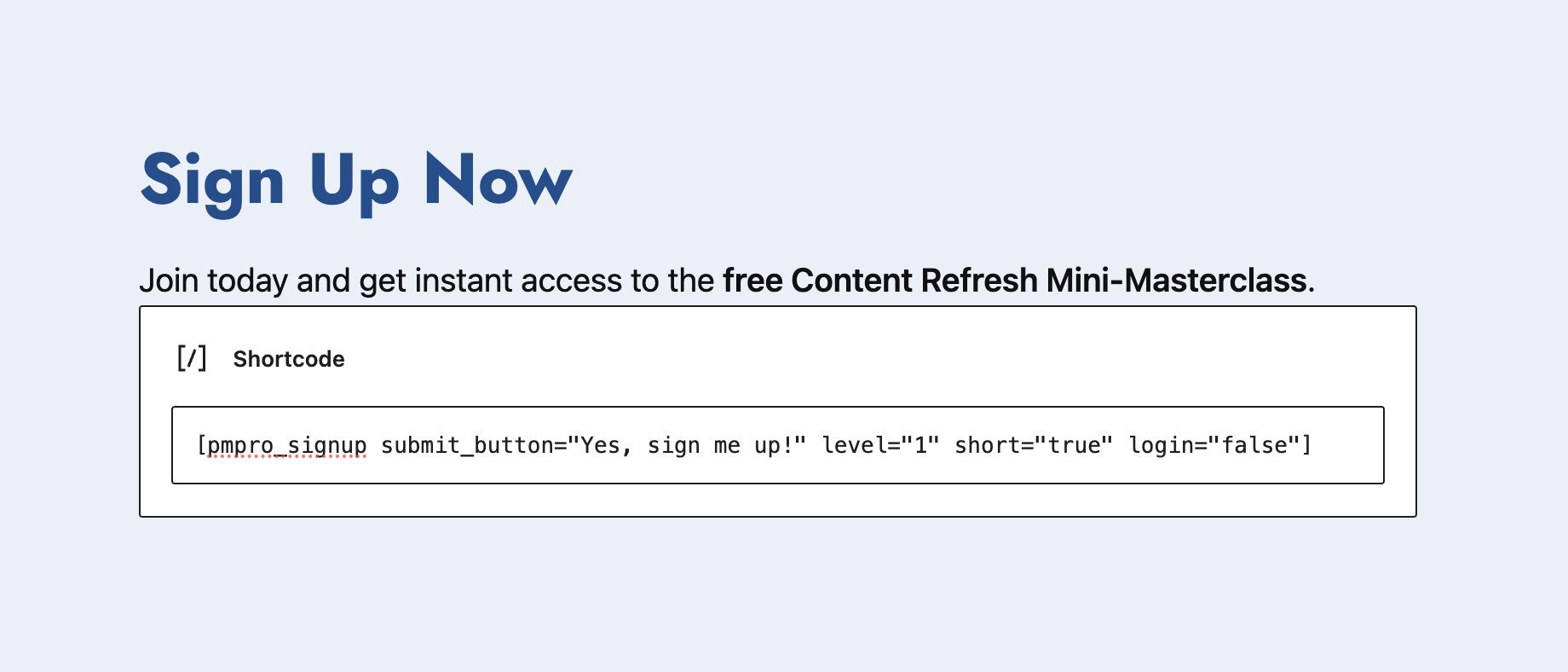
If you are using the WordPress Editor, you can add a shortcode like the example above inside any Shortcode Block. Or, if you’re using another page builder or the Classic Editor, just insert the shortcode in a standard text editor or element.
Here is a list of all Signup Shortcode attributes you can use with this Add On:
- hidelabels: Hide the field “Labels”. The “placeholder” attribute of input fields will be used when available and the label will be shown for fields when required. Note: this may not work with custom fields. (optional; default: false; accepts: true or false)
- intro: Override the default “Register for” text above the checkout form or hide the text completely. (optional; default: true; accepts: true, false, or your custom text)
- custom_fields: Show any custom user fields or fields added by other Add Ons. (optional; default: true; accepts: true or false)
- level: This required attribute determines which level to use for the checkout form.
- login: Set this attribute to show a “Log In” link below the submit button. (options; default: true; accepts: true, false)
- redirect: Optionally redirect the logged in member to a specific location after signup. (optional; default: your Membership Confirmation page. accepts: referrer, account, or your custom URL)
- short: Reduce form fields by hiding the email and password confirm fields. This attribute also supports email-only signup. (optional; default: false; accepts: true, false, or emailonly)
- confirm_email: Hide or show Confirm E-Mail field (optional; default: false; accepts: true, false)
- confirm_password: Hide or show Confirm Password field (optional; default: false; accepts: true, false)
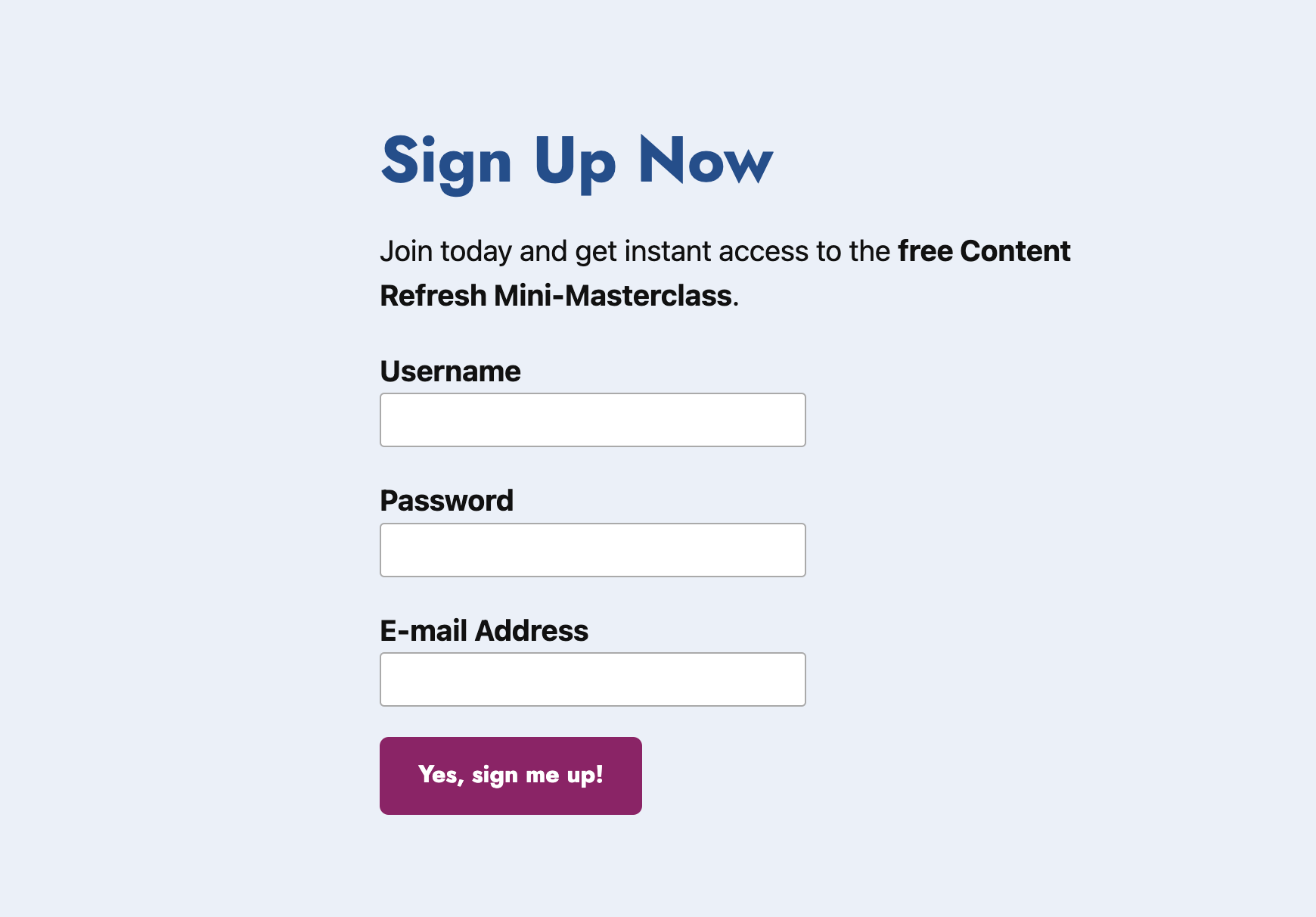
- submit_button: Use this attribute to change the “Submit” button text on the form. (optional; default: “Sign Up Now”; accepts: your custom text)
- title: Show a heading (h2) with a default “Level Name” above the checkout form or your custom text. (optional; default: false; accepts: true or your custom text)
How Signups Work for Free and Paid Levels
Free Level: The account will be created and the member will be automatically redirected to the specified redirect page.
Paid or Other Checkout Requirements: The user will be taken to the membership checkout page to complete their signup (i.e. to enter Billing and Payment Information).
Note: even if you are exclusively using the Signup Shortcode for a “free membership level only” site, you must still assign pages to the Membership Levels and Membership Checkout fields on Memberships > Settings > Page Settings in the WordPress admin.
Passing Form Variables Via URL Attributes
You can build a custom link that pre-populates fields, such as email address or username.
This allows you to pre-fill user information and is useful if you linking to your signup form via another platform, such as an email marketing tool.
Here is an example signup link with the email address populated:
https://mydomain.com/signup-form/?email=name@gmail.com Custom Fields and Integrations
The Signup Shortcode & Block Add On supports displaying custom fields directly on the signup form. The signup form will now automatically display:
- User Fields created through Paid Memberships Pro settings.
- Mailchimp audience subscription checkboxes.
- Any other custom fields or functionalities from third-party plugins that use the pmpro_checkout_boxes hook.
Action and Filter Hooks
If you need to show any custom text inside the signup shortcode area, there are two available action hooks:
do_action( 'pmpro_signup_form_before_fields' );
Add HTML within the <form> tag and before any other fields.
do_action( 'pmpro_signup_form_before_submit' );
Add HTML within the <form> tag and before the submit button.
do_action( 'pmpro_signup_form_after_submit' );
Add HTML after the submit button, but within the <form> tag.
do_action( 'pmpro_signup_form_after_form' );
Optionally add additional content after the form (outside the <form> tag).
Troubleshooting Missing or Incorrect Level IDs
The form requires a valid Level ID to display correctly. This ID tells the plugin which membership level the user is signing up for.
- If you do not provide a Level ID or if the ID is incorrect, the form will not appear to your visitors.
- Site administrators will see a notice on the page stating that the ID is incorrect or missing.
- This notice is only visible to logged-in administrators, so you can fix the setting before your customers visit the page.

Screenshots
This is a Standard Add On.
Standard membership includes all Standard Add Ons, unlimited premium support, automatic updates, and additional benefits.

