An Addon Package is a post or page with a one-time price and at least one required membership level. Set both in the post editor to start selling access to that piece of content.
How Addon Packages Work
A post becomes an Addon Package when it has a price and is restricted to one or more membership levels. To view it, a visitor needs both:
- One of the membership levels you selected in the post’s Require Membership settings.
- A purchase of that package (or access you gave them from the WordPress admin).
Members who hold a required level buy the package at checkout without changing their membership. Visitors who don’t have a required level can join a level and buy the package in one checkout. Once purchased, the member keeps access for as long as they hold a required level, unless you set an expiration.
Create a Package
- Edit the post or page you want to sell, or create a new one.
- In the Require Membership panel of the editor sidebar, check each membership level whose members can buy this package.
- Scroll below the content to the PMPro Addon Package Settings box. In the block editor, this box is in the Meta Boxes area at the bottom of the screen.
- Enter the one-time price in the Price field.
- Click Save (or Update).
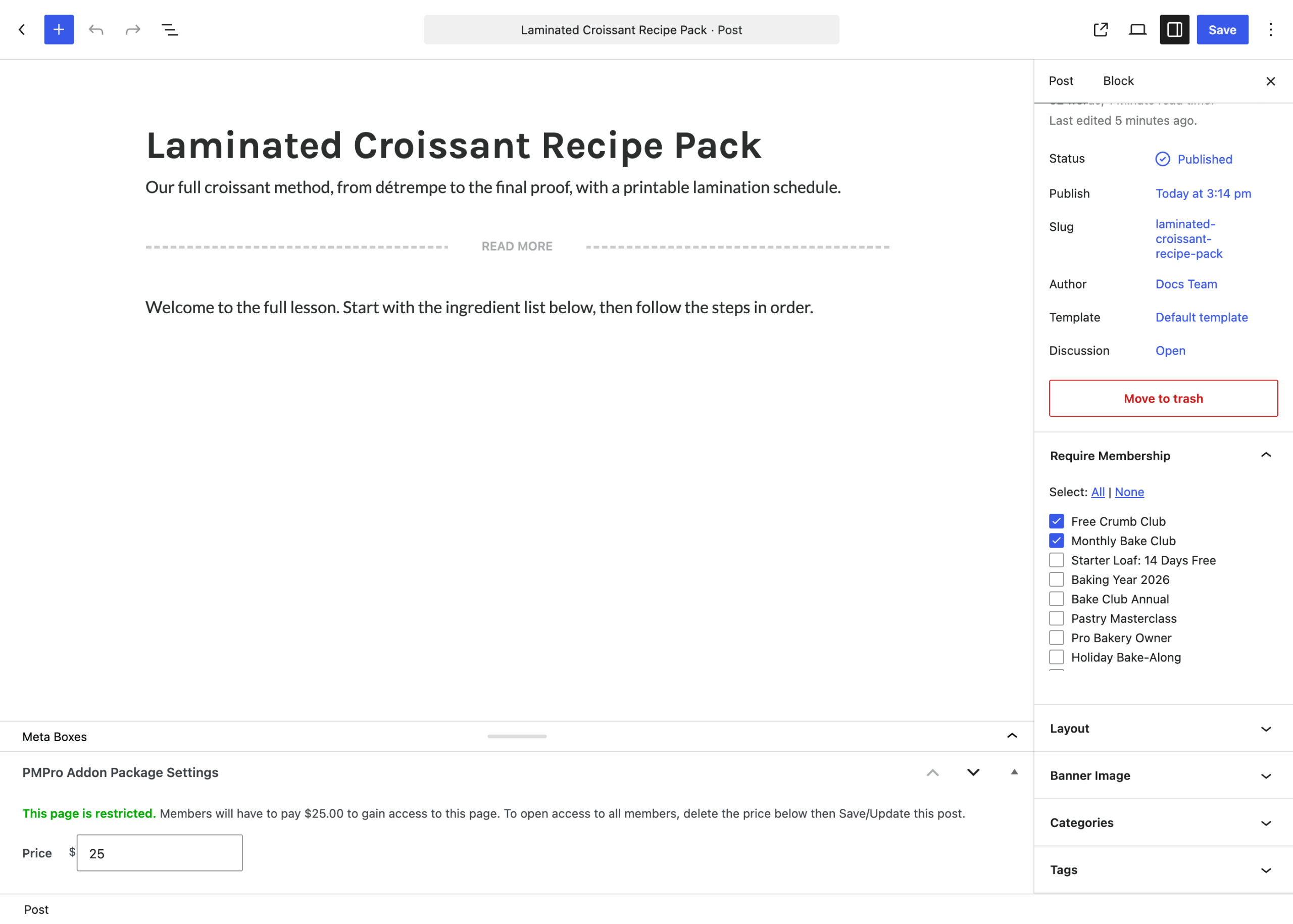
Package Settings
- Price: The one-time amount a member pays for access to this post. Enter a number, such as
25or19.50, using a period for decimals. The Add On removes currency symbols and letters when you save. Don’t use a thousands separator: a price saved as1,000is charged as 1 at checkout. Delete the price (or set it to0) and save to stop selling the post. - Require Membership: The membership levels that can buy this package. This is the same core Paid Memberships Pro setting you use to restrict any post or page. At least one level is required, or the post isn’t locked.
Status Messages in the Settings Box
The PMPro Addon Package Settings box tells you whether the post is set up as a package:
- No Price Set: The box explains how to charge for access. The post is restricted only by its membership levels, as usual.
- “Warning: This page is not locked down yet.”: The post has a price but no required level. Anyone can view it, and it can’t be bought. Check at least one level in Require Membership and save.
- “This page is restricted.”: The post has a price and at least one required level. The message shows the price members will pay.

Choose Which Levels Can Buy a Package
The levels you check decide who can buy the package and which level a new visitor joins at checkout.
- Check Every Level That Should Be Able to Buy: Members of a level you didn’t check can’t buy the package, even if they pay for a higher level.
- Include a Free Level to Sell to Non-Members: When a visitor without a required level clicks to buy, the Add On sends them to checkout for the first free level you checked (one that allows new signups), plus the package price. If none of the required levels are free, they are sent to your Membership Levels page to join a level first.
- Selling Without a Membership: If you only want to sell individual posts, create a free membership level and require it on each package. Buyers get the free level and the package in one checkout.
Who Can Set a Package Price
The PMPro Addon Package Settings box appears for administrators and for users with the pmpro_membershiplevels capability, the same capability that controls the Memberships > Settings > Levels screen. That includes the Membership Manager role from the Membership Manager Role Add On. Other users who can edit the post don’t see the box, and a price can’t be saved by them.
Developers can change the required capability with the pmproap_edit_price_capability filter. Users with the manage_options capability can always set prices.
Supported Post Types
By default, you can sell posts and pages. If you use the Custom Post Type (CPT) Membership Access Add On, the settings box is also added to the custom post types you selected in that Add On’s settings. Developers can add other post types with the pmproap_supported_post_types filter.
Get Support From Our Team of Experts
Have a question about how to use this feature? Our Support Page outlines three ways to get support.
Our Max plans include hands-on help customizing your membership site and implementing new features. Upgrade to PMPro Max now »
Last updated on November 19, 2026