Each membership level can assign a bbPress forum role to its members and highlight their topics and replies with a background color. Use these settings to give higher-tier members extra forum permissions or to make their posts stand out.
Configure Forum Settings for a Level
- Navigate to Memberships > Settings > Levels in the WordPress admin.
- Click Edit for the membership level you want to update.
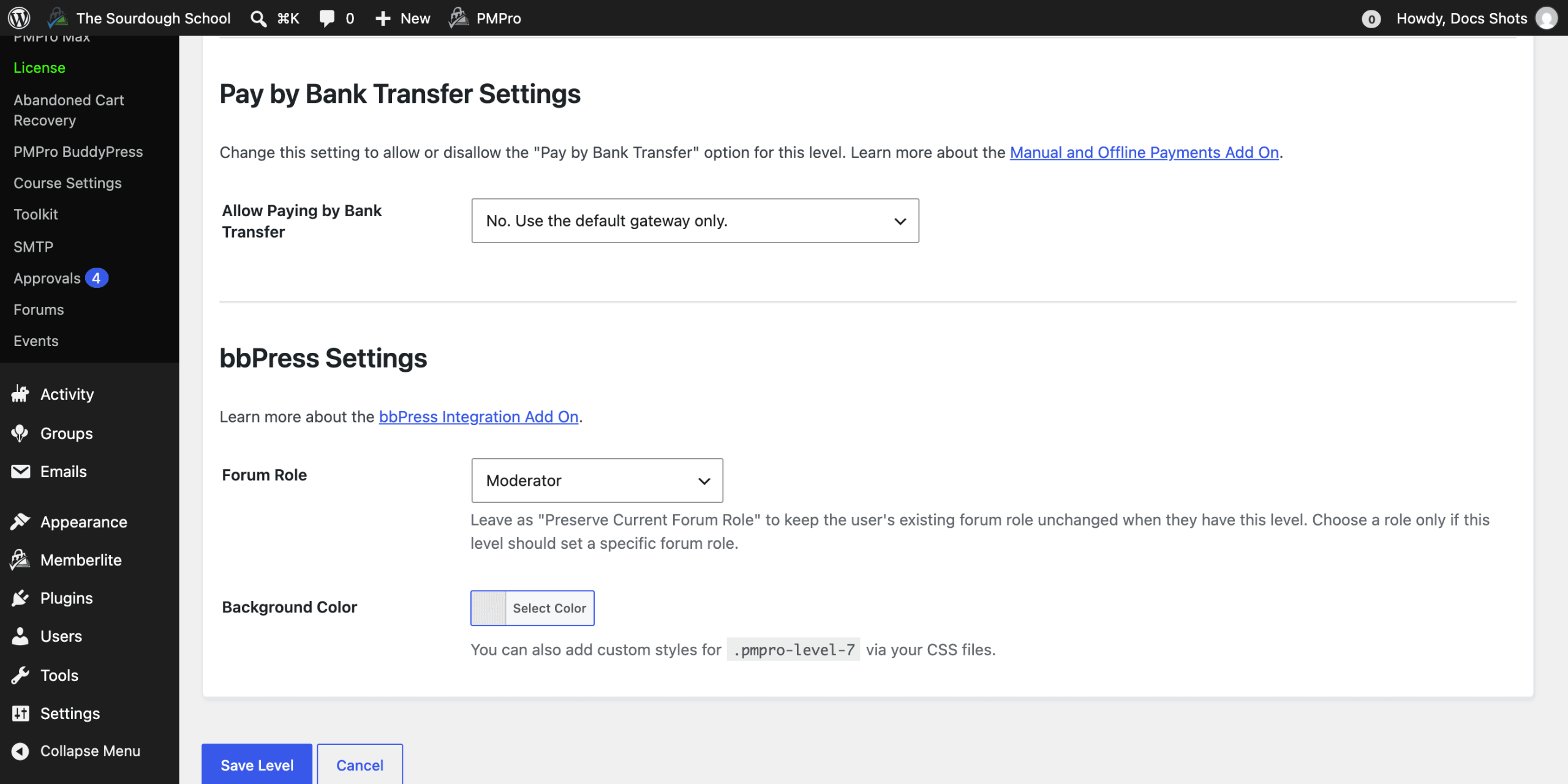
- Expand the Other Settings section and scroll to bbPress Settings.
- Adjust the settings for this level:
- Forum Role: The bbPress forum role to give members of this level, such as Participant, Moderator, or Spectator. The default is Preserve Current Forum Role, which leaves the member’s existing forum role unchanged.
- Background Color: A color used as the background of topics and replies written by members of this level. Leave it blank for no color.
- Click Save Level.
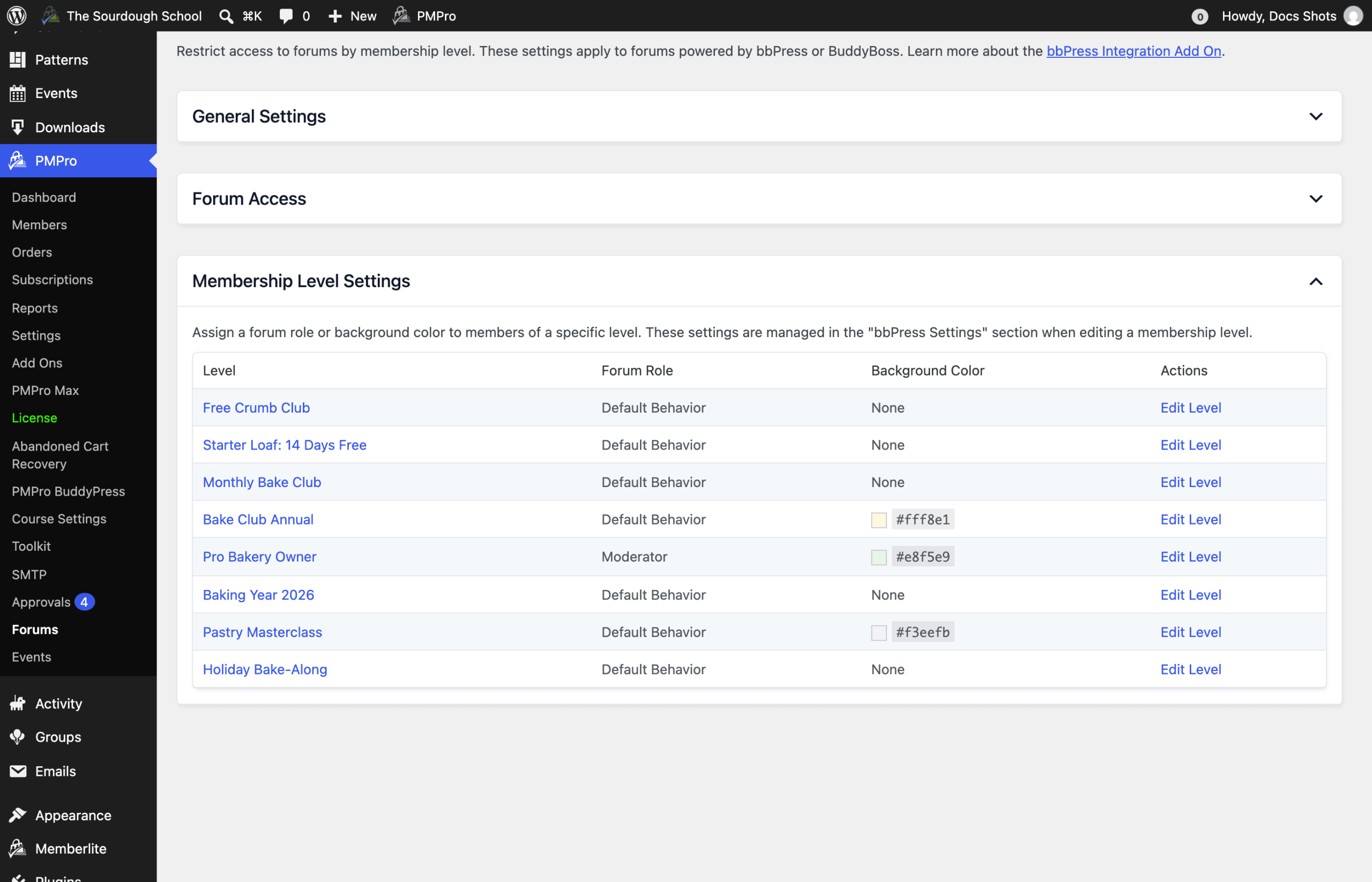
To see the forum role and background color for every level at once, navigate to Memberships > Forums and expand the Membership Level Settings panel. Levels without a forum role are listed as Default Behavior. Click Edit Level to change a level’s settings.
How Forum Roles Are Assigned
Forum roles are updated when a member’s membership levels change, such as at checkout, when an admin changes their level, or when their membership is cancelled or expires. Saving a new forum role on a level does not update members who already have that level. The new role applies the next time each member’s levels change.
bbPress gives each user one forum role, so the Add On follows these rules:
- New role from a level: When a member gets a level with a forum role, they receive that role as long as their current role is empty, is the bbPress default role, or was set by a membership level.
- Members with more than one level: If several of a member’s levels assign a forum role, the member gets the role with the most capabilities.
- Losing the level: If none of the member’s remaining levels assign a forum role, a role set by a membership level is replaced with the default forum role from Settings > Forums (Participant, unless you changed it).
- Roles you set by hand: If you change a member’s forum role on their user profile, the Add On leaves that role alone on future level changes. One exception: if you set a member back to the default forum role, a level with a forum role can apply its role again the next time their levels change.
- Administrators: Users who can manage site options are skipped. Their forum role is never changed by a membership level.
Style Posts by Membership Level
On a single topic page, the opening post and each reply get a CSS class for every membership level the author has, in the format pmpro-level-{level_ID}. For example, a reply by a member of level 2 has the class pmpro-level-2.
When you set a Background Color for a level, the Add On adds this CSS to forum pages for you:
.topic.pmpro-level-2, .reply.pmpro-level-2 {background-color: #fff8e1 !important; }
For other styles, such as a border or a different text color, leave the Background Color blank and add your own CSS targeting the level class to your theme’s stylesheet or your site’s custom CSS.
#bbpress-forums .reply.pmpro-level-2 {
	border-left: 4px solid #e2a03f;
}
Get Support From Our Team of Experts
Have a question about how to use this feature? Our Support Page outlines three ways to get support.
Our Max plans include hands-on help customizing your membership site and implementing new features. Upgrade to PMPro Max now »
Last updated on November 13, 2026

