Choose the membership levels that can view each forum. Once a forum requires a level, visitors and members without that level can’t view the forum, its topics, or its replies.
Before You Begin
This Add On requires Paid Memberships Pro and either bbPress or BuddyBoss Platform (which includes forums). If neither forum plugin is active, the Add On’s settings screen shows a notice and no forum restrictions are applied.
Create your membership levels and at least one forum before you set up restrictions.
Restrict a Single Forum
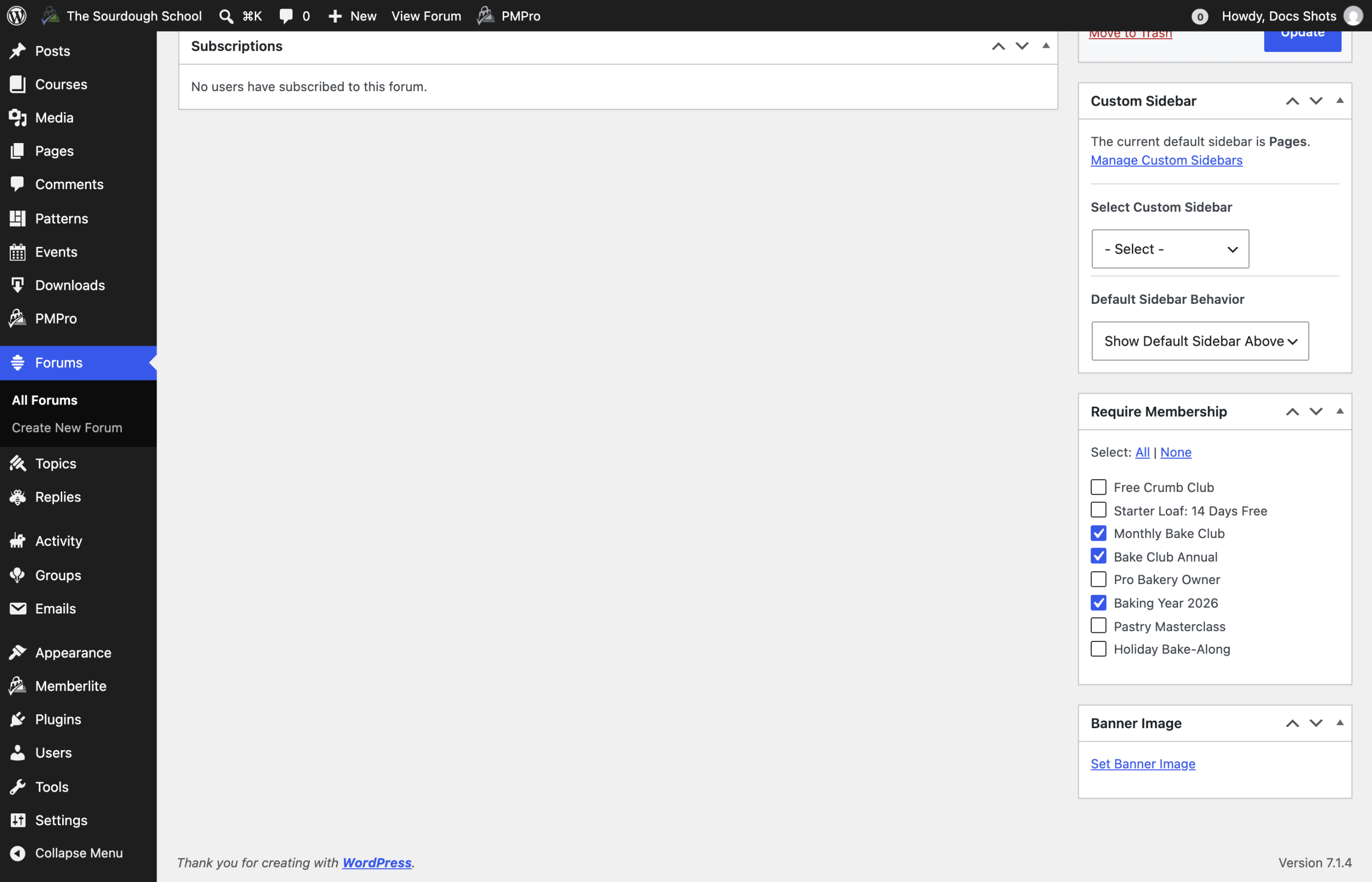
- Navigate to Forums > All Forums in the WordPress admin and edit a forum, or click Create New Forum.
- Locate the Require Membership box in the right sidebar.
- Check each membership level that should have access to this forum. Use the All and None links to select or clear every level at once.
- Click Update (or Publish for a new forum) to save your changes.
Manage Access for All Forums at Once
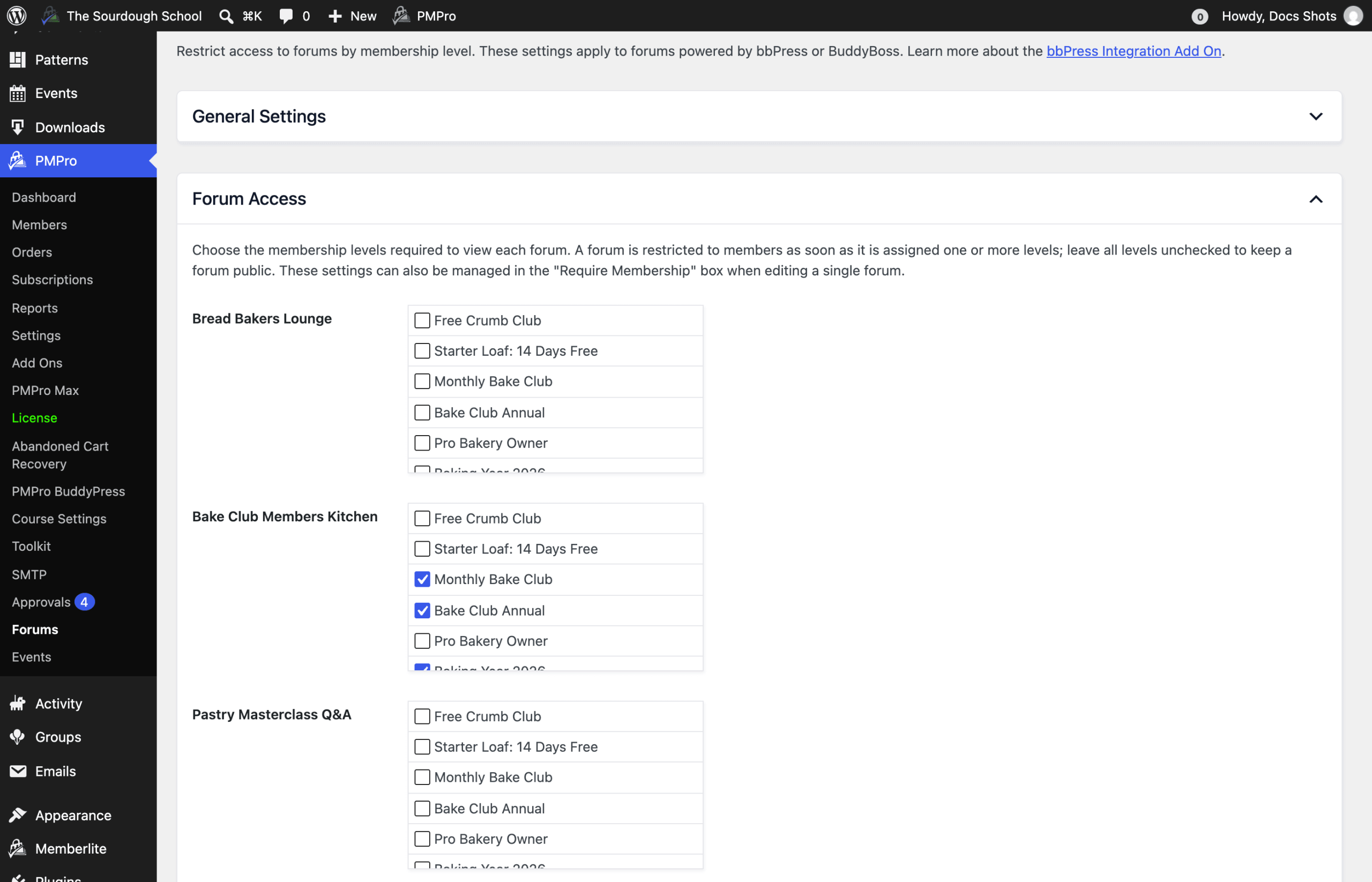
The Forum Access panel lists every forum on your site with a checklist of your membership levels, so you can set up restrictions for all forums from one screen.
- Navigate to Memberships > Forums in the WordPress admin.
- Click Forum Access to expand the panel.
- For each forum, check the membership levels that should have access. Leave every level unchecked to keep a forum public.
- Click Save Settings.
Forums are listed in the same order as your forum hierarchy, with subforums indented under their parent. Each forum name links to its edit screen. Draft and trashed forums are not listed.
Restrict Subforums
Each forum’s restriction is checked on its own. A subforum does not inherit the levels required by its parent forum. To lock a subforum, check the required levels for the subforum as well as the parent.
Topics and replies always follow the forum they were posted in, so you don’t need to restrict them one at a time.
What Non-Members See
Here’s what happens when a visitor or a member without one of the required levels tries to reach restricted forum content.
Single Forums and Topics Redirect
Viewing a restricted forum or one of its topics redirects the user to your forums index with ?noaccess=1 added to the URL (for example, yoursite.com/forums/?noaccess=1). The forums index then shows the Error Message from the Add On settings above the forum list. The default message is “This forum is for members only.”
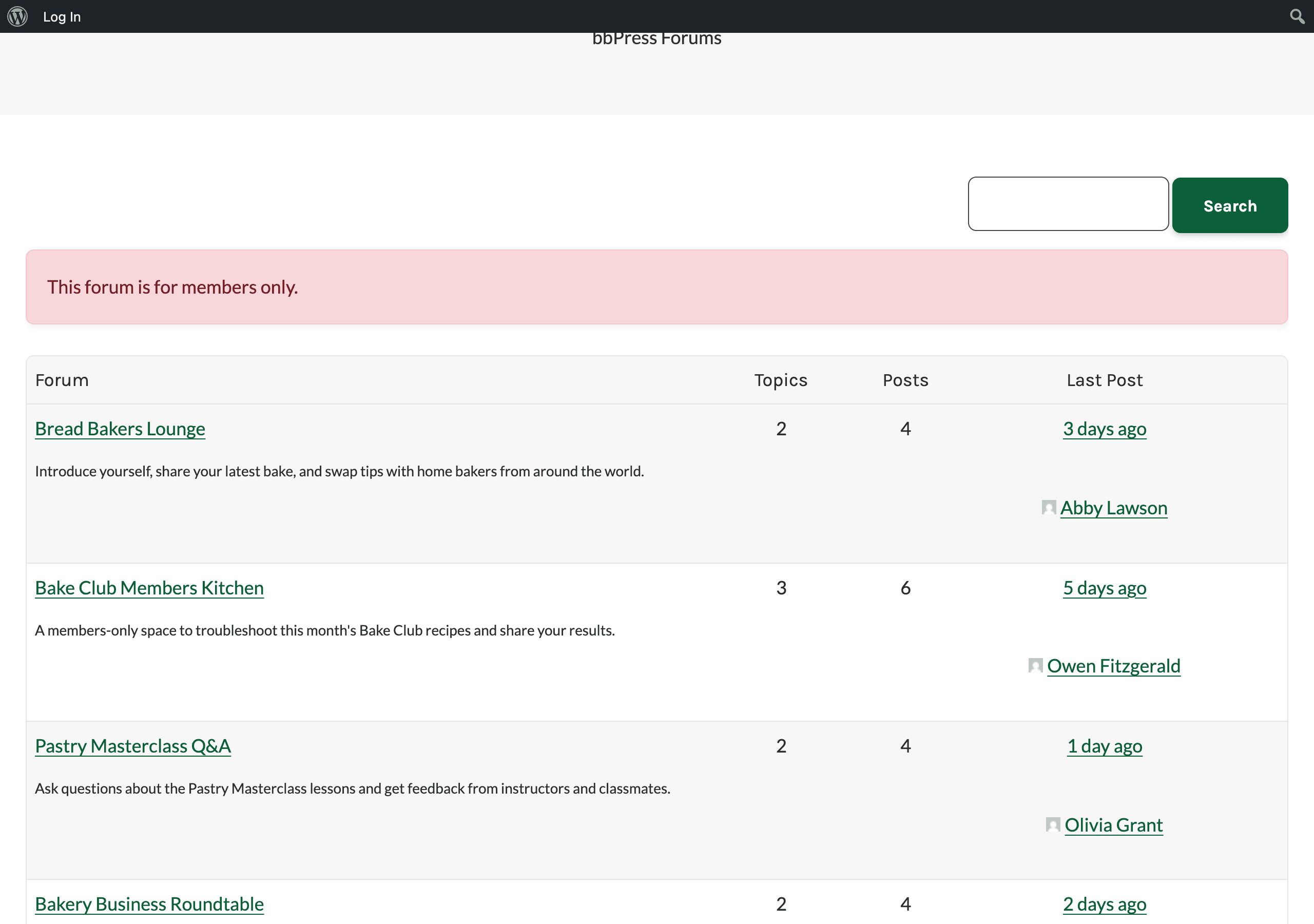
The forums index itself is not restricted. By default, restricted forums still appear in the forum list with their titles and descriptions, so write titles and descriptions you’re comfortable sharing publicly. They help sell the membership. To leave restricted forums out of the list for users who can’t access them, check Hide Member Forums in the Add On settings.
Redirect to the BuddyPress Access Restricted Page
If your site also uses the BuddyPress and BuddyBoss Integration and an Access Restricted page is assigned in that Add On, non-members are sent to that page instead of the forums index. This applies on both BuddyPress and BuddyBoss sites.
When BuddyBoss Platform is active, the Paid Memberships Pro no access message is not shown for individual restricted forums in the forum list, since some forums in the list may be locked and others not. Opening a restricted forum still redirects the user.
Non-Members Can’t Post
Users without access can’t start topics or post replies in a restricted forum. They never see the new topic or reply form there, and if someone submits one anyway, bbPress doesn’t save the post and shows your Error Message instead.
Topic and Reply Text Is Hidden
Topics and replies from a restricted forum can still show up in other places, such as bbPress search results, topic and reply feeds, a single reply link, or the Replies Created tab on a member’s forum profile. In these places, users without access see “Topics viewable by members only” or “Replies viewable by members only” in place of the text. Topic titles are still shown. Logged-out visitors always see these messages for topics and replies in a restricted forum.
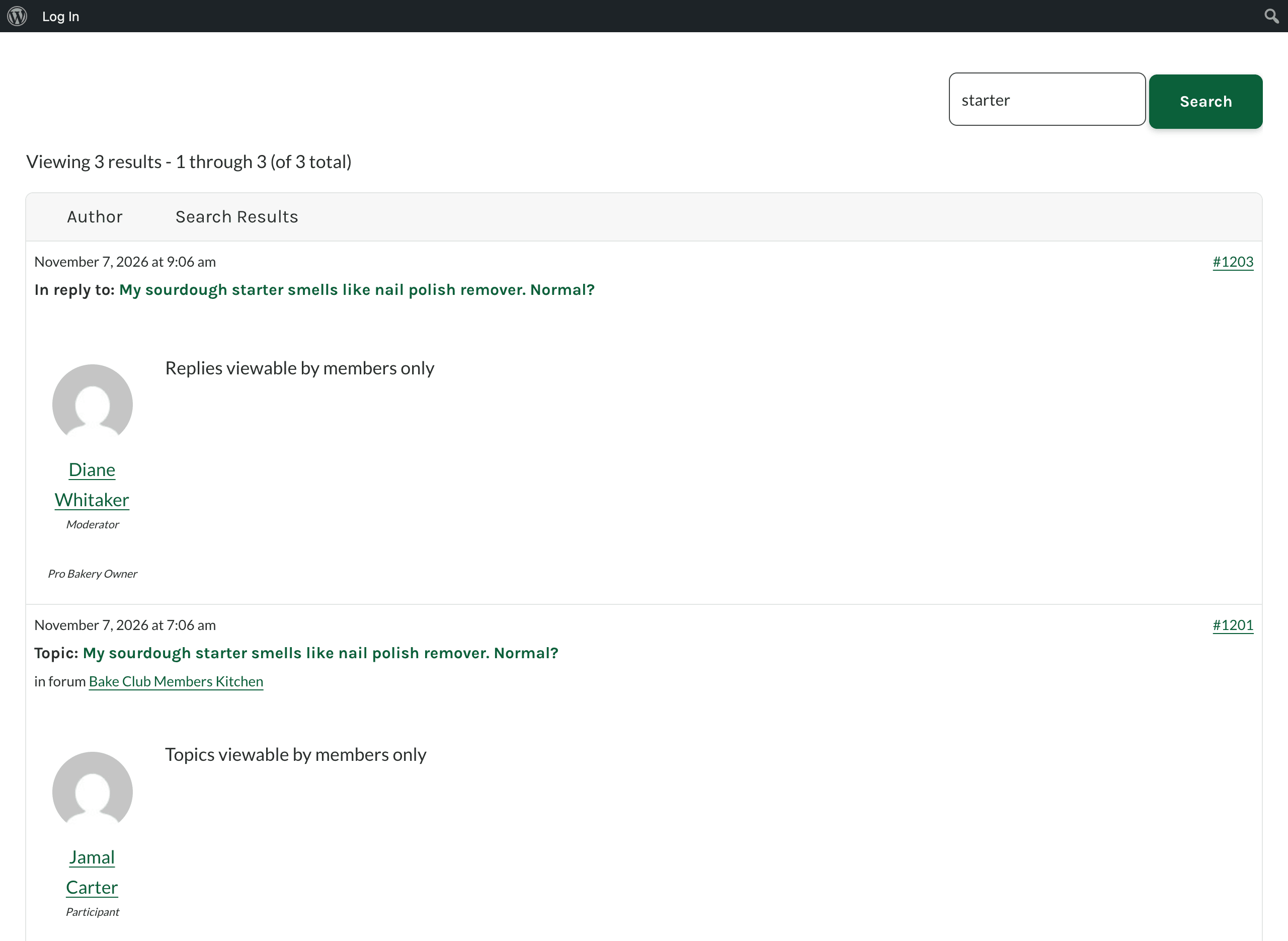
If you check Hide Member Forums in the Add On settings, restricted topics and replies are left out of search results, feeds, and profile lists for users without access. You’ll still see the messages above where restricted content is shown on its own, such as a link to a single reply.
BuddyPress Activity Is Hidden
On sites running BuddyPress, bbPress adds an activity item each time someone starts a topic or posts a reply. For topics and replies in a restricted forum, users without access still see the activity summary line, which names the member, the topic title, and the forum, but not the topic or reply text. This applies to activity streams, activity RSS feeds, and the BuddyPress REST API. Site administrators who can moderate BuddyPress still see the full text.
Forum and Topic Emails Go to Members Only
bbPress lets users subscribe to a forum to get an email about each new topic, or to a topic to get an email about each new reply. If a subscriber no longer has access to the forum (for example, their membership expired), the Add On leaves them off these emails for that forum.
Test Your Restrictions
Administrators are treated like any other user: if your admin account doesn’t have one of the required levels, you’ll be redirected away from the restricted forum on the front end of your site. If Hide Member Forums is checked, restricted forums also won’t appear in your forums list. To check what members and non-members see, open your forums in a private browser window while logged out, then log in as a test user who has the required level.
Get Support From Our Team of Experts
Have a question about how to use this feature? Our Support Page outlines three ways to get support.
Our Max plans include hands-on help customizing your membership site and implementing new features. Upgrade to PMPro Max now »
Last updated on November 13, 2026

