The Forums settings screen holds the Add On’s general settings: the message non-members see, links to forums on the Membership Account page, and how membership levels and forum roles display in replies.
Open the Forums Settings Screen
Navigate to Memberships > Forums in the WordPress admin. The screen is titled Forums Integration and is organized into three collapsible panels:
- General Settings: The settings described on this page.
- Forum Access: The membership levels required for each forum. See Restrict Forums by Membership Level.
- Membership Level Settings: A summary of the forum role and background color set for each level. See Assign Forum Roles and Reply Colors by Level.
Only users who can manage site options (administrators) can view this screen. The same screen is used whether your forums are powered by bbPress or BuddyBoss Platform.
General Settings
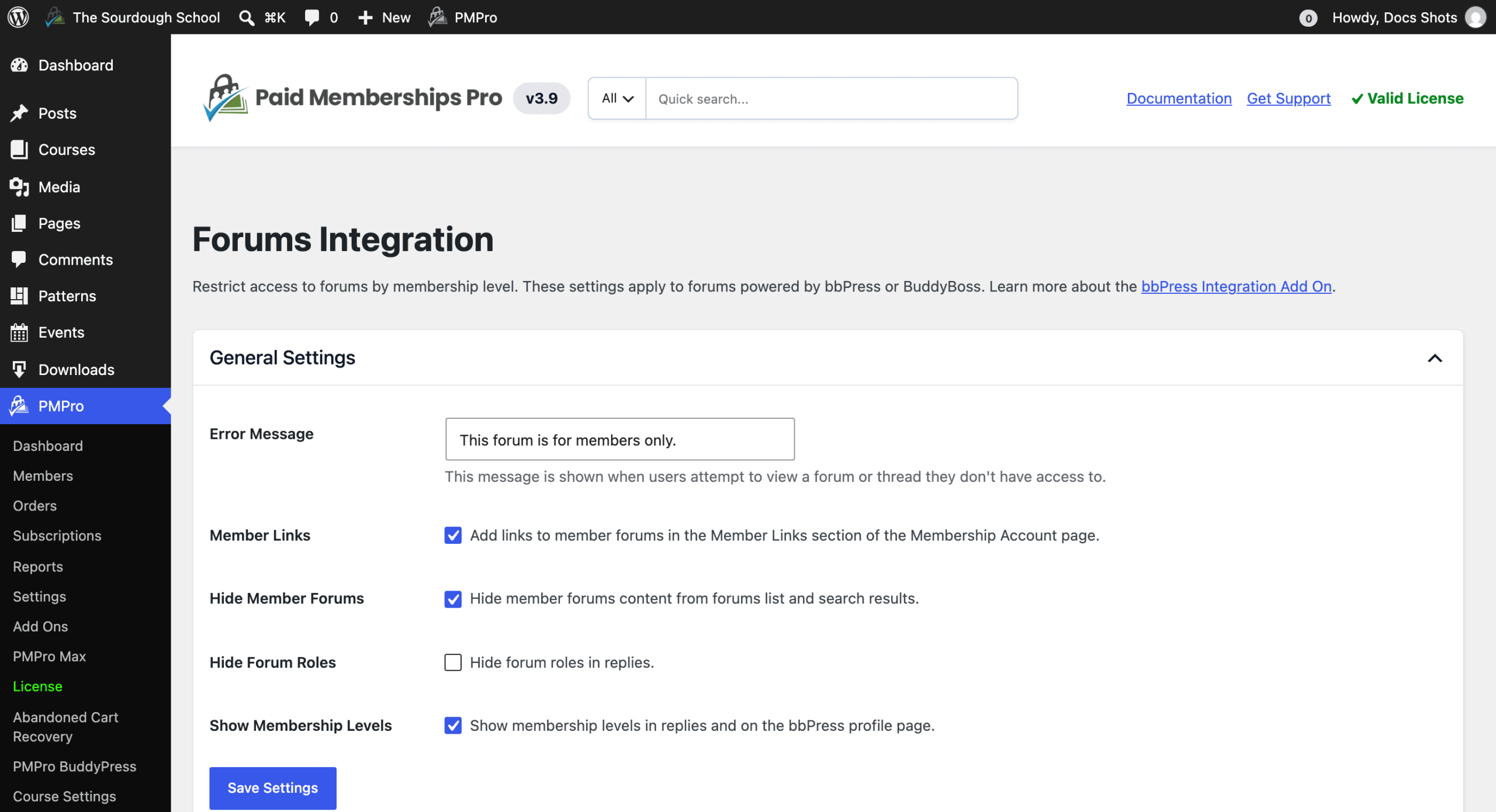
- Error Message: The message shown on the forums index when a user is redirected away from a forum or topic they don’t have access to. Default: “This forum is for members only.”
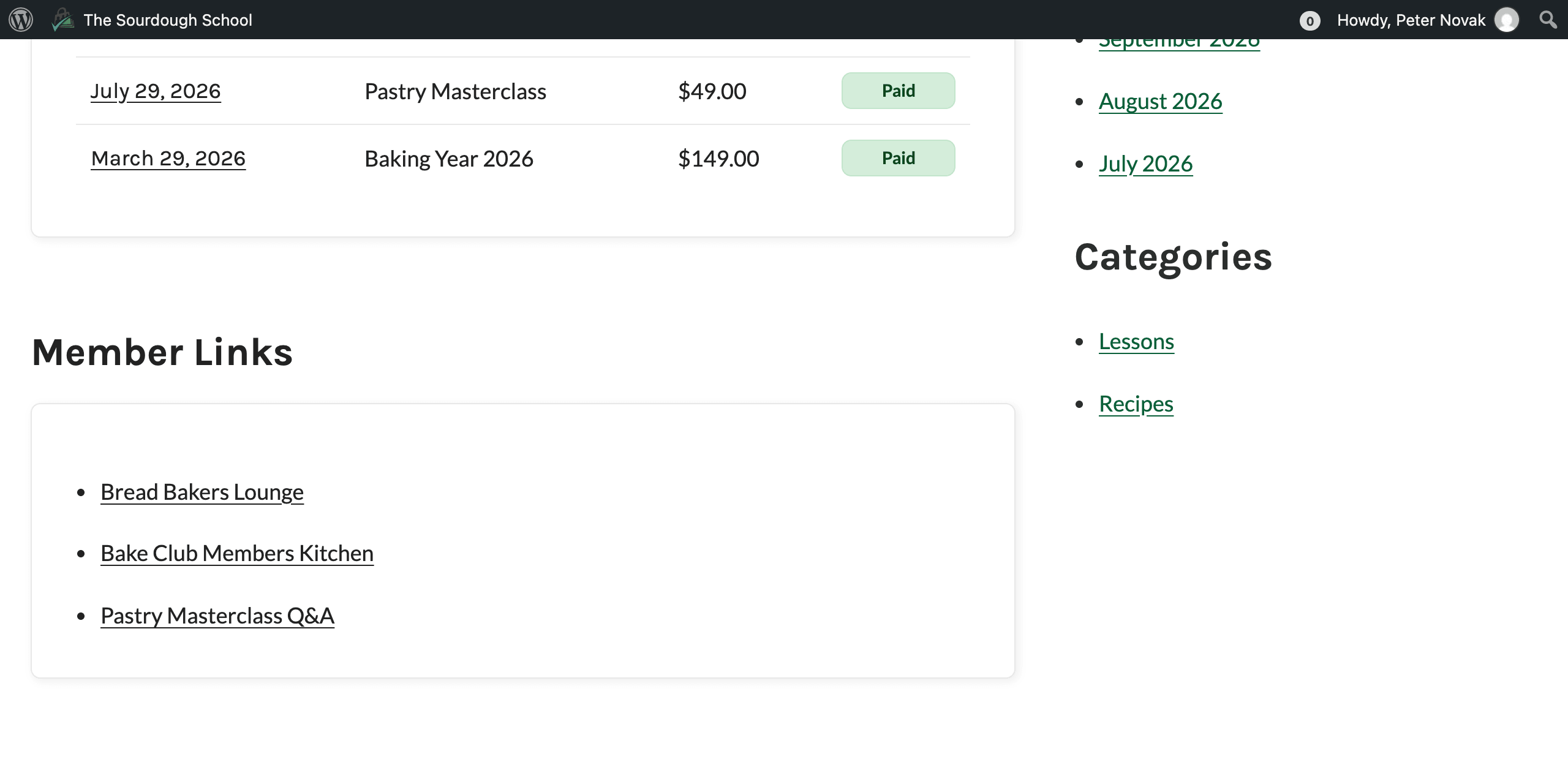
- Member Links: Check this box to add links to forums in the Member Links section of the Membership Account page. Each logged-in user sees a link to every published forum they can access, which includes forums that don’t require a membership level. Forums are listed by the Order set in each forum’s Forum Attributes box, then by title. Default: unchecked.
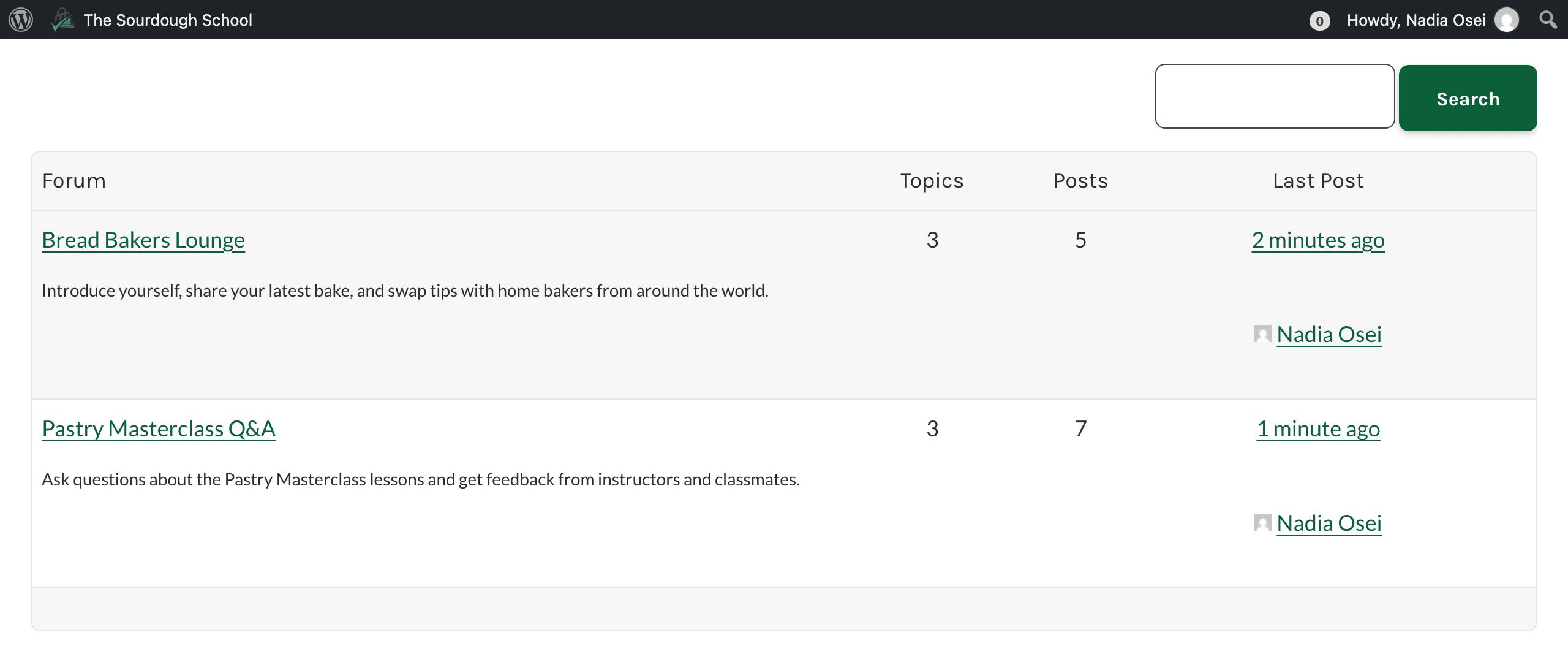
- Hide Member Forums: Check this box to leave forums a user can’t access, along with their topics and replies, out of the forums list, topic and reply lists, forum feeds, and bbPress search results for that user. This works whether or not the Filter searches and archives? setting in Memberships > Settings > Advanced is on. Default: unchecked.
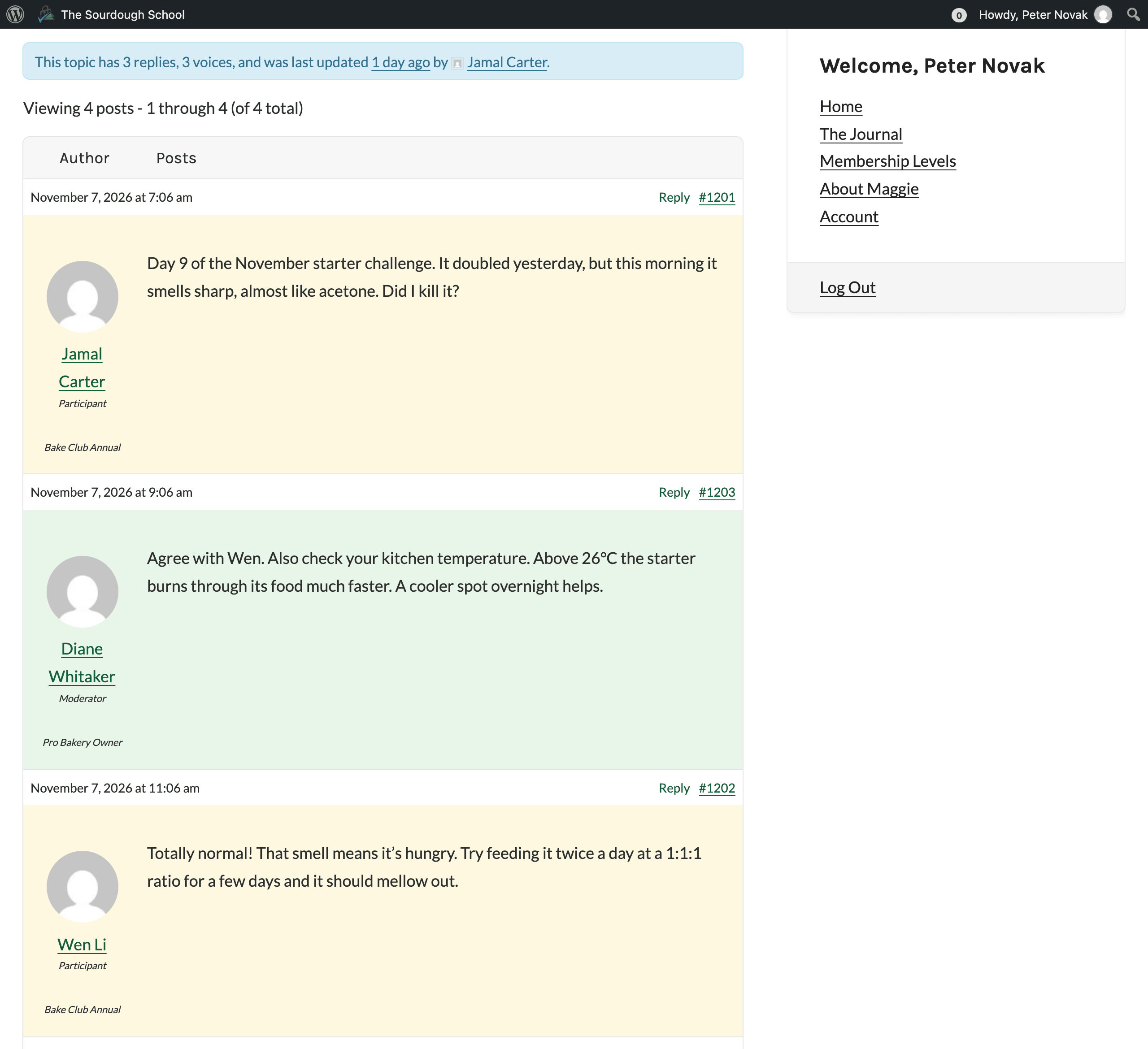
- Hide Forum Roles: Check this box to hide the author’s forum role (such as Participant or Moderator) under their name in forum replies. Default: unchecked.
- Show Membership Levels: Check this box to show the author’s membership level name under their name in forum replies, and to add a Membership Level section to the bbPress user profile page. Members with more than one level see all level names, separated by commas. Default: unchecked.
Click Save Settings.
Member Links Example
With Member Links enabled, members see the forums they can access on the Membership Account page.
Hide Member Forums Example
With Hide Member Forums enabled, each user’s forums list only includes the forums they can open. In this example, a Pastry Masterclass member sees the public Bread Bakers Lounge and the Pastry Masterclass Q&A forum. The forums for other membership levels aren’t listed.
Show Membership Levels Example
With Show Membership Levels enabled, each reply shows the author’s level name below their forum role. This example also uses level-specific background colors.
Shortcut From the bbPress Settings Screen
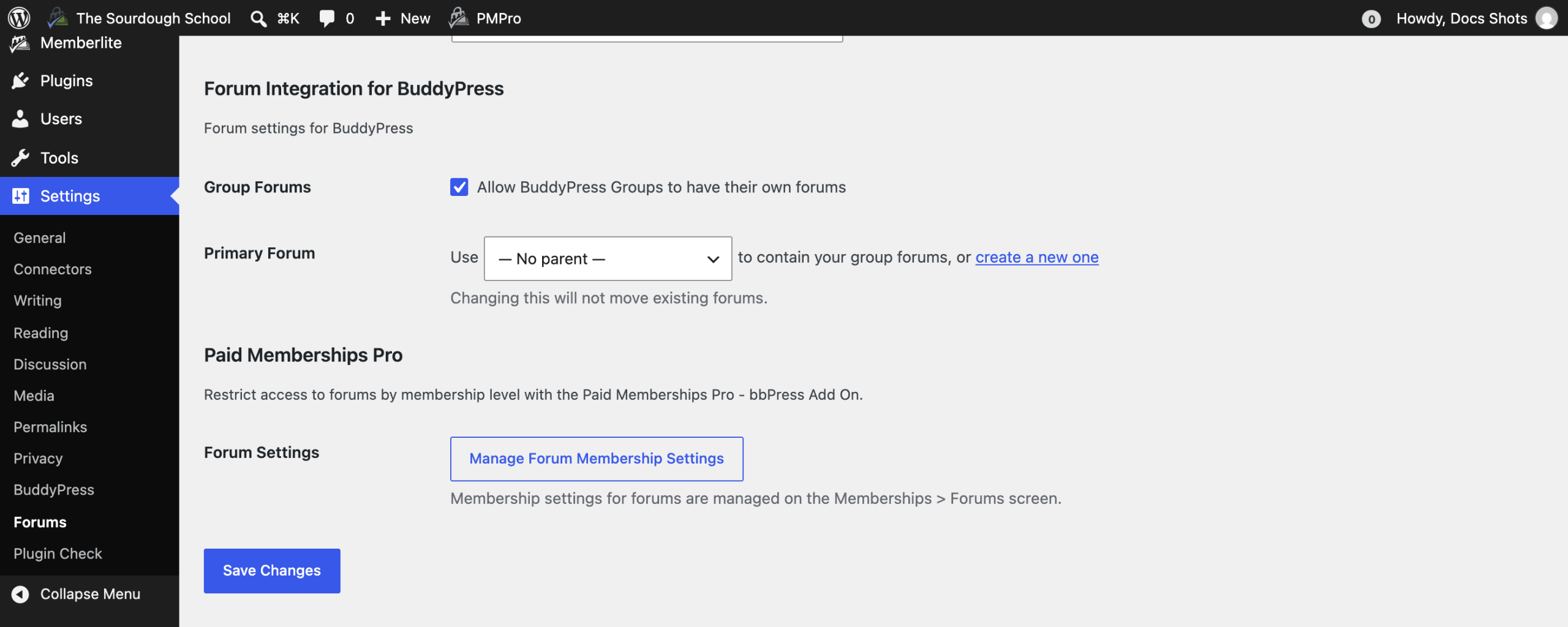
Before version 1.9, these settings lived on the bbPress settings screen. That screen at Settings > Forums now has a Paid Memberships Pro section with a Manage Forum Membership Settings button that links to Memberships > Forums. Nothing is saved from this section. Your existing settings carried over when the screen moved.
Get Support From Our Team of Experts
Have a question about how to use this feature? Our Support Page outlines three ways to get support.
Our Max plans include hands-on help customizing your membership site and implementing new features. Upgrade to PMPro Max now »
Last updated on November 12, 2026

