The Add On brings membership details into your community profiles. Members can manage their membership from a Membership tab, profiles can show each member’s level, and you can keep Paid Memberships Pro User Fields in sync with extended profile fields.
Membership Tab on the Member’s Profile
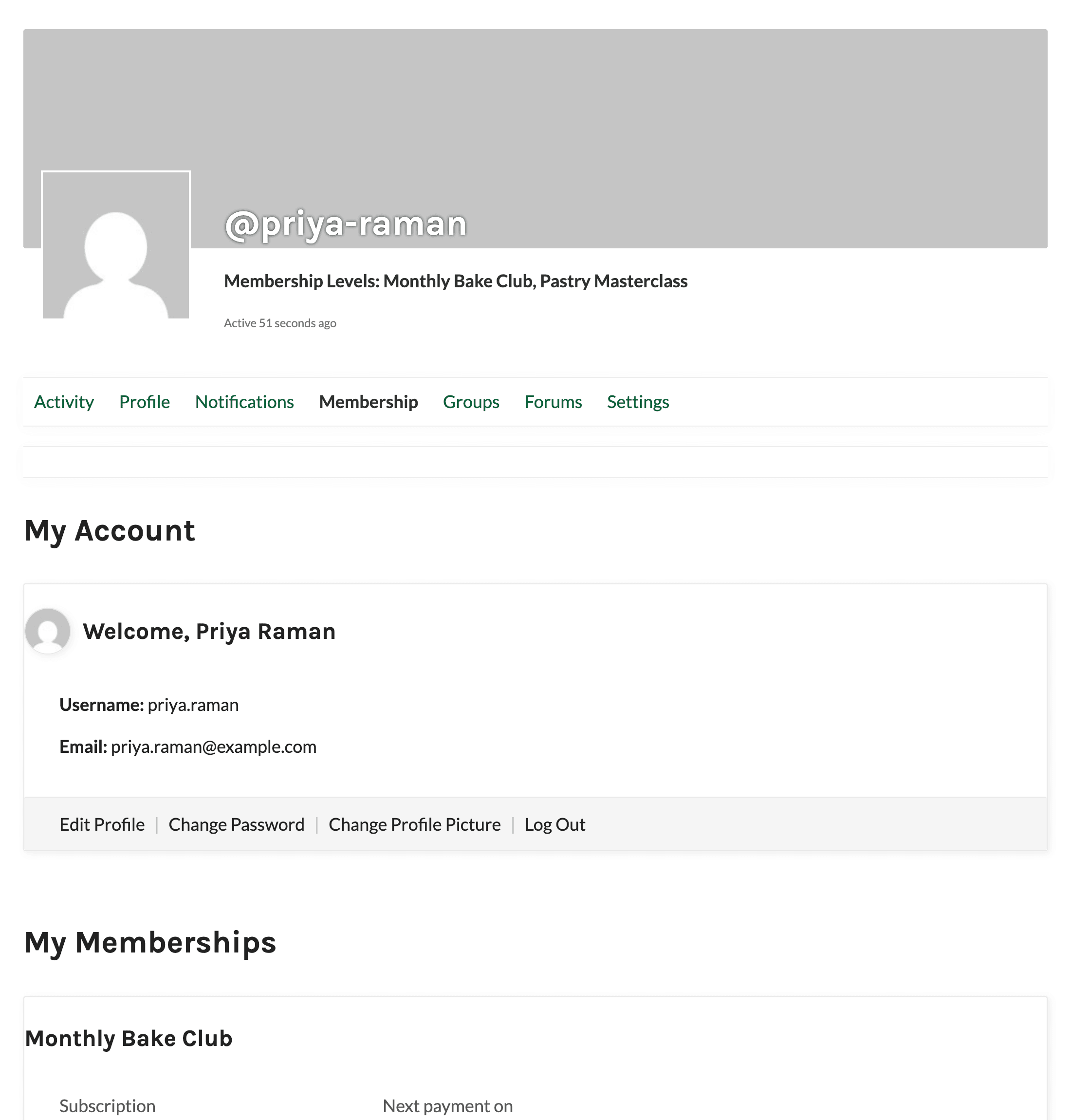
The Add On adds a Membership tab to the BuddyPress or BuddyBoss profile navigation. There’s no setting to turn it on.
- The tab only appears when a logged-in user is viewing their own profile. Other members never see it.
- By default, the tab shows the same content as your Membership Account page (the
[pmpro_account]shortcode), so members can review their level, billing, and order history without leaving the community. - Developers can change the tab content with the
pmpro_buddypress_profile_account_shortcodefilter.
Show the Member’s Level on Their Profile
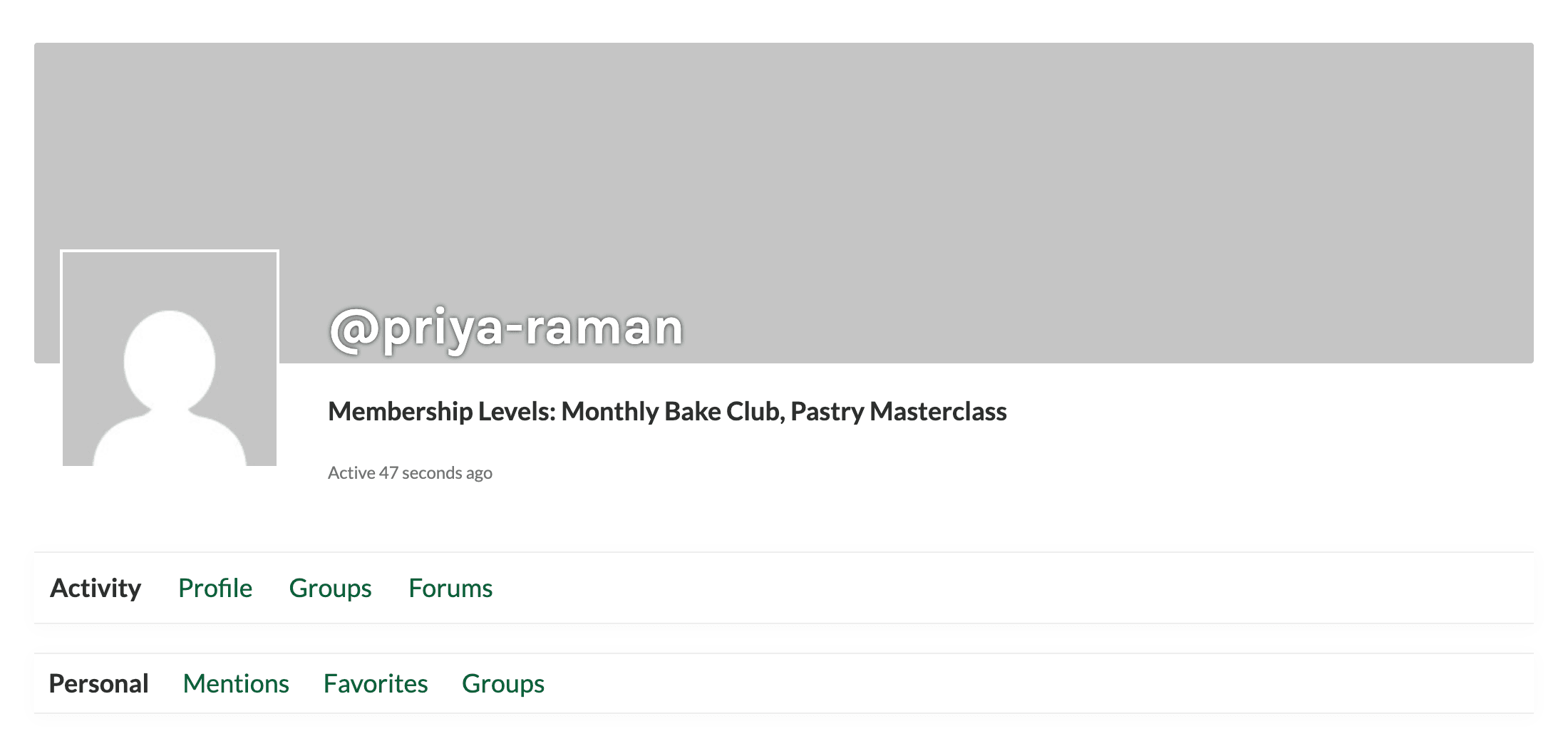
When Show Membership Level on Profiles? is set to Yes, the member’s level name appears in their profile header for anyone who can view the profile. Members with more than one level see “Membership Levels:” followed by each level name. The level only appears for users who have an active membership level.
- Navigate to Memberships > PMPro BuddyPress.
- Expand the General Settings section.
- Set Show Membership Level on Profiles? to Yes.
- Click Save All Settings. The level name doesn’t appear until this setting has been saved at least once.
Profile Field Visibility Note
When your Non-member User Settings don’t unlock all of BuddyPress, the Add On adds a note above the visibility options for extended profile fields. Members editing their profile see “Your profile is only visible to other active members.” Administrators editing a user’s extended profile in the WordPress admin see a longer version that explains non-members have no access to BuddyPress components.
Sync User Fields With Extended Profile Fields
If you collect member information with User Fields, you can connect each field to a matching extended profile (Xprofile) field. Mapped fields stay in sync in both directions:
- When a User Field value is saved, for example at checkout or when the member edits their account, the mapped extended profile field is updated. The field’s existing visibility setting is kept.
- When a member updates their community profile, the mapped User Field is updated.
Map Fields on the Settings Screen
- Create your User Fields under Memberships > Settings > User Fields.
- Create the matching profile fields in your community plugin. In BuddyPress, go to Users > Profile Fields.
- Navigate to Memberships > PMPro BuddyPress and expand the Extended Profile Field Mapping section.
- For each Xprofile field you want to sync, choose a User Field from the dropdown. Leave a field set to Not mapped to skip it.
- Click Save All Settings.
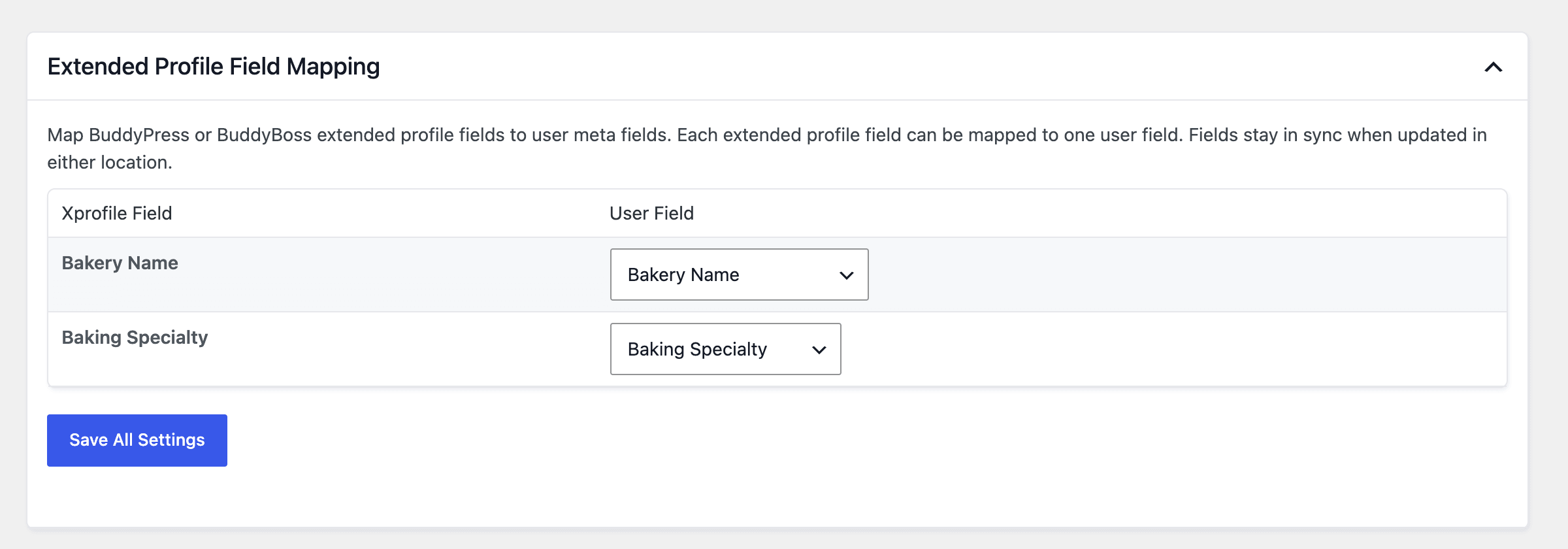
- One-to-one mapping: Each User Field can be mapped to only one Xprofile field. Once a User Field is selected, it’s marked “(in use)” and disabled in the other dropdowns.
- Name field: The primary Name profile field isn’t listed, because BuddyPress already keeps it in sync with the user’s display name.
- Missing fields: If no profile fields or no User Fields exist, the section shows a notice instead of the table, and your saved mapping is left unchanged.
Map Fields With Custom Code
Before version 1.6, mapping required custom code that sets a buddypress property on each User Field. Code that sets this property to an Xprofile field name or ID still works. If a field is mapped both in code and on the settings screen, the settings screen mapping is used.
Here is an example that adds the buddypress property to existing User Fields:
Get Support From Our Team of Experts
Have a question about how to use this feature? Our Support Page outlines three ways to get support.
Our Max plans include hands-on help customizing your membership site and implementing new features. Upgrade to PMPro Max now »
Last updated on November 13, 2026

