Each membership level can open your whole community to members, give access to specific features like groups and messaging, or follow your non-member settings. You can also add members to groups and assign member types automatically when they get a level.
Edit a Level’s Community Settings
- Navigate to Memberships > Settings > Levels.
- Edit an existing level or create a new one.
- Expand the Other Settings section and scroll to BuddyPress Restrictions.
- Choose an option for Unlock BuddyPress? and, if needed, set the specific features, group membership, and member types described below.
- Click Save Level.
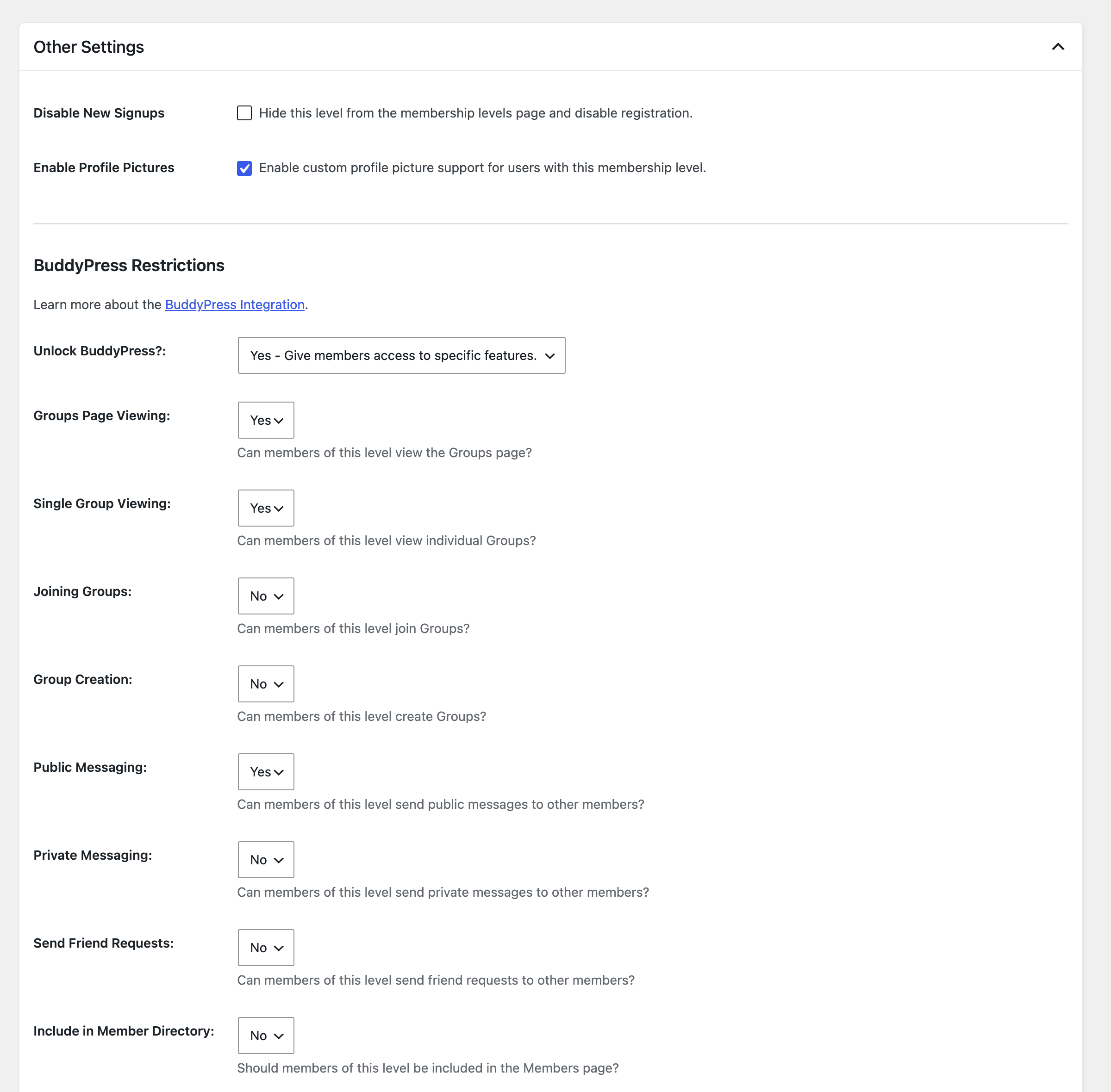
To see the settings for all of your levels at once, open the Membership Level Settings section under Memberships > PMPro BuddyPress.
Choose the Level’s Community Access
- Unlock BuddyPress?: Choose one of four options. New levels default to No – Lock access to all of BuddyPress.
- No – Lock access to all of BuddyPress. The level doesn’t unlock anything. Members of the level get only the access you give non-member users.
- No – Use non-member user settings. The level follows your Non-member User Settings, including the specific features you unlocked there.
- Yes – Give members access to all of BuddyPress. Members of the level can use every community feature and are listed in the member directory.
- Yes – Give members access to specific features. Shows the feature list below so you can unlock features one by one.
Specific Features
Set each feature to Yes or No. Every feature defaults to No. The same list appears in the Non-member User Settings.
| Feature | What It Controls | What Happens Without Access |
|---|---|---|
| Groups Page Viewing | Viewing the Groups directory page. | The user is redirected to the Access Restricted page. Users without this access are also redirected away from their Notifications screen. |
| Single Group Viewing | Viewing individual group pages. | The user is redirected to the Access Restricted page, unless they already belong to the group or are allowed to join it. |
| Joining Groups | Joining any group or requesting membership. | Join Group and Request Membership buttons link to the Access Restricted page, and the group’s Request Membership tab is removed. Joining or requesting membership another way, such as through the BuddyPress REST API, is also blocked. Groups selected for the level under Add to These Groups or Invite to These Groups can still be joined. |
| Group Creation | Creating new groups. | The Create a Group button links to the Access Restricted page and group creation is blocked. |
| Public Messaging | The Public Message button on member profiles. | The button is hidden. |
| Private Messaging | Sending private messages. | The Private Message button is hidden and the Messages screen redirects to the Access Restricted page. Messages they try to send another way, such as through the BuddyPress REST API, aren’t sent. |
| Send Friend Requests | Sending friend requests to other members. | The Add Friend button is hidden. |
| Include in Member Directory | Whether members of the level are listed in the Members directory. | Members of the level are left out of the Members directory when the directory is limited (see the note below). |
| View Documents | Viewing documents and folders. Only shown when a supported documents feature is active. | Document pages redirect to the Access Restricted page. |
| Upload Documents | Uploading or creating documents. Only shown when a supported documents feature is active. | Uploads and new documents are blocked. |
Document Restrictions
The View Documents and Upload Documents settings only appear when your site runs BuddyBoss Platform’s documents feature or the BuddyPress Docs plugin.
- BuddyBoss Platform: Without view access, the Documents pages redirect to the Access Restricted page and the Documents tab is removed from member profiles. Without upload access, document uploads in profiles and groups are blocked.
- BuddyPress Docs: Without view access, users can’t read docs or their comments, and Docs pages redirect to the Access Restricted page. Without upload access, users can’t create new docs.
How Access Is Combined
- Non-member settings are the baseline: A member always has at least the access you give non-member users. Level settings can add access but can’t take it away.
- Multiple levels: If a member holds more than one level, they get the most open combination of their levels’ settings. If any of their levels unlocks all of BuddyPress, they have access to everything. Groups and member types from all of their levels are combined.
- Administrators: Users who can manage site options pass every feature check, whether or not they have a level. See How the Lock Affects Administrators for one exception.
- Pending memberships: Only active levels count. If another Add On holds a membership as pending, such as the Approval Process for Membership Add On, the member gets the level’s community access after approval. With the Approval Process Add On, members pending approval also aren’t added to the level’s groups or given its member types until you approve them.
Add or Invite Members to Groups
Below the restriction settings, the BuddyPress Group Membership section appears when the User Groups component is active. Use it to place members of the level into groups automatically.
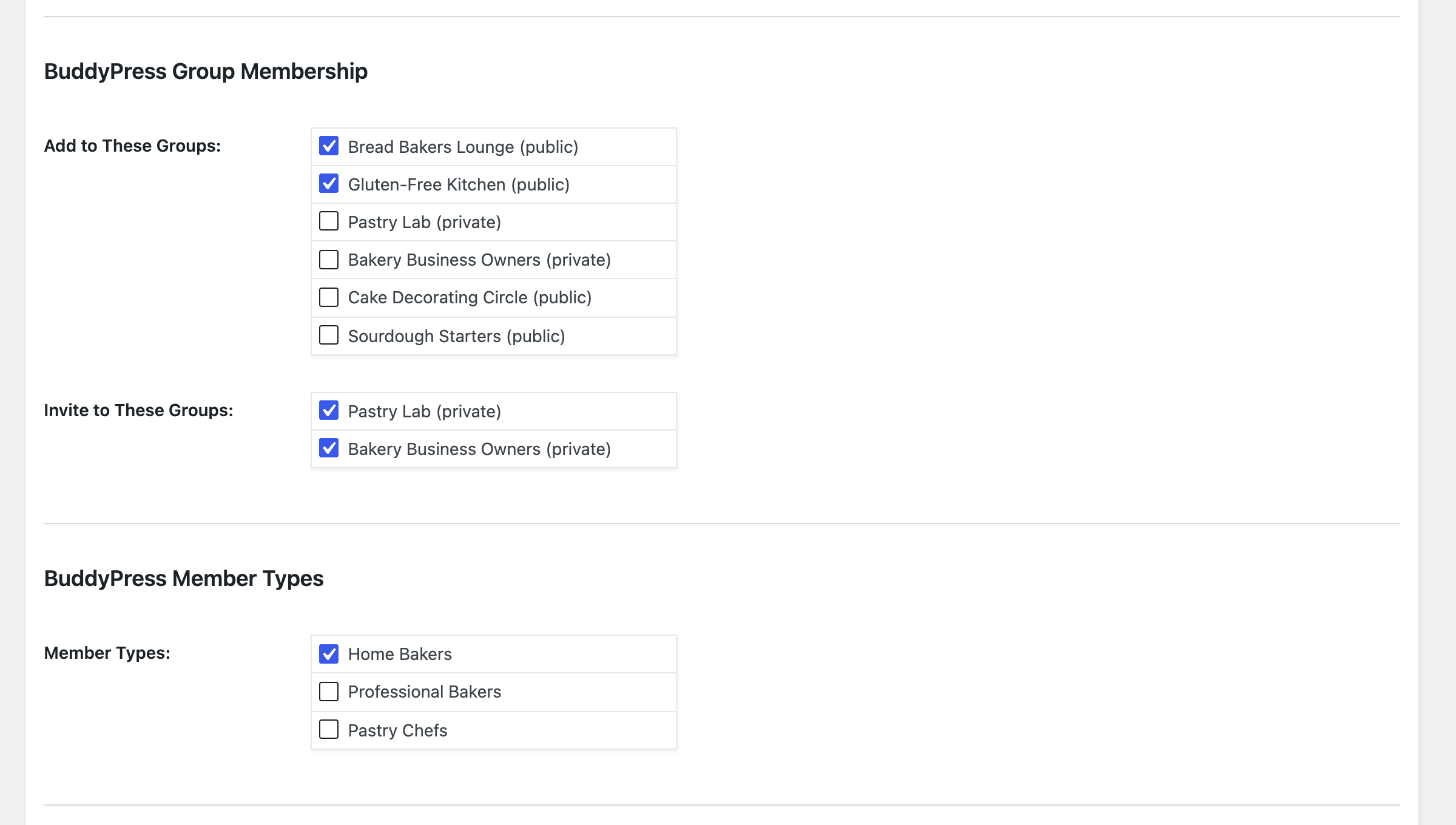
- Add to These Groups: Members of the level are added to the checked groups. The list includes every group on your site, with its status in parentheses.
- Invite to These Groups: Members of the level receive an invitation to the checked groups and can choose whether to join. Only private groups appear in this list. The invitation is sent from the group’s creator. Members aren’t invited to a group they were just added to or already belong to.
Group changes happen when a member’s level changes, such as at checkout, when an admin changes their level, or when their membership is cancelled or expires. When a member loses a level, they are uninvited from and removed from that level’s groups, unless one of their remaining levels includes the same group.
Assign Member Types by Level
The BuddyPress Member Types section lists the member types registered on your site. Check the types to assign to members of the level. If you haven’t created any member types yet, the section shows “There are no member types defined.”
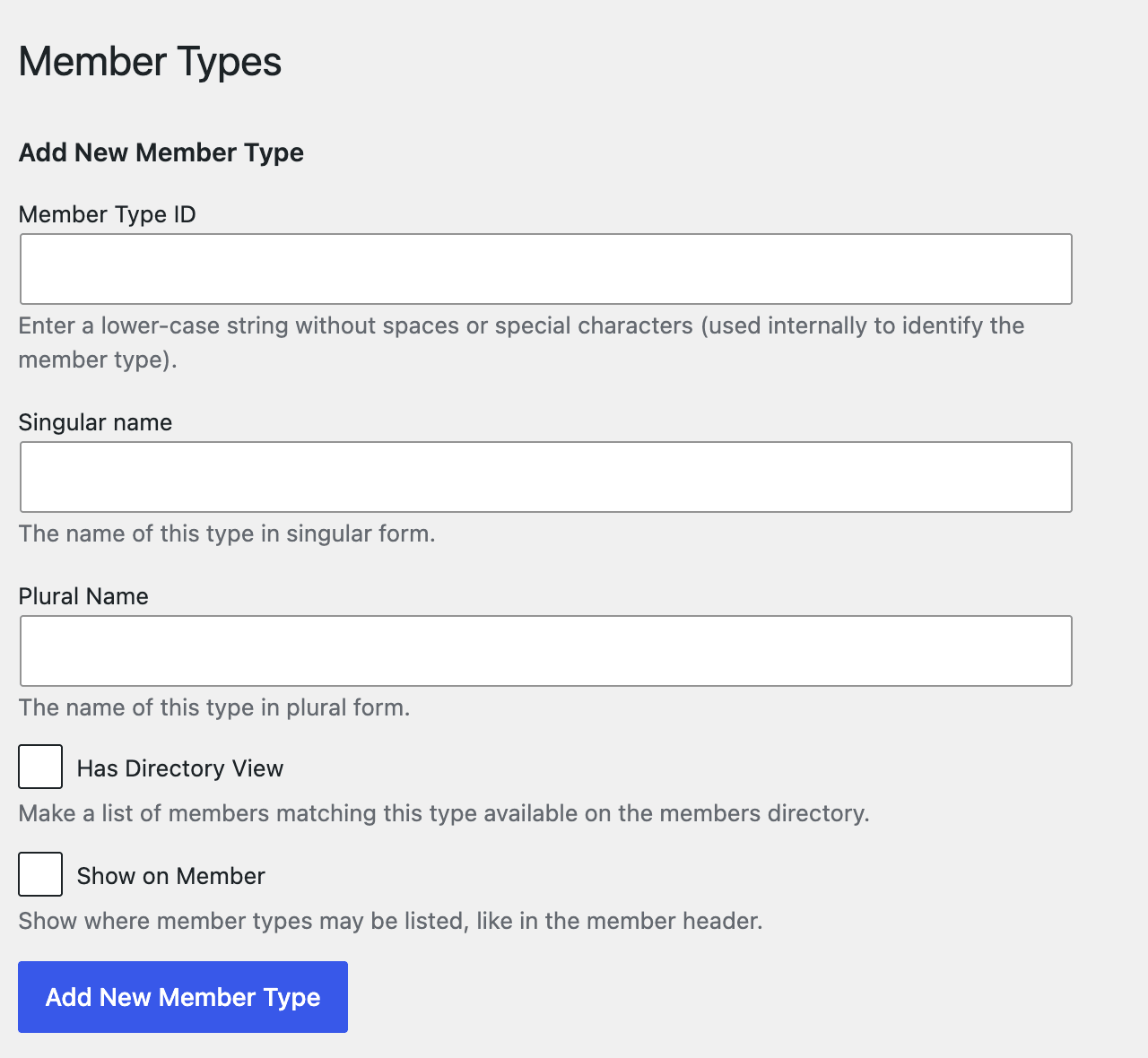
In BuddyPress, create member types under Users > Member Types in the WordPress admin. You can also register them with custom code, as shown in our guide to applying a BuddyPress member type on membership checkout.
When a member’s level changes, they receive the member types of their new levels, in addition to any types they already have. Member types from their old levels are removed unless one of their current levels also assigns that type. Saving new member type settings on a level doesn’t update members who already have that level.
Get Support From Our Team of Experts
Have a question about how to use this feature? Our Support Page outlines three ways to get support.
Our Max plans include hands-on help customizing your membership site and implementing new features. Upgrade to PMPro Max now »
Last updated on November 12, 2026

