The Add On sends membership data to Google Analytics as event parameters and user properties. To use this data in your GA4 reports and explorations, create a matching custom dimension for each one in your GA4 property.
Custom Dimensions to Create
Create these four custom dimensions. The dimension name and the event parameter or user property name should match exactly.
| Dimension Name | Scope | Event Parameter or User Property | What It Tracks |
|---|---|---|---|
membership_level | User | User property: membership_level | The membership level ID of the logged-in member, or no_level for visitors and users without a level. |
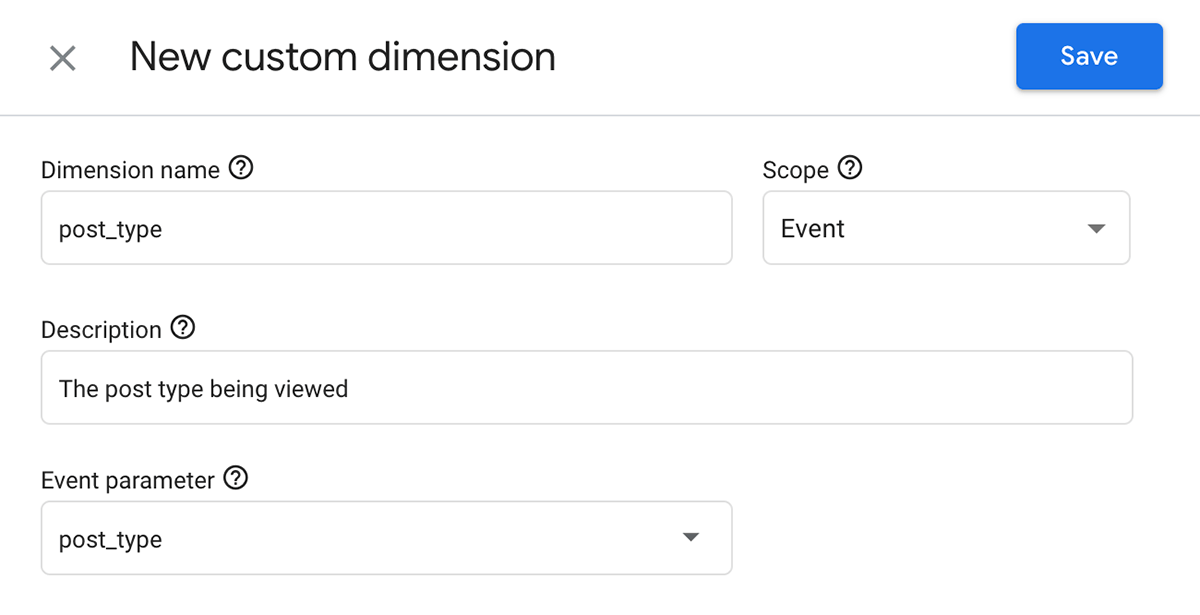
post_type | Event | Event parameter: post_type | The post type of the single post or page being viewed, such as post or page. |
author | Event | Event parameter: author | The display name of the author of the single post or page being viewed. |
category | Event | Event parameter: category | The category slug of the blog post being viewed, or a comma-separated list of slugs if the post has more than one category. |
How to Create a Custom Dimension
You need Editor access or above on the Google Analytics property to create custom dimensions.
- Sign in to your Google Analytics account and select the property connected to your membership site.
- Click Admin. Under Data display, click Custom definitions.
- Select the Custom dimensions tab, then click Create custom dimensions.
- Complete the fields for the
membership_leveldimension:- Dimension name:
membership_level - Scope: User
- Description: Optional. Enter a short note for your own reference.
- User property:
membership_level
- Dimension name:
- Click Save.
- Repeat these steps for
post_type,author, andcategory. For each of these, set the Scope to Event and enter the matching name in the Event parameter field.
Developers can add more event parameters or user properties with the Add On’s filter hooks. Create a custom dimension in GA4 for each new parameter or property you add.
Verify Your Reporting Identity for User-ID
The Add On sends the WordPress user ID of each logged-in user to Google Analytics as the GA4 User-ID. This lets GA4 connect a member’s activity across sessions and devices. To use User-ID data in your reports, check your property’s reporting identity:
- In Admin, under Data display, click Reporting Identity.
- Select Blended or Observed. Both options use User-ID when it’s available.
- Click Save.
Learn more in Google’s User-ID help article.
Get Support From Our Team of Experts
Have a question about how to use this feature? Our Support Page outlines three ways to get support.
Our Max plans include hands-on help customizing your membership site and implementing new features. Upgrade to PMPro Max now »
Last updated on November 6, 2026