The Add On updates Mailchimp as people register, check out, change levels, and edit their profiles. This page explains when each update happens, what changes when a membership level changes, and how members choose opt-in mailing lists.
When the Add On Updates Mailchimp
- New Registration Without a Level: When someone creates a user account without checking out for a membership level, they are added to your Non-member Audiences.
- Membership Checkout: After checkout, the member is subscribed to the audiences for their new level and to any opt-in audiences they checked. They are removed from non-member audiences they were already in.
- Level Changes, Cancellations, and Expirations: Any time a member’s level changes, including changes an administrator makes and memberships that expire, the Add On works out which audiences the member should be in. See What Happens When a Membership Level Changes.
- Opt-in Choices Change: When a member or administrator saves a profile with different opt-in audiences checked, the member is subscribed to the newly checked audiences and unsubscribed from the ones they unchecked.
- Email Address Changes: The contact’s email address is updated in Mailchimp. See Email Address Changes.
- Any Profile Save (Optional): If Update on Profile Save? is set to Yes, the Add On sends the user’s current data to Mailchimp every time their profile is saved. Only audiences the user already belongs to are updated: the audiences for their current levels (or your non-member audiences if they have no level), plus their opt-in audiences.
When the Add On removes someone from an audience, it sets their status to “Unsubscribed” in Mailchimp. It doesn’t delete the contact. If Require Double Opt-in? is set to Yes (All audiences), new subscriptions are added with a “Pending” status until the person confirms through Mailchimp’s opt-in email.
What Happens When a Membership Level Changes
Each time a member’s level changes, the Add On updates their audiences in this order:
- The member is subscribed to the audiences set for every level they now hold.
- If Unsubscribe on Level Change? is set to either Yes option, the member is unsubscribed from the audiences for the level they lost. Audiences that one of their current levels also uses are kept.
- If the member no longer has any level, they are added to your non-member audiences. If they still have a level, they are removed from any non-member audiences they’re in, unless one of their current levels also uses that audience. This step happens no matter how Unsubscribe on Level Change? is set.
- If the member no longer has any level and Unsubscribe on Level Change? is set to Yes (Old level and opt-in audiences.), they are unsubscribed from every opt-in audience and their saved opt-in choices are cleared. Otherwise, the opt-in audiences they chose stay as they are.
For example, say your Bake Club level uses the “Members” audience and your non-member audience is “Newsletter.” When a Bake Club member cancels, they are unsubscribed from “Members” (with either Yes option) and subscribed to “Newsletter.”
Opt-in Audiences at Checkout and on the Profile
Opt-in audiences let members choose extra mailing lists, such as a weekly recipe email or event announcements. Set them in the Opt-in Audiences setting. Members only see the opt-in section when at least one opt-in audience is set and the Add On can connect to Mailchimp.
Membership Checkout Page
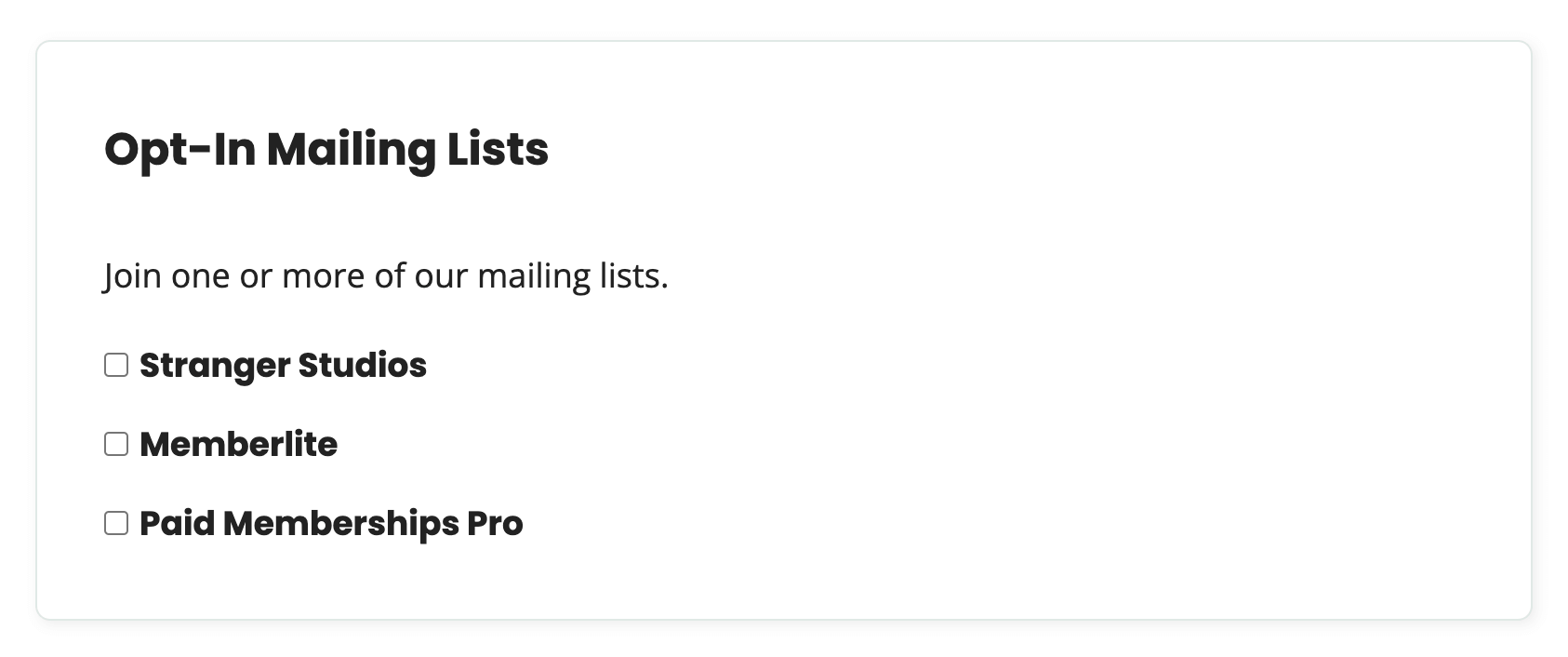
The checkout page shows an Opt-In Mailing Lists section with a checkbox for each opt-in audience. With only one opt-in audience, the heading reads Opt-In Mailing List. Logged-in members who are already subscribed to an opt-in audience see that box checked.
Member Profile Edit Page
Members can change their opt-in choices from the frontend Member Profile Edit page. The same Opt-In Mailing Lists section appears above the Update Profile button.

Edit User Screen in the WordPress Admin
Administrators can change a member’s opt-in choices from the user’s profile in the WordPress admin. Look for the Opt-in Mailchimp Audiences section and the Mailing Lists checkboxes. Users see the same section on their own Profile screen if they have access to the WordPress admin.

The Add On only accepts audiences that are set in the Opt-in Audiences setting. Any other audience ID submitted with the form is ignored.
Opt-in Status Is Checked in Mailchimp
When a logged-in user loads the checkout page or a profile form, the Add On asks Mailchimp for their current status in each opt-in audience. Audiences where they are subscribed or pending are checked. Audiences they’ve left are unchecked. So if a member unsubscribes using the link in a Mailchimp email, their profile reflects that the next time it loads.
This check makes one request to Mailchimp for each opt-in audience. Developers can turn it off with the pmpromc_disable_automatic_additional_audiences_updates filter.
Email Address Changes
When a user’s email address changes in WordPress, the Add On finds their contact in each of their audiences (level audiences, or non-member audiences if they have no level, plus opt-in audiences) and changes the email address on that contact. The contact keeps its status and history.
If Mailchimp won’t change the address, for example because the new address is already a contact in that audience, the Add On unsubscribes the old address from that audience so it stops getting your emails. The new address is then updated in the audience with the same status the old address had.
Get Support From Our Team of Experts
Have a question about how to use this feature? Our Support Page outlines three ways to get support.
Our Max plans include hands-on help customizing your membership site and implementing new features. Upgrade to PMPro Max now »
Last updated on November 13, 2026