Each time the Add On adds or updates a contact, it sends the member’s email address, name, and membership level details as Mailchimp merge fields. Use these fields to build segments and personalize your campaigns, send extra profile data with custom code, and import members who joined before you set up the integration.
Contact Data Sent to Mailchimp
| Field | Mailchimp Type | Value |
|---|---|---|
| Email address | Contact email | The user’s email address in WordPress. |
FNAME | Your audience’s existing field | The First Name from the user’s WordPress profile. Sent blank if the user hasn’t entered one. |
LNAME | Your audience’s existing field | The Last Name from the user’s WordPress profile. Sent blank if the user hasn’t entered one. |
PMPLEVELID | Number | One membership level ID. If the member holds more than one level, this is the first active level Paid Memberships Pro returns for them. Blank for users without a level. |
PMPALLIDS | Text | Every active membership level ID the member holds, each wrapped in curly braces, such as {2}{5}. Sent as {} for users without a level. |
PMPLEVEL | Text | A comma-separated list of the names of every active membership level the member holds. Blank for users without a level. |
Before it updates an audience, the Add On checks that the audience has the PMPLEVELID, PMPALLIDS, and PMPLEVEL merge fields and creates any that are missing. You don’t need to add them in Mailchimp yourself. The Add On doesn’t create FNAME or LNAME, so make sure your audience has fields with those tags if you want to store names.
The braces in PMPALLIDS keep each ID distinct, so {5} can’t be mistaken for part of {15} or {50} when you filter contacts by level.
Send Additional Fields to Mailchimp
To send more data, such as a member’s phone number or a User Field they fill out at checkout, use two filters together:
pmpro_mailchimp_listsubscribe_fieldsadds the field and its value to the data sent for each contact.pmpro_mailchimp_merge_fieldstells the Add On to create the merge field in your audience if it’s missing.
This example sends the value of a user meta field named phone to a Mailchimp merge field with the tag PHONE. Change both to match your site.
function my_pmpromc_send_phone( $fields, $user, $audience ) {
	$fields['PHONE'] = get_user_meta( $user->ID, 'phone', true );
	return $fields;
}
add_filter( 'pmpro_mailchimp_listsubscribe_fields', 'my_pmpromc_send_phone', 10, 3 );

function my_pmpromc_create_phone_field( $merge_fields, $list_id ) {
	$merge_fields[] = array( 'name' => 'PHONE', 'type' => 'text' );
	return $merge_fields;
}
add_filter( 'pmpro_mailchimp_merge_fields', 'my_pmpromc_create_phone_field', 10, 2 );
Fields you add with pmpro_mailchimp_listsubscribe_fields are also added as columns to the CSV export described below. For more examples, see these guides:
- Send Additional User Information Fields to Mailchimp
- Send a Member’s Mailing Address Details to Mailchimp
Import Existing Members Into Mailchimp
The Add On only syncs members when something happens on your site, such as a checkout, level change, or profile update. Members who joined before you set up the integration aren’t added to Mailchimp until one of those things happens. To add them now, export a CSV of each level’s members and import it into Mailchimp.
- Navigate to Settings > PMPro Mailchimp in the WordPress admin.
- Under Synchronize a Member’s Level Name and ID, click Click here to export your members list for a MailChimp Import.
- Choose a Membership Level and click Download List (.CSV). Repeat for each level you want to import.
- In Mailchimp, import each file into the audience you assigned to that level. Map the columns to merge fields with the same uppercase names, such as
PMPLEVELandPMPLEVELID, and choose to update existing contacts so current subscribers get the new data.
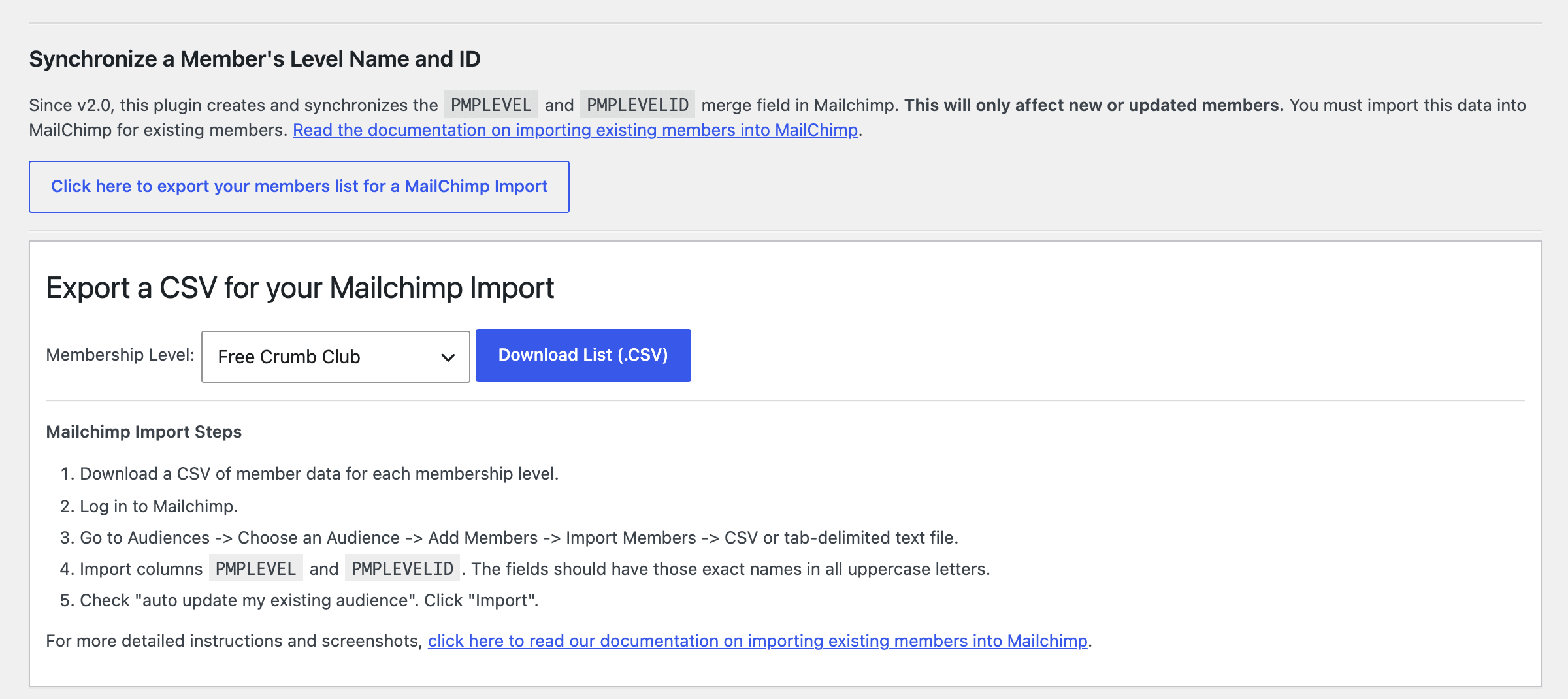
Each file includes active members of the selected level only. The columns are email, FNAME, LNAME, PMPLEVELID, PMPALLIDS, PMPLEVEL, and any fields you’ve added with custom code. To download the file, a user needs the manage_options capability (administrators) or the pmpro_memberslistcsv capability.
Mailchimp’s import screens change from time to time. For a full walkthrough with screenshots, read our guide to importing level name and ID data for existing members.
Get Support From Our Team of Experts
Have a question about how to use this feature? Our Support Page outlines three ways to get support.
Our Max plans include hands-on help customizing your membership site and implementing new features. Upgrade to PMPro Max now »
Last updated on November 13, 2026