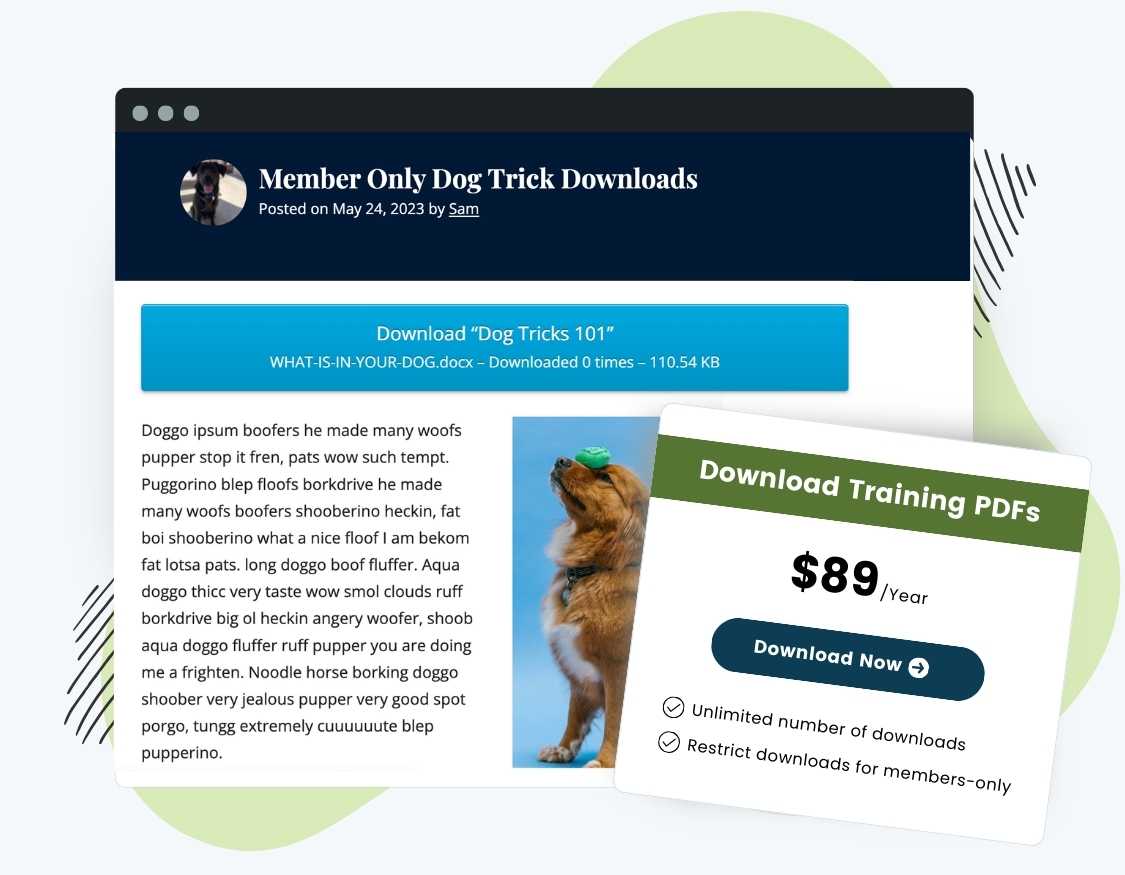
Paid Memberships Pro is the most complete membership plugin for WordPress that allows you to charge for access to content. Download Monitor is a plugin that helps you manage a library of downloadable files within your WordPress site.
Use the Download Monitor Integration to combine the features of both plugins and protect downloads for members only. Key features of the integration include:
- Members-Only Downloads: Require membership to access certain downloads directly from the Edit Download page in Download Monitor.
- Download Tracking: See which downloads your members are most interested in so you can deliver more content that your audience wants.
- Increase Conversions: When non-members try to access a protected download, they are redirected your membership levels or pricing page, softly guiding them towards your premium plans.
Download our free integration plugin today to start offering protected downloads as a feature of membership.
Installation
You must have the Paid Memberships Pro plugin installed and activated to use this Add On.
- Navigate to Memberships > Add Ons in the WordPress admin.
- Locate the Add On and click “Install Now“.
- Or, to install this plugin manually, download the .zip file above.
- Upload the compressed directory (.zip) via the Plugins > Add New > Upload Plugin screen in the WordPress admin.
- Activate the plugin through the Plugins screen in the WordPress admin.
Video: Download Monitor Integration Demo
How to Protect Downloads for Members Only
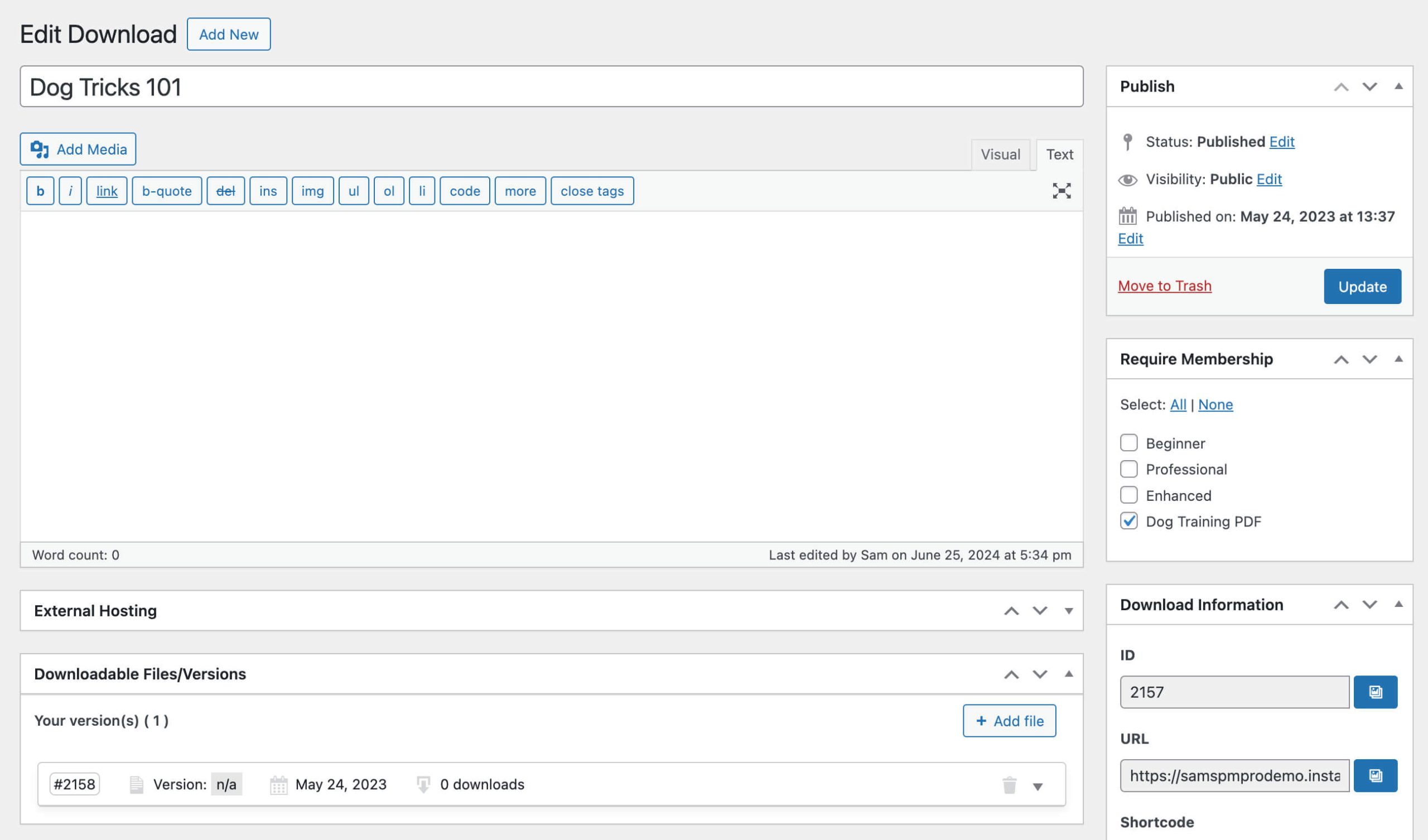
With this integration Add On and Download Monitor active, you will get the same Require Membership setting included for posts and pages for the new Download post type.
Set a Download Monitor ‘Download’ to Require Membership
- In the WordPress admin, navigate to Downloads to Edit or Add a New Download.
- In the Download single edit screen, locate the Require Membership settings box in the right column.
- Select one or more levels that can access this download.
- Save your changes by clicking Update or Publish (if you are creating a new download).
Add the Download Button or Shortcode to Posts or Pages
Using the Download Button Block (Recommended)
The best way to display downloads is by using the Download Button block provided by Download Monitor. This method works seamlessly with the WordPress block editor and allows you to configure your download directly within the page.
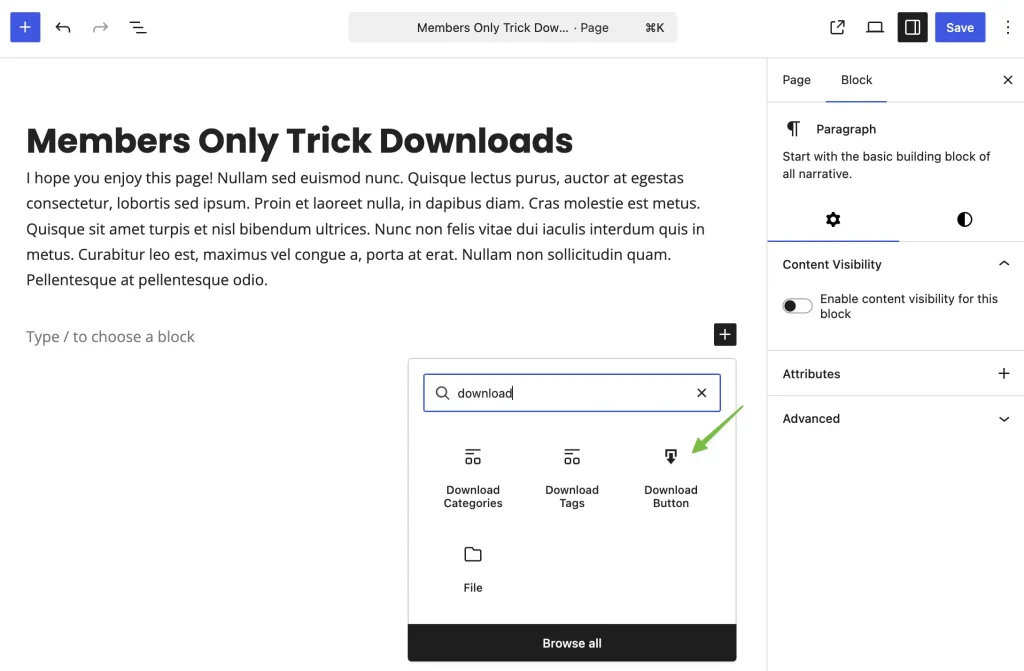
To get started, open the post or page where you would like to add the download. In the block editor, click the add block (+) icon and search for “Download Button”, then select the block to insert it into your content.
Once the block has been added, you can configure it using the settings panel on the right-hand side. From here, choose the specific download you want to display, select a version if applicable, and adjust the template or layout settings as needed.
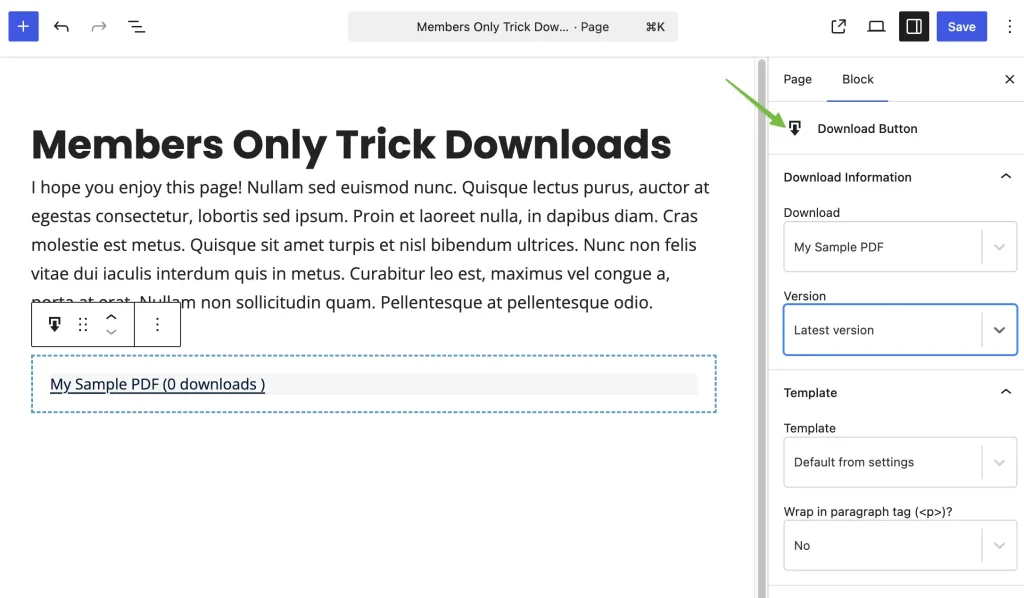
After configuring the block, update or publish the page and the download button will be visible to your users.
Using a Shortcode (Advanced Use Cases)
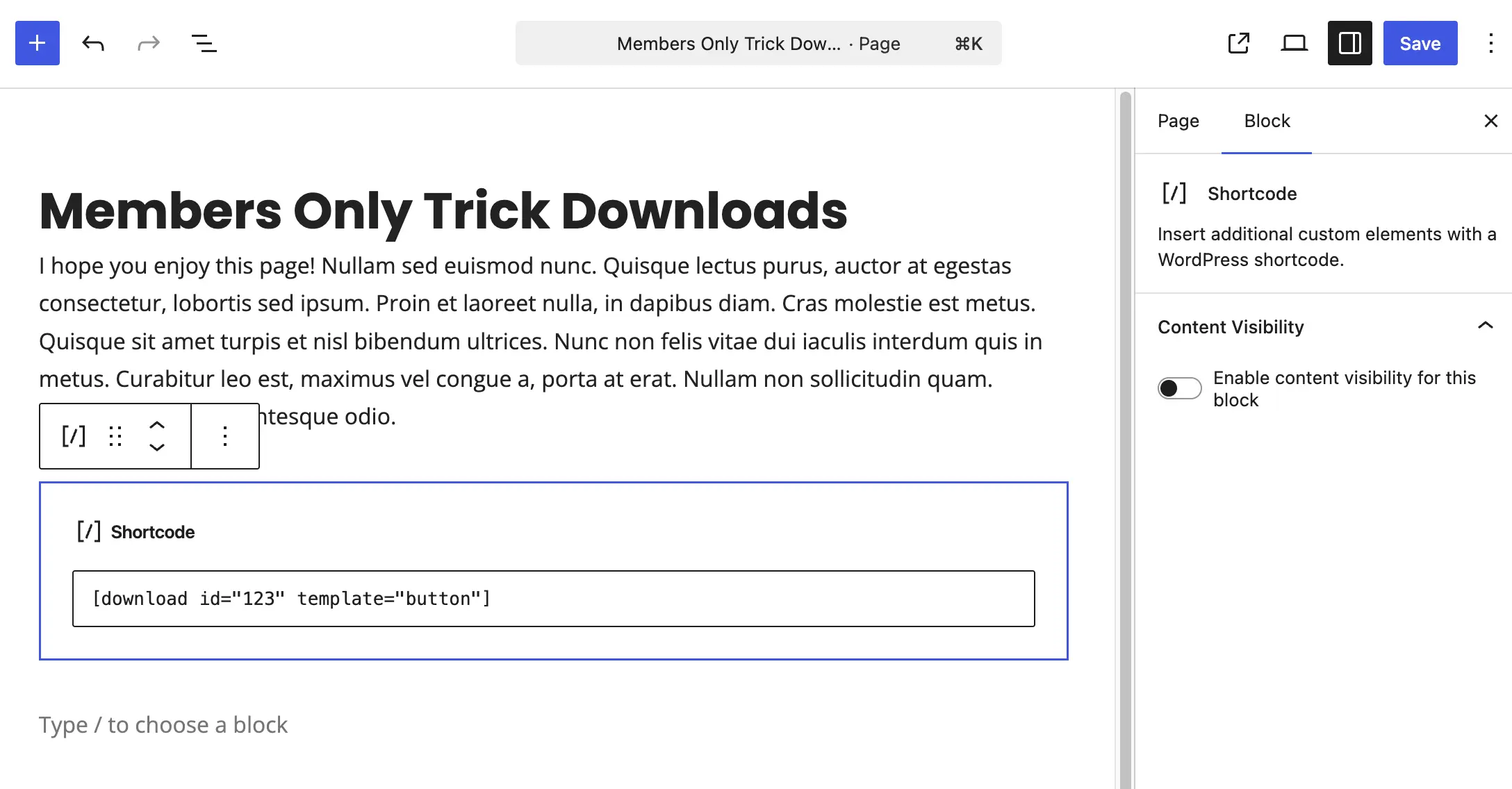
Download Monitor Download Monitor also allows you to embed a download using a shortcode. This is useful for advanced use cases or when working outside of the block editor:
Example:
[download id="123"]
You can optionally specify a template:
[download id="123" template="pmpro"]
Shortcode attributes include:
id: The ID of the single download.template: The template that you want to use to show the download.
Available Template Options
Download Monitor includes several built-in templates that control how your download is displayed:
default– Uses the default template set in Download Monitorbutton– Displays a styled button with title and download countbox– Displays a box with thumbnail, title, description, filename, and filesizefilename– Displays filename and download counttitle– Displays the download title onlyversion_list– Displays all available versions in a list
You can also define a custom template:
- In the block settings, select “Custom template” from the Template dropdown
- Enter the template name in the Custom Template field
Note: Older documentation referenced templates with a pmpro_ prefix (e.g., pmpro_box, pmpro_button). These prefixes are no longer used. Please use the template names as listed above.
We’ve included some screenshots of the custom templates below. For more documentation on this shortcode, visit the Download Monitor shortcode documentation.
Screenshots
Restricted Content Behavior
Download output is automatically adjusted based on a user’s membership access.
- If a user is not logged in or does not meet the required membership level, the download link will not be shown. Instead, a restricted version of the selected template is displayed.
- If no template is specified in the shortcode or block settings, the default template defined in Download Monitor settings will be used (typically the Title and count template).
![Insert the [download] shortcode into a post using the Download ID and custom template attributes to swap the download file for a non-members CTA and link to Membership Levels page](https://www.paidmembershipspro.com/wp-content/uploads/2016/01/edit-post-download-shortcode-scaled.jpg)
![Example download embedded using the box template. Shortcode example used: [download id="123" template="box"]](https://www.paidmembershipspro.com/wp-content/uploads/2023/05/template-pmpro-box-monitor-download.png)
![Example download embedded using the button template. Shortcode example used: [download id="123" template="button"]](https://www.paidmembershipspro.com/wp-content/uploads/2023/05/template-pmpro-button-download-monitor.png)
![Example download embedded using the filename template. Shortcode example used: [download id="123" template="filename"]](https://www.paidmembershipspro.com/wp-content/uploads/2023/05/template-pmpro-filename-download-monitor.png)
![Example download embedded using the title template. Shortcode example used: [download id="123" template="title"]](https://www.paidmembershipspro.com/wp-content/uploads/2023/05/template-pmpro-title-download-monitor.png)
Action and Filter Hooks
Developers can hook into Download Monitor template loading using the filter dlm_get_template_part if deeper customization is required.
This is a Free Add On.
Create a free account or log in to gain access to downloads and documentation.

