
By default, WordPress sends email through your server’s built-in mail() function. That email is easy for spam filters to distrust, which is why welcome messages, invoices, and password resets so often land in spam or vanish entirely.
Routing your email through an authenticated SMTP server or a transactional email API tells the receiving server the message is legitimate, and delivery improves. For the best results, pair it with correct SPF, DKIM, and DMARC records for your sending domain.
This Add On connects your site to a mail provider of your choice. Use a generic SMTP server, or connect one of six transactional email APIs. Send a test email from the settings page to confirm delivery before you go live.
- Connect any SMTP server with host, port, encryption, and authentication.
- Send through a transactional email API: SendGrid, Mailgun, Postmark, Brevo, Resend, or MailerSend.
- Configure an optional backup provider that takes over automatically if your primary API provider fails.
- Enable sandbox mode to stop all outgoing email on staging and development sites.
- Send a test email and view connection diagnostics right from the settings page.
- Keep your existing sender settings and Paid Memberships Pro email logging (both continue to work unchanged).
Installation
You must have the Paid Memberships Pro plugin installed and activated to use this Add On.
- Navigate to Memberships > Add Ons in the WordPress admin.
- Locate the Add On and click “Install Now“.
- Or, to install this plugin manually, download the .zip file above.
- Upload the compressed directory (.zip) via the Plugins > Add New > Upload Plugin screen in the WordPress admin.
- Activate the plugin through the Plugins screen in the WordPress admin.
How to Set Up PMPro SMTP
- Navigate to Memberships > SMTP in the WordPress admin.
- On the Connection tab, choose the provider you want to use to send your site’s email.
- Enter the credentials for that provider (see Email Providers below).
- Click Save Settings.
- Open the Test Email tab and send a test to confirm delivery.
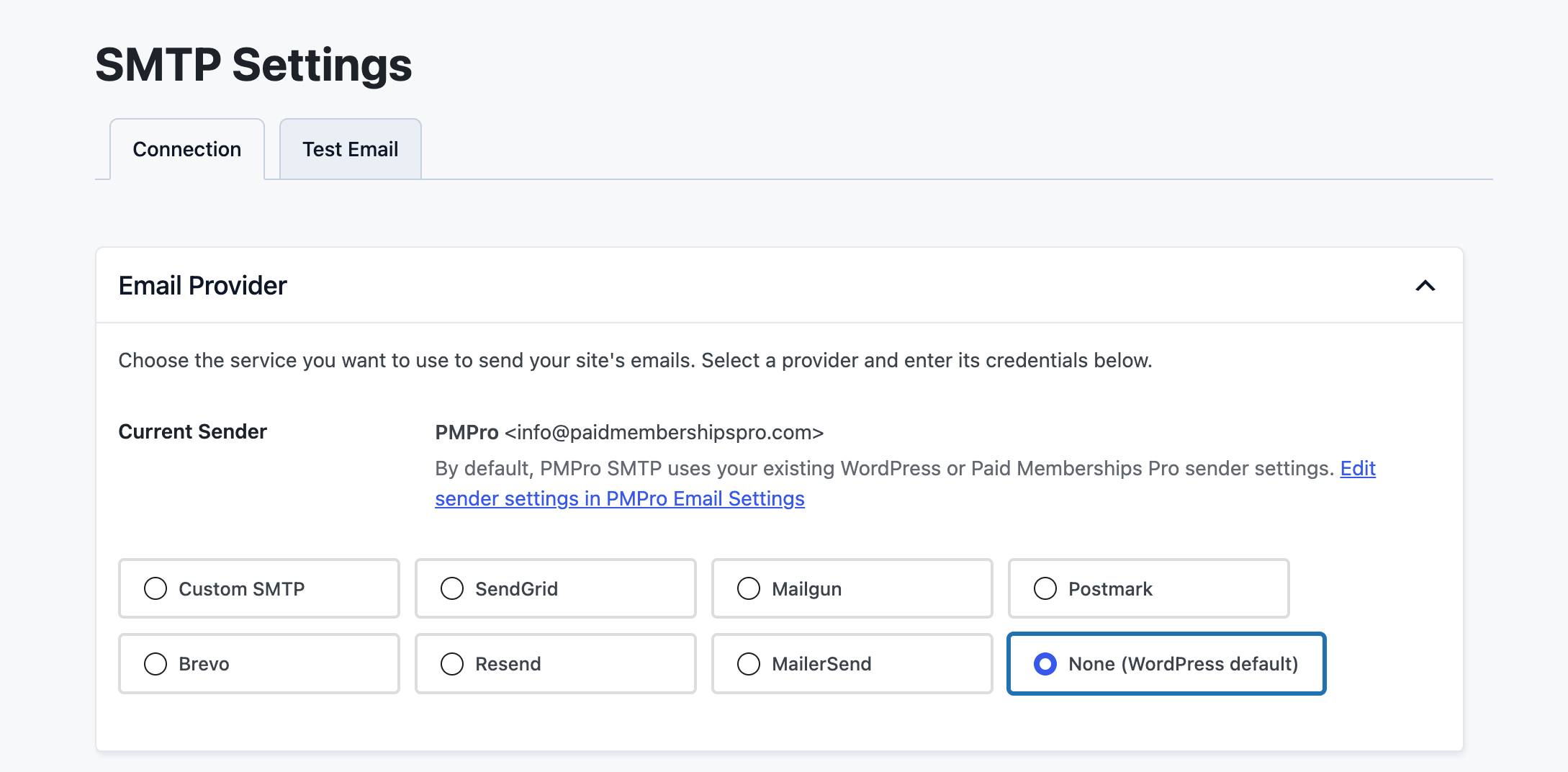
Current Sender
PMPro SMTP does not change who your email comes from. The Current Sender shown on the Connection tab is the from name and from email that WordPress and Paid Memberships Pro already use. To change them, edit your sender settings on the Paid Memberships Pro Email Settings page (or, if Paid Memberships Pro is not active, in WordPress Settings > General). The Current Sender field links straight to the right place.
Most providers require your from email address to be on a domain you have verified with them. If your sender address uses a domain the provider has not verified, delivery may fail. Verify your sending domain in the provider’s dashboard first, and send from a real email address on your own domain, not a free Gmail or Yahoo address.
Email Providers
Select one provider as your primary sender on the Connection tab. Choose None (WordPress default) to leave WordPress email untouched. You can enter credentials for more than one provider and switch between them at any time.
Custom SMTP
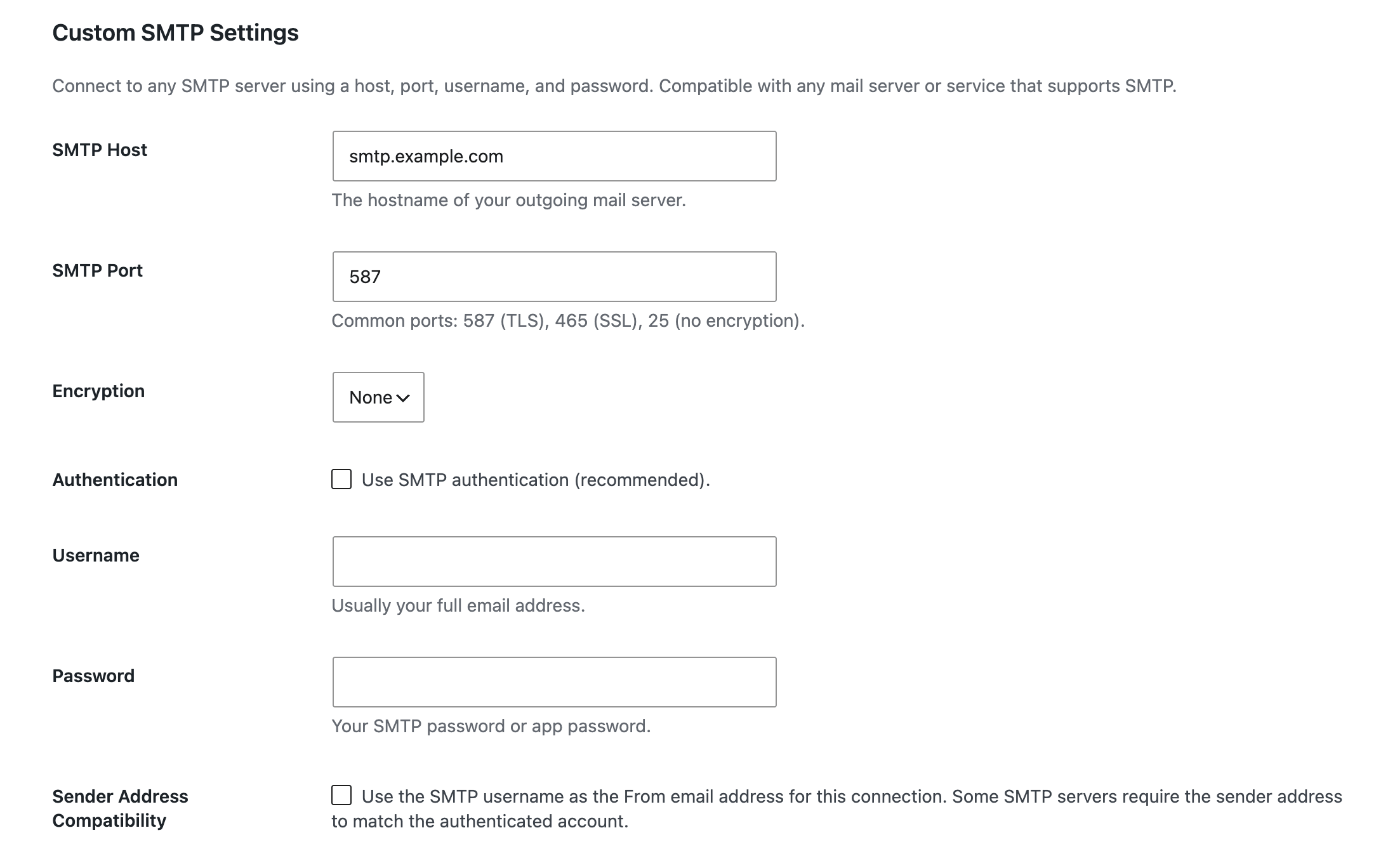
Connect to any SMTP server using a host, port, username, and password. This works with any mail server or service that supports SMTP, including Google Workspace and Gmail (app password required).
- SMTP Host: The hostname of your outgoing mail server (for example,
smtp.example.com). - SMTP Port: Common ports are 587 (TLS), 465 (SSL), and 25 (no encryption).
- Encryption: None, TLS, or SSL.
- Authentication: Enable to use SMTP authentication. Recommended.
- Username: Usually your full email address.
- Password: Your SMTP password or app password.
- Sender Address Compatibility: Use the SMTP username as the from email address for this connection. Enable this when your SMTP server requires the sender address to match the authenticated account.
Google Workspace and Gmail
Gmail and Google Workspace work with the Custom SMTP connector, but you must use an app password. An App Password is a 16-character password you create in your Google account for this connection. Your normal Google account password will not work.
On the Google side:
- Turn on 2-Step Verification for the account. Google requires it before you can create an app password.
- Create an app password. Google generates a 16-character password.
- Copy that password. You will paste it into the Password field in PMPro SMTP.
Then, in PMPro SMTP, use the Custom SMTP connector with these settings:
- Host:
smtp.gmail.com - Port:
587 - Encryption: TLS
- Authentication: Enabled
- Username: Your full Google email address
- Password: The Google app password you created above; not your normal account password
If the account is managed by Google Workspace, app passwords may also need to be enabled by the Workspace administrator.
Transactional Email APIs
Instead of SMTP, you can send through a transactional email API. API providers send over HTTPS, which is often faster and more reliable than SMTP and works even when your host blocks outgoing SMTP ports. Each provider needs an account and an API credential.
- SendGrid: Enter an API Key. Create one in your SendGrid account under Settings > API Keys.
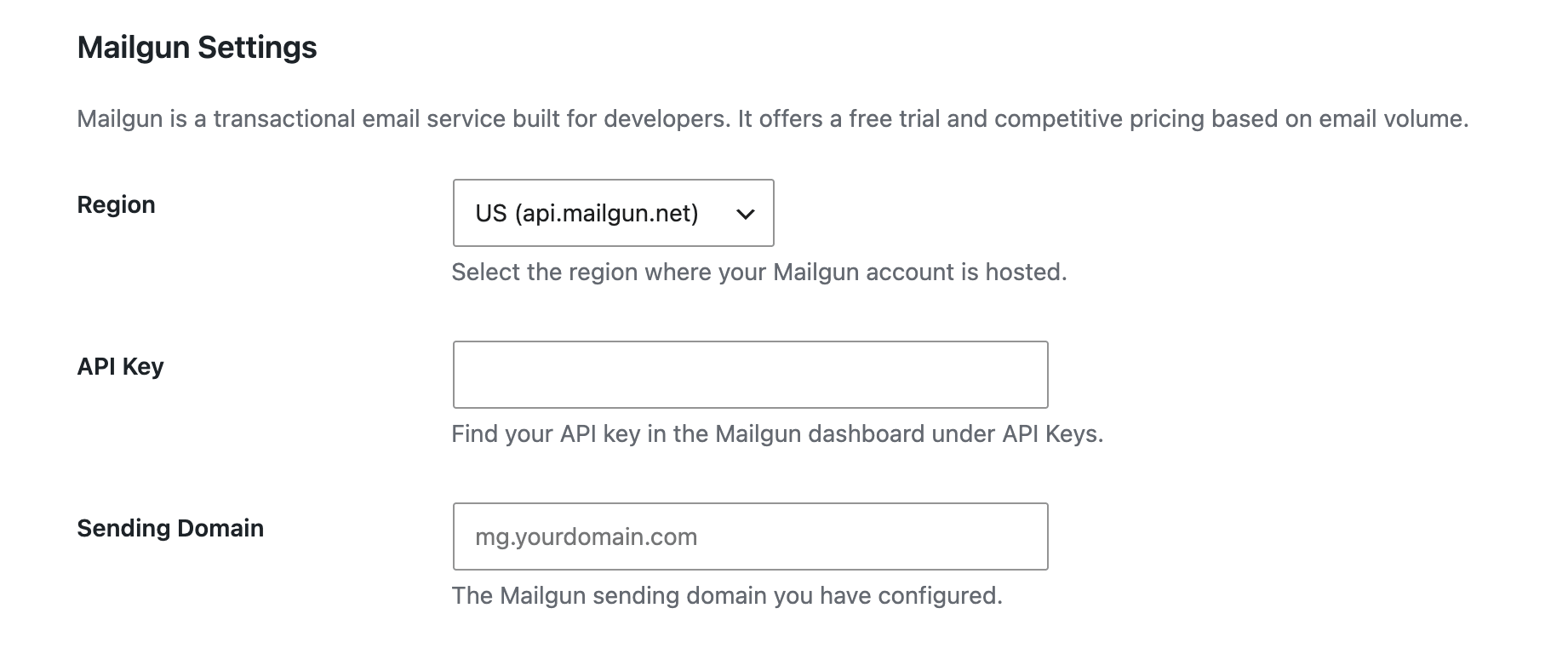
- Mailgun: Choose your account Region (US or EU), then enter your API Key and Sending Domain (for example,
mg.yourdomain.com). - Postmark: Enter a Server Token, found in the Postmark dashboard under your Server > API Tokens.
- Brevo: Enter an API Key, found in the Brevo dashboard under SMTP & API > API Keys.
- Resend: Enter an API Key, created in your Resend dashboard under API Keys.
- MailerSend: Enter an API Token, created under Domains > your domain > API Tokens.
Backup Provider
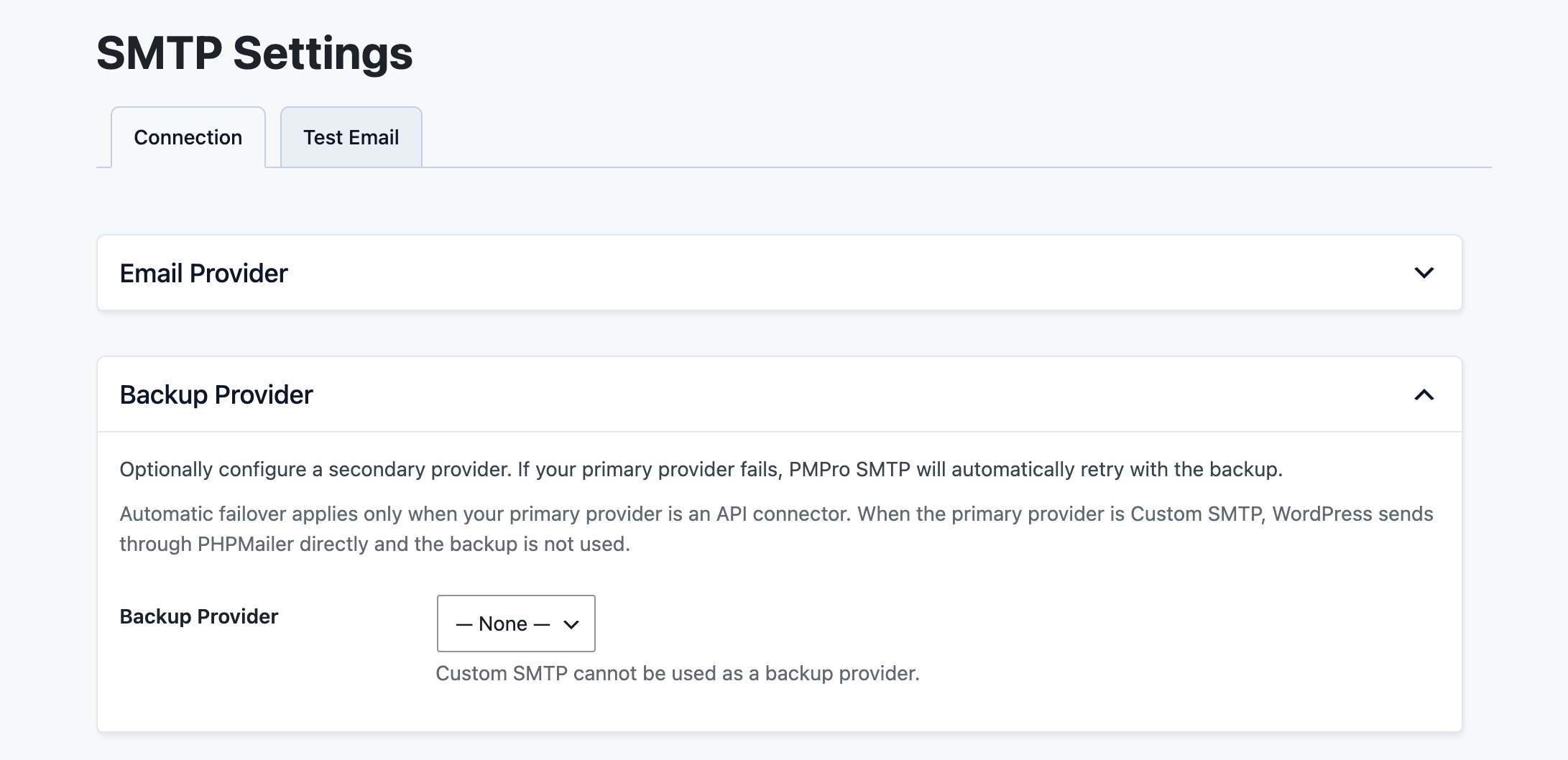
You can configure a secondary provider that takes over automatically if your primary provider fails to send. Select a Backup Provider in the Backup Provider section, save your settings, and enter that provider’s credentials.
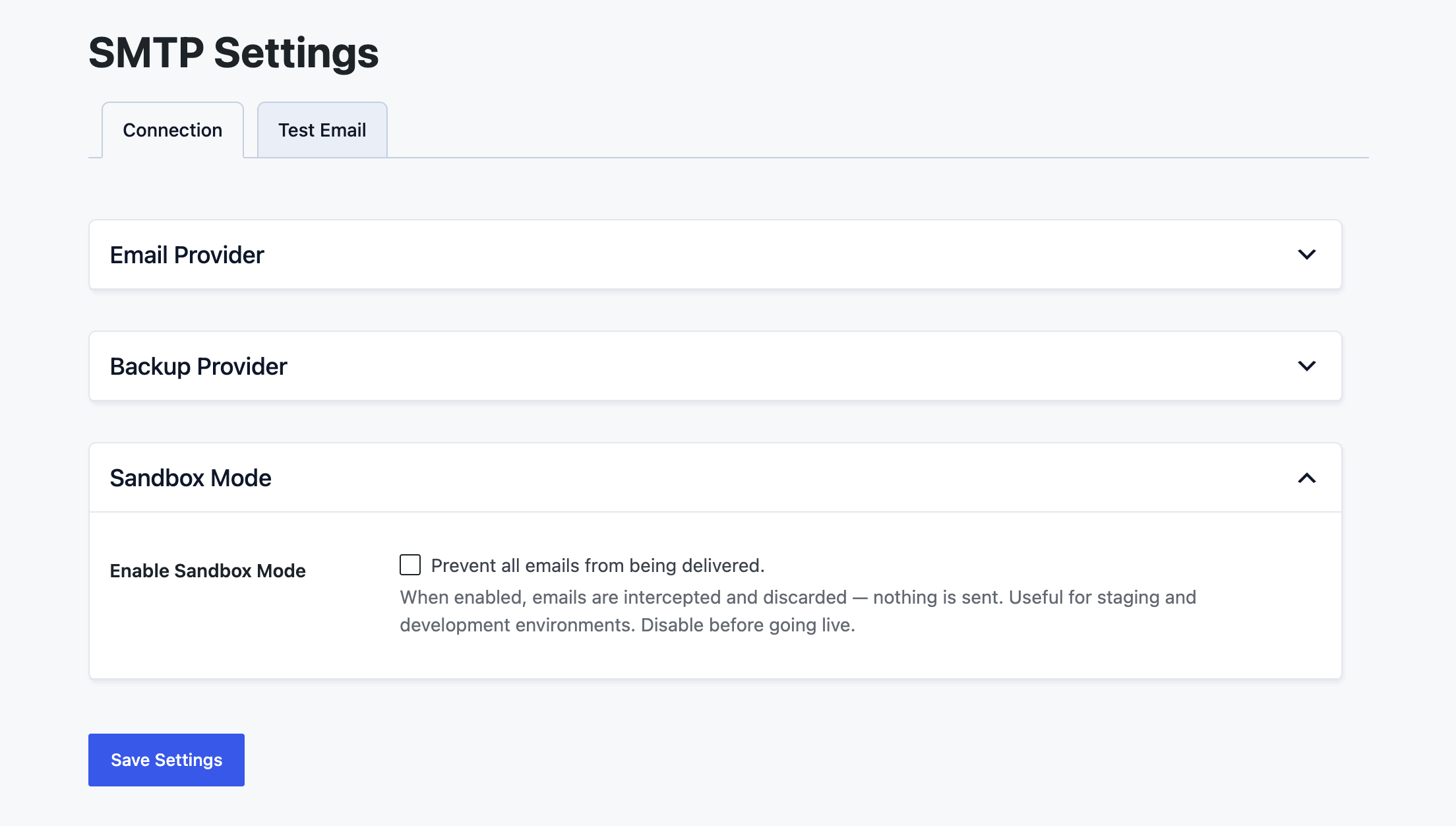
Sandbox Mode
Sandbox mode stops all outgoing email. When it is enabled, PMPro SMTP intercepts every message and discards it: nothing is delivered. This is useful on staging and development sites where you do not want test data to reach real inboxes.
Enable it under Enable Sandbox Mode in the Sandbox Mode section. While sandbox mode is active, a warning appears at the top of the settings page. Disable sandbox mode before your site goes live.
Sending a Test Email
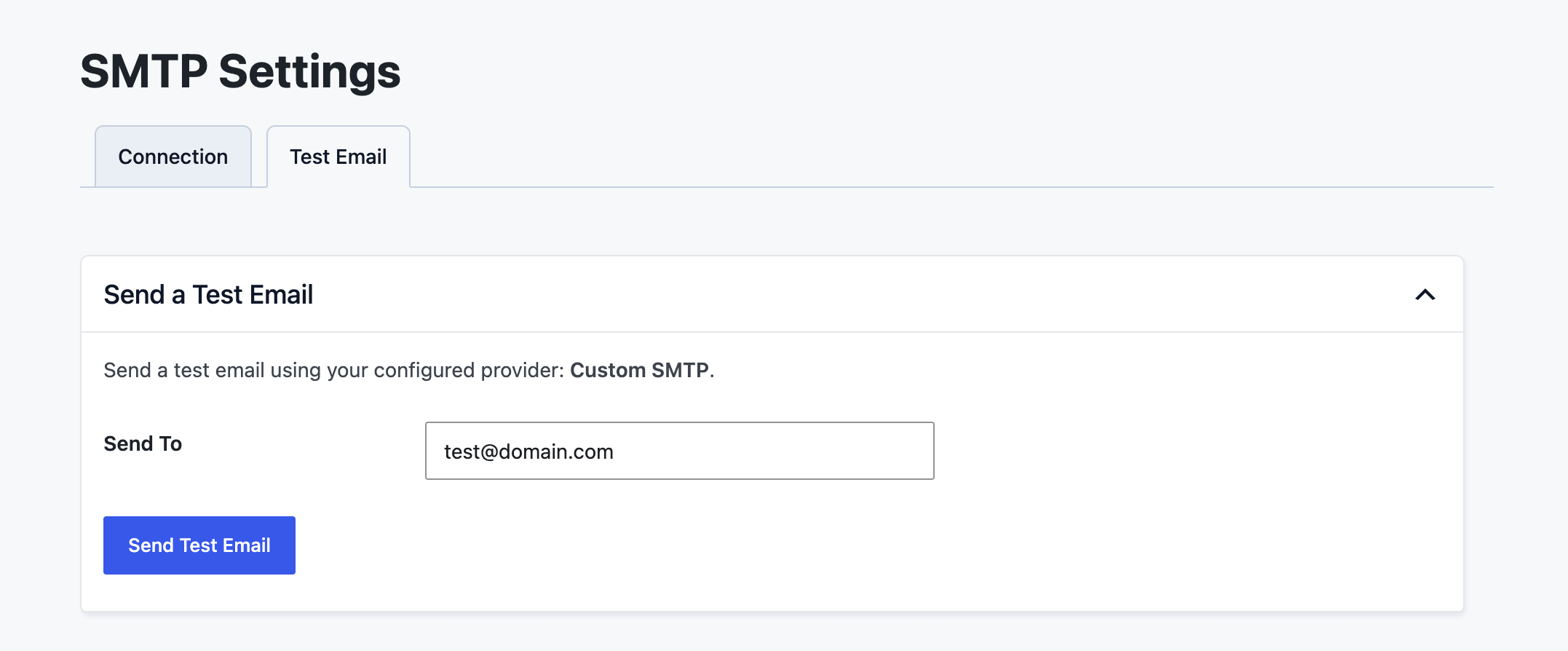
After you save a provider, open the Test Email tab to confirm delivery works.
- Navigate to Memberships > SMTP > Test Email.
- Enter the address to send to. Your admin email is filled in by default.
- Click Send Test Email.
The test email is sent using your configured provider. If it fails, PMPro SMTP shows the error and connection diagnostics so you can troubleshoot the problem. For common causes and fixes, see Troubleshooting Email Delivery on Your Membership Site. When sandbox mode is active, the test reports that the email was not delivered.
How Email Sending Works
PMPro SMTP takes over your site’s outgoing email in one of two ways, depending on the provider you choose:
- Custom SMTP configures WordPress’s built-in mailer (PHPMailer) to connect to your SMTP server. Email flows through the normal WordPress send path.
- API providers send each message over the provider’s HTTPS API instead of PHPMailer.
Your from name and from email are still managed by WordPress and Paid Memberships Pro—PMPro SMTP does not override them (except for the optional Custom SMTP “Sender Address Compatibility” setting). Paid Memberships Pro email logging also continues to work: successful and failed sends are recorded in the PMPro email log for every provider.
Hosting your site with us? See Transactional Emails in PMPro Hosting for how email delivery works on our platform.
Action and Filter Hooks
apply_filters( 'pmpro_smtp_connectors', array $connectors );
Filter the list of available connectors. Use this to add a custom connector or remove one from the provider list. Each connector is keyed by its slug (for example, sendgrid) and extends the PMPRO_SMTP_Connector_Base class.
PMPro SMTP also honors the standard WordPress mail filters wp_mail_from, wp_mail_from_name, and wp_mail_content_type, so any sender or content-type customization you already apply continues to work across every provider.
Frequently Asked Questions
Yes. Use the Custom SMTP connector with host smtp.gmail.com, port 587, TLS encryption, and authentication enabled. Your username is your full Google email address, and the password must be a Google app password, not your normal account password. Creating an app password requires 2-Step Verification on the account, and if the account is managed by Google Workspace, app passwords may also need to be enabled by the Workspace administrator.
No. Paid Memberships Pro core continues to handle email logging. Successful and failed sends are recorded in the PMPro email log for every provider, including the API connectors.
Automatic failover applies only when your primary provider is a transactional email API (SendGrid, Mailgun, Postmark, Brevo, Resend, or MailerSend). When the primary provider is Custom SMTP, WordPress sends through PHPMailer directly and the backup is not used. Custom SMTP also cannot be selected as a backup provider.
Paid Memberships Pro applies its optional theme email_header.html and email_footer.html template files on the PHPMailer send path. API connectors send through the provider’s HTTP API and short-circuit WordPress before PHPMailer is constructed, so those legacy theme header/footer files are not applied on the API path. The Custom SMTP connector goes through PHPMailer and applies them as usual. Most PMPro email templates already include their own HTML wrapping and are unaffected.
No. Your from name and from email remain managed by WordPress and Paid Memberships Pro. The only exception is the optional Custom SMTP Sender Address Compatibility setting, which forces the from address to the SMTP username for servers that require the sender to match the authenticated account.
Sandbox mode intercepts and discards all outgoing email. Nothing is delivered. Use it on staging and development sites to prevent test emails from reaching real inboxes, and disable it before your site goes live.
Screenshots
Navigate to Memberships > SMTP in the WordPress admin to choose your provider and enter its credentials.
This is a Free Add On.
Create a free account or log in to gain access to downloads and documentation.

